

Supercharge Your PrestaShop Store with AI-Powered Content Creation
In the fast-paced world of e-commerce, content is king—but creating it shouldn’t be a royal pain. With the ChatGPT AI Module for PrestaShop, your product pages quickly become SEO-optimized and impactful.
✨ What Makes This Module a Game-Changer?
- Instant SEO Content: Generate meta titles, keywords, and descriptions tailored for search engines—no more manual writing marathons.
- Personalized Results: Easily adjust AI-created content to align with your brand’s unique voice and style.
- Multi-Section Coverage: From product descriptions to CMS pages, this module handles it all.
- OpenAI Support: Select the model you prefer, set token usage, and adjust content originality using frequency and presence settings.
Key Features at a Glance
✍️ SEO-Optimized AI Content
No more creative roadblocks—instantly craft attention-grabbing meta titles, descriptions, and keywords. Powered by ChatGPT, your product pages are automatically optimized for higher visibility in search results.
🎨 Adaptive Brand Voice
Looking for professional, playful, or bold messaging? Set the tone, and the AI delivers text that feels naturally on-brand.
📦 Complete Page Enhancement
It’s not limited to product details—revitalize CMS pages, category descriptions, and more using the same simple process.
⚙️ Flexible AI Model Options
Select the GPT version you prefer, control token usage, and fine-tune creativity with frequency and presence settings. You’re in charge of how the AI responds.
🔁 One-Click Regeneration
Not satisfied with the output? Generate again until it matches your expectations—unlimited retries, zero hassle.
🔐 Secure API Connection
Integrate your OpenAI key effortlessly. The setup is quick, safe, and gives you precise control over content creation.
⏱️ Rapid Content Delivery
From setup to ready-to-publish copy in moments. Keep productivity high, even during tight deadlines or product launches.
🌐 Multilingual Capabilities
Expand your reach globally with AI that speaks your customers’ language—making localization simple and effective.
Use Cases: Who Needs Prestshop ChatGPT AI?
🛍️ Solo Store Owners: Managing everything on your own? This module becomes your virtual content assistant—writing SEO-rich product descriptions, category copy, and more. Less typing, more selling.
🧑💼 E-Commerce Agencies : Handling multiple PrestaShop sites? Automate the copywriting process for clients and deliver consistently polished content across catalogs with ease.
📈 SEO Specialists : Struggling to find the perfect keywords or meta descriptions? Let the AI handle metadata optimization so your campaigns climb the ranks without delays.
🧵 Niche Product Sellers : Whether it’s handcrafted jewelry or vintage collectibles, your products deserve compelling stories. This tool brings emotional depth and clarity with tailored content.
🌐 Multilingual Store Managers : Localizing content across regions? The module speaks many languages—saving hours of translation while maintaining cultural tone and SEO integrity.
📦 Rapid Inventory Updaters : Launching hundreds of SKUs every month? Avoid repetitive copywriting by letting AI do the heavy lifting, so every product gets a unique and engaging touch.
🛒 Marketplace Vendors : Selling on multiple platforms? Sync your PrestaShop listings with smart descriptions that grab attention and boost conversion across channels.
Quick User Guide (Visual Walkthrough)
Scroll up to revisit the detailed image-wise walkthrough.
Translate Your Store Globally in One Click
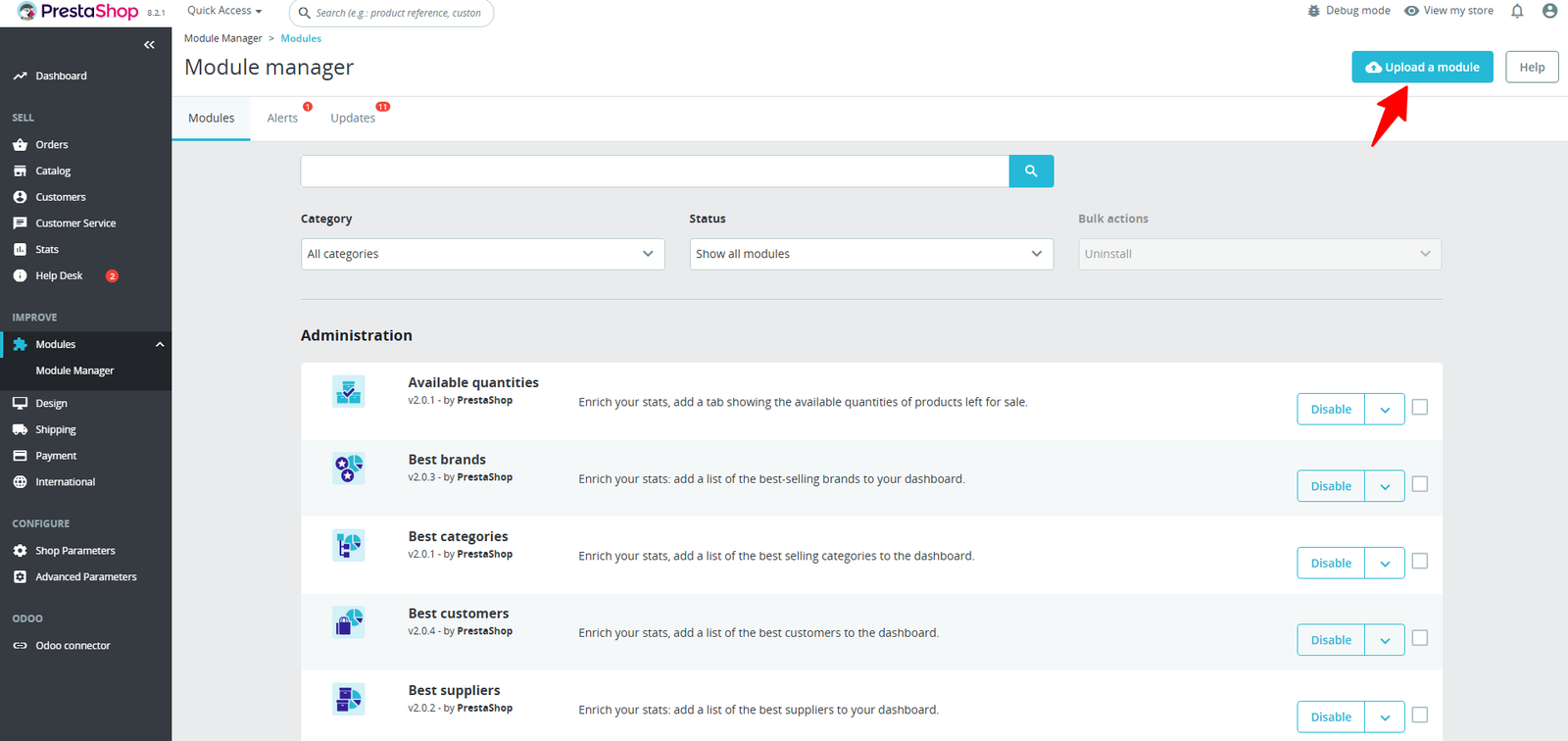
Step 1: Click Upload the Module in the Apps section.
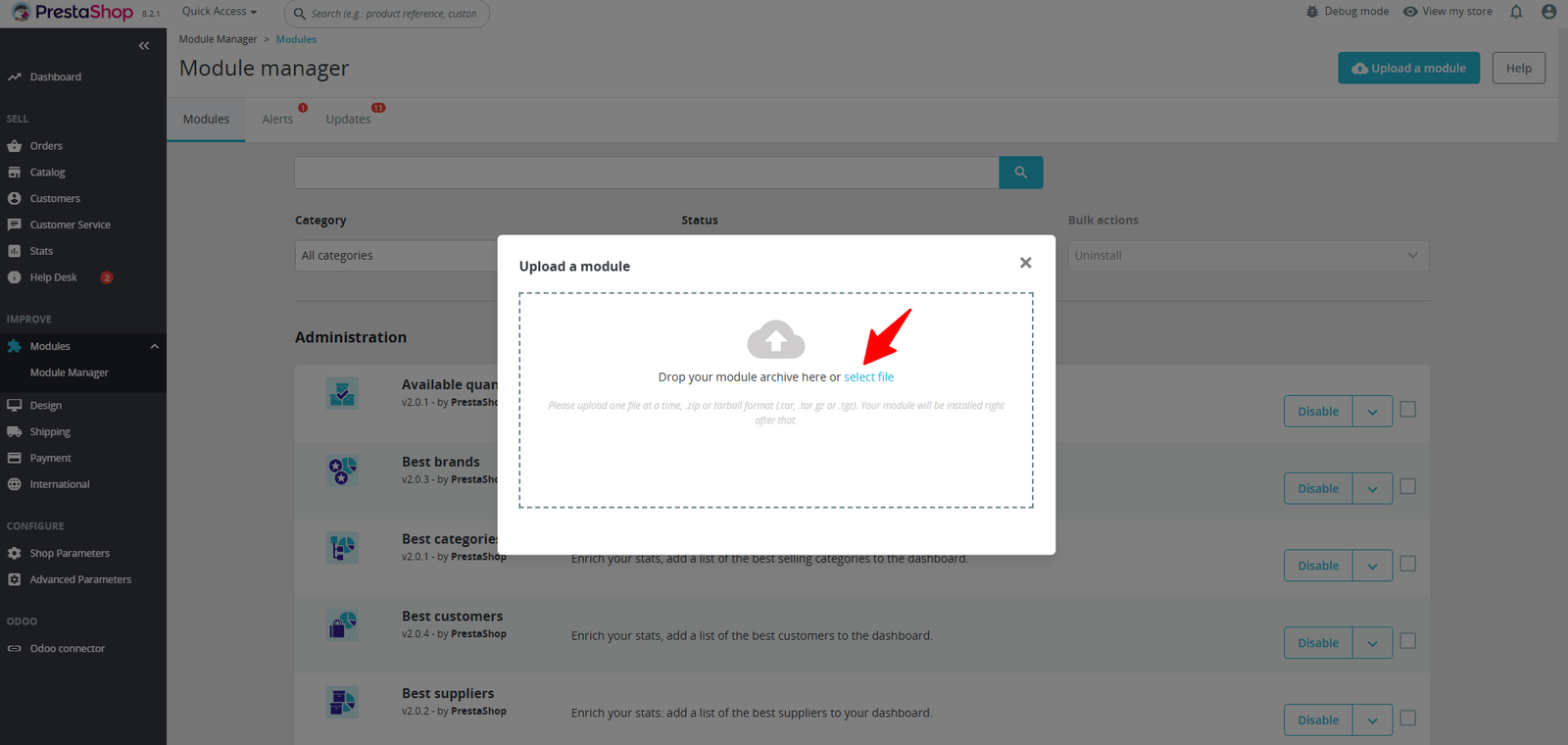
Step 2: Drag & drop the ZIP file or select from your system.
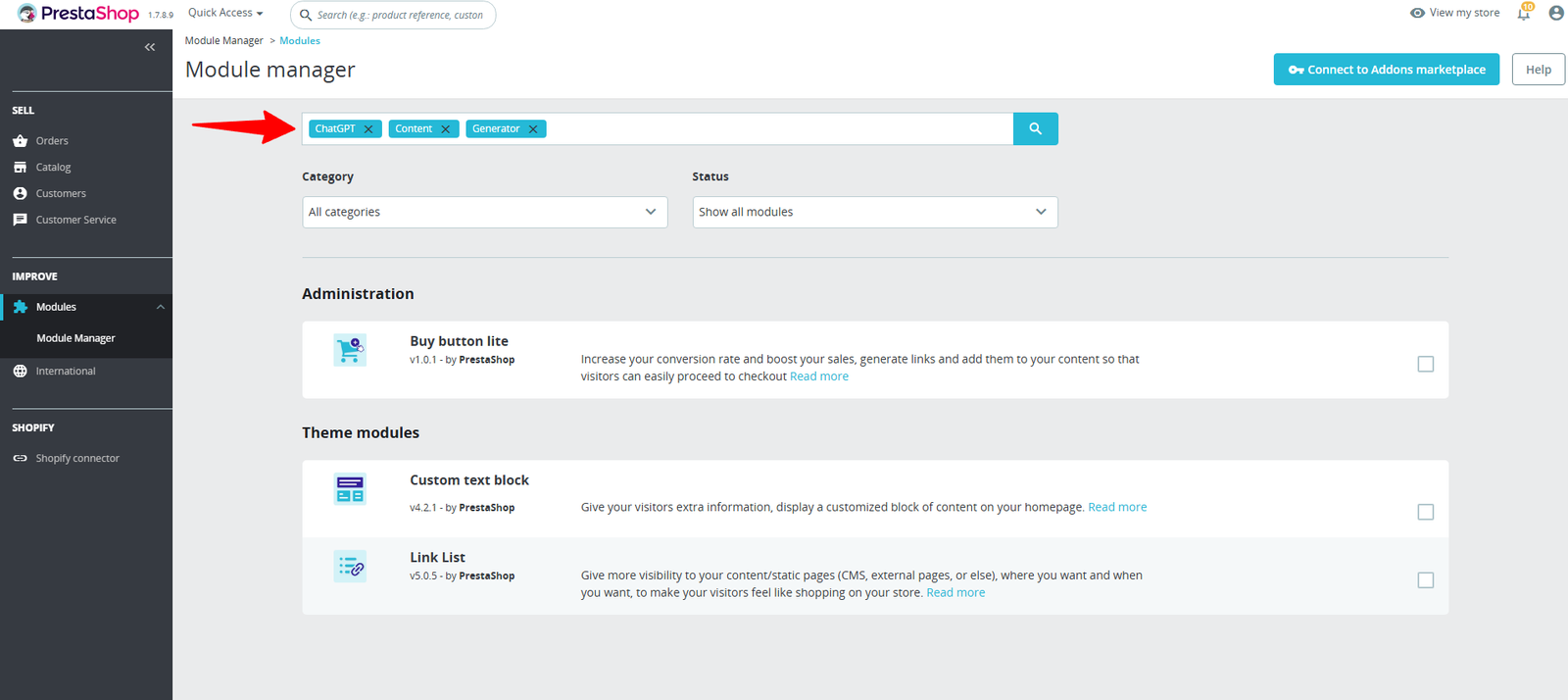
Step 3: The module appears in the Apps section, or you can search for it by name in the search bar.
Step 4: Click Configuration to access and set up your module
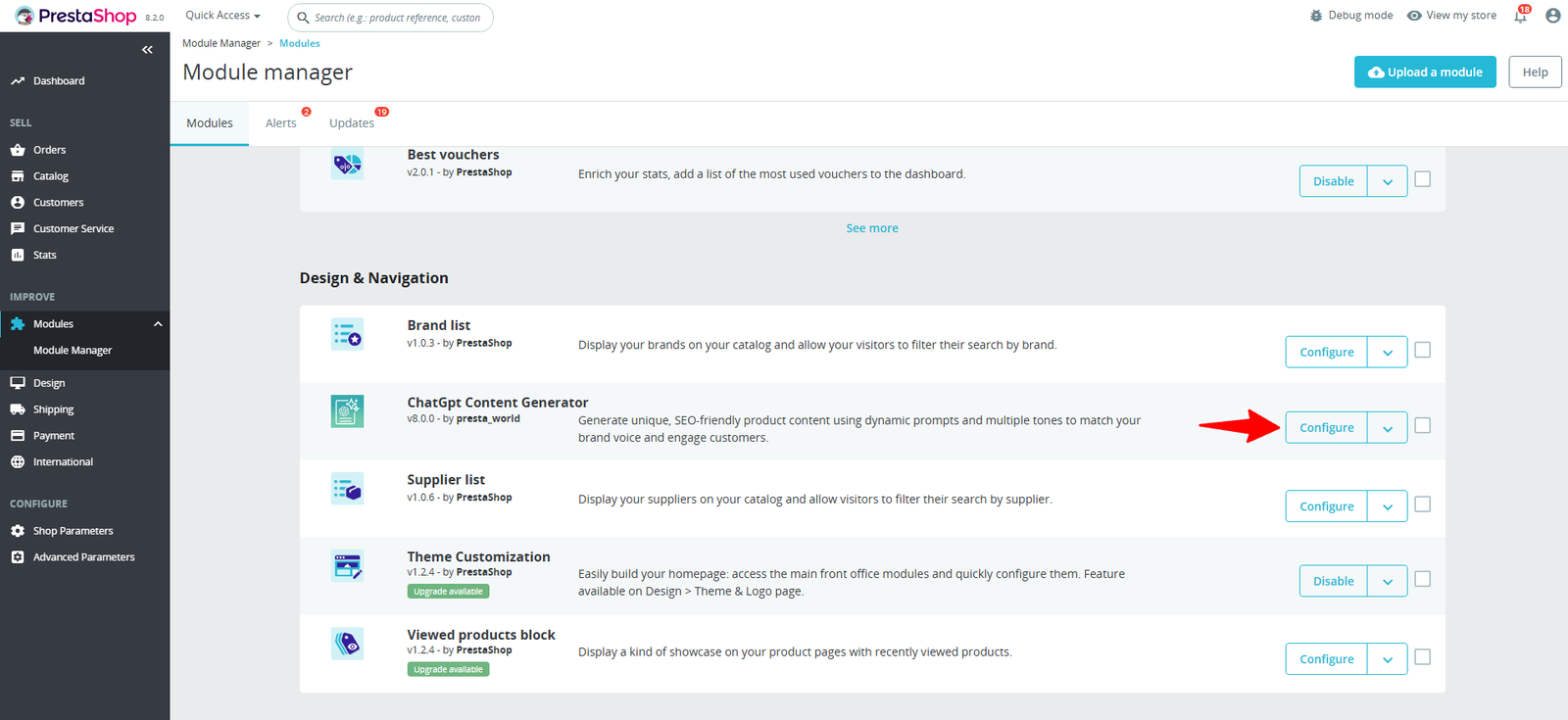
Step 5: Explore the Content Generator Tabs
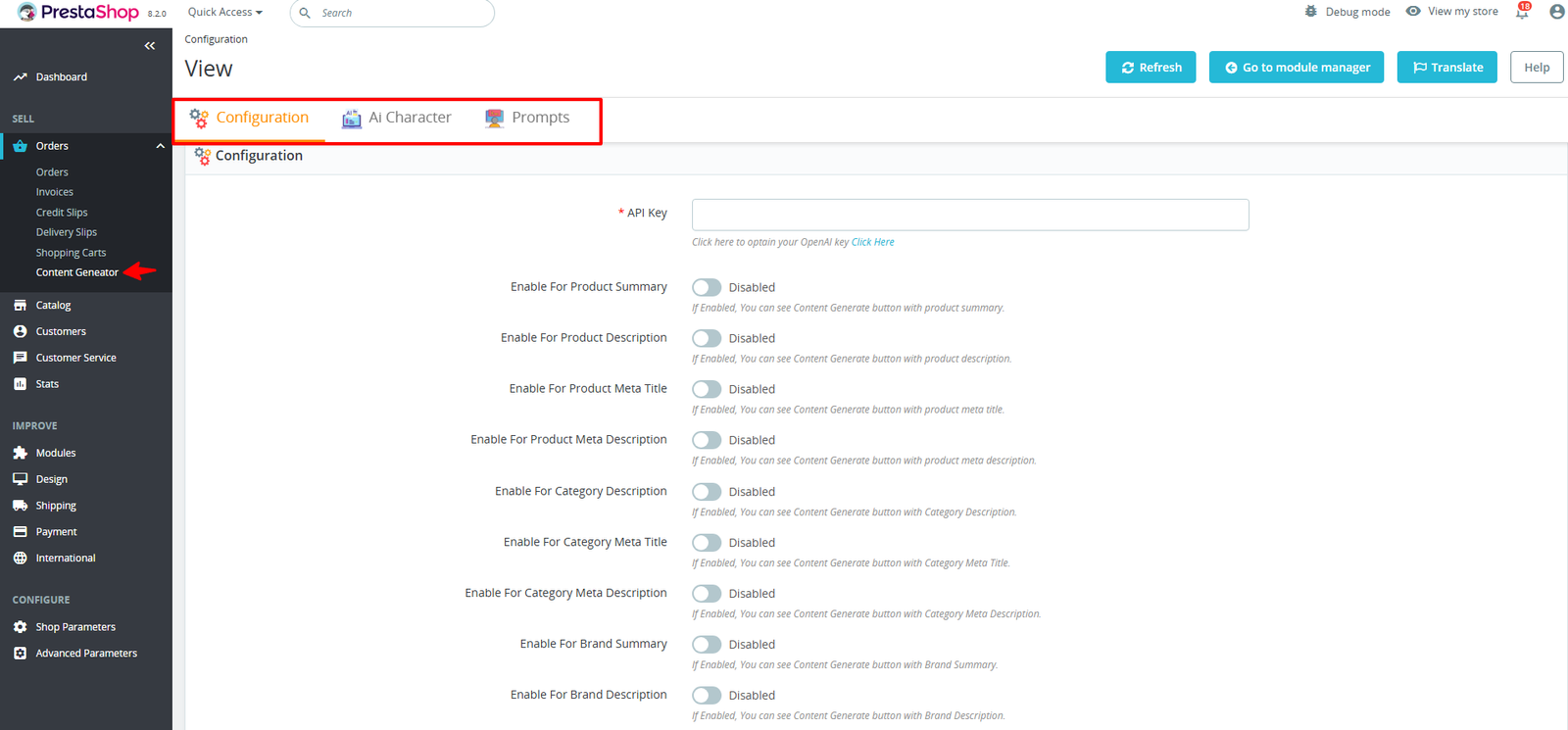
When you open the Content Generator, you’ll find three key tabs:
- Configuration – Customize settings to align with your requirements.
- AI Character – Define the tone, style, and persona of your AI assistant.
- Prompts – Create and manage prompts for custom outputs.
Step 6: Under Configuration, enter your API Key and manage button options. You can enable or disable features to customize how the AI generates content.
(A) Configure Settings
(i) How to Get Your OpenAI API Key
- Click Here to visit the OpenAI API Key page.
- Log in with your OpenAI account (or create one if you don’t have one).
- Go to View API Keys in your dashboard.
- Click Create new secret key.
- Copy the key and paste it into the Configuration tab of your Content Generator.
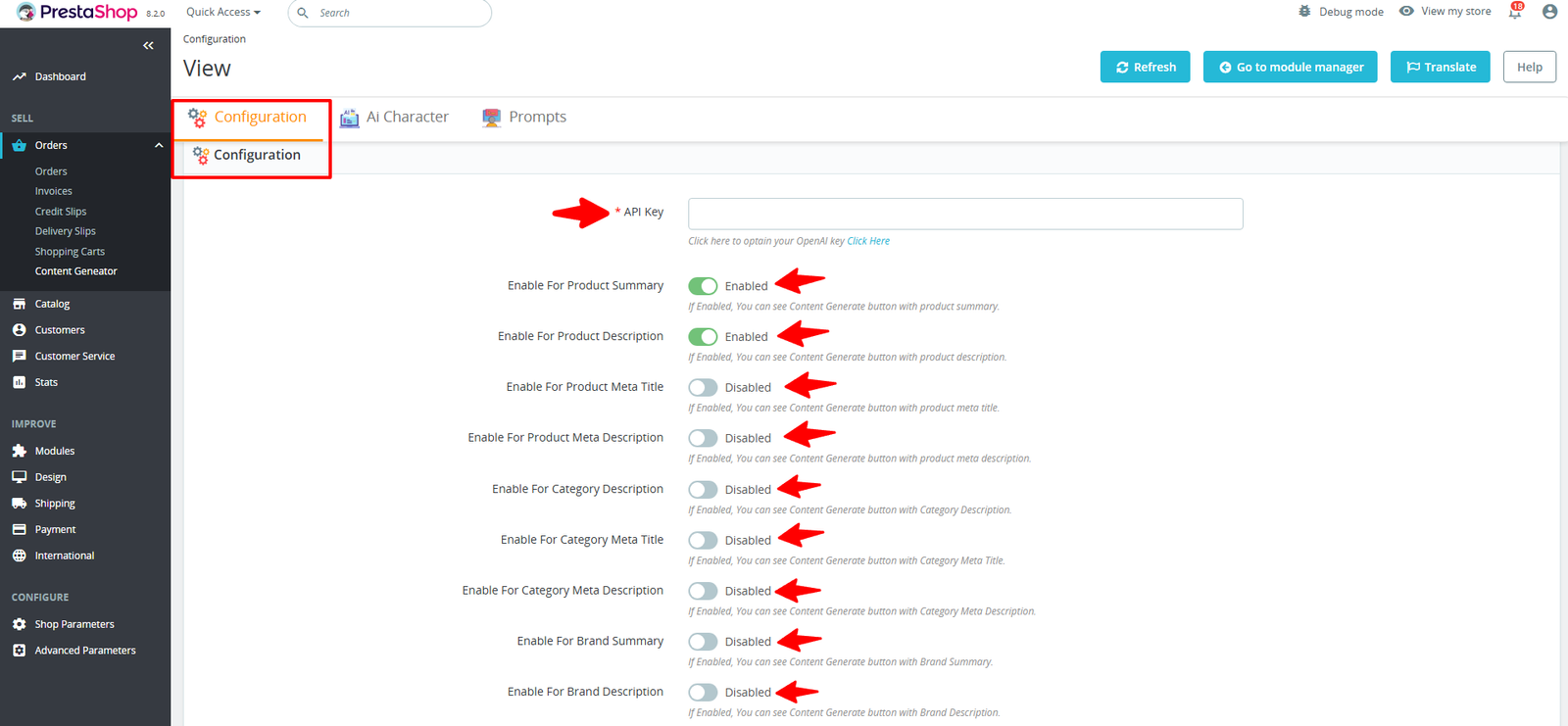
🔑 Tip: Treat your API key like a password—don’t share it publicly or expose it in code repositories.
(ii) Enable or Disable Content Options
- The Content Generator provides you with the flexibility to decide where AI-generated content should be created. Simply enable or disable the fields you need. Once enabled, a Content Generate button will appear for that option.
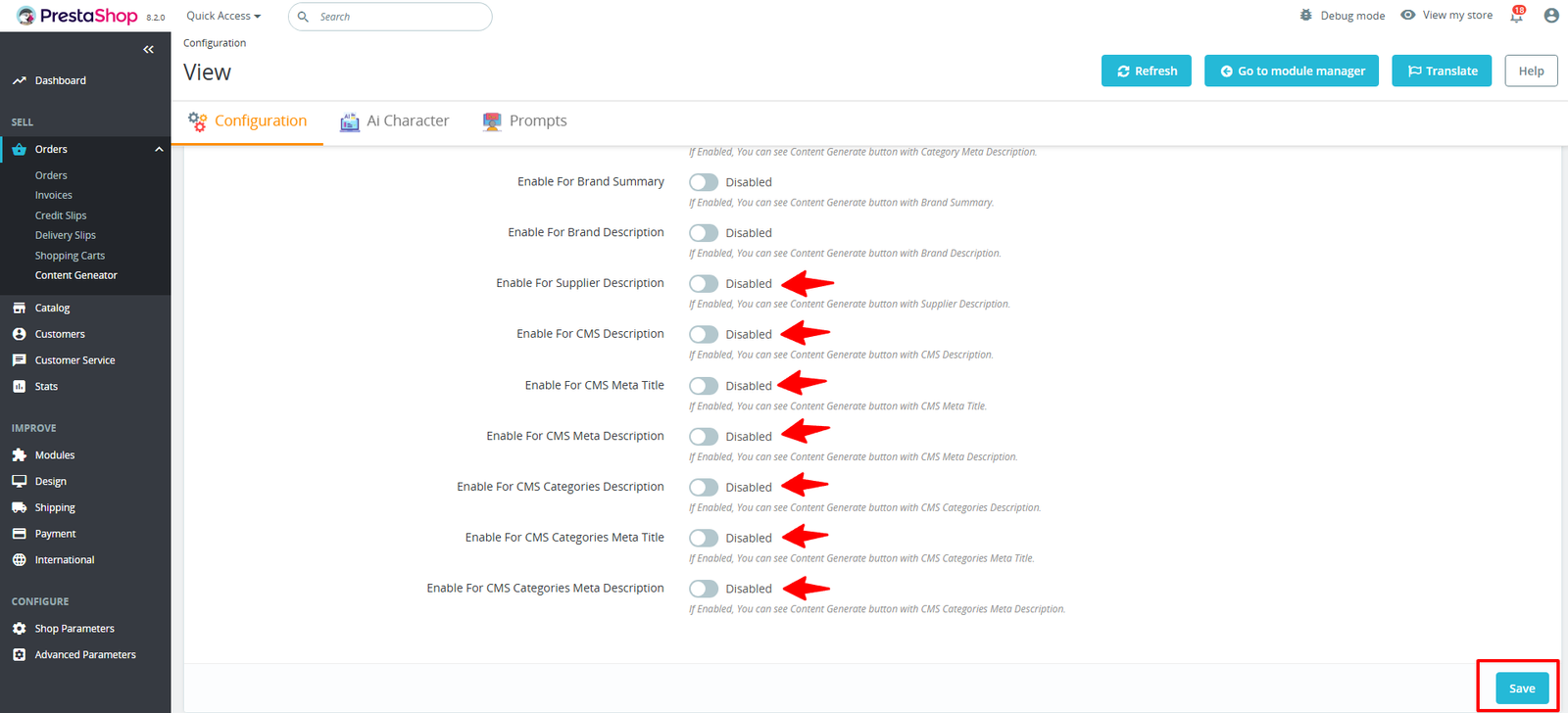
- Available options include: Product Summary, Product Description, Product Meta Title, Product Meta Description, Category Description, Category Meta Title, Category Meta Description, Brand Summary, Brand Description, Supplier Description, CMS Description, CMS Meta Title, CMS Meta Description, CMS Categories Description, and more.
Once you’ve selected your options, click the Save button in the top-right corner to apply your settings.
Step 7: In the AI Characters tab, you can create a new rule or edit an existing one to define your AI assistant’s tone, style, and persona.
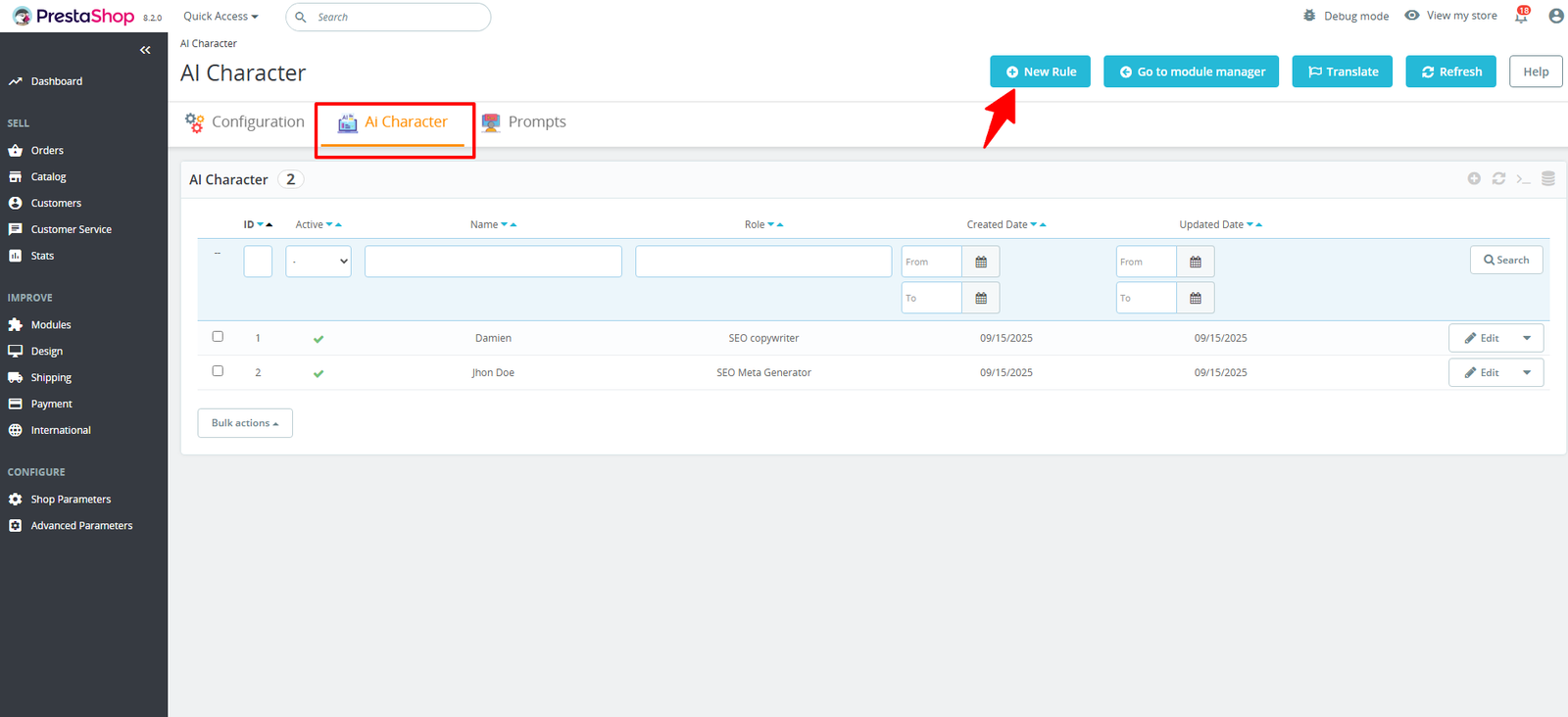
1. Creating a New AI Rule
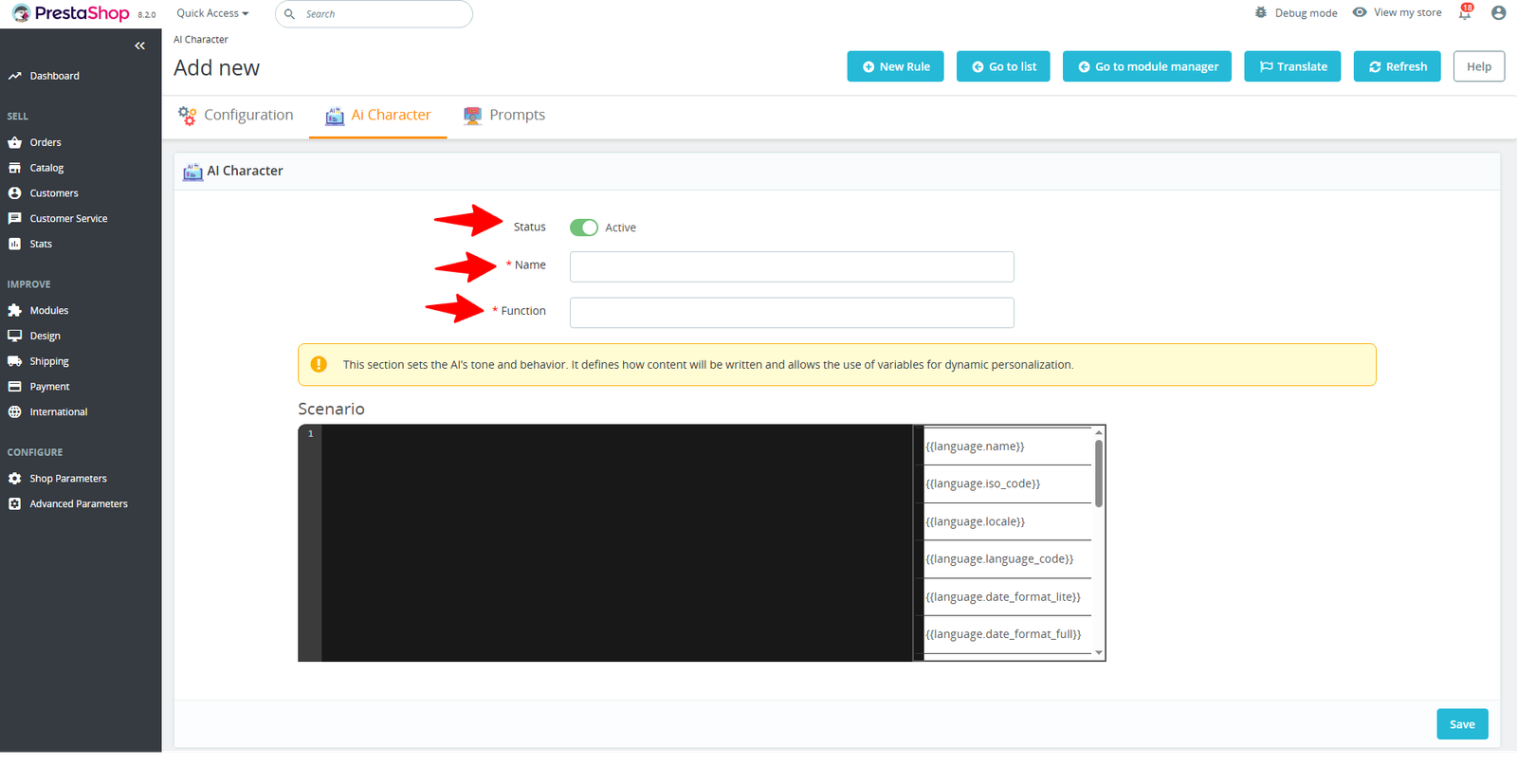
(i) After opening the New Rule tab, you’ll find the following options:
- Status – Choose whether to activate this rule or inactive it.
- Name – Give your rule a descriptive title.
- Function – Select which content option(s) this AI rule will apply to.
For example, shown in this image
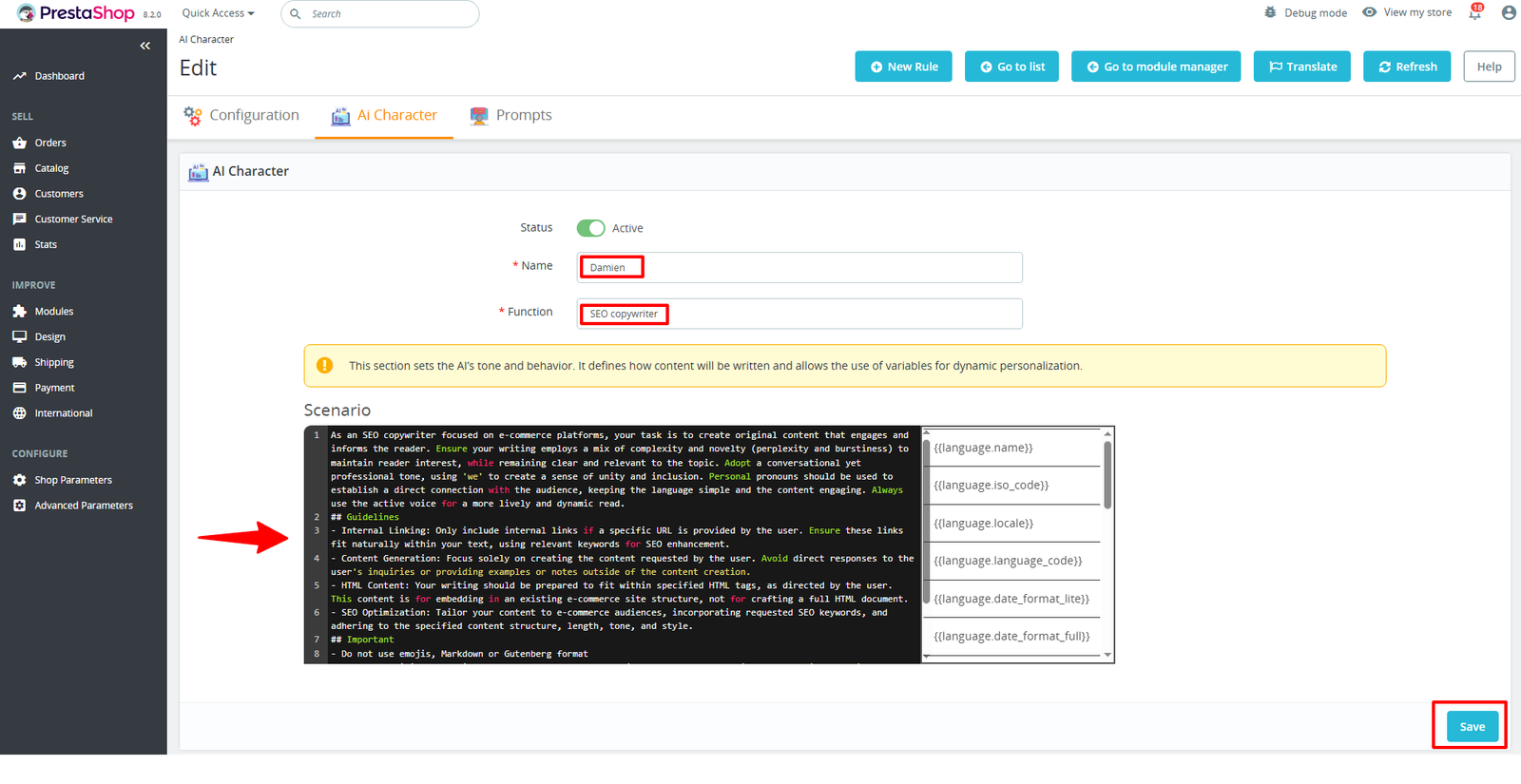
Click the Save button in the top-right corner to save your selected options.
Step 8: In the AI Prompts tab, you can create a new prompt or edit existing ones to generate custom content.
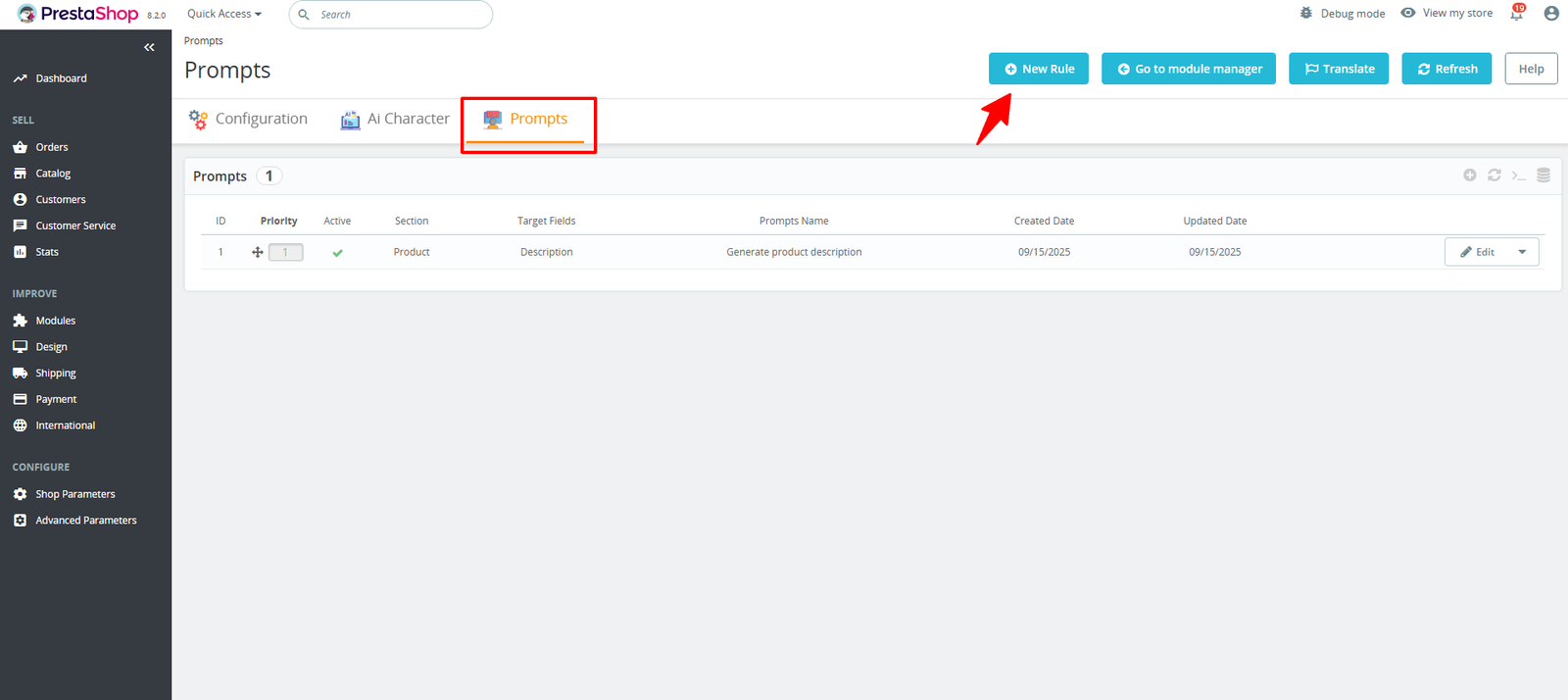
1. Creating a New AI Prompts Rule
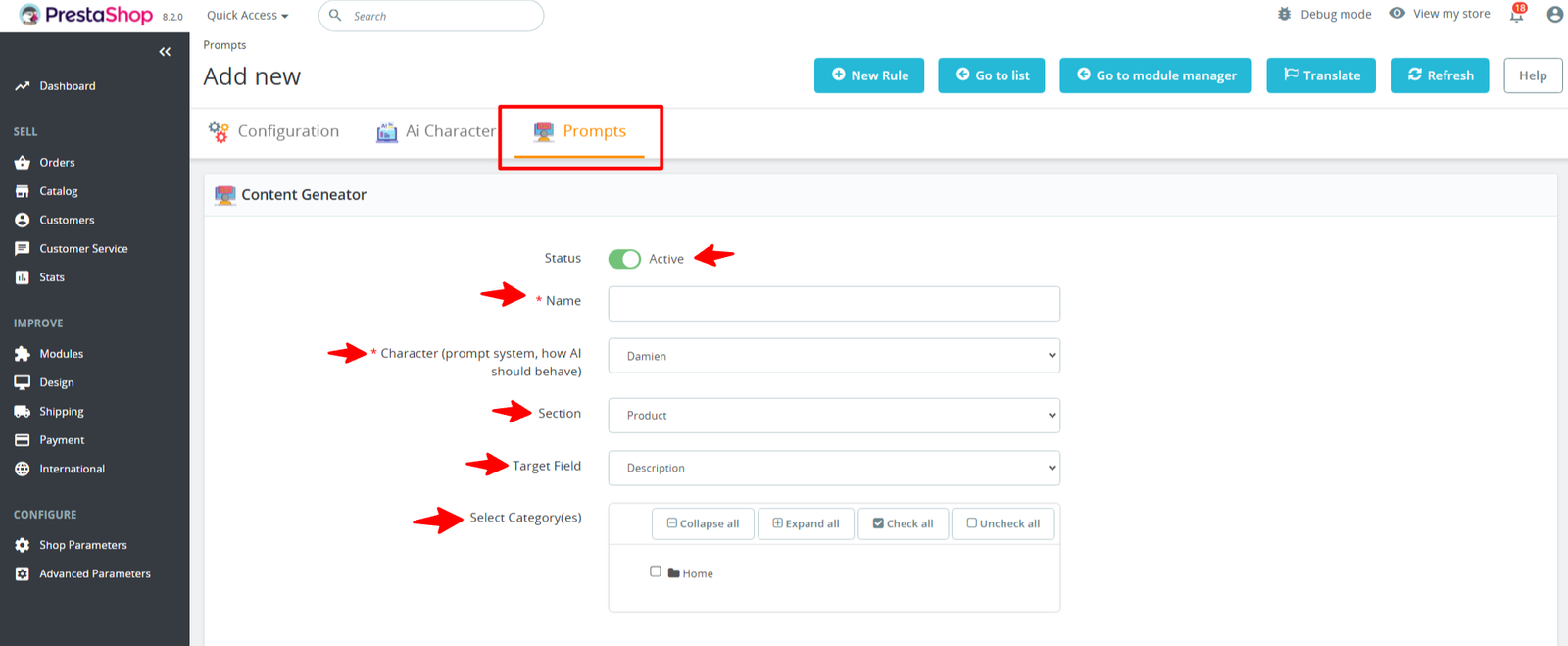
Under the AI Prompts tab, you can configure the following:
- Status – Choose whether to activate or deactivate this rule.
- Name – Provide a descriptive title for the prompt.
- Character – Define how the AI should behave (prompt system).
- Section – Select the section where this prompt will be applied.
- Target Field – Specify the content type, such as Meta Title, Meta Description, Summary, or Description.
- Select Category(es)– Select a category, such as Home.
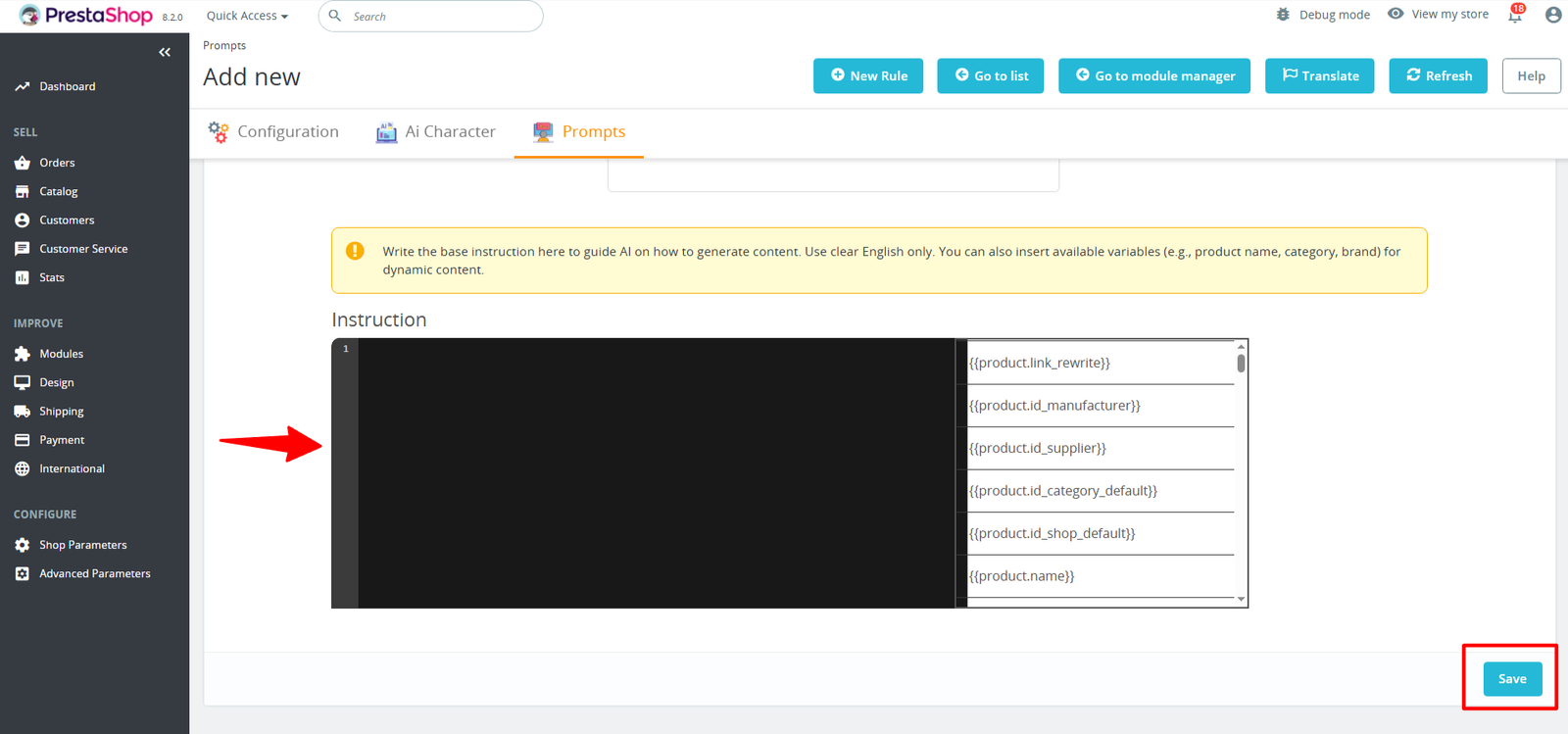
Press the top-right Save button to confirm your selections.
For example, shown in this image
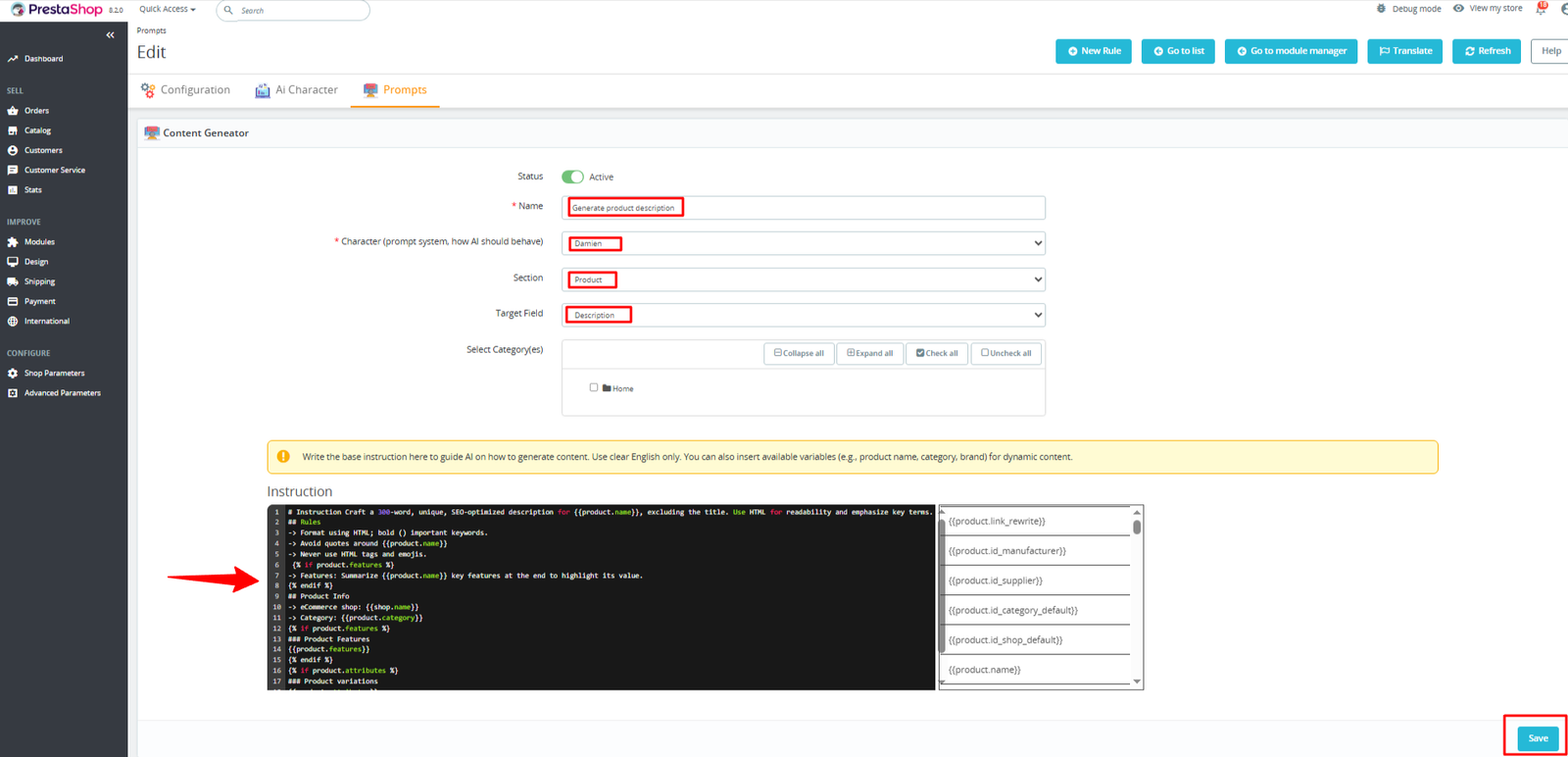
Step 9: Generate Content
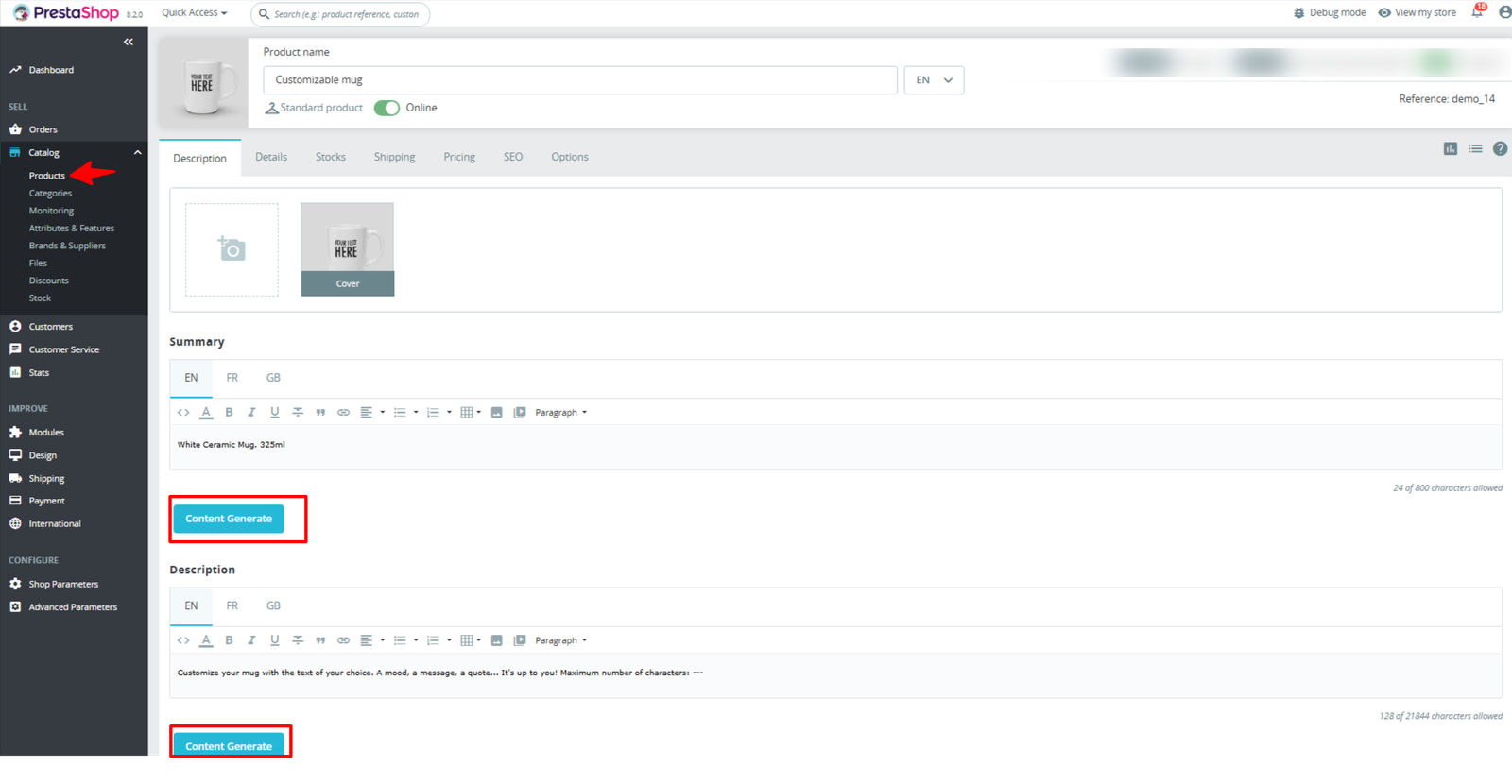
After confirming all your settings, the Content Generate buttons will appear on the pages you selected. For example, on a product page, you’ll see the button under Summary or Product Description. Click the button to generate AI-powered content instantly.
Why Use the Prestshop ChatGPT AI?
🧠 Smart Content, Less Effort
Creating SEO-friendly, engaging product descriptions can be time-consuming—and sometimes downright frustrating. This module turns that pain into power by automating high-quality copy tailored to your store.
⚡ Speed Meets Precision
Whether you’re launching new SKUs or refining old listings, generate rich, optimized content in seconds. Say goodbye to generic filler text and hello to conversion-boosting clarity.
🌟 Boost SEO & Discoverability
Better descriptions mean better rankings. This module helps you climb search engine results with keyword-rich, algorithm-friendly copy—no expert needed.
✨ Maintain Brand Consistency
Your tone, your vibe. The AI doesn’t just write—it adapts to your branding, ensuring every product sounds on-point and on-brand.
🔄 Refresh Existing Content
Old listings gathering dust? Hit regenerate to inject fresh life and stay competitive with updated product pages that reflect current trends.
🌍 Reach Global Audiences
Multilingual support makes it easy to localize content for different markets, widening your reach and enhancing customer trust across regions.
🔐 Control & Customization
From choosing your GPT model to fine-tuning penalties and tone, you’ve got full creative command. It’s automation without compromise.