

Seamlessly Connect PrestaShop and Shopify with Our Powerful Connector Module
Today’s competitive eCommerce space demands smarter management of multiple storefronts, including Shopify and PrestaShop. Whether your business serves B2B, B2C, or a blend of both, maintaining synchronized data across your stores is crucial for consistency and efficiency.
Presenting the Shopify Connector Module for PrestaShop – a powerful integration tool that links your two eCommerce platforms. Built for flexibility, automation, and ease of use, it enables real-time syncing of products, customers, and orders between Shopify and PrestaShop.
Key Features at a Glance
🔄 Sync products, customers, and orders both ways — from PrestaShop to Shopify and vice versa — instantly, with zero delays.
⚡ Import or export thousands of products in seconds — perfect for migrations or managing multiple catalogs.
🗂️ Customize imports by creating, merging, or skipping Shopify categories to fit your store’s structure.
🏷️ Map Shopify fields (vendor, barcode, categories) to PrestaShop equivalents for precise catalog control.
📦 Export products directly into Shopify collections, sales channels, and locations with ease.
📊 Keep stock levels updated in real time — no overselling, no mismatched inventory.
👥 Automatically assign Shopify customers to default groups in PrestaShop (e.g., “Retail” or “Wholesale”), even when data is missing.
🛠️ Set fallback names, emails, or order details to ensure smooth syncing when certain data is unavailable.
🛒 Convert Shopify orders into PrestaShop orders with accurate mapping of shipping, payments, and statuses.
🚚 Push PrestaShop orders to Shopify with predefined financial and fulfillment statuses that match Shopify workflows.
🔔 Receive instant alerts and logs when a sync fails or data isn’t mapped — troubleshoot and fix issues quickly.
🚀 Handle large catalogs and high-volume orders seamlessly without slowing down your store.
Use Cases: Who Needs This Connector?
🚀 Moving to PrestaShop? Quickly import all your products, customers, and orders from Shopify in just a few clicks.
🛍️ Selling on both platforms (Shopify for B2C, PrestaShop for B2B)? Keep inventory, orders, and customer data synchronized automatically — no manual work required.
📦 Use PrestaShop as your central inventory hub while Shopify serves as your marketing storefront — stock updates in PrestaShop instantly appear on Shopify.
📨 Pull Shopify orders into PrestaShop to manage shipping, invoicing, and ERP processes from a single platform.
👥 Import Shopify customer data into PrestaShop to leverage loyalty programs, discounts, and CRM features unique to PrestaShop.
📊 Running a campaign on Shopify? Real-time sync ensures stock adjustments are immediately mirrored in PrestaShop — even during peak sales.
Quick User Guide (Visual Walkthrough)
Scroll up to revisit the detailed image-wise walkthrough.
Translate Your Store Globally in One Click
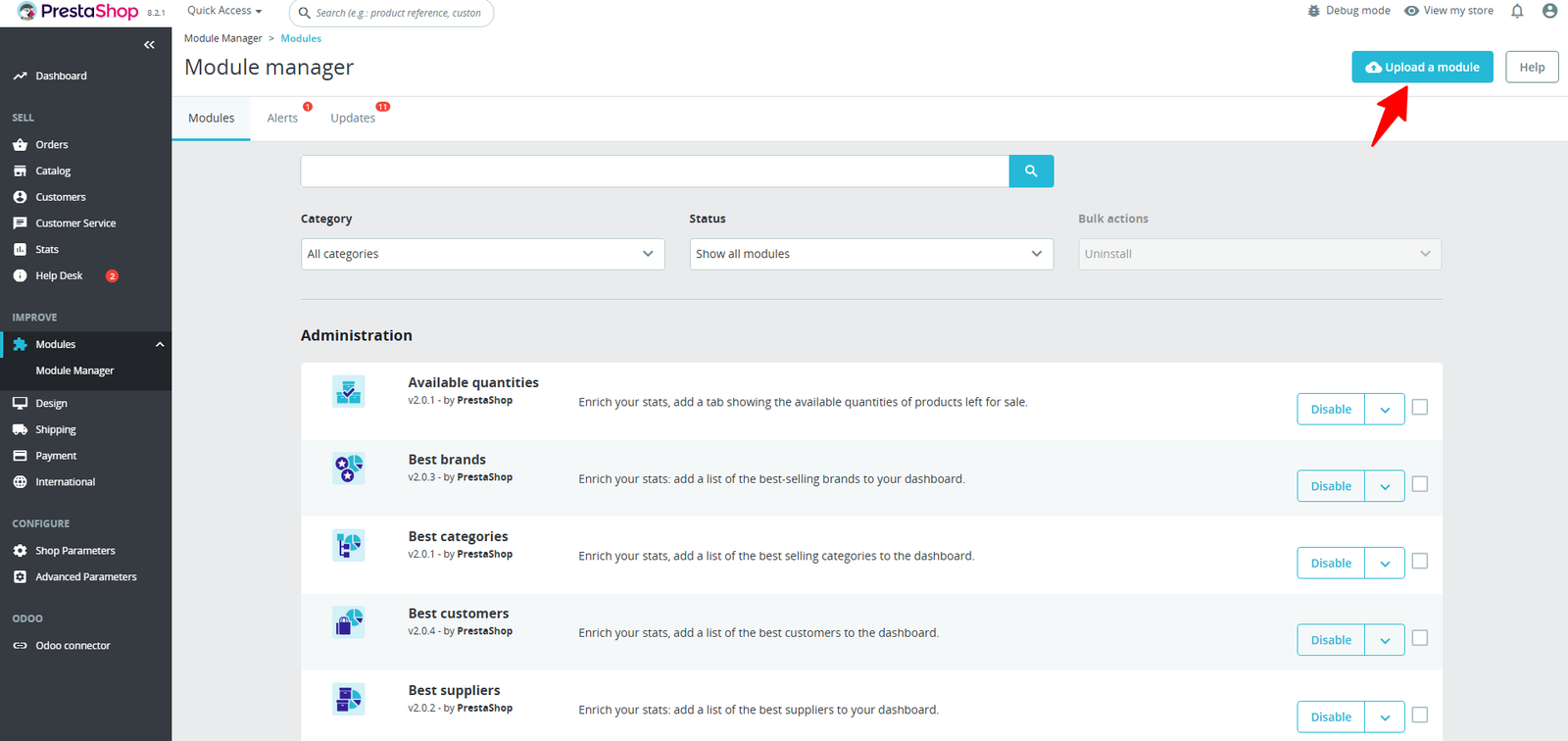
Step 1: Click Upload the Module in the Apps section.
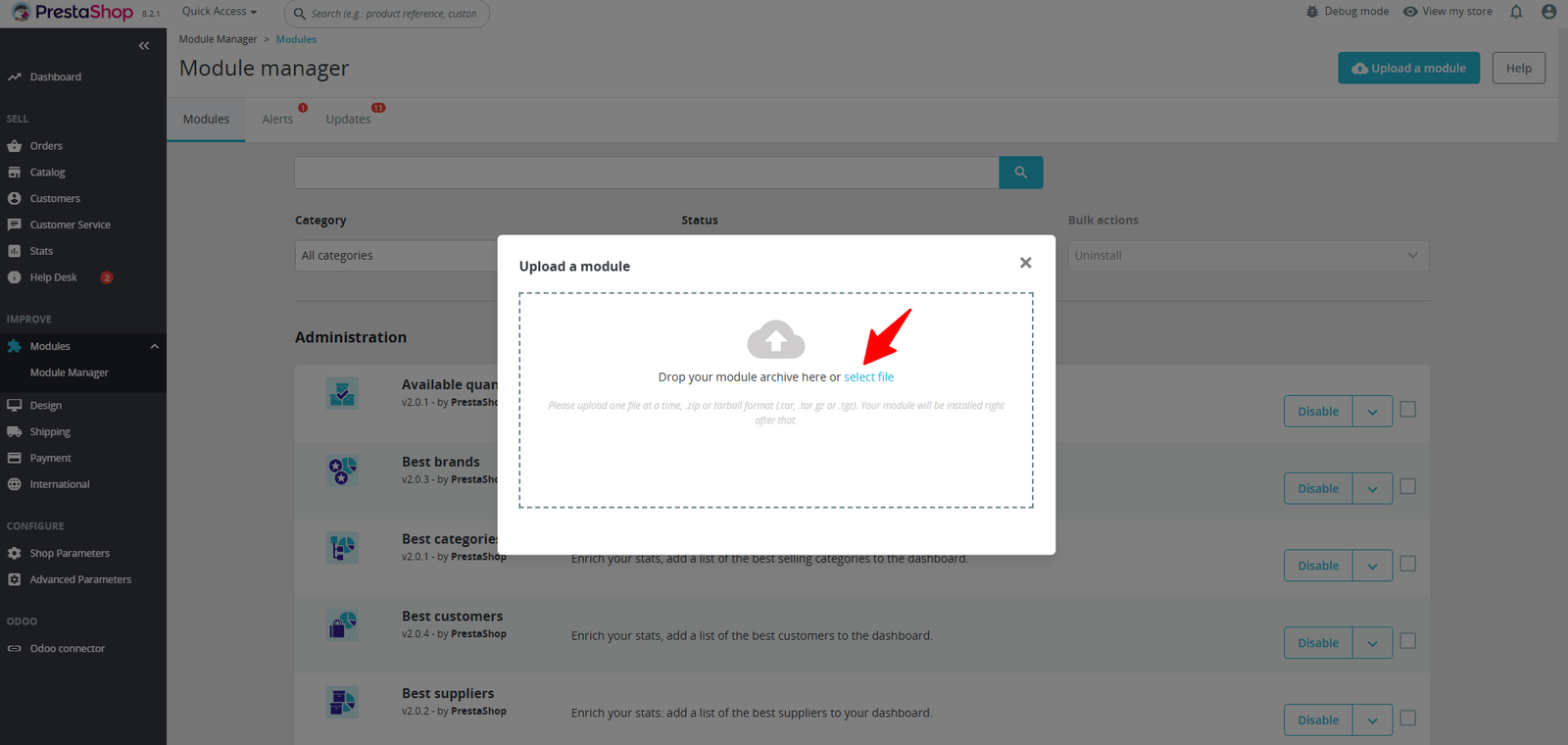
Step 2: Drag & drop the ZIP file or select from your system.
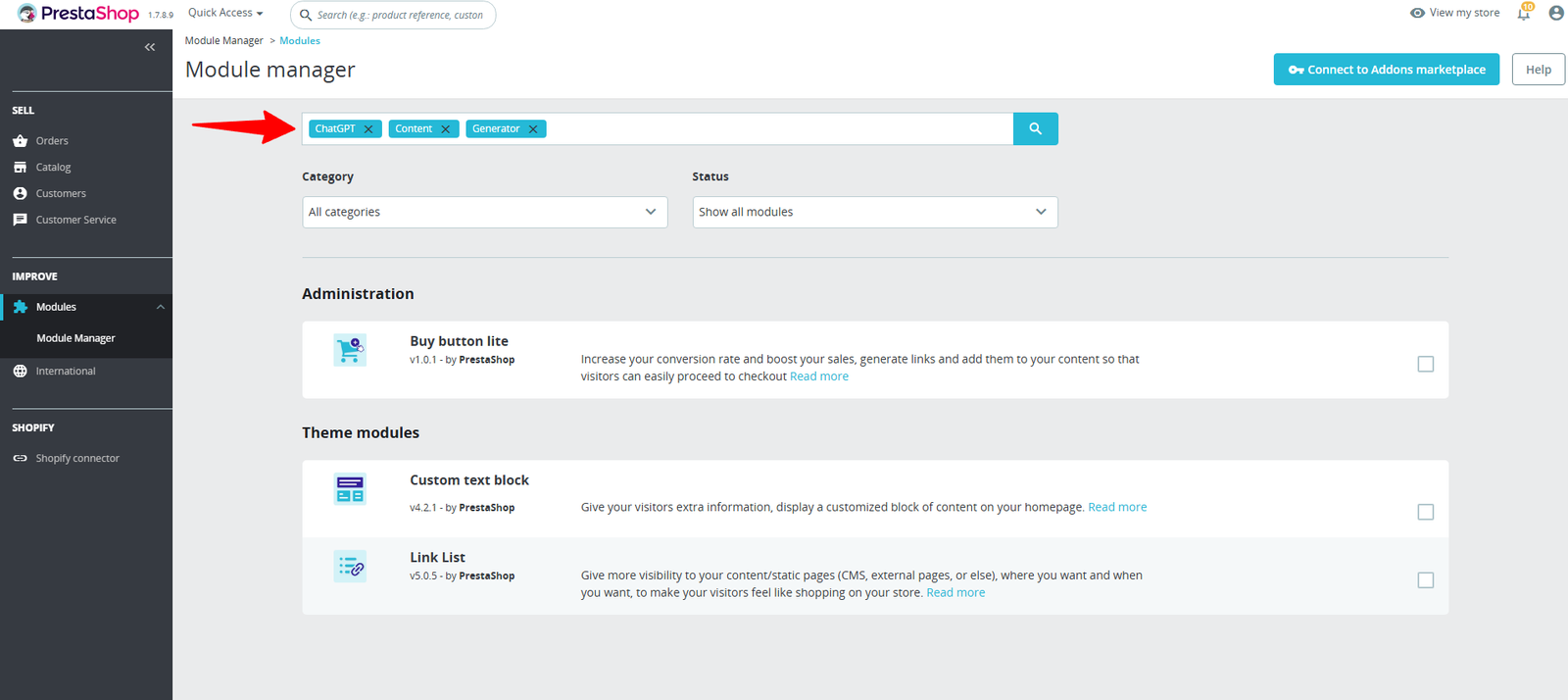
Step 3: The module appears in the Apps section, or you can search for it by name in the search bar.
Step 4: Click Configuration to access and set up your module
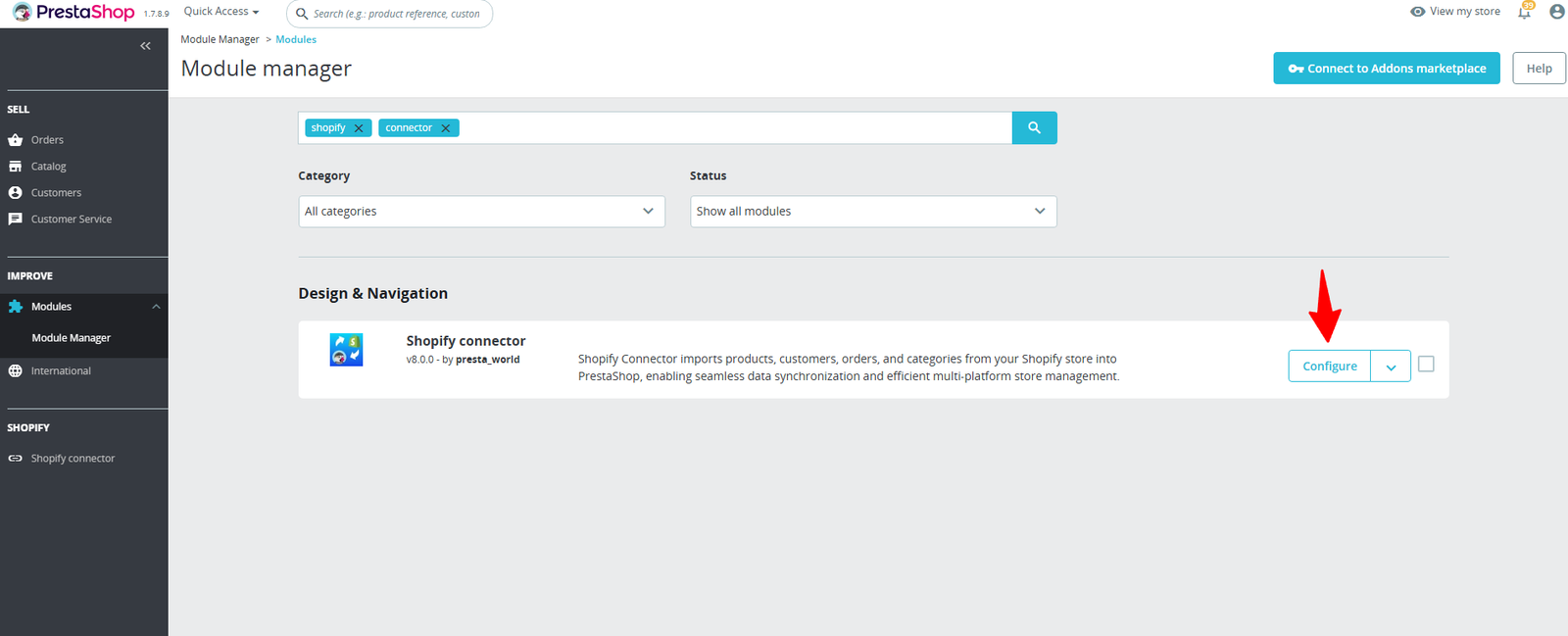
Step 5: In the Explore Configure tab, locate the API Configuration section.
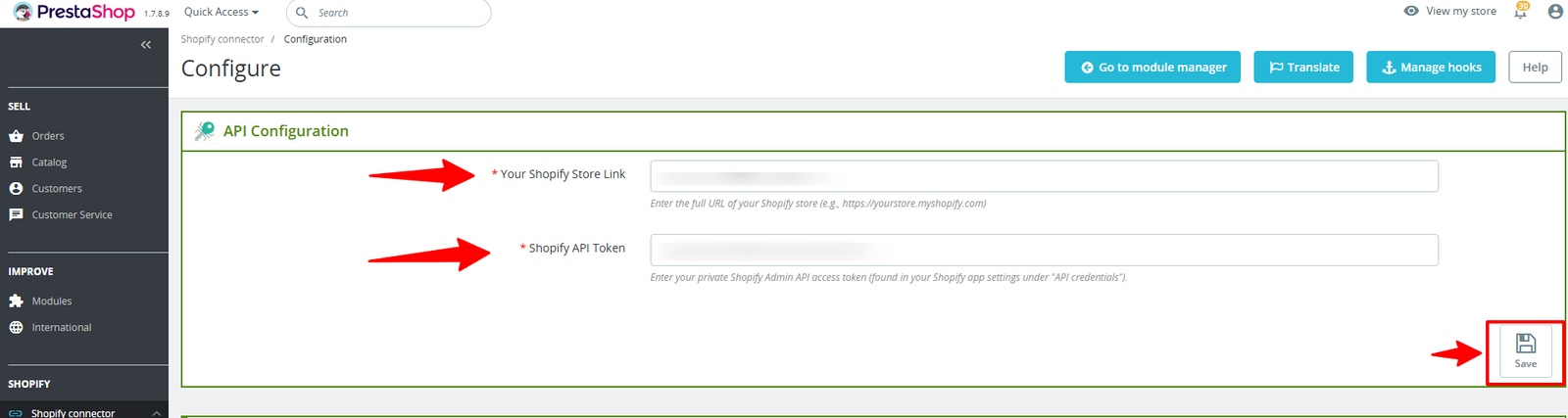
(i) Enter your Shopify Store URL in the field provided (e.g., https://yourstore.myshopify.com).
(ii) Enter your Shopify API Token, which you can find in the API credentials section of your app settings.
(iii) Click Save in the right corner to confirm your settings.
Step 6: After entering your Shopify Store Link and API Token, Further settings become available, including Product Settings, Customer Settings, Order Import Settings, and Webhooks under configuration.
(A) Product settings
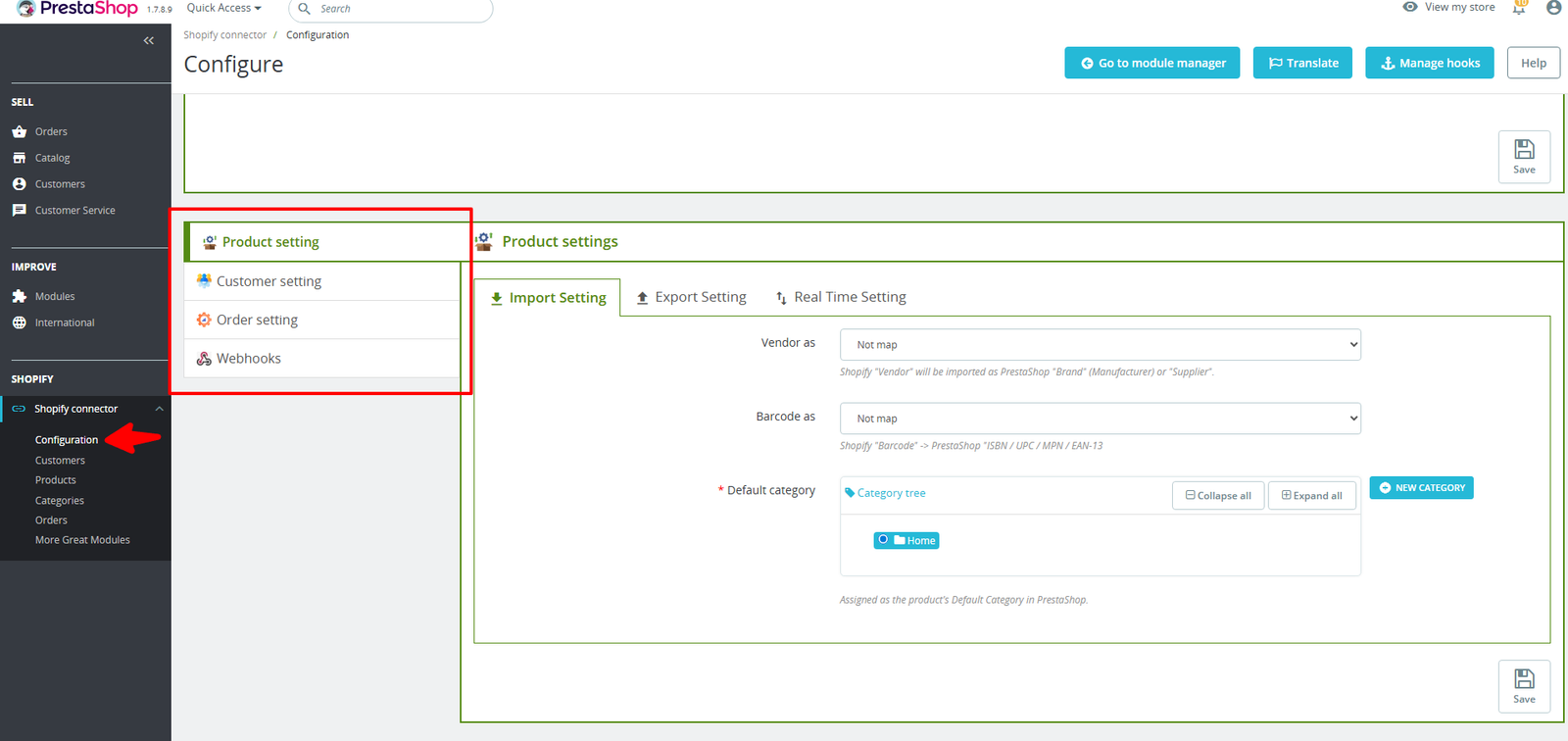
1. Import Setting :
(i) Vendor as:- Shopify “Vendor” will be transferred to PrestaShop as a “Brand (Manufacturer)” or “Supplier.”
(ii) Barcode as:- Shopify Barcode will be imported into PrestaShop as ISBN / UPC / MPN / EAN-13.
(iii) Default Category:- Assigned as the product’s Default Category in PrestaShop.
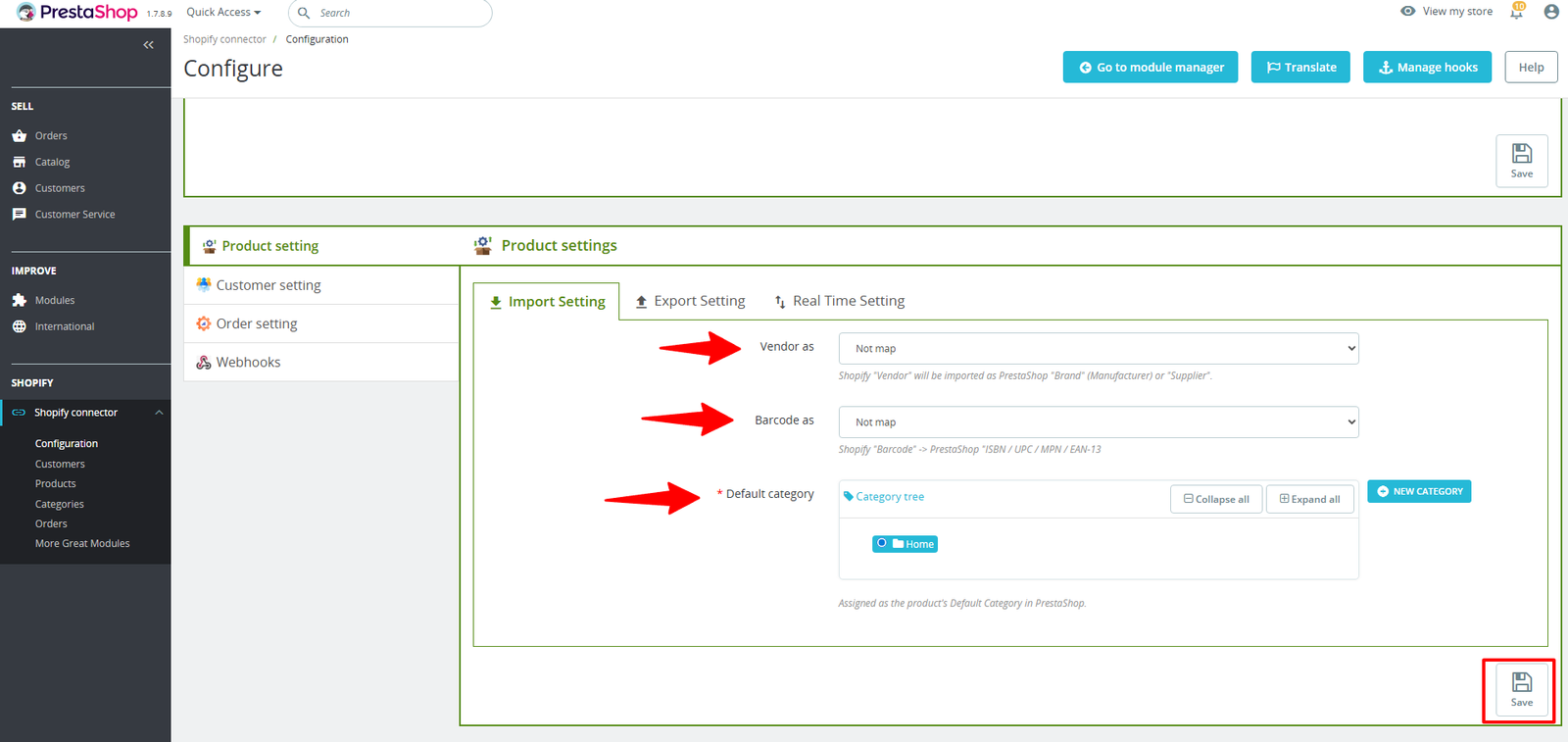
After completing the setup, click Save in the right corner to finalize your configuration.
2. Export Setting:
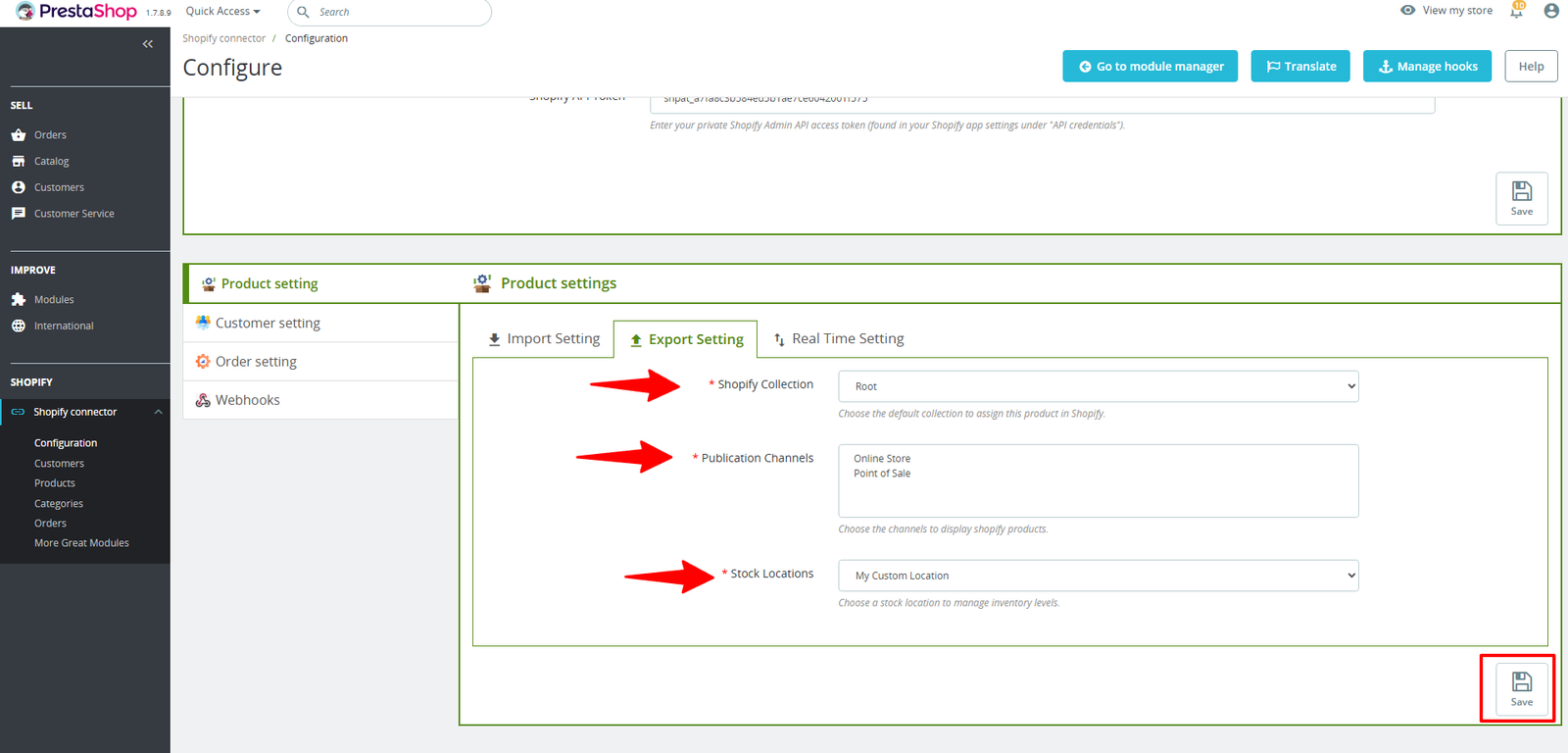
(i) Shopify Collection:- Select the default collection where this product will be assigned in Shopify.
(ii) Publication Channels:- Select the channels where Shopify products will be displayed.
(iii) Stock Locations:- Select a stock location to manage inventory levels.
When all settings are configured, press Save in the right corner to confirm.
3. Real-time setting
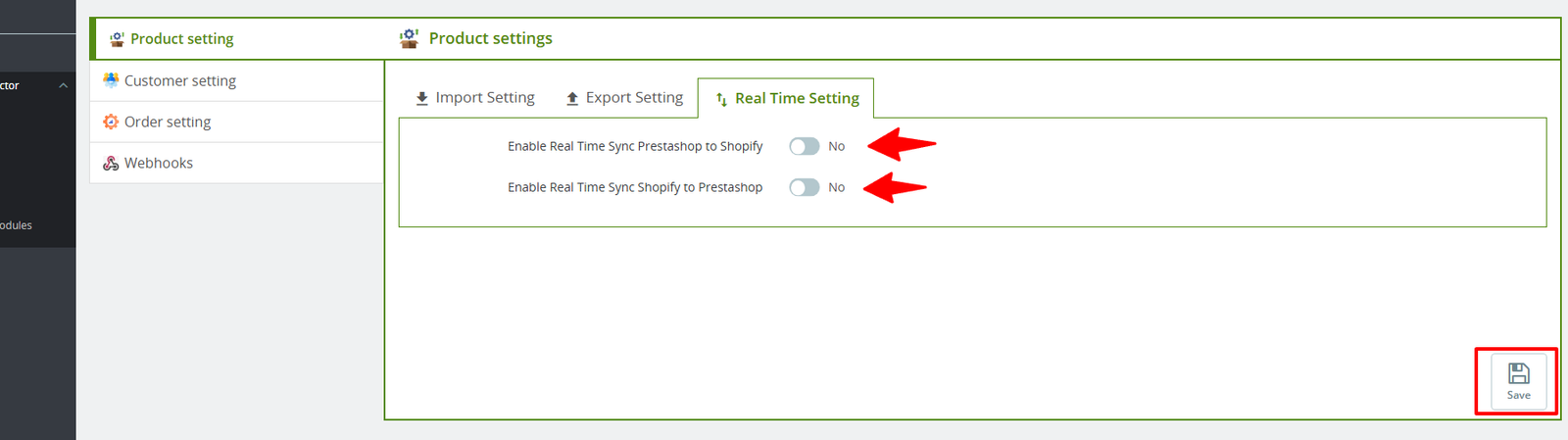
(i) Enable Real-Time Sync from PrestaShop to Shopify
(ii) Enable Real-Time Sync from Shopify to PrestaShop.
After finishing Product configuration, click Save in the right corner to save your changes.
Step 7: Under Customer Settings, you’ll find two tabs: Import Settings and Real-Time Settings.
1. Import Setting :
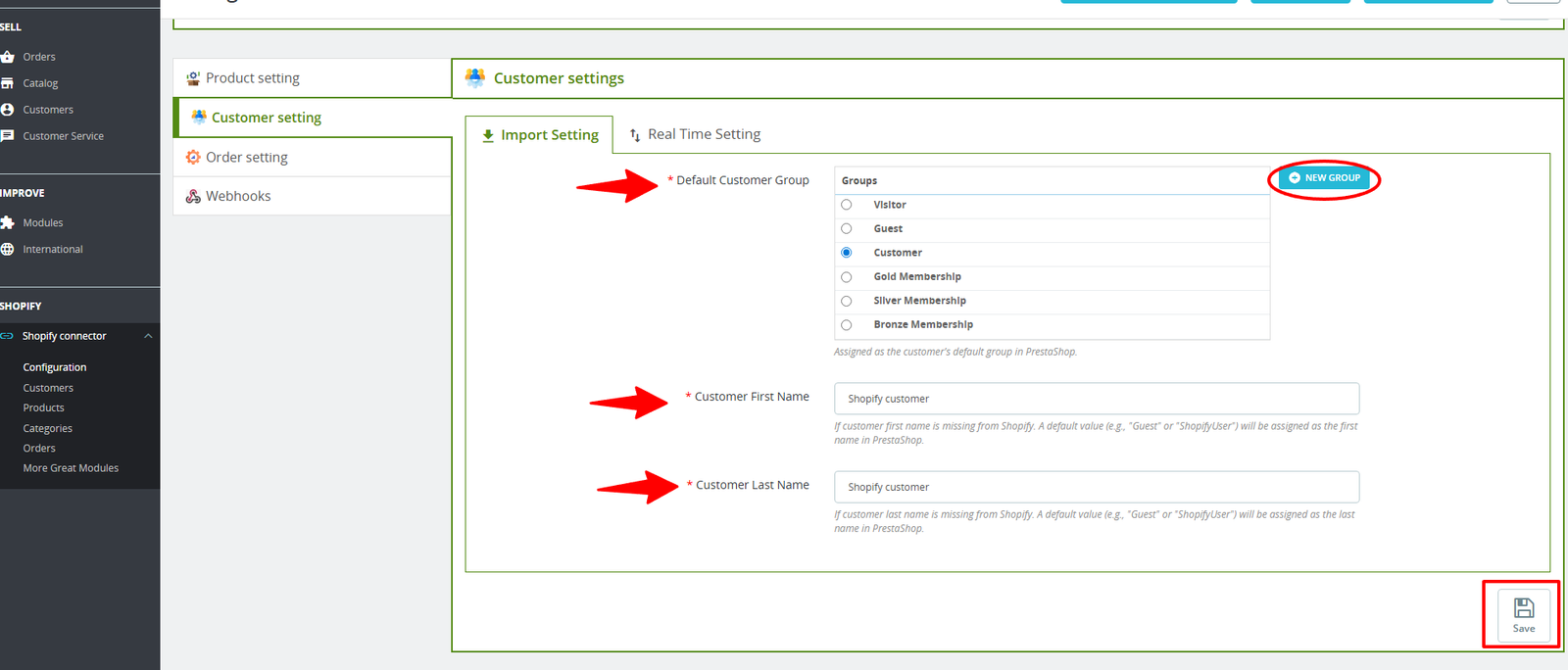
(i) Default Customer Group:- Assign the imported customers to their default group in PrestaShop or create a new group.
(ii) Customer First Name:- If a customer’s first name is missing in Shopify, a default value (e.g., “Guest” or “ShopifyUser”) will be assigned in PrestaShop.
(iii) Customer Last Name:- If Shopify doesn’t provide a last name, PrestaShop will assign a default (e.g., “Guest” or “ShopifyUser”).
When all settings are configured, press Save in the right corner to confirm.
2. Real-time setting:
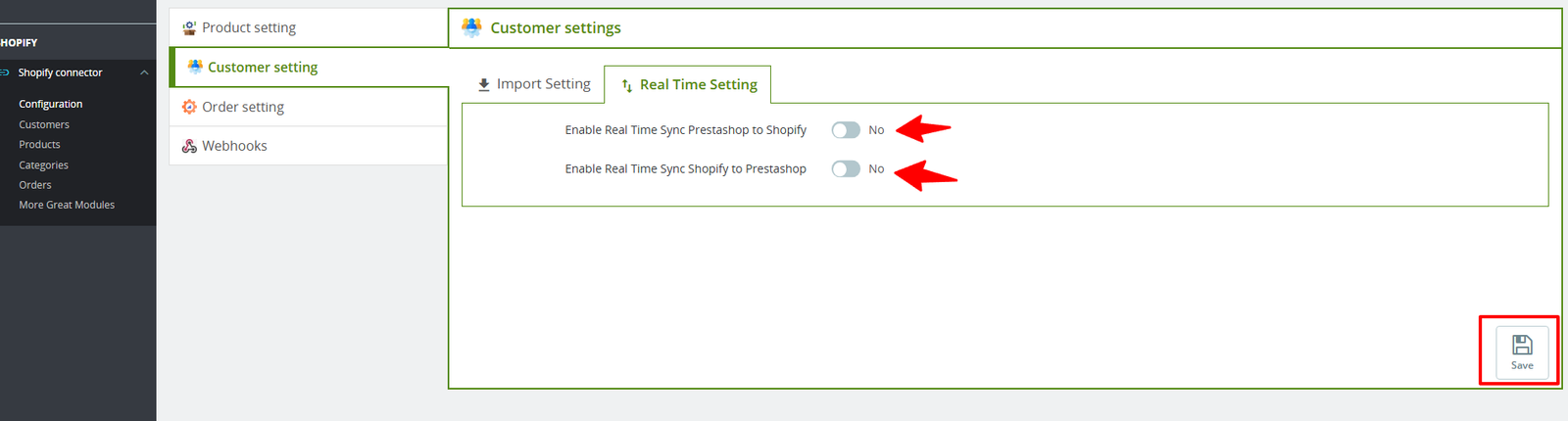
(i) Enable Real-Time Sync from PrestaShop to Shopify
(ii) Enable Real-Time Sync from Shopify to PrestaShop.
After completing the customer Import Settings, click the Save button on the right to finalize.
Step 8: The Order Import Settings section contains three tabs: Import Settings, Export Settings, and Real-Time Settings.
1. Import Setting :
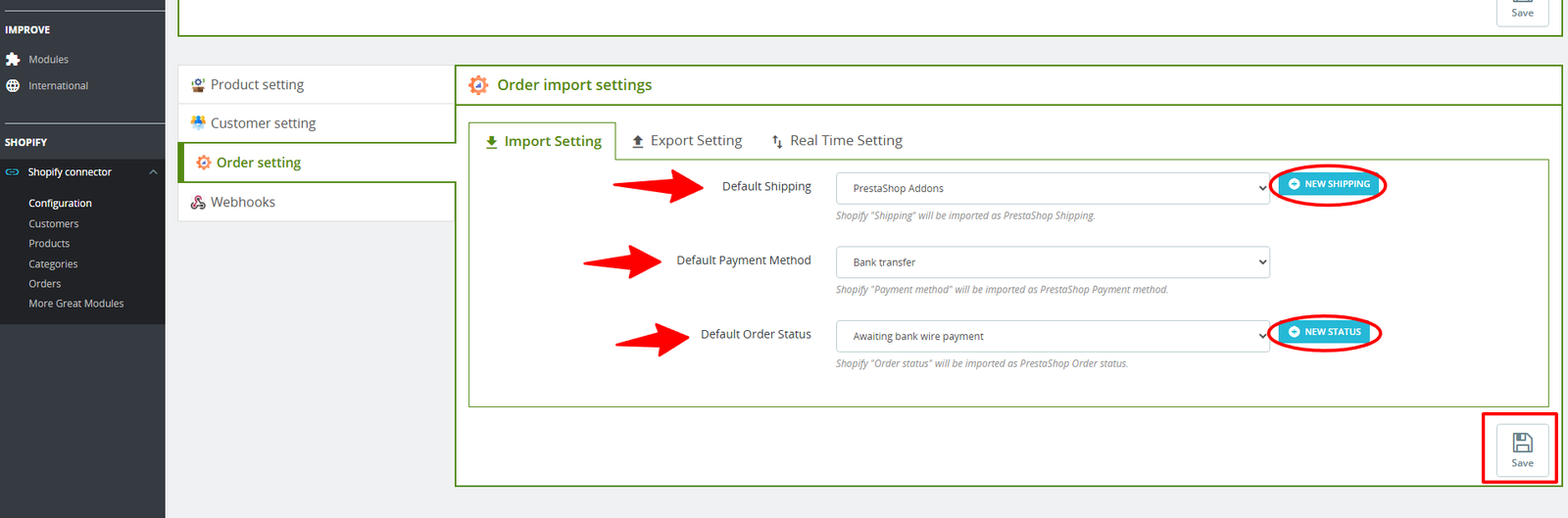
(i) Default Shipping:- Shopify Shipping will be transferred to PrestaShop Shipping, with available options including PrestaShop Addons, My Carrier, My Cheap Carrier, and My Light Carrier, or you can create a new shipping.
(ii) Default Payment Method:- Shopify Payment Method will be transferred to PrestaShop Payment Method.
(iii) Default Order Status:- Shopify Order Status will be imported into PrestaShop as the corresponding Order Status, or you may create a new status.
Once you finish configuring Customer Import Settings, select “Save” in the right corner.
2. Export Setting:
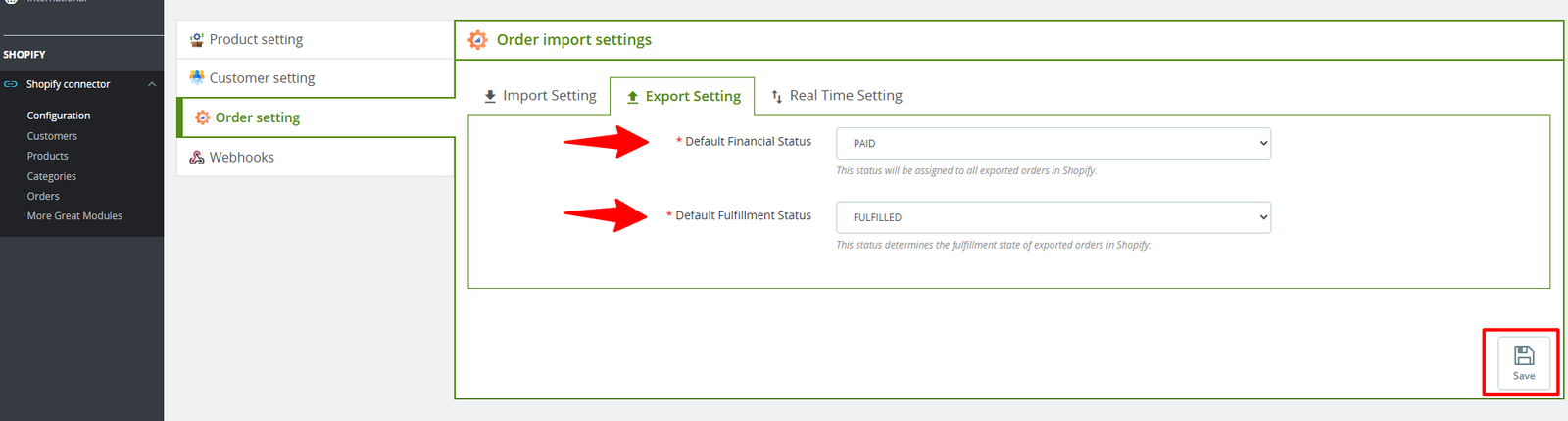
(i) Default Financial Status:- Select the financial status to be automatically assigned to all orders exported to Shopify.
(ii) Default Fulfillment Status:- Sets the fulfillment stage automatically applied to exported Shopify orders.
Click the Save button on the right to apply your changes.
3. Real-time setting:
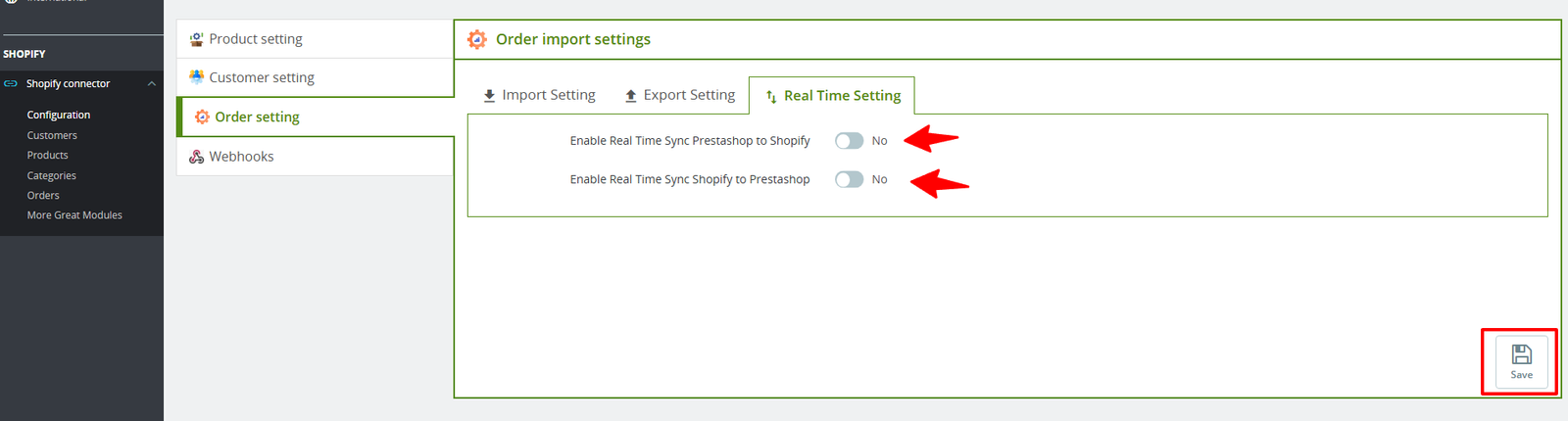
(i) Enable Real-Time Sync from PrestaShop to Shopify
(ii) Enable Real-Time Sync from Shopify to PrestaShop.
Once you finish configuring Customer Import Settings, select “Save” in the right corner.
Step 9: Configure webhooks in Shopify to enable real-time synchronization of customers, products, and orders with PrestaShop
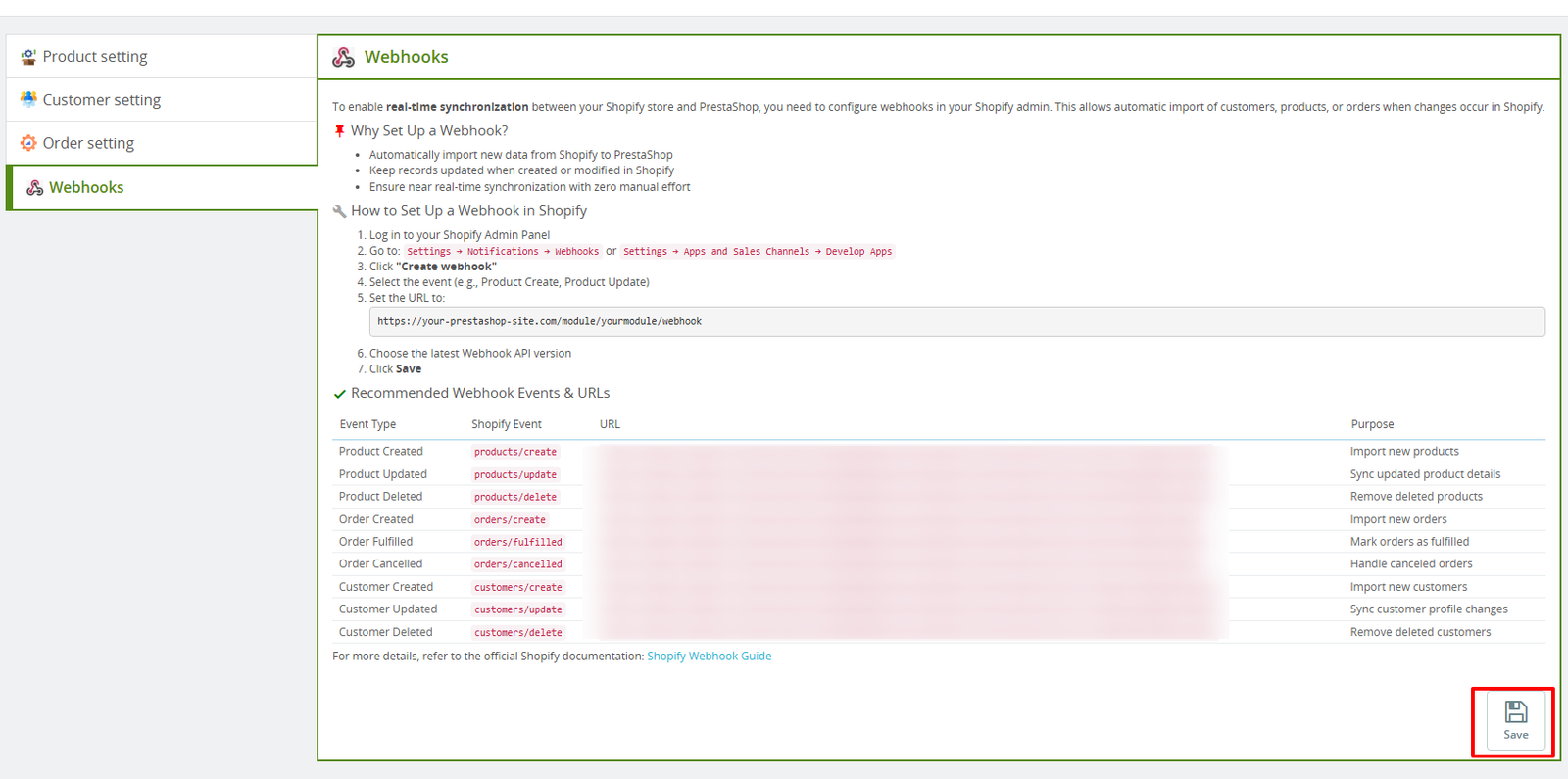
(i) How to Set Up a Webhook in Shopify:
- Log in to your Shopify Admin Panel.
- Navigate to:
- Settings → Notifications → Webhooks
or - Settings → Apps and Sales Channels → Develop Apps
- Click Create webhook.
- Select the event you want to track (e.g., Product Create, Product Update).
- Set the URL to:
https://your-prestashop-site.com/module/yourmodule/webhook - Choose the latest Webhook API version.
- Click Save.
Configure Shopify webhooks to automatically sync customers, products, and orders with PrestaShop. For more details, refer to the Shopify Webhook Guide.
Once webhooks are configured, click Save in the right corner.
Step 10: In the Customers section, you’ll see two options: Import and Export tabs.
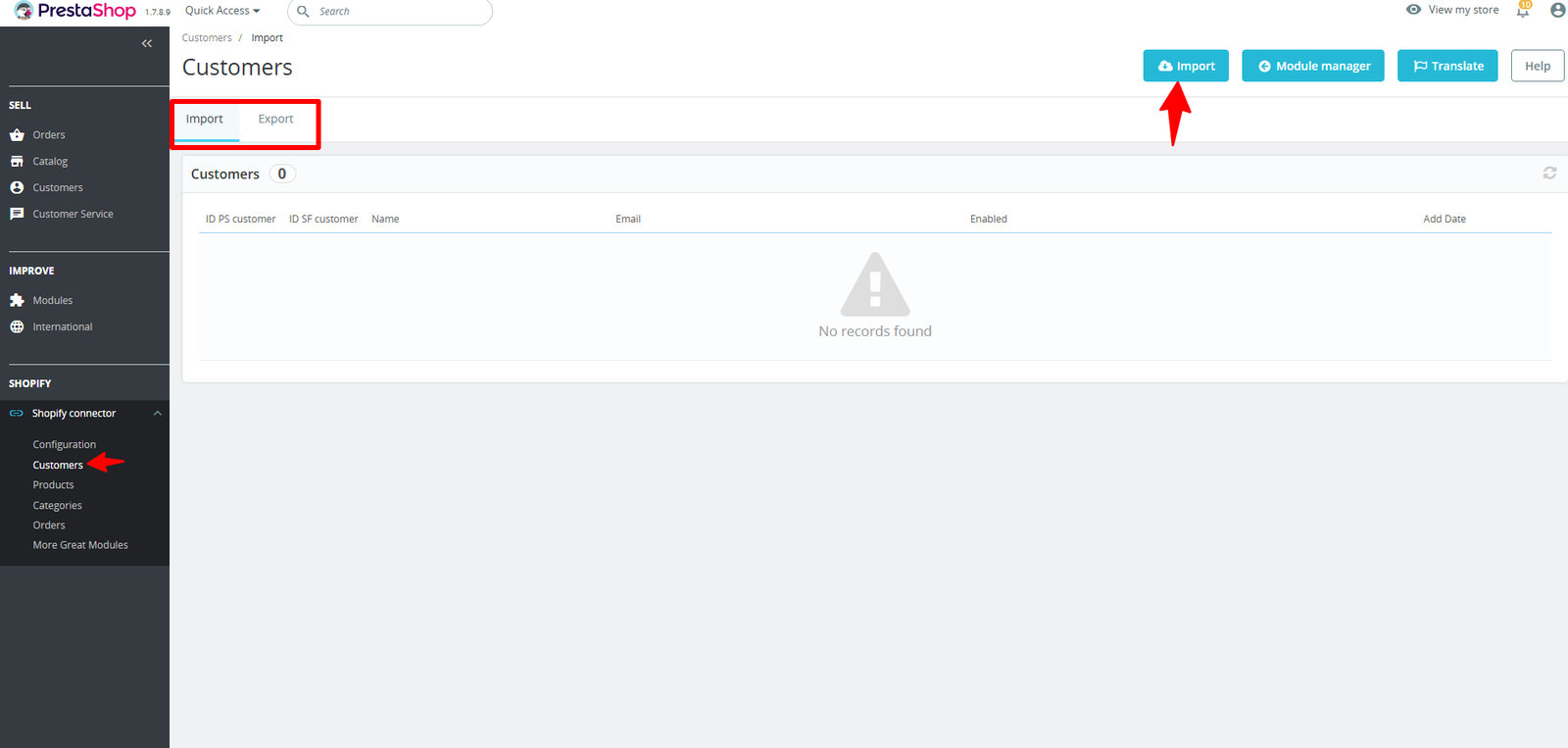
1. Import Customers:
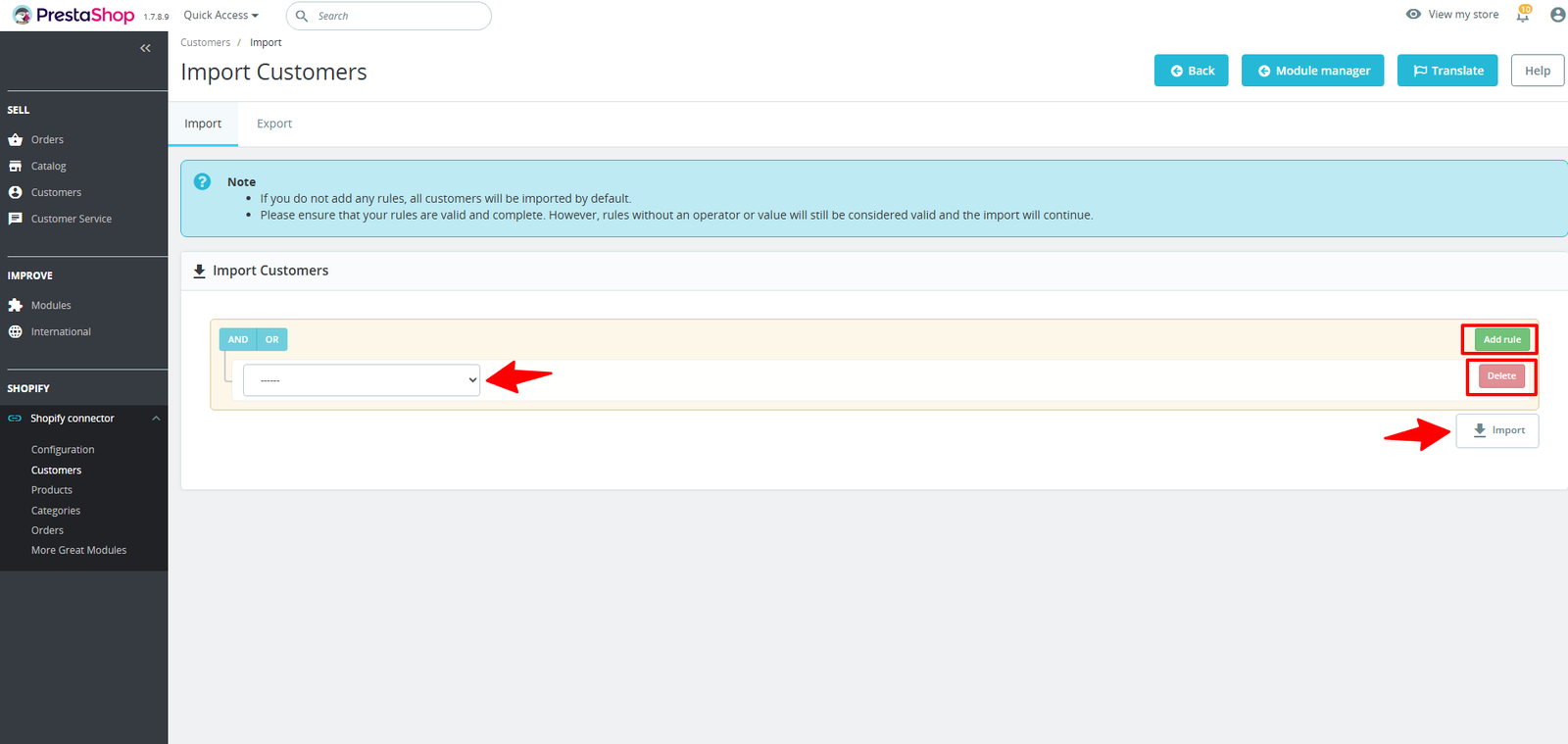
- All customers import by default when no rules are applied, and even partial rules are considered valid.
- Available rule options include: Email Domain, First Name, Last Name, Shopify Customer ID, etc.
2. Export Customers:
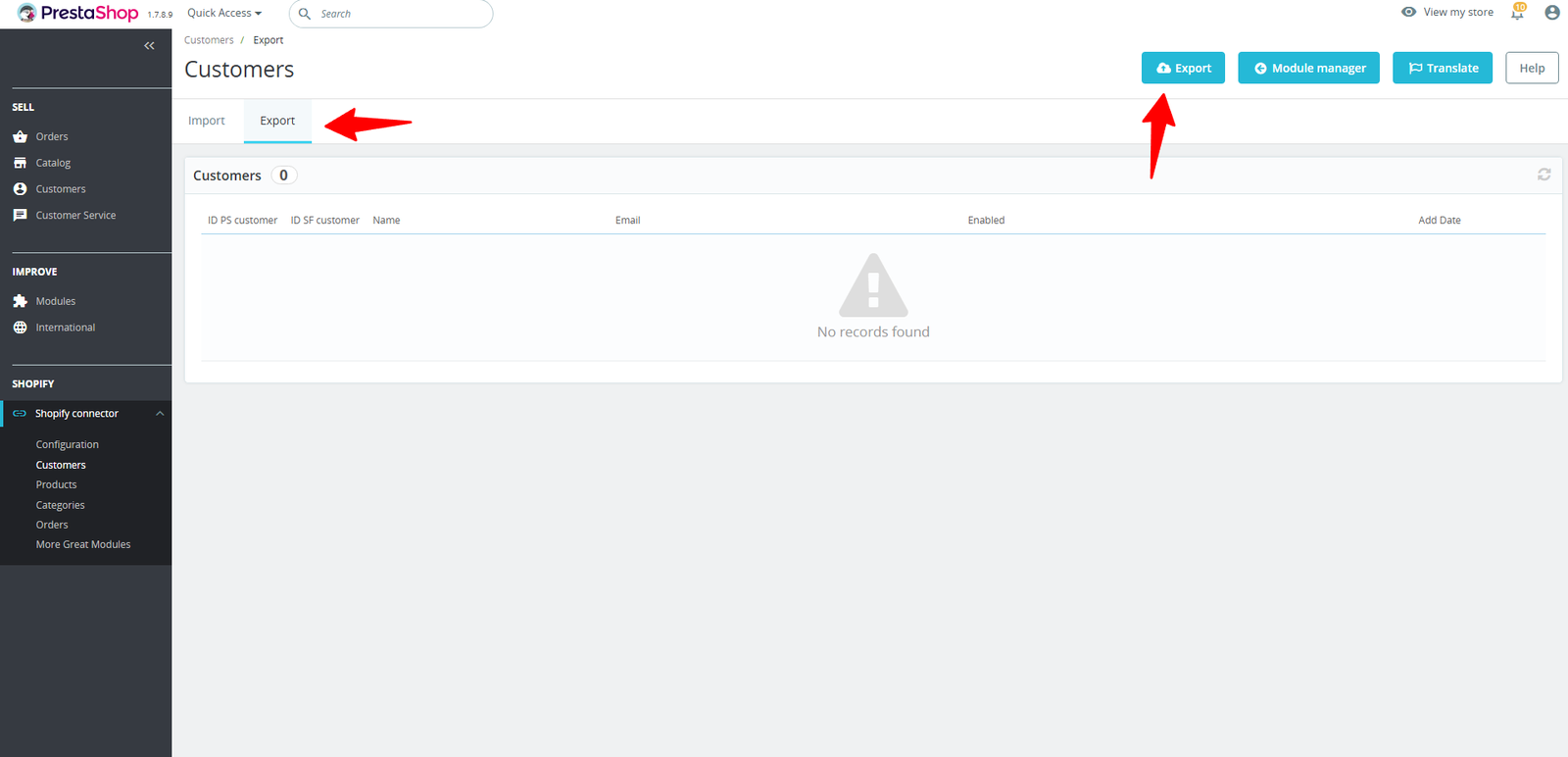
- All customers are exported by default, and the process continues even with incomplete or missing rules.
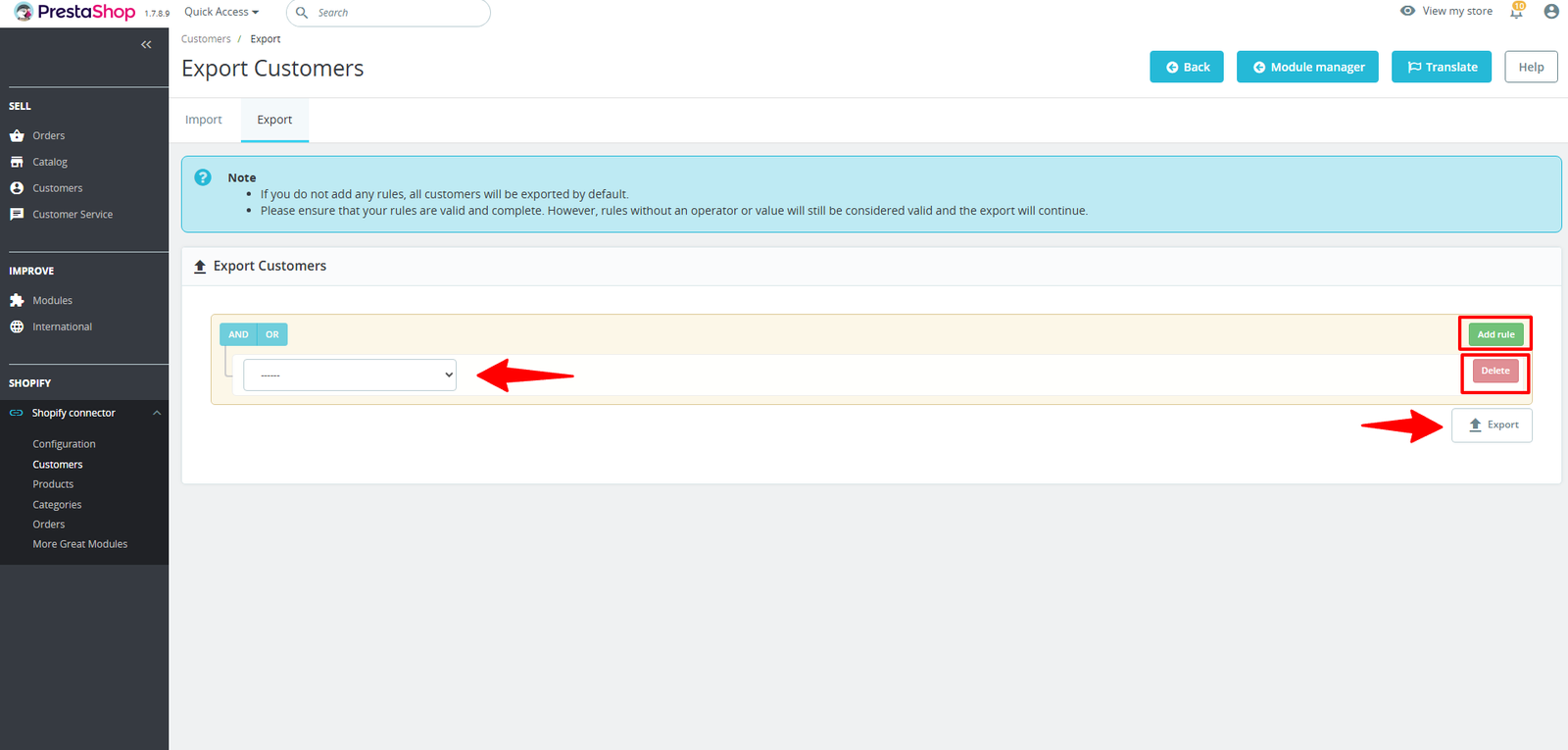
- Available rule options include: Email Domain, First Name, Last Name, PS Customer ID, Date, and Status.
Step 11: Under the Products tab, you can access both Import and Export options.
1. Import Products:
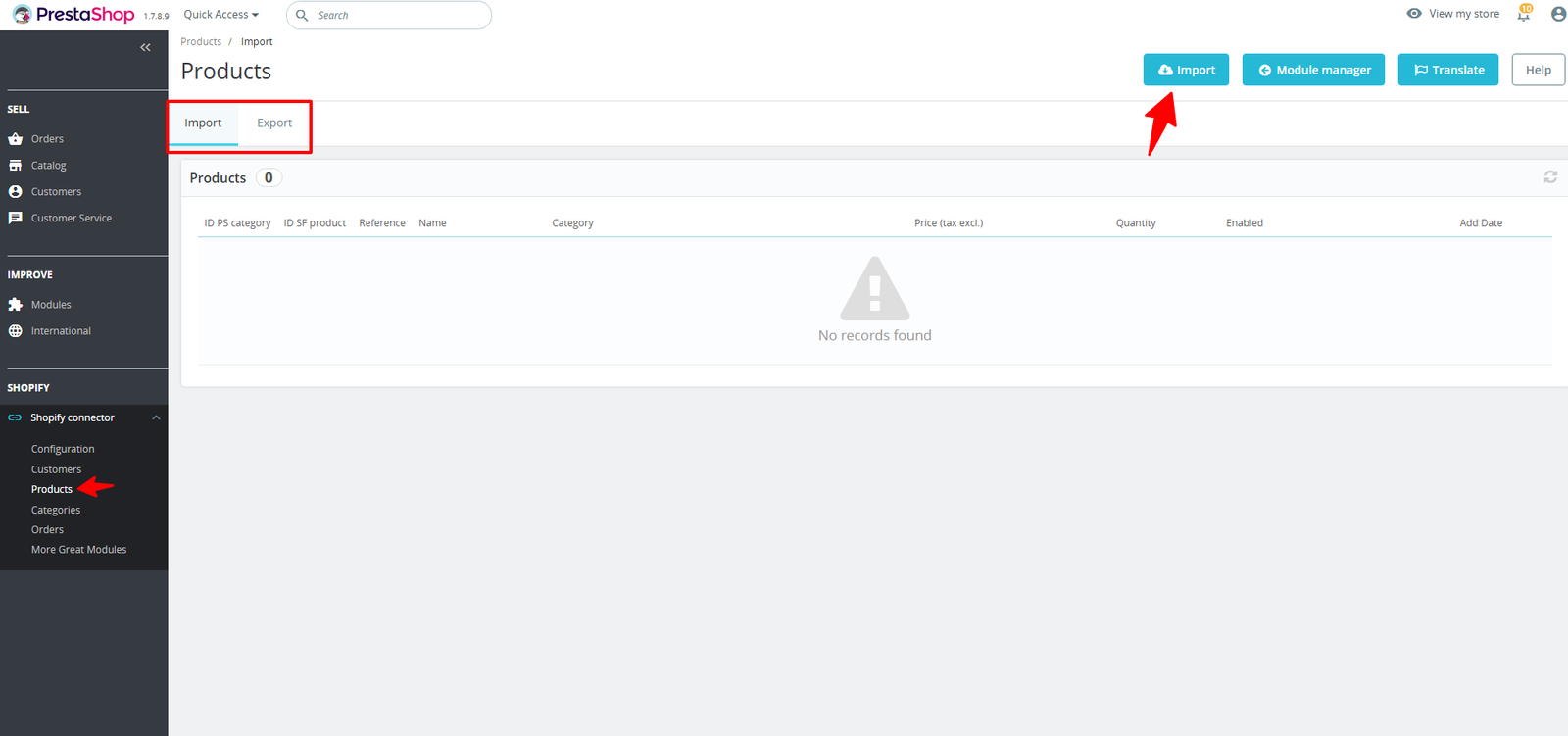
- All products are imported by default, and imports proceed even if rules are incomplete.
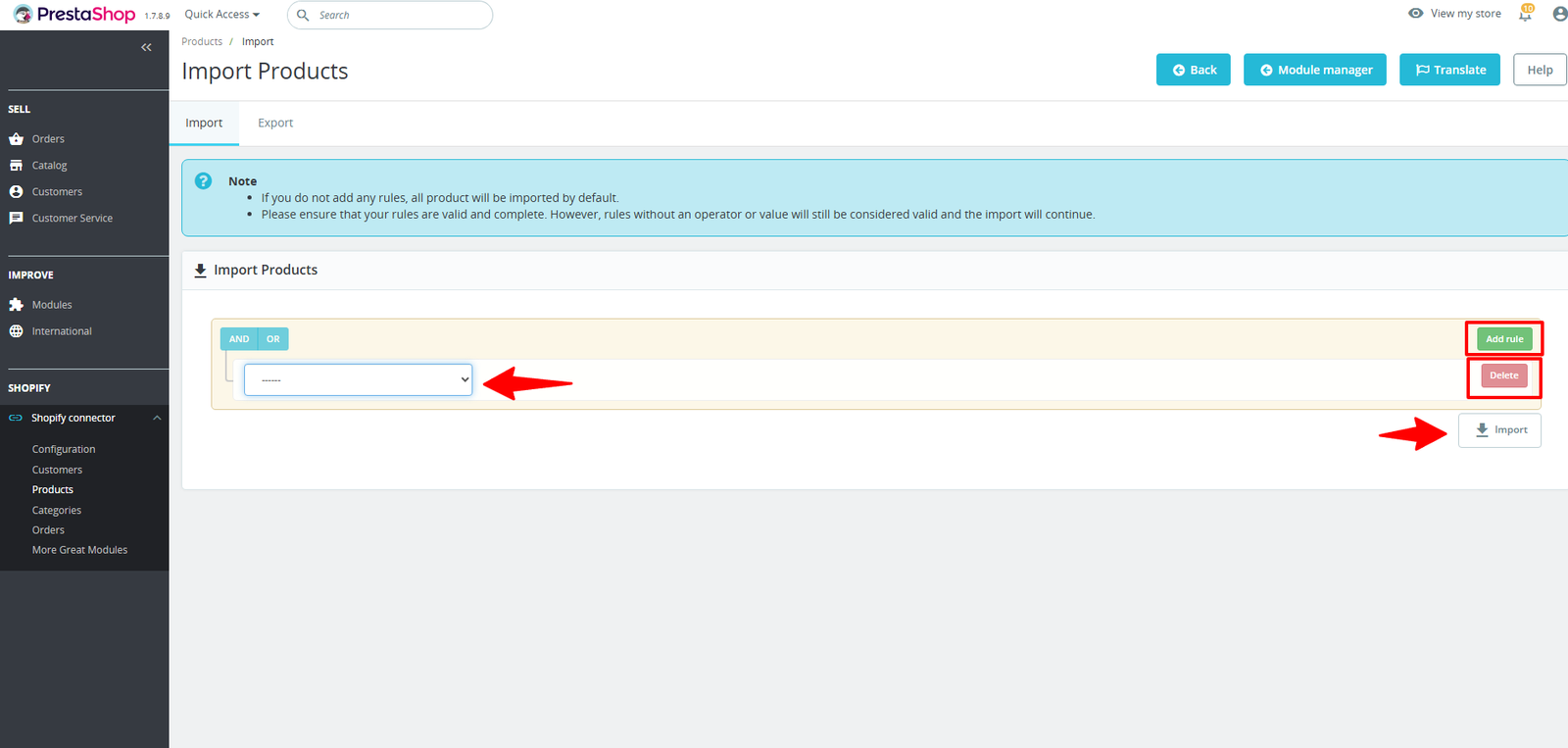
- Available rule options include Date, Title, Vendor, Product Type, Tag, Status, and more.
2. Export Products:
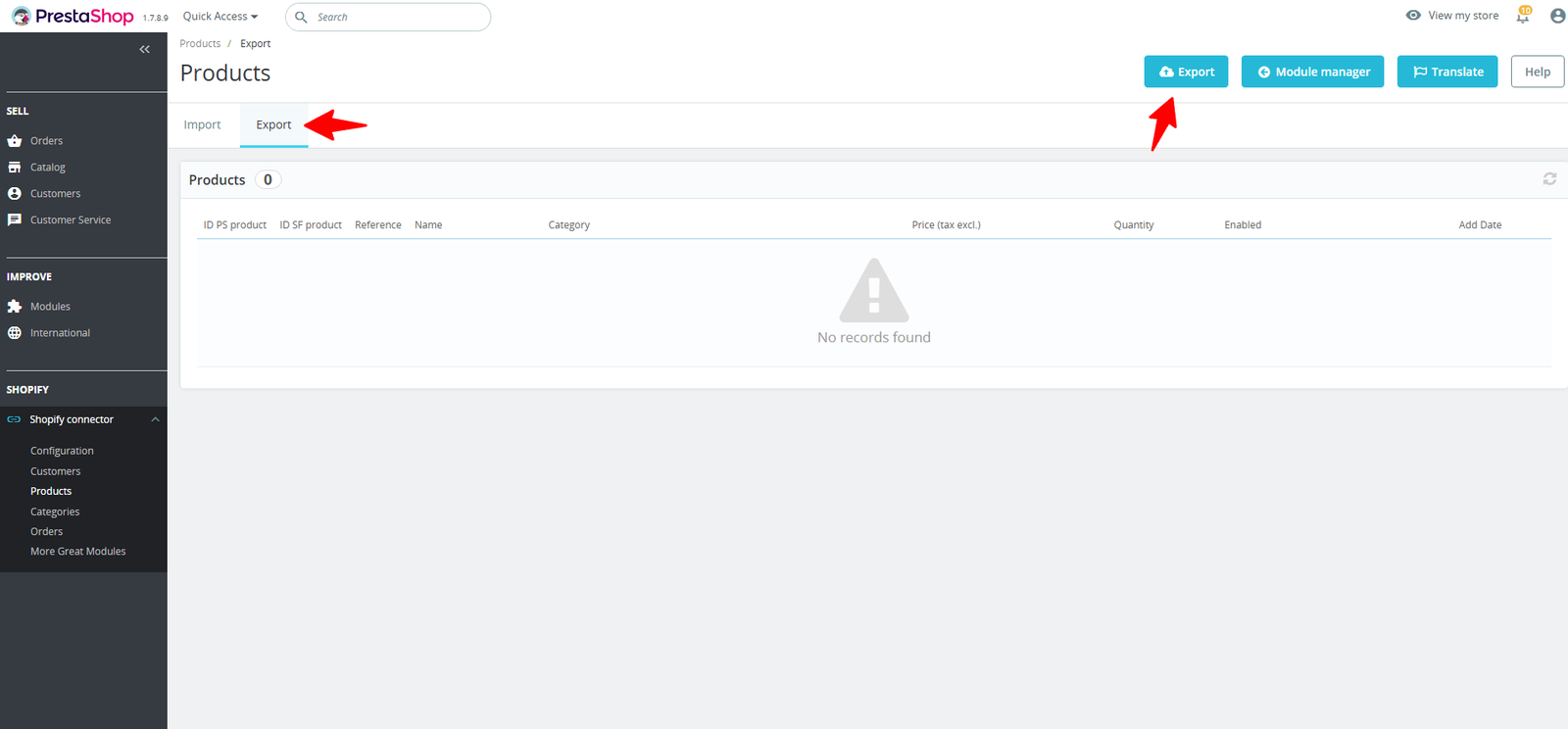
- Product export includes all items by default, proceeding even if rules are incomplete or invalid.
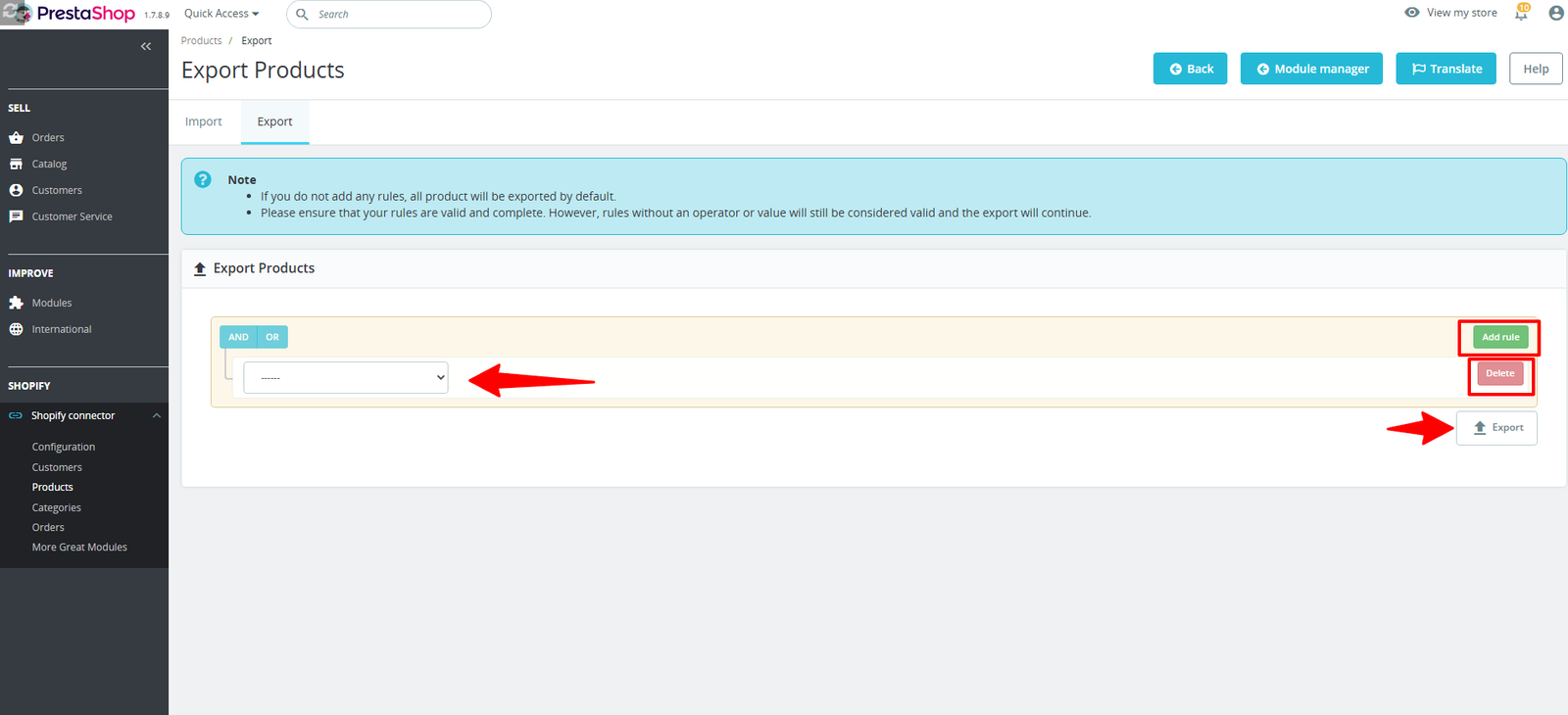
- Available rule options include: Date, Name, Category, Brand.
Step 12: Within the Categories tab, both Import and Export options are available.
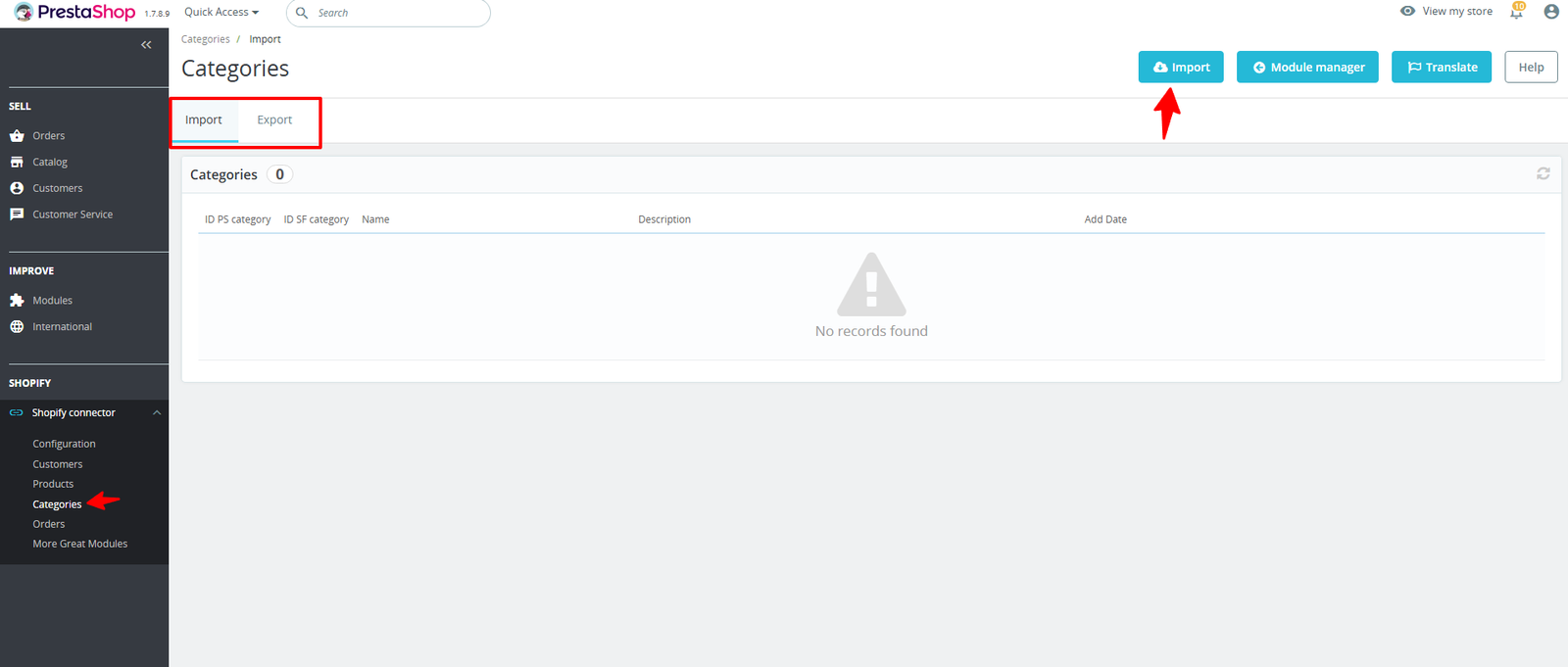
1. Import Categories:
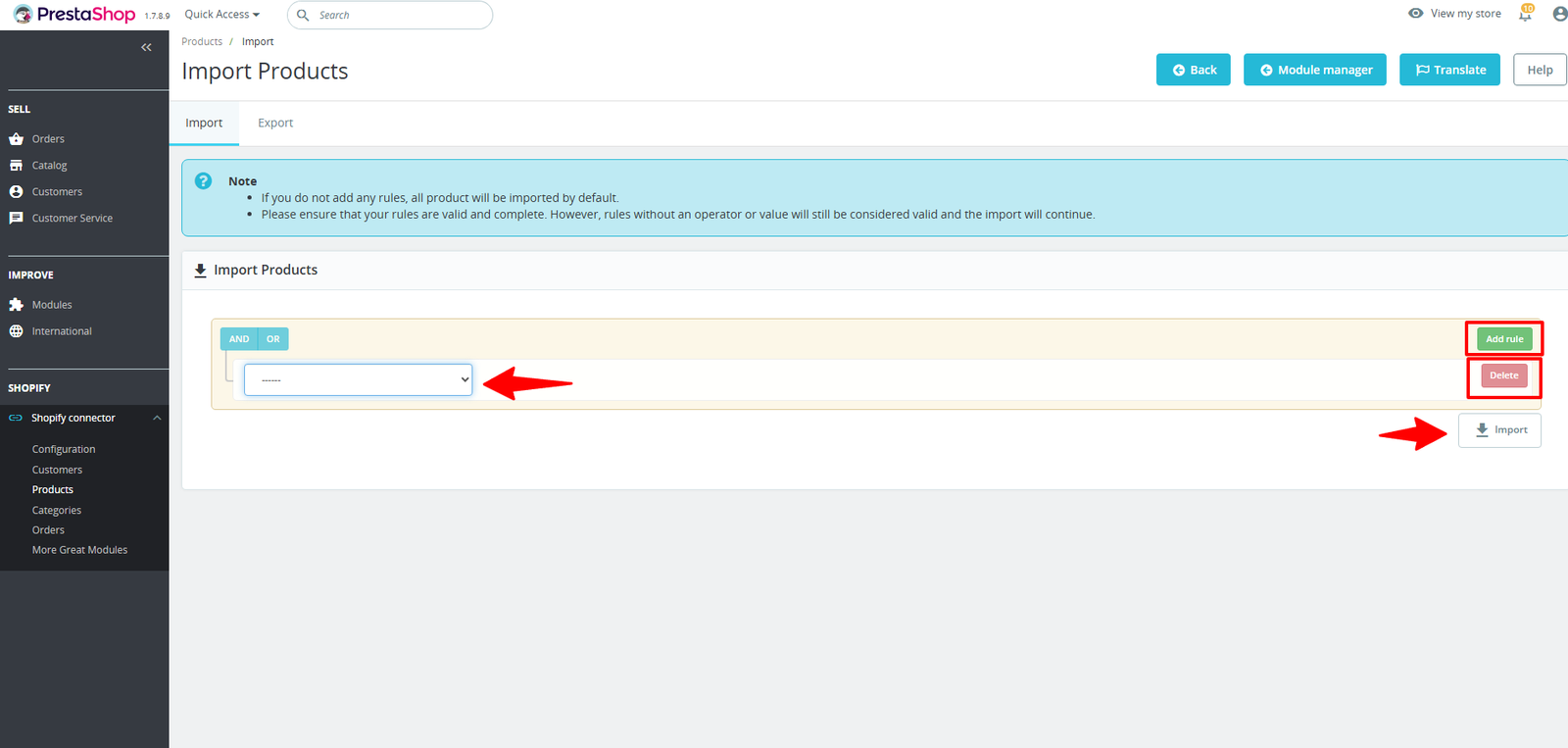
- All categories are imported by default if no rules are applied, with incomplete rules still being valid. Options include Title and Shopify Collection ID.
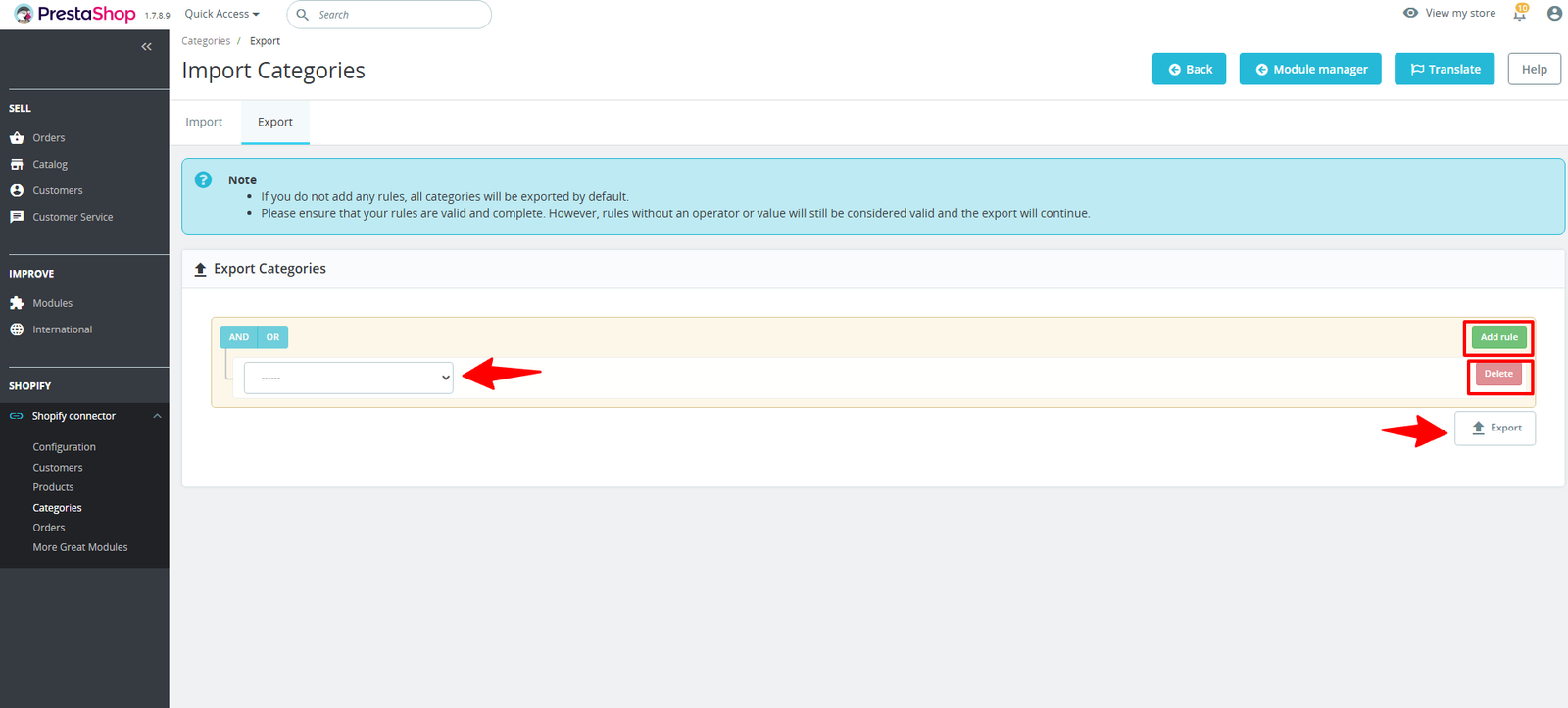
2. Export Categories:
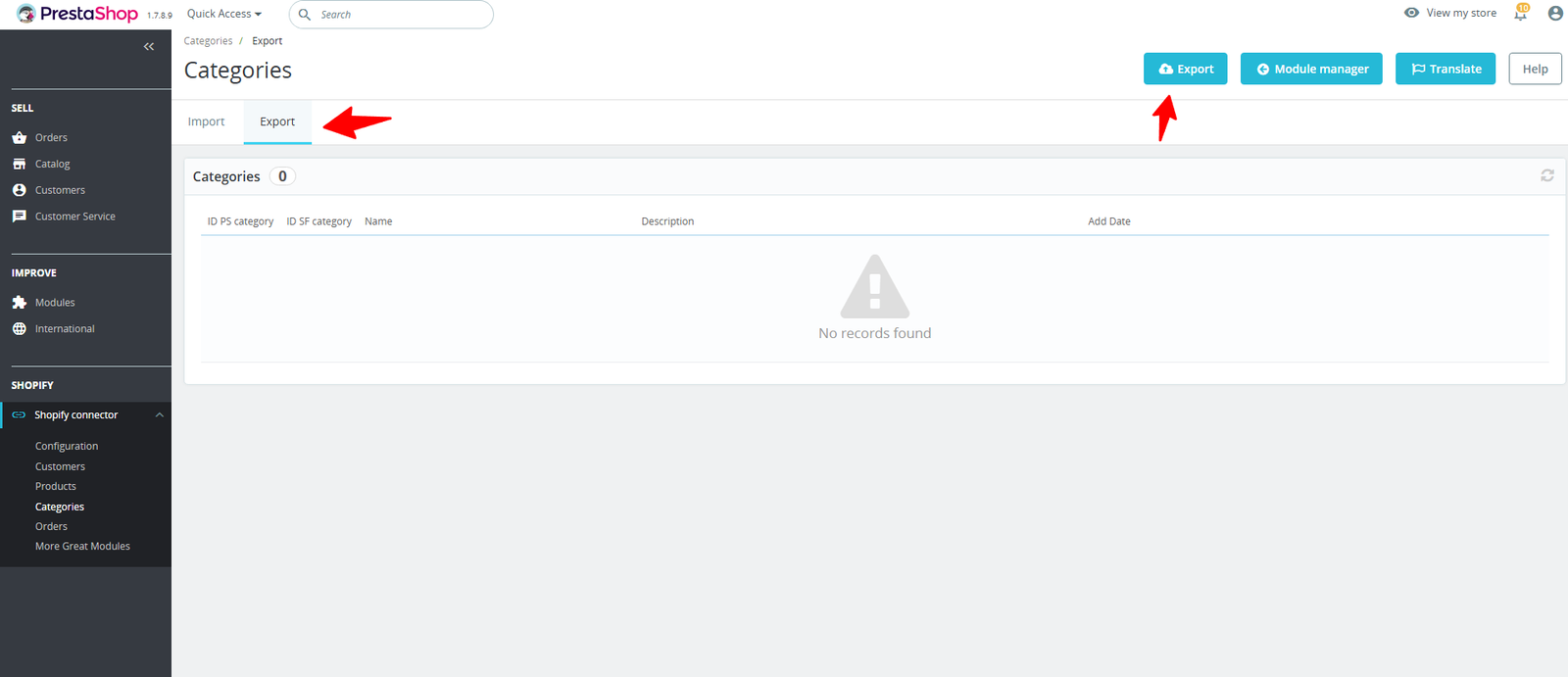
- If rules aren’t set, all categories will be exported, with incomplete rules still treated as valid; available filters: Date, Name, Status, PS Status ID.
Step 13: The Orders section provides access to Import and Export options.
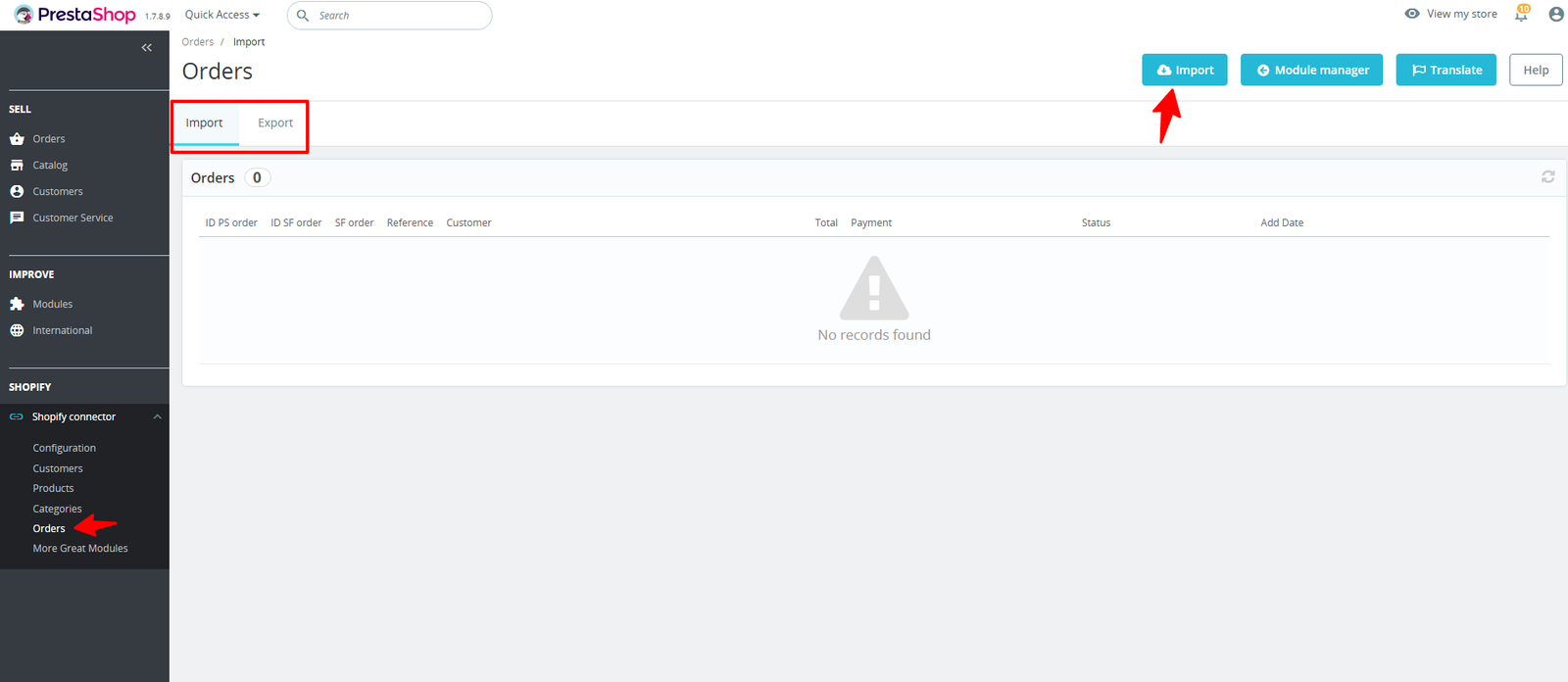
1. Import Orders:
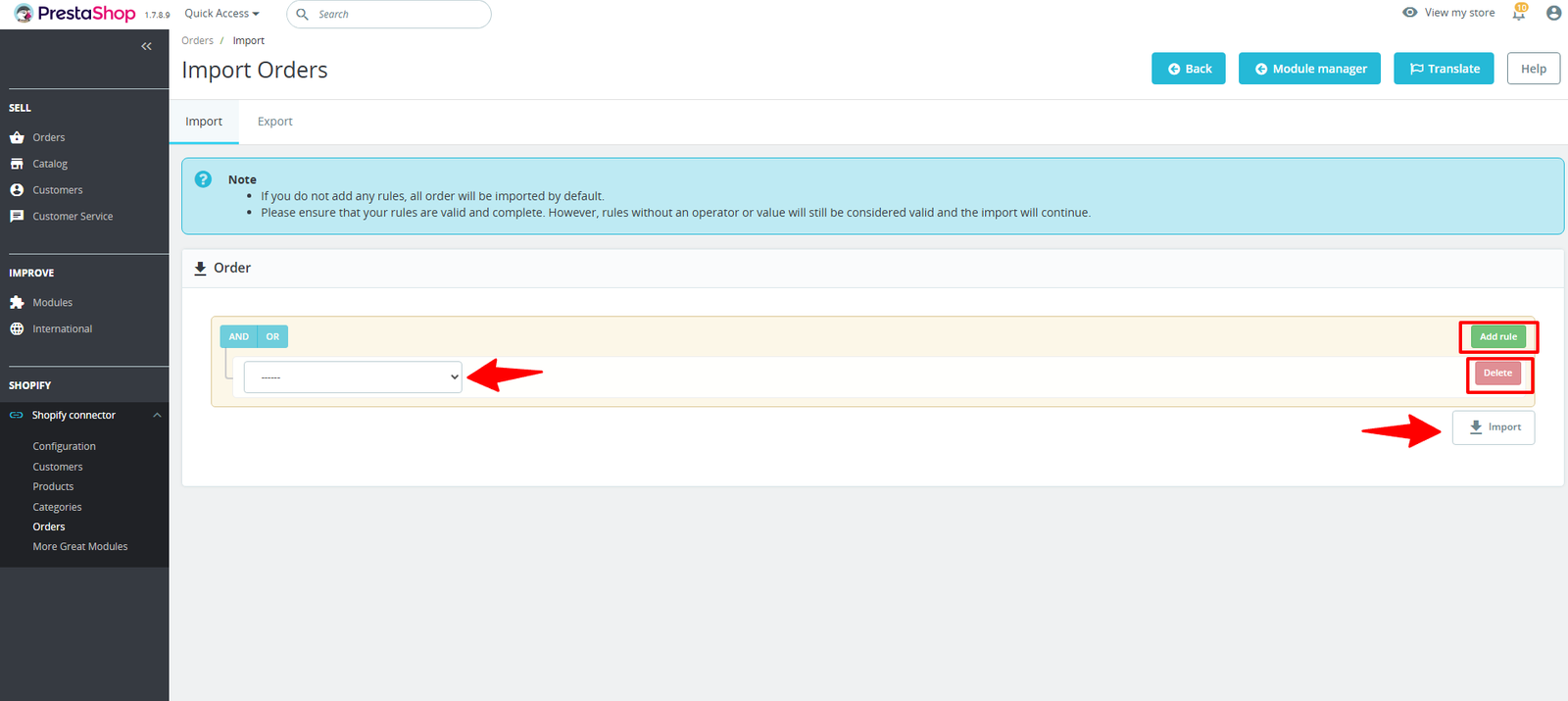
- Orders are imported automatically when no rules are defined, accepting incomplete rules. Filters include Customer ID, Financial Status, Return & Fulfillment Status, Name, and Shopify Order ID.
2. Export Orders:
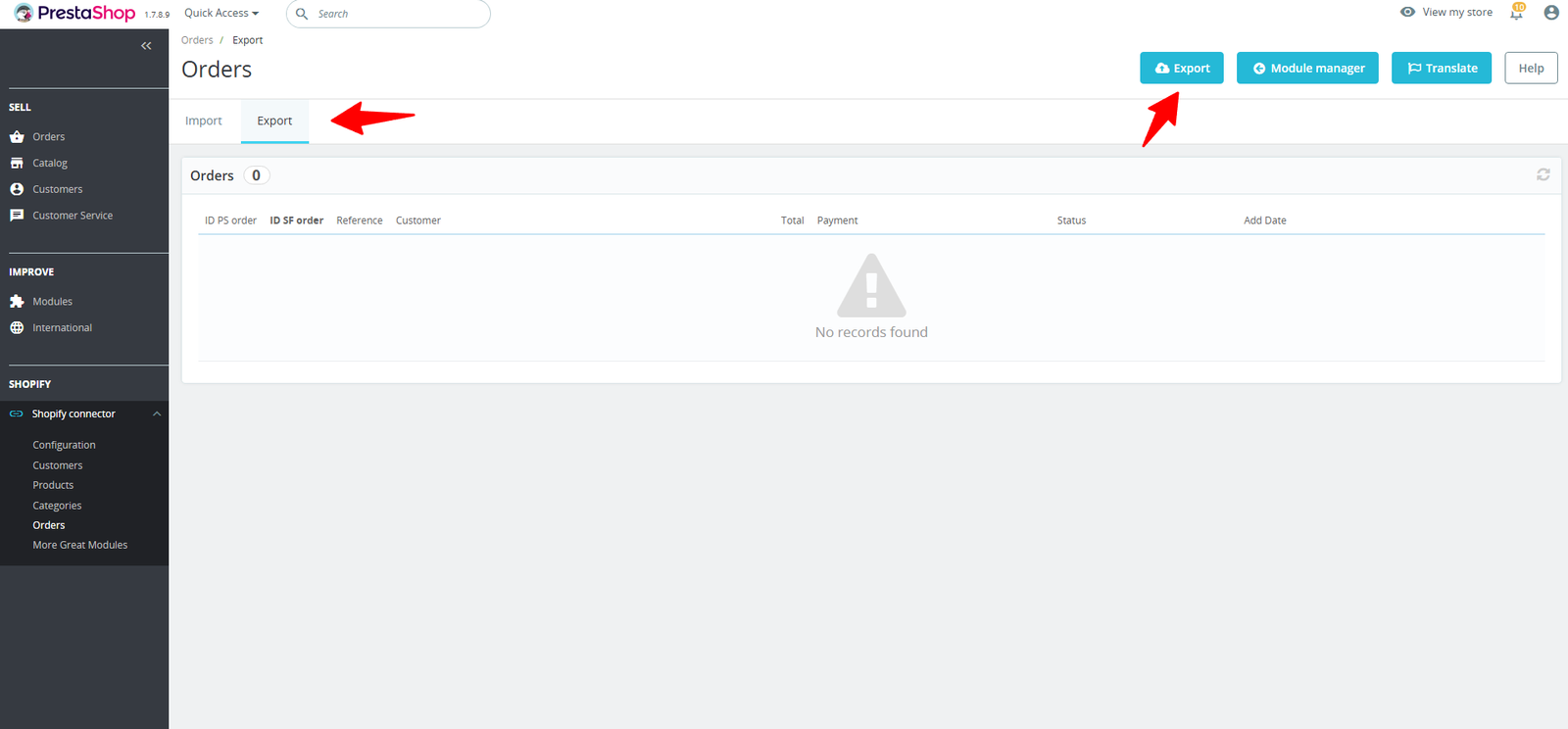
- Orders are imported automatically when no rules are defined, accepting incomplete rules. Filters include Customer ID, Financial Status, Return & Fulfillment Status, Name, and Shopify Order ID.
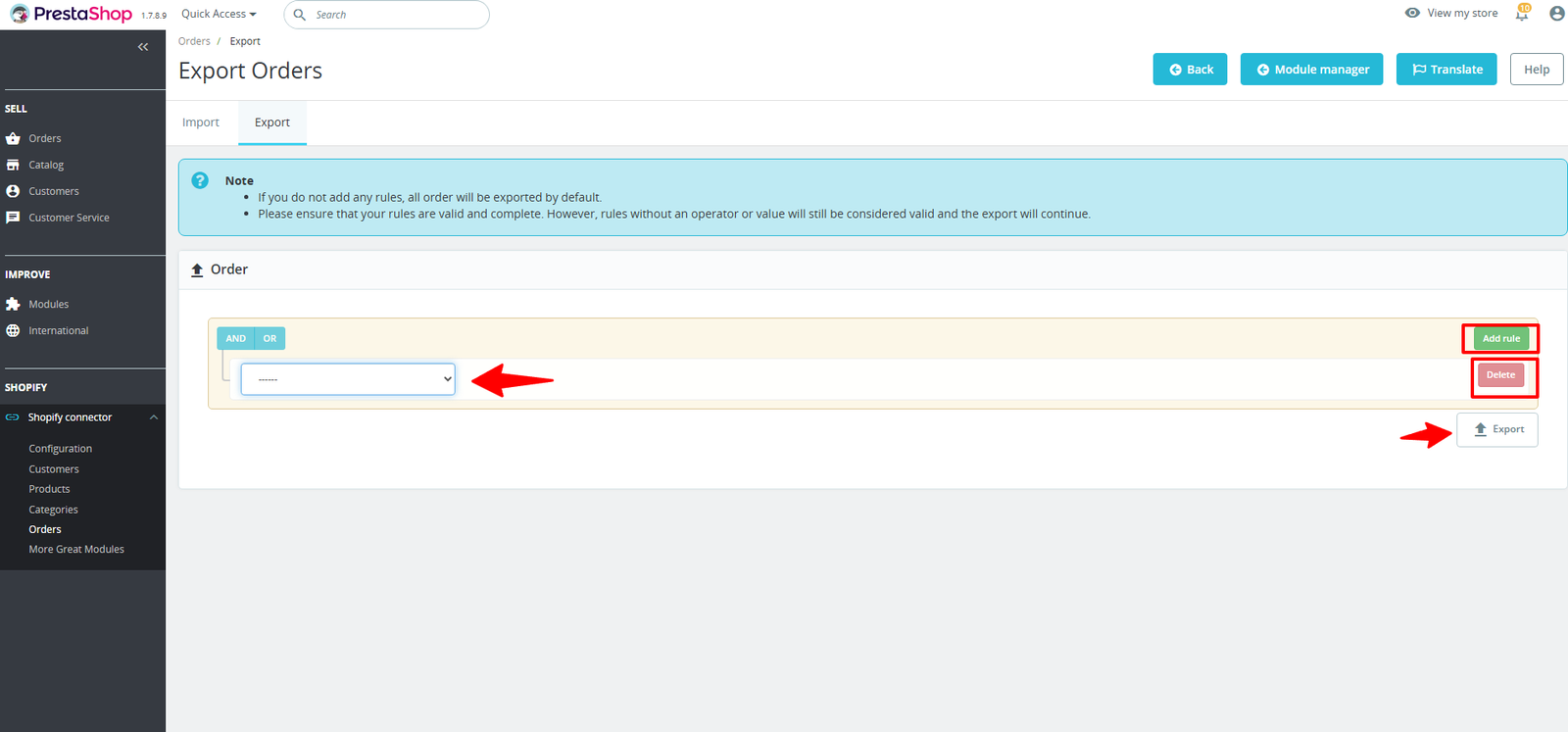
With this connector, you can manage categories, products, customers, and orders in real time across both platforms.
Why Use the Shopify Connector Module?
✅ Boost Efficiency: Automate tasks that would take hours manually.
✅ Minimize Errors: Say goodbye to data mismatches and double entries.
✅ Scale Your Business: Run Shopify and PrestaShop in parallel with complete peace of mind.
✅ One-Time Setup: Configure it once and let the module do the rest.