
Managing projects across multiple platforms can often lead to duplicated work, inconsistent data, and unnecessary manual updates. Teams using Monday.com for project management and Odoo for business operations need a reliable way to keep project-related information synchronized between both systems.
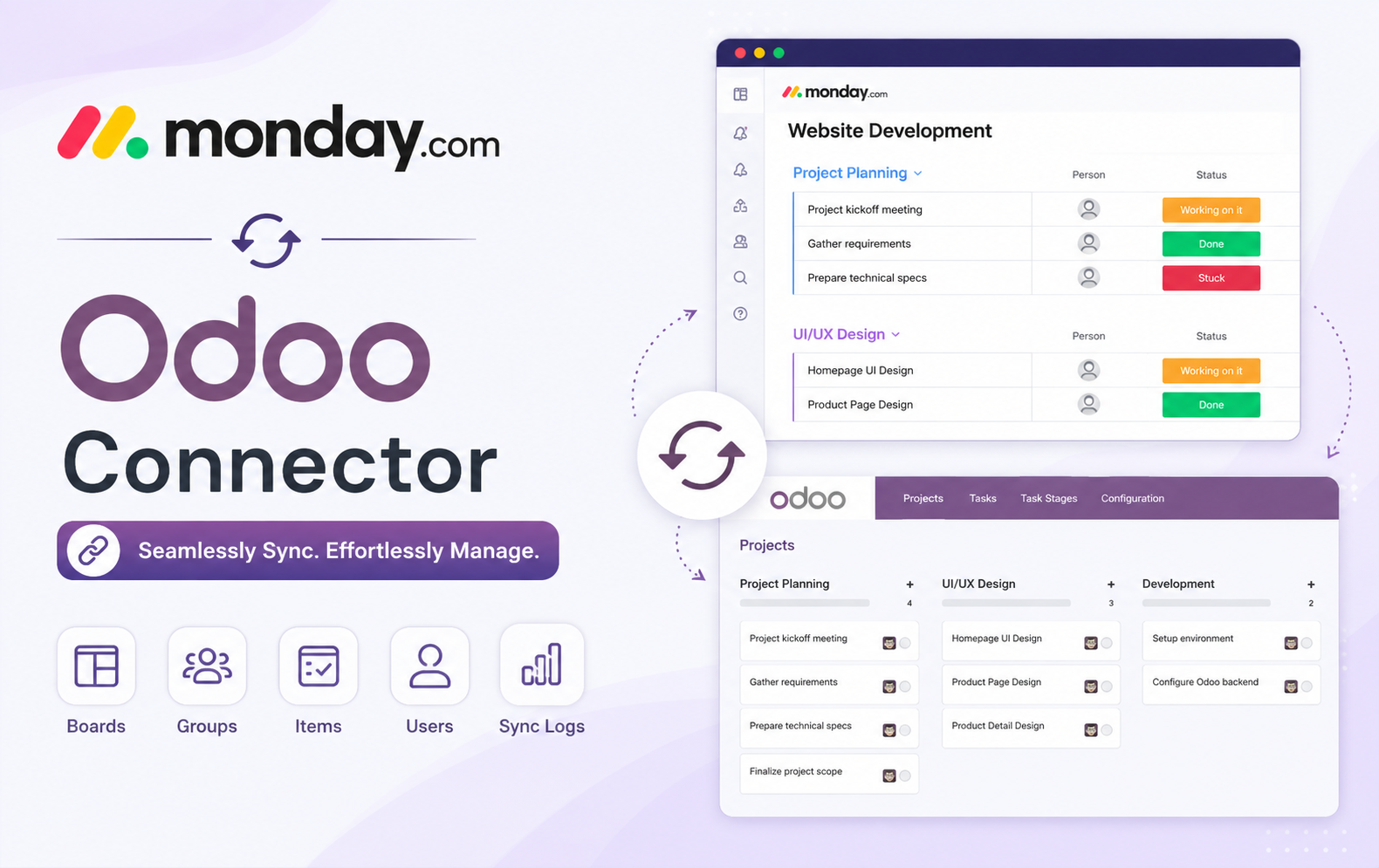
The Monday.com Odoo Connector provides an efficient solution by connecting Monday.com with Odoo through API-based integration. It enables businesses to connect their Monday.com accounts, import boards and project data, synchronize groups and items, manage users, and maintain task and project-stage relationships directly from Odoo.
Key Features at a Glance
- Monday.com Account Connection: Connect Monday.com accounts securely with Odoo using API tokens and test connectivity before starting project data synchronization across both platforms.
- Board Management: Create and manage Monday.com boards for different business activities while maintaining organized project structures directly within your Odoo business environment.
- Group Organization: Organize board activities into groups representing project stages, helping teams structure tasks clearly and maintain consistent workflows across connected platforms.
- Selective Data Import: Select Boards, Groups, Items, and Users individually before importing Monday.com information into Odoo, providing complete control over synchronized project data.
- Project Import: Import Monday.com boards into Odoo projects while preserving project relationships, structures, and relevant information for easier centralized project management workflows.
- Task Synchronization: Synchronize Monday.com items with Odoo tasks to maintain project activities, task details, and relationships between both connected business systems effectively.
- Stage Mapping: Map Monday.com groups with Odoo project stages, ensuring project workflows remain organized and consistently represented across both integrated business platforms.
- Odoo Task Creation: Create Odoo tasks within selected project groups and automatically synchronize them with corresponding Monday.com groups for streamlined project team collaboration.
- Task Stage Sync: Add Odoo task stages and automatically create corresponding groups within the connected Monday.com board to maintain synchronized project workflow structures.
- Import Summary: Review detailed import summaries showing imported, updated, and error records, helping administrators quickly verify successful synchronization operations clearly and accurately.
- Board Mapping: Manage Monday.com board mappings with Board IDs, board types, Odoo models, and linked projects for transparent integration configuration and management.
- Synchronization History: Track synchronization history with operation details, import actions, account information, timestamps, and statuses for better monitoring and troubleshooting capabilities efficiently.
- Data Consistency: Maintain consistent project data between Monday.com and Odoo by synchronizing selected records and reducing repetitive manual data entry requirements significantly.
- Task Organization: Improve task organization by connecting Monday.com groups, Odoo projects, task stages, and individual tasks within a structured integrated workflow environment.
- API Integration: Synchronize project management information efficiently through API connectivity, enabling teams to access relevant Monday.com data within their Odoo business environment.
- Sync Monitoring: Monitor connected accounts and synchronization intervals while reviewing last synchronization details to maintain visibility over ongoing integration activities and performance.
- Centralized Management: Support centralized project management by bringing Monday.com boards, groups, items, and users into Odoo for streamlined daily business operations management.
- Reduced Manual Work: Reduce administrative workload by automating project data transfers between Monday.com and Odoo instead of repeatedly entering information manually across systems.
- Better Collaboration: Enhance collaboration by keeping project structures, tasks, stages, and related records aligned across Monday.com and Odoo throughout daily business workflows.
- Integration Transparency: Provide integration transparency through board mappings and synchronization logs, giving administrators clear visibility into connected records and completed synchronization operations.
Use Cases: Who Needs This module?
Quick User Guide (Visual Walkthrough)
Scroll up to revisit the detailed image-wise walkthrough.
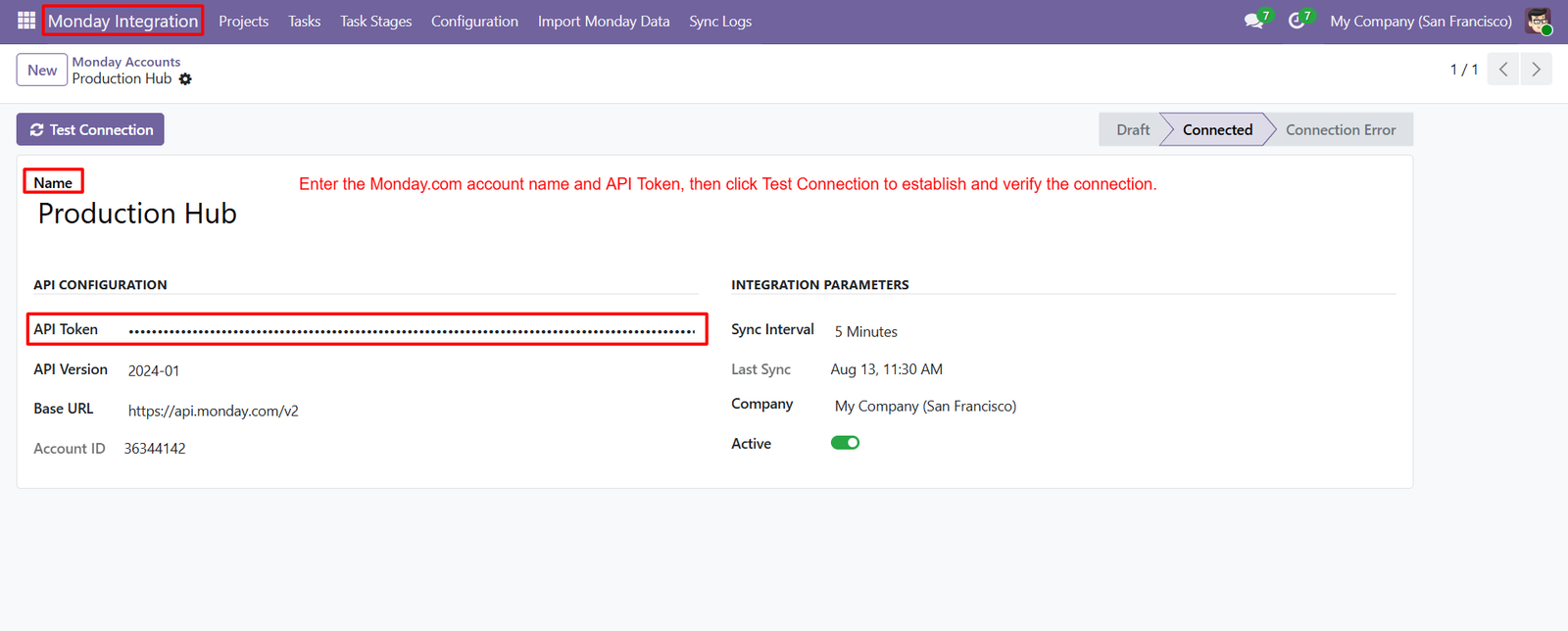
Step 1: Connect your Monday.com account with Odoo using an API Token, enabling secure authentication and reliable project data synchronization between platforms.
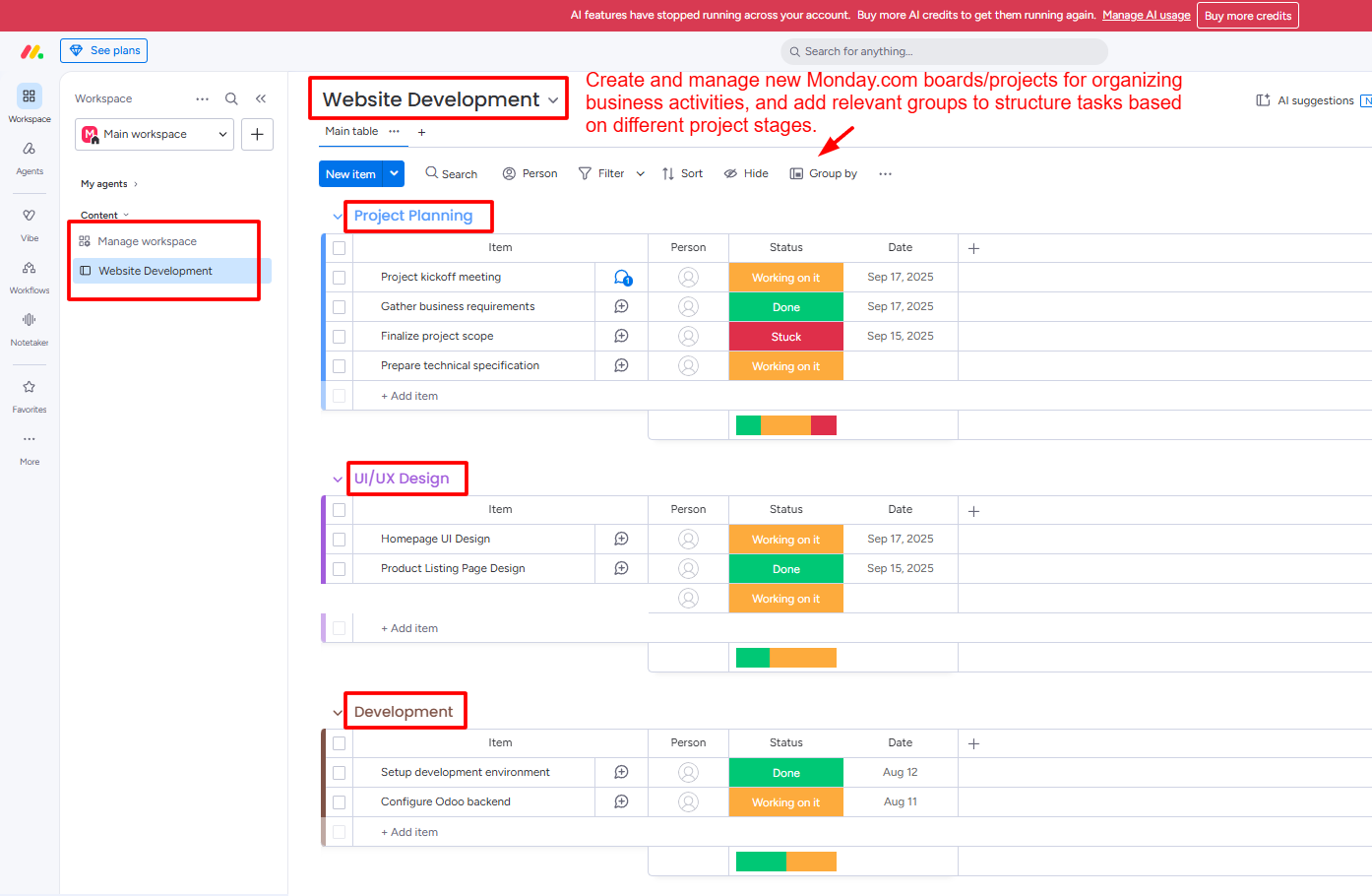
Step 2: Create dedicated Monday.com boards for different business activities, projects, departments, or workflows while maintaining organized structures for efficient management.
Step 3: Select required Monday.com entities including Boards, Groups, Items, and Users before importing relevant project information into Odoo efficiently and securely.
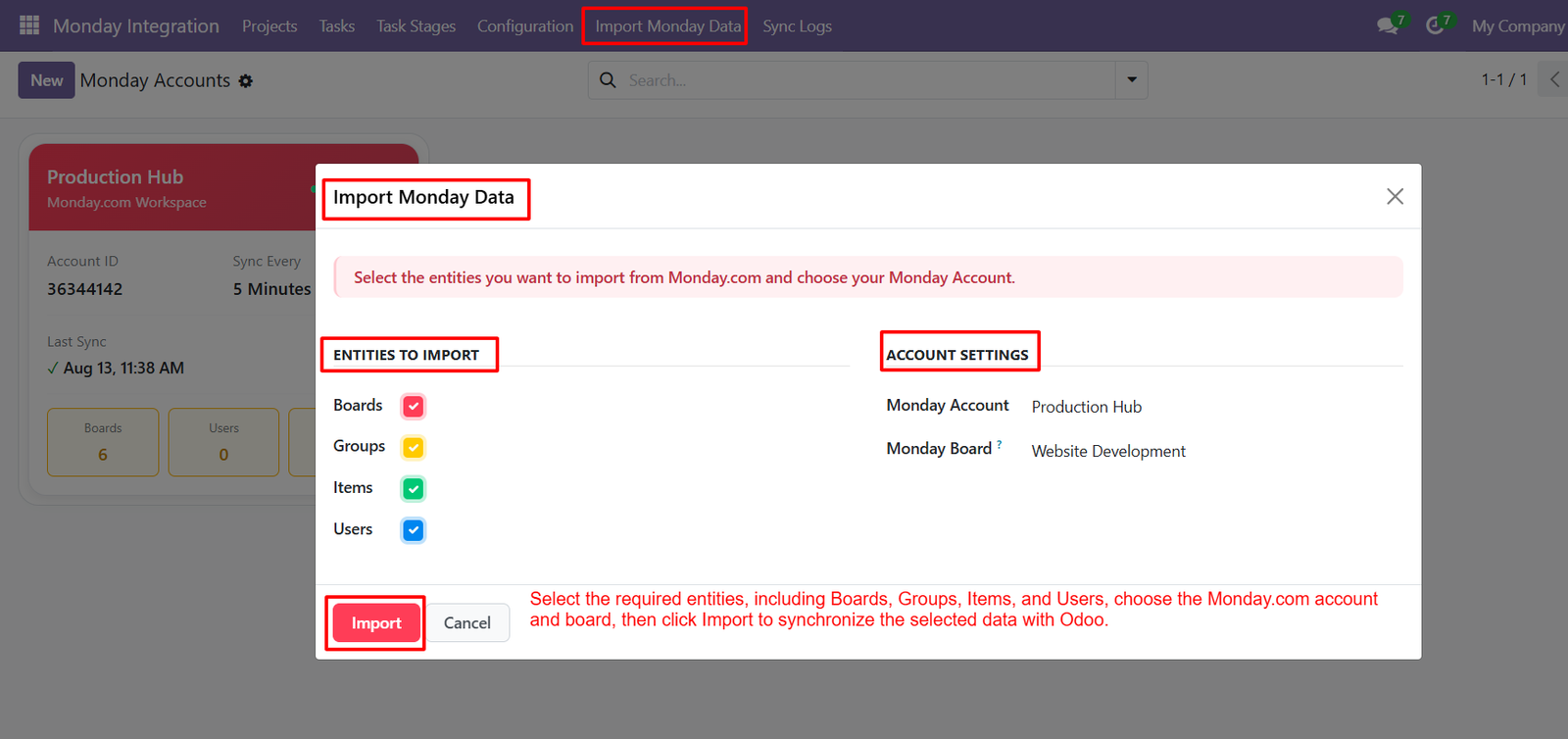
- Choose the connected Monday.com account from Account Settings to ensure imported data belongs to the correct configured business integration environment.
- Select the required Monday.com board, such as Website Development, to import its associated project structure and activities into Odoo successfully.
- Import Boards to bring selected Monday.com project boards into Odoo, creating connected project records for centralized management and organization purposes.
- Import Groups to transfer Monday.com project stages into Odoo while preserving the organizational structure of each selected project board accurately.
- Import Items to synchronize Monday.com tasks with Odoo, helping teams maintain project activities and task information consistently across platforms effectively.
- Import Users to synchronize relevant Monday.com users with Odoo, supporting consistent assignment and collaboration across integrated project workflows effectively today.
- Use selective importing to choose only required entities, reducing unnecessary data transfers and keeping Odoo project information focused and manageable.
- Review Account Settings before importing to confirm the selected Monday.com account and board match your intended synchronization requirements correctly first.
- Click the Import button after selecting entities, account, and board to begin transferring the chosen Monday.com information into Odoo successfully.
- Use the import process to synchronize selected Monday.com data with Odoo without manually recreating boards, groups, tasks, or users successfully.
- Maintain organized project information by importing boards, groups, items, and users together according to your specific integration requirements and priorities.
- Choose specific entities based on business needs, giving administrators greater control over which Monday.com information becomes available inside Odoo today.
Step 4: Review the import status summary to confirm whether Monday.com data was successfully synchronized with Odoo without encountering any reported errors.
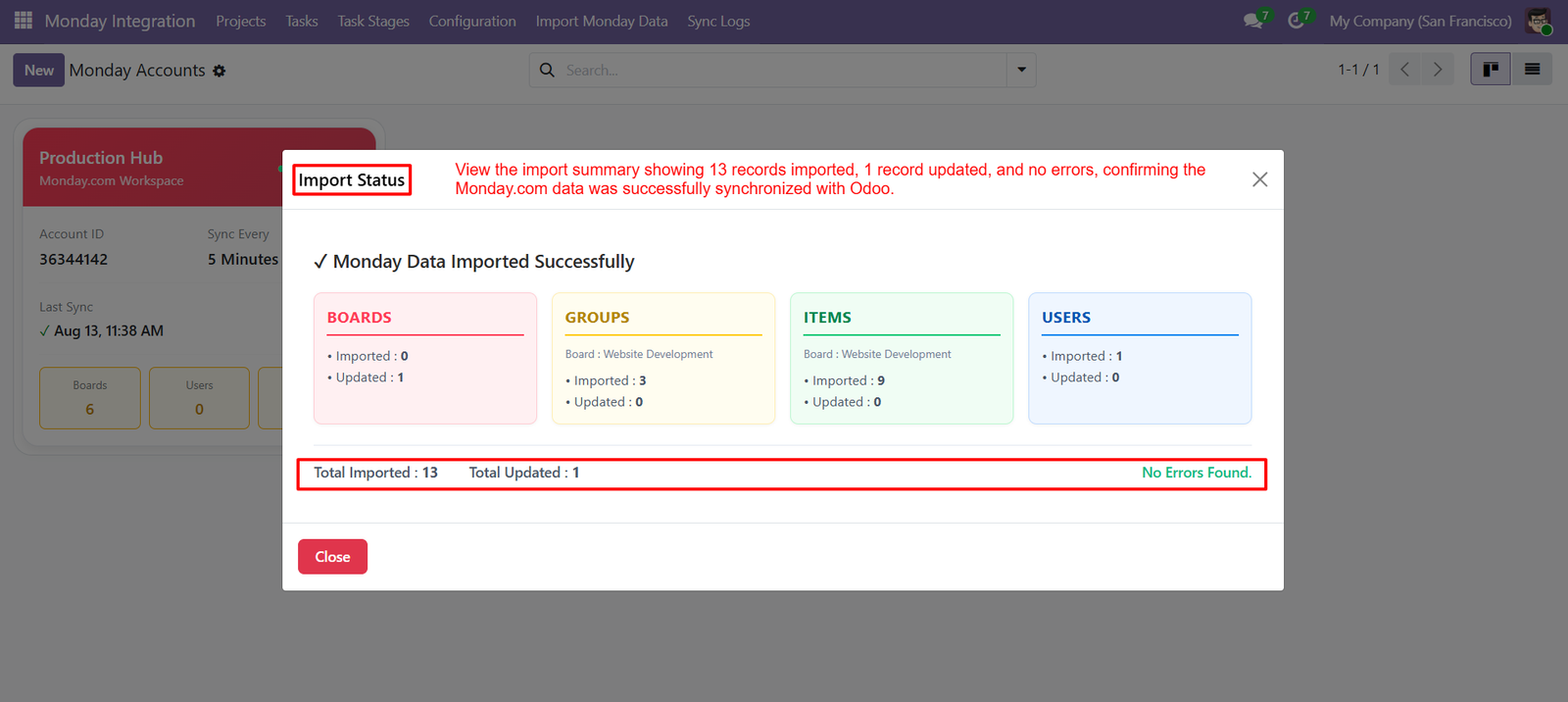
- Check the total imported count to understand how many new Monday.com records were successfully transferred into Odoo during the synchronization.
- Review the total updated count to identify existing records that were refreshed or modified during the latest import operation successfully.
- Monitor the Boards section to determine how many Monday.com boards were imported or updated during the synchronization process accurately today.
- Check the Groups section to verify project groups successfully imported from the selected Monday.com board into the connected Odoo environment.
- Review the Items section to confirm Monday.com tasks or items were imported correctly and associated with the selected board successfully.
- Monitor the Users section to verify relevant Monday.com users were successfully imported and available within the Odoo system for collaboration.
- Use the import summary to quickly identify synchronization results across Boards, Groups, Items, and Users from one centralized screen efficiently.
- Confirm the success message after importing data to ensure the selected Monday.com information was processed successfully within Odoo without errors.
- Review imported and updated records separately to understand whether synchronization created new entries or refreshed existing Odoo records accurately overall.
- Use the error status to quickly determine whether any problems occurred while transferring Monday.com data into Odoo during synchronization successfully.
- Verify group import results to ensure project stages and organizational structures from Monday.com were transferred accurately into Odoo successfully overall.
- Check item import results to confirm project activities and tasks were successfully synchronized with the corresponding Odoo project structure correctly.
Step 5: View imported Monday.com projects directly in Odoo, providing teams with organized access to project activities, groups, tasks, and responsibilities efficiently.
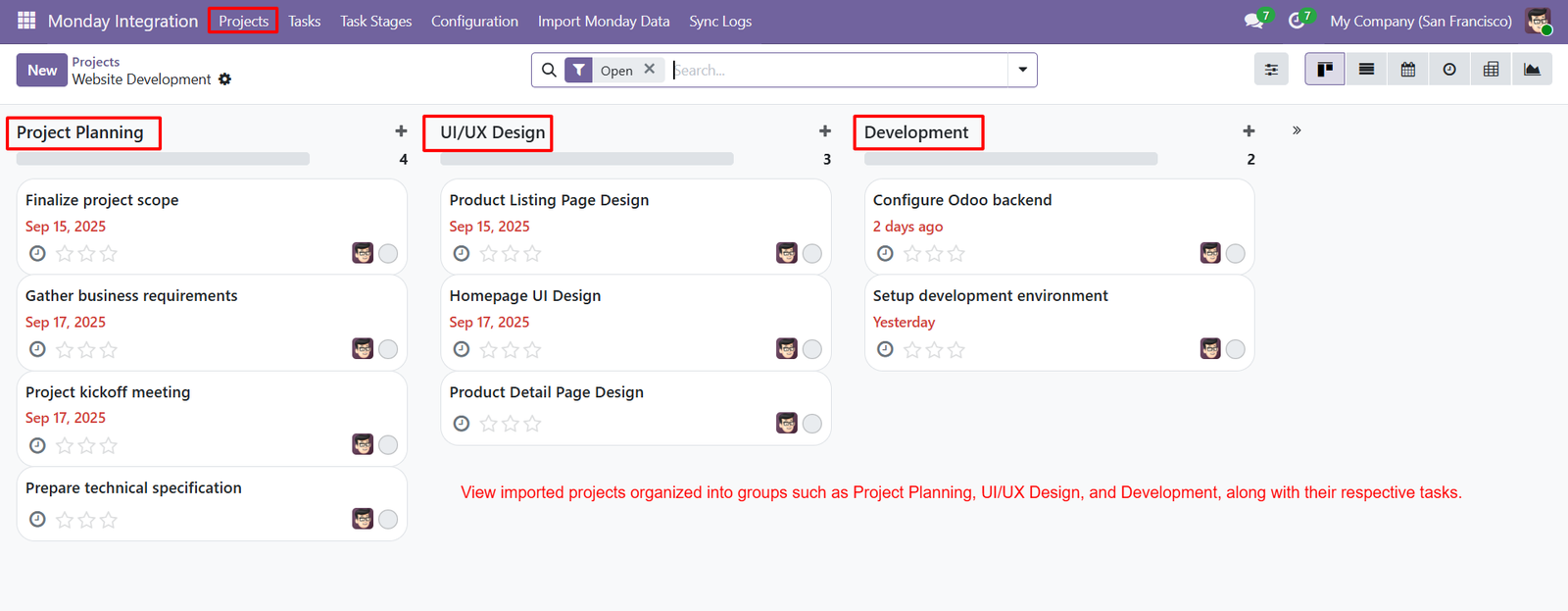
- Organize project activities into dedicated groups such as Project Planning, UI/UX Design, and Development for clearer workflow management and coordination.
- Manage Project Planning tasks including scope finalization, business requirements, kickoff meetings, and technical specifications within a centralized Odoo project workspace.
- Track UI/UX Design activities through dedicated groups containing homepage, product listing, and product detail page design tasks for organized execution.
- Monitor Development activities by grouping technical tasks such as backend configuration and development environment setup within the project structure efficiently.
- Track task counts for each project group, helping teams quickly understand workload distribution across Project Planning, UI/UX Design, and Development.
- Review task deadlines directly from project cards, making upcoming dates and time-sensitive activities easier for teams to monitor and prioritize.
- Identify responsible team members through displayed user assignments, ensuring every project activity has clear ownership and accountability across business workflows.
- Use the Kanban-style project view to visualize tasks within groups, providing an intuitive overview of project progress and current activities.
- Access imported Monday.com project information through Odoo Projects, helping teams manage external project data alongside existing Odoo business operations efficiently.
- Maintain project organization by separating tasks according to functional stages, allowing teams to focus on specific responsibilities and deliverables effectively.
- Monitor multiple project groups simultaneously, making it easier to compare workloads, deadlines, and activities across different project development stages effectively.
- Improve task visibility by displaying project cards with task names, dates, assigned users, and status information within each project group.
Step 6: Create Odoo tasks within selected projects and assign them to appropriate groups, enabling automatic synchronization with corresponding Monday.com groups efficiently.
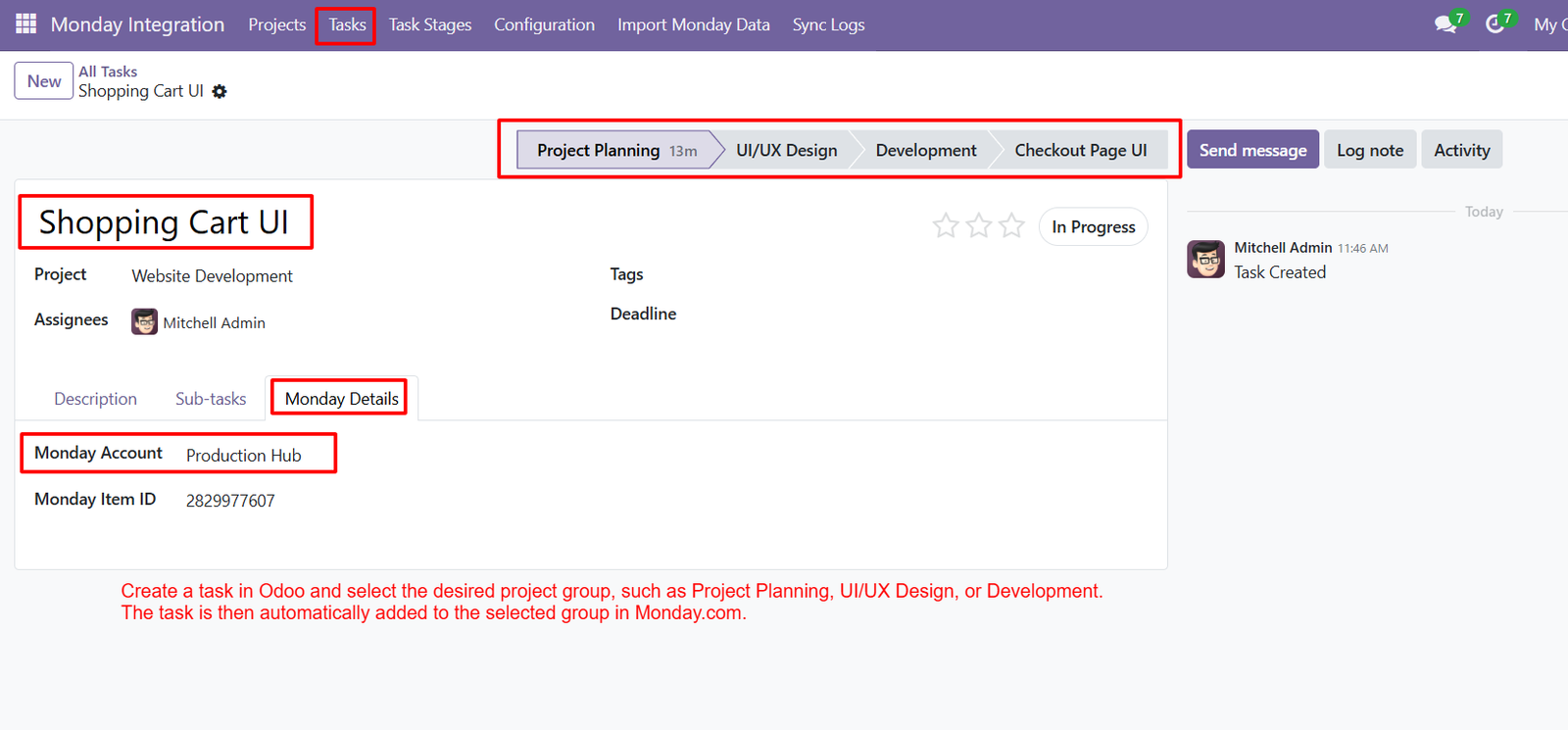
- Enter a task name such as Shopping Cart UI to clearly identify project work and maintain organized task management across platforms.
- Select the Website Development project when creating tasks to ensure activities remain connected with the correct Monday.com board and workflow.
- Assign tasks to Project Planning, UI/UX Design, Development, or other groups according to the specific project activity and workflow stage.
- Move tasks through Project Planning, UI/UX Design, Development, and Checkout Page UI stages to accurately reflect project progress effectively.
- Assign responsible team members to Odoo tasks, helping teams clearly identify ownership and improve accountability throughout synchronized project workflows effectively.
- Use task statuses such as In Progress to communicate current work conditions and provide better visibility across project activities effectively.
- Maintain Monday.com synchronization details inside Odoo tasks, allowing administrators to identify connected accounts and corresponding Monday.com item records easily quickly.
- View the connected Monday Account within Monday Details, providing clear information about which Monday.com account is associated with each task.
- Access the Monday Item ID from the task record to maintain a clear relationship between Odoo tasks and Monday.com items.
- Synchronize newly created Odoo tasks with selected Monday.com groups, reducing repetitive entry and keeping project activities properly aligned across platforms.
- Use project stages to organize tasks logically, helping teams manage activities according to their current development or operational workflow stage.
- Keep task information centralized in Odoo while maintaining connections with Monday.com, allowing teams to manage integrated project activities more efficiently.
Step 7: Create Odoo task stages such as Checkout Page UI and connect them with the Website Development project for synchronized workflow.
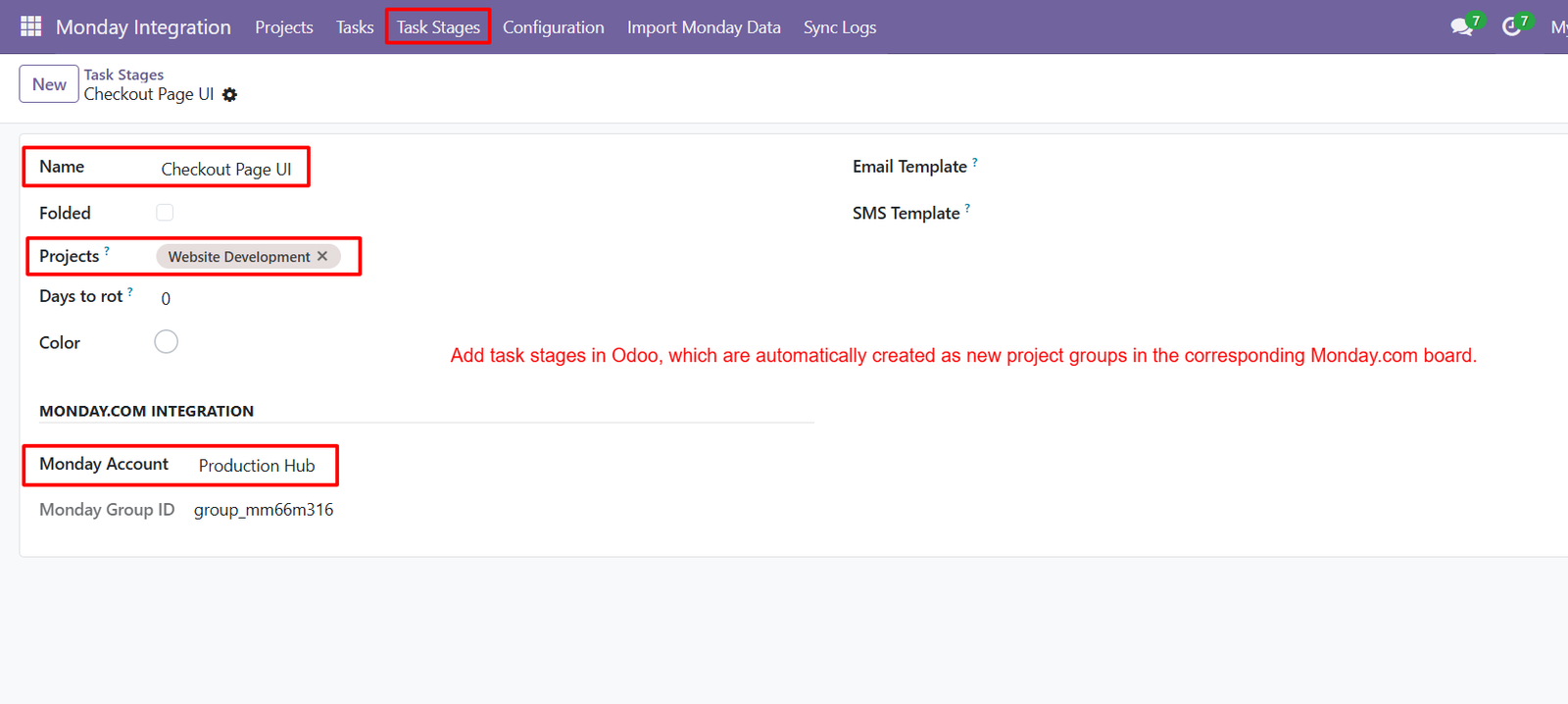
- Assign task stages to specific Odoo projects, ensuring each stage remains connected with the appropriate Monday.com board and project structure.
- Automatically create corresponding Monday.com groups when new Odoo task stages are added to an integrated project for streamlined synchronization processes.
- Use task stage names to represent different workflow phases, helping teams organize project activities clearly across Odoo and Monday.com platforms.
- Select the Website Development project to associate the Checkout Page UI stage with the appropriate project workflow and Monday.com integration.
- Maintain Monday.com Account information within task stage configuration, providing clear visibility into the connected account responsible for synchronization activities today.
- View the Monday Group ID associated with each task stage, helping administrators identify corresponding group within the connected Monday.com board.
- Synchronize Odoo task stages with Monday.com groups automatically, reducing manual setup and maintaining consistent project structures across both platforms effectively.
- Create additional task stages whenever new project phases are required, allowing workflows to adapt according to changing business requirements efficiently.
- Use task stages to organize tasks logically, making it easier for teams to understand current workflow positions and project progress.
- Maintain consistent stage relationships between Odoo projects and Monday.com boards, helping teams coordinate project activities without repeatedly configuring integrations manually.
- Connect each task stage with relevant projects so synchronized Monday.com groups accurately represent the corresponding workflow stage within Odoo projects.
- Support flexible project workflows by creating customized stages that match specific business processes, departments, development phases, or operational requirements effectively.
Step 8: View Monday.com board mappings in Odoo to understand connected boards, identifiers, models, and associated projects from one centralized configuration screen.
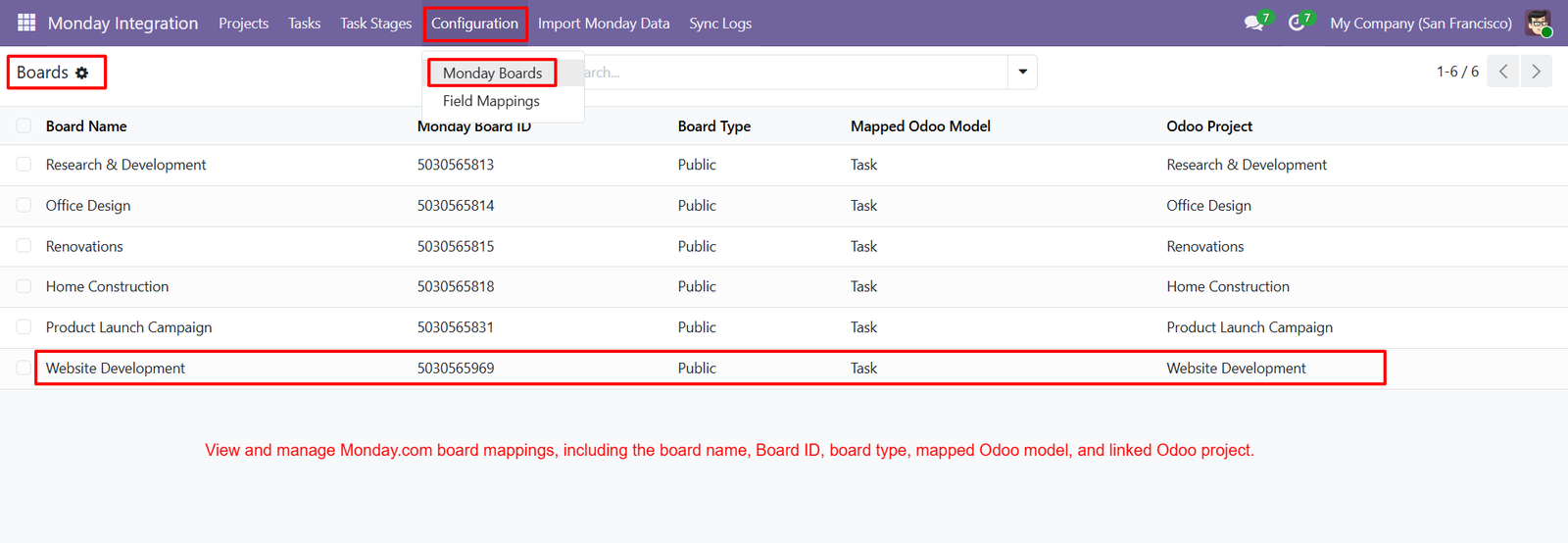
- Access the Monday Boards section through Configuration to review available boards and manage their relationships with corresponding Odoo projects efficiently.
- Review each board name to quickly identify specific Monday.com workspaces connected with different business activities, departments, or project requirements easily.
- Use Monday Board ID values to uniquely identify connected boards and maintain accurate relationships between Monday.com records and Odoo configurations.
- Check Board Type information to understand whether each connected Monday.com board is configured as public or follows supported integration settings.
- Review the Mapped Odoo Model column to identify which Odoo model is associated with each selected Monday.com board for synchronization.
- View linked Odoo Projects beside Monday.com boards, making it easier to verify whether project mappings are configured correctly within Odoo.
- Manage multiple Monday.com boards from one centralized interface, helping administrators monitor different projects and business activities without switching between platforms.
- Use board mappings to maintain clear relationships between Monday.com project structures and corresponding Odoo project records throughout integration workflows consistently.
- Verify Website Development board mapping to ensure its Monday.com board ID, model, and corresponding Odoo project remain properly connected together.
- Review Research & Development board mappings to maintain organized synchronization between technical projects and their related Monday.com workspace activities efficiently.
- Manage Office Design board mappings to keep project information connected with the appropriate Odoo project and Monday.com board structure accurately.
- Track Renovations board mappings to ensure renovation activities remain associated with the correct Odoo project and Monday.com workspace configuration properly.
Step 9: View detailed synchronization history from Odoo to monitor Monday.com import operations, request times, accounts, actions, and synchronization statuses.
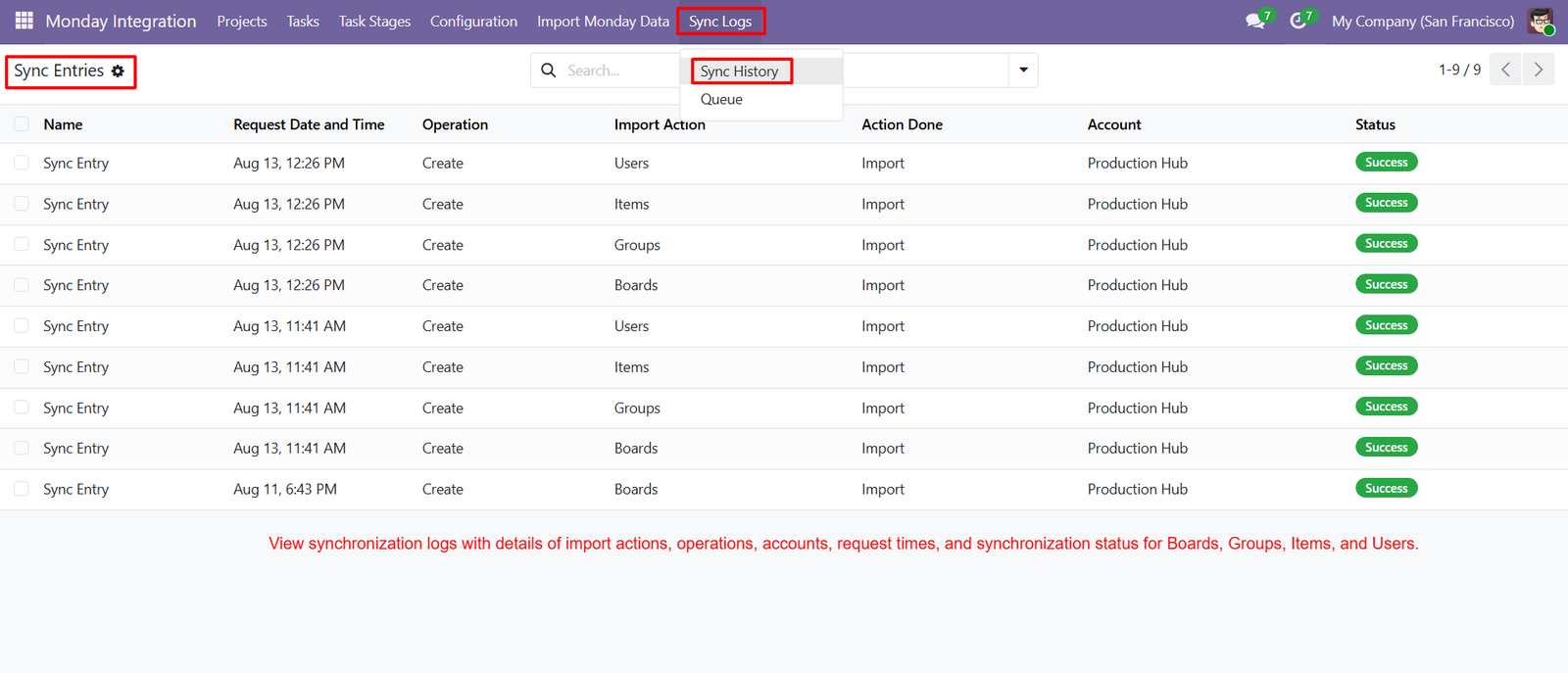
- Access Sync History from the Sync Logs menu to review previously completed Monday.com synchronization activities in one centralized location.
- Monitor request date and time for each synchronization entry, helping administrators identify when specific Monday.com import operations occurred successfully.
- Review the Operation column to identify actions such as Create performed during Monday.com data synchronization processes within Odoo efficiently.
- Check Import Action details to understand whether Boards, Groups, Items, or Users were processed during each synchronization operation.
- Review Action Done information to confirm the specific operation performed, such as importing selected Monday.com records into Odoo successfully.
- Identify the connected Monday.com account for every synchronization entry, ensuring administrators can track activities against the correct configured account.
- Monitor synchronization status indicators to quickly determine whether individual Monday.com import operations completed successfully without reported issues during processing.
- Track Board synchronization entries separately to verify when Monday.com boards were created or imported into the connected Odoo environment.
- Review Group synchronization records to monitor project groups imported from Monday.com and confirm successful processing within the integration workflow.
- Monitor Item synchronization entries to track Monday.com tasks or items imported into Odoo during project data synchronization operations successfully.
- Review User synchronization entries to confirm Monday.com user information was processed and imported successfully into the Odoo environment.
- Use synchronization history to maintain an audit trail of Monday.com data transfers, helping administrators understand previous integration activities clearly.
Why Use the Monday.com Odoo Connector Module?
- Centralized Project Management: Manage Monday.com project information directly within Odoo, providing teams with centralized access to boards, groups, tasks, users, and stages.
- Reduced Manual Data Entry: Import and synchronize Monday.com records with Odoo, reducing repetitive manual work and minimizing duplicate project information across platforms.
- Seamless API Integration: Connect Monday.com with Odoo using API credentials, creating a structured integration for transferring relevant project management data efficiently.
- Selective Data Import: Choose specific Boards, Groups, Items, and Users for import, giving administrators greater control over synchronized information and project records.
- Improved Task Management: Synchronize Monday.com items with Odoo tasks, helping teams manage project activities, assignments, stages, and responsibilities more efficiently.
- Better Project Organization: Maintain organized project structures by connecting Monday.com boards with Odoo projects and groups with corresponding project stages.
- Task Stage Synchronization: Automatically create corresponding Monday.com groups from Odoo task stages, keeping project workflows aligned across both platforms.
- Easy Board Mapping: Manage Monday.com board mappings with Board IDs, board types, Odoo models, and linked projects from one centralized configuration interface.
- Synchronization Visibility: Track synchronization operations through detailed logs, providing clear information about imported entities, actions, accounts, timestamps, and statuses.
- Data Consistency: Keep relevant project information aligned between Monday.com and Odoo, helping teams work with more consistent and reliable project records.
- Enhanced Collaboration: Connect project activities across both platforms, enabling teams to coordinate tasks and responsibilities while maintaining structured project workflows.
- Faster Project Setup: Import existing Monday.com project structures into Odoo instead of recreating boards, groups, tasks, and users manually from scratch.
- Better Administrative Control: Control connected accounts, selected import entities, board mappings, synchronization settings, and integration activities through Odoo.
- Scalable Project Workflows: Support growing businesses by connecting multiple project structures and maintaining organized workflows across Monday.com and Odoo environments.
- Transparent Import Results: Review imported, updated, and error records after synchronization, making it easier to verify successful data transfers and identify issues.
- Improved Workflow Alignment: Keep Monday.com groups and Odoo project stages connected, helping teams maintain consistent workflows throughout different project development phases.
- Simplified Integration Management: Manage Monday.com account connections, projects, tasks, stages, mappings, imports, and logs from an integrated Odoo environment.
- Enhanced Project Visibility: Access project groups, tasks, deadlines, assignments, and synchronization information within Odoo for better operational visibility and coordination.
- Reduced Operational Effort: Automate important project data transfers between Monday.com and Odoo, helping teams spend less time maintaining duplicate information.
- Complete Integration Workflow: Connect accounts, import data, synchronize projects and tasks, map stages, manage boards, and monitor synchronization from one Odoo module.