

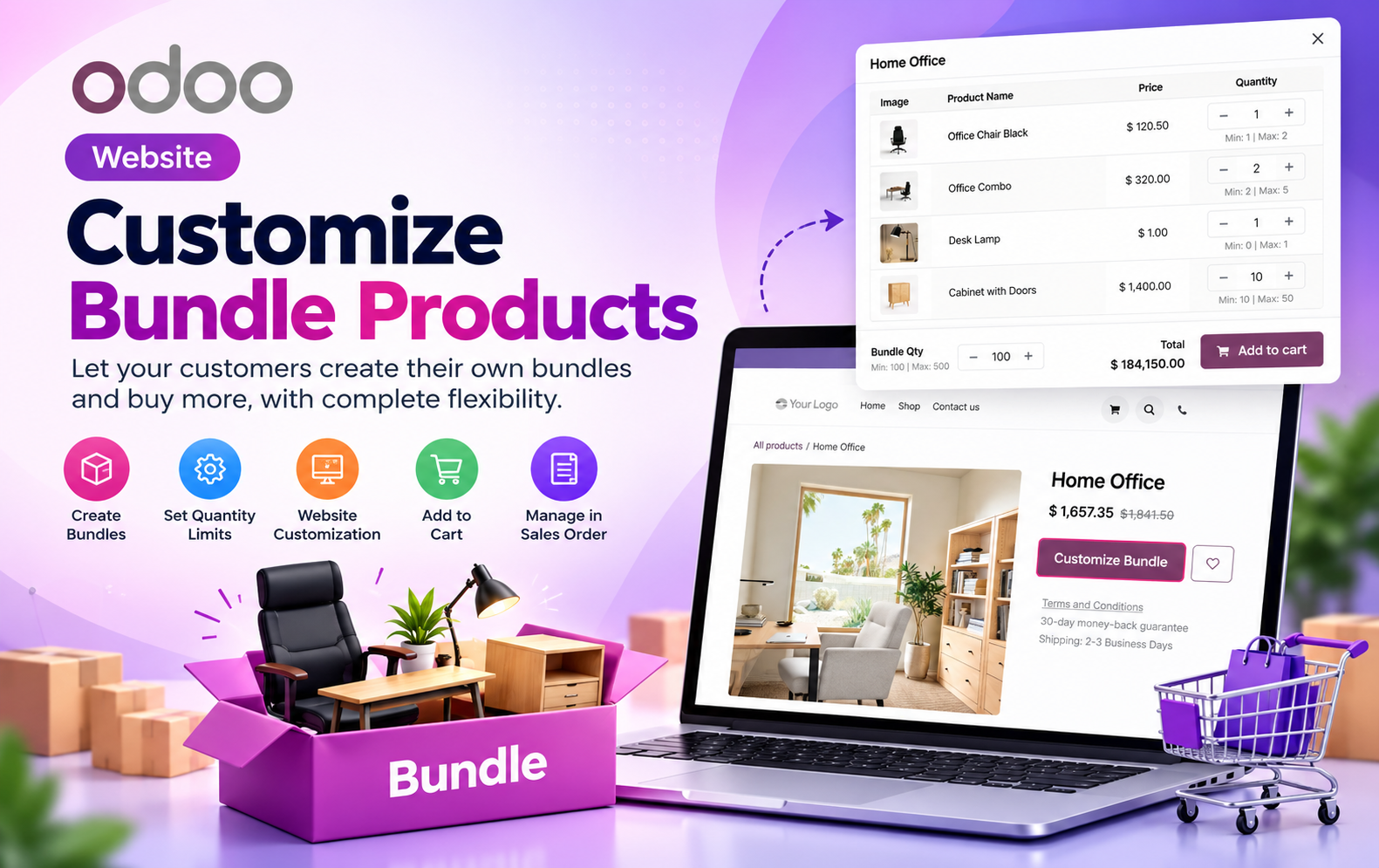
Product bundles are a powerful way for eCommerce businesses to combine multiple products and give customers more flexibility while shopping. However, customers may want to choose different products or quantities instead of purchasing a fixed bundle.
Odoo Website Customize Bundle Products allows businesses to create customizable product bundles directly on their Odoo eCommerce website. Store administrators can configure a main bundle product, add related products, define minimum and maximum quantities, and allow customers to personalize their bundle before adding it to the cart.
The module also supports bundle management from the Odoo backend, Sales Orders, and Delivery Orders, making the complete bundle workflow easier to manage.
Key Features at a Glance
- Create Customizable Bundle Products – Enable the Bundle option for products and create flexible packages with multiple related products for customers.
- Add Multiple Bundle Products – Add different products to a single bundle and manage all included items from one configuration page.
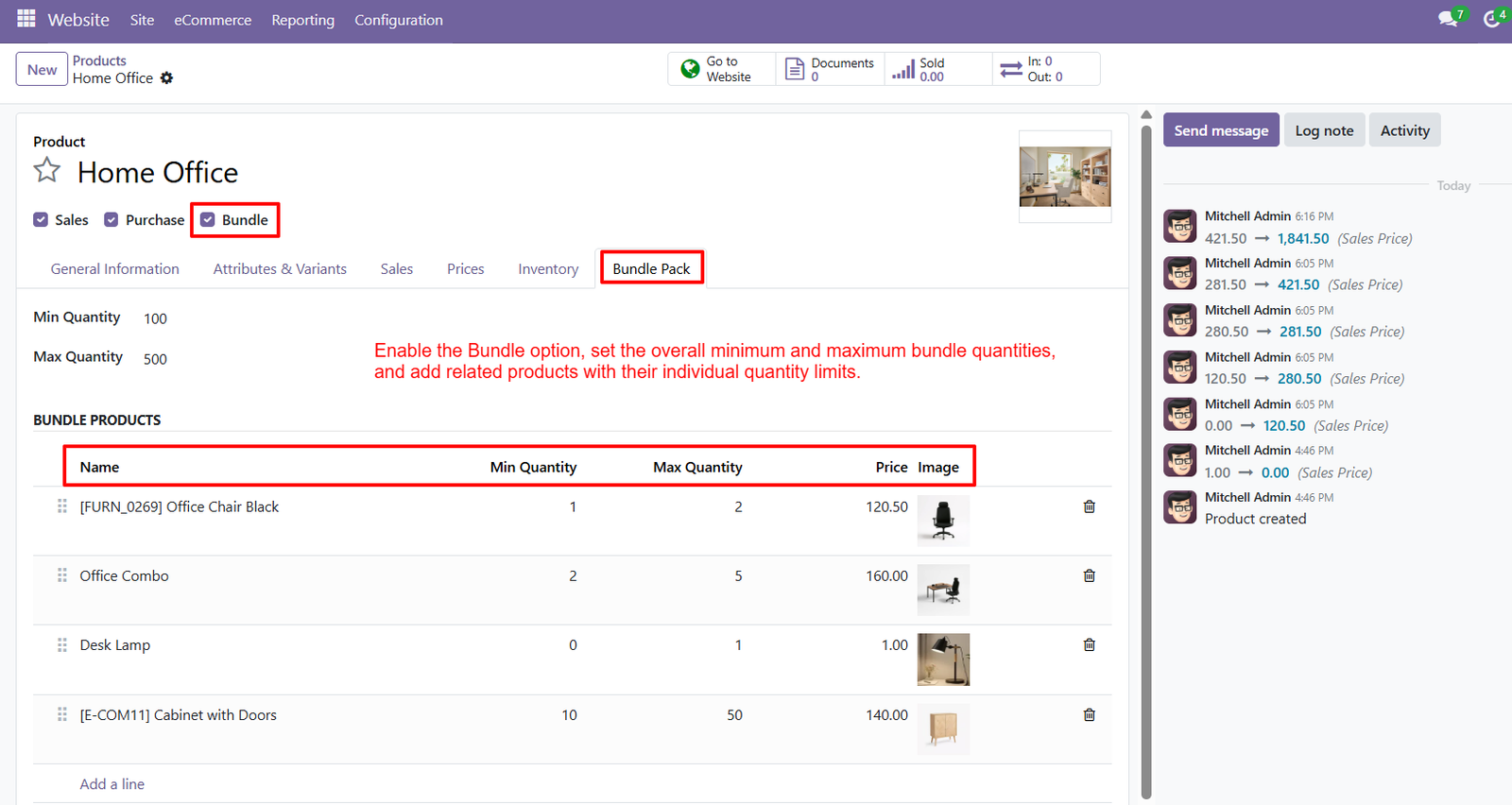
- Set Overall Bundle Quantity – Define minimum and maximum quantities for the complete bundle according to your business requirements.
- Configure Individual Item Quantities – Set separate minimum and maximum quantity limits for every product included within the customizable bundle.
- Customize Bundles on Website – Allow customers to personalize their bundles directly from the Odoo website before purchasing products.
- Easy Customize Bundle Button – Customers can quickly open the customization interface using the dedicated Customize Bundle button on product pages.
- Select Required Bundle Products – Customers can choose required products from available bundle items according to configured quantity restrictions.
- Adjust Product Quantities – Customers can increase or decrease individual product quantities while staying within configured minimum and maximum limits.
- Display Product Images – Show product images inside the customization window, helping customers easily identify and select desired bundle items.
- Display Bundle Product Prices – Customers can view individual product prices while customizing their selected bundle before adding it to their cart.
- Add Customized Bundle to Cart – Customers can add their selected products and quantities directly to the shopping cart after customization.
- Smooth eCommerce Checkout – Customized bundles can continue through the standard Odoo shopping cart and checkout workflow without additional complexity.
- Manage Bundles from Sales Orders – Backend users can create and manage bundle products directly from Odoo Sales Orders.
- Add Bundles Using Sales Wizard – Use the Add a Bundle option to open a selection wizard and add required bundle products efficiently.
- View Selected Bundle Items – Sales Orders provide visibility into the bundle and its selected products for easier order management.
Use Cases: Who Needs This module?
1. Furniture & Home Decor Stores
Allow customers to create personalized furniture bundles by selecting chairs, desks, lamps, and cabinets with flexible quantity options.
2. Electronics & Computer Retailers
Enable customers to customize electronics bundles by combining computers, keyboards, monitors, and accessories according to their individual requirements.
3. Fashion & Apparel Businesses
Create customizable clothing bundles where customers can select different apparel items and adjust quantities within predefined bundle limits.
4. Beauty & Cosmetics Stores
Offer personalized beauty kits by allowing customers to combine skincare products, cosmetics, and accessories into customized product bundles.
5. Gift & Hamper Businesses
Let customers build personalized gift hampers by choosing multiple products and adjusting quantities according to their preferences and occasions.
6. Office Supply Retailers
Allow businesses to purchase customized office supply bundles containing stationery, furniture, and essential workplace accessories in configurable quantities.
7. Grocery & Food Retailers
Create flexible grocery bundles where customers can select different food products and customize quantities based on their shopping requirements.
8. Sports & Fitness Equipment Stores
Enable customers to build personalized fitness packages by combining workout equipment, accessories, and other products into customizable bundles.
9. Automotive Parts & Accessories Stores
Allow customers to create customized vehicle accessory bundles by selecting compatible products and adjusting quantities according to their requirements.
10. B2B Wholesale Businesses
Simplify bulk purchasing by allowing business customers to customize product bundles while maintaining predefined minimum and maximum quantity limits.
11. Educational Supply Stores
Create customizable educational kits containing books, stationery, learning materials, and accessories according to different student or institutional requirements.
12. eCommerce & Multi-Product Retailers
Offer flexible product combinations directly on the Odoo website while managing customized bundles through Sales Orders and Delivery Orders.
Quick User Guide (Visual Walkthrough)
Scroll up to revisit the detailed image-wise walkthrough.
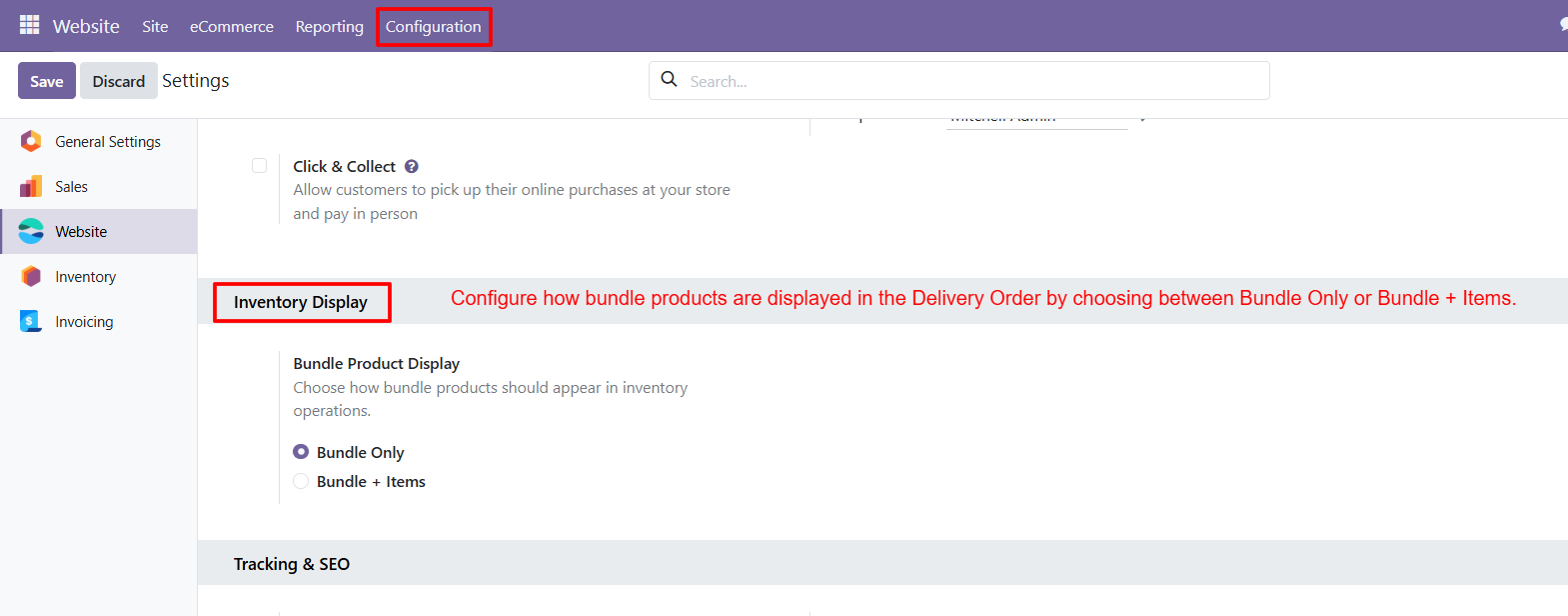
Step 1: Configure Inventory Display – Configure the Inventory Display setting to control how bundle products appear during inventory and delivery operations within Odoo systems directly.
Step 2: Enable Bundle Products – Enable the Bundle option on products to transform them into customizable packages with related products managed from one configuration page.
Step 3: Start Bundle Customization – Customers can access the bundle page and click Customize Bundle to begin selecting products according to their preferences and requirements.
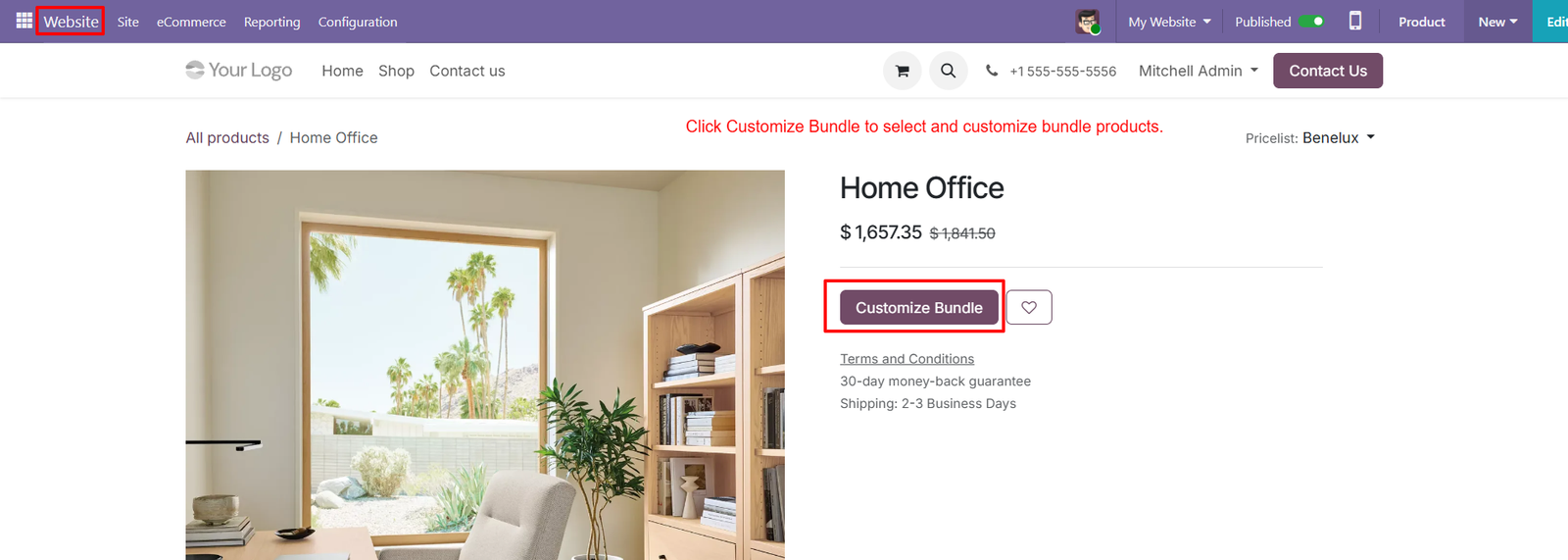
- Easy Customization Access – The Customize Bundle button provides an entry point for customers to personalize bundle products before adding their selection to cart.
- Website Bundle Customization – Customers can customize bundles directly from the Odoo website without navigating away from the product page during their shopping experience.
- Display Bundle Information – The product page clearly presents the Home Office bundle with its current selling price and available customization option for customers.
- Personalize Product Combinations – Customers can personalize bundled products by clicking Customize Bundle, making it easier to create combinations that match their specific needs.
- Display Bundle Name – The website displays the bundle name prominently, helping customers identify the product they are viewing before starting the customization process.
- Review Bundle Pricing – Customers can review the bundle price before customization, helping them understand the displayed product cost during their purchasing journey easily.
- Prominent Customize Button – The Customize Bundle button appears prominently beside the product information, making the customization feature easy for website visitors to discover.
- Configure Bundle Contents – Customers can begin configuring bundle contents directly from the product page through the dedicated Customize Bundle action provided by Odoo.
- Simple Customization Workflow – The customization workflow starts from the website product page, creating a straightforward path from product discovery to personalized bundle selection.
- Publish Customizable Bundles – Businesses can publish customizable bundles on their Odoo website and allow customers to personalize included products before completing their purchase.
- Integrated Bundle Configuration – The website product page connects bundle presentation with customization, allowing customers to move naturally from product browsing into bundle configuration.
- Integrated eCommerce Experience – Customers can access customization alongside standard product information, keeping the bundle selection process integrated within the existing Odoo eCommerce experience.
- Dedicated Customization Action – The product page provides a dedicated customization action, allowing customers to start configuring bundle products whenever they are ready to proceed.
- Apply Quantity Rules – Customers can use the Customize Bundle option to personalize available bundle products according to the quantity rules configured by administrators.
- Combined Product Information – The displayed product page supports customizable bundle selling by combining product information, pricing, and customization options within one interface easily.
Step 4: Select Required Products – Select required products and quantities directly from the bundle customization window before adding the personalized bundle to your shopping cart.
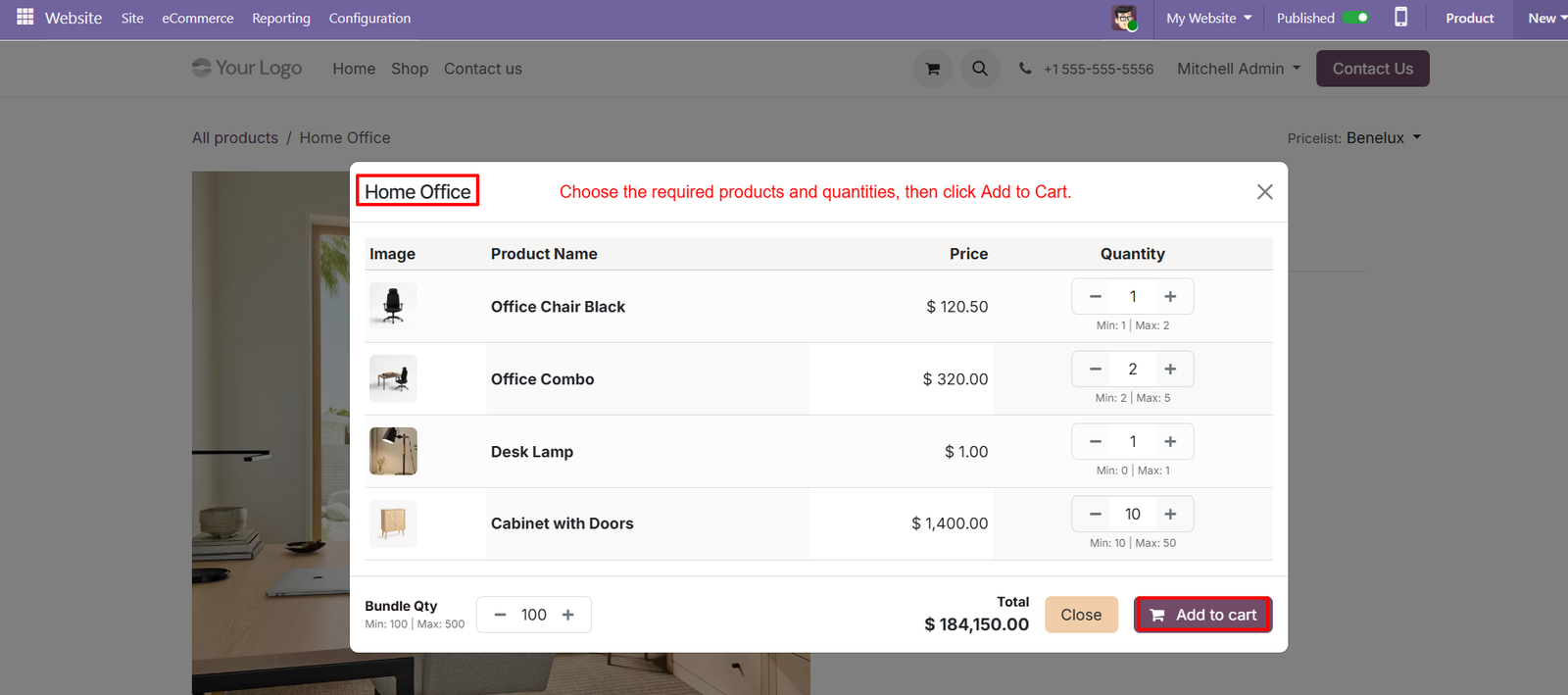
- View Product Information – View product images alongside names, prices, and quantity controls, making each available bundle item easier for customers to identify quickly.
- Adjust Product Quantities – Adjust product quantities using plus and minus controls while following the minimum and maximum limits configured for each bundle item.
- Check Quantity Limits – Review minimum and maximum quantity limits beneath each product to understand the permitted quantity range before completing selected bundle customization.
- Configure Bundle Quantity – Configure the overall Bundle Qty using dedicated controls while staying within the minimum and maximum bundle quantity defined by administrators.
- View Individual Prices – View individual product prices within the customization window to understand the cost contribution of each selected bundle item before checkout.
- Add Bundle to Cart – Add the customized bundle to the shopping cart after selecting required products and setting their quantities according to configured limits.
- Customize Multiple Products – Customize multiple products together, including office chairs, office combos, desk lamps, and cabinets, within one convenient online bundle interface easily.
- Identify Bundle Items – Use product names and images to distinguish different bundle items while creating a personalized combination suitable for specific customer requirements.
- Review Total Amount – Check the displayed total amount after selecting quantities to review the combined price of the customized bundle before adding it.
- Maintain Quantity Restrictions – Maintain configured quantity restrictions because customers can adjust selections only within the minimum and maximum values assigned to bundle products.
- Select Optional Products – Select optional products when their configured minimum quantity is zero, allowing customers greater flexibility when building their customized product bundle.
- Combine Different Quantity Ranges – Combine products with different quantity ranges within one bundle, supporting varied customization requirements for individual products during the shopping process.
- Confirm Bundle Name – Review the bundle name at the top of the customization window to confirm that the product package is being customized.
- Close Customization Window – Use the Close button to exit the customization window without proceeding with the current bundle selection and cart addition process.
- Organized Customization Interface – Provide customers with a customization interface that organizes product images, names, prices, quantities, limits, and totals clearly in one place.
Step 5: Add Bundle Products – Add bundle products directly from Sales Orders using the Add a Bundle option available within the order lines section easily.
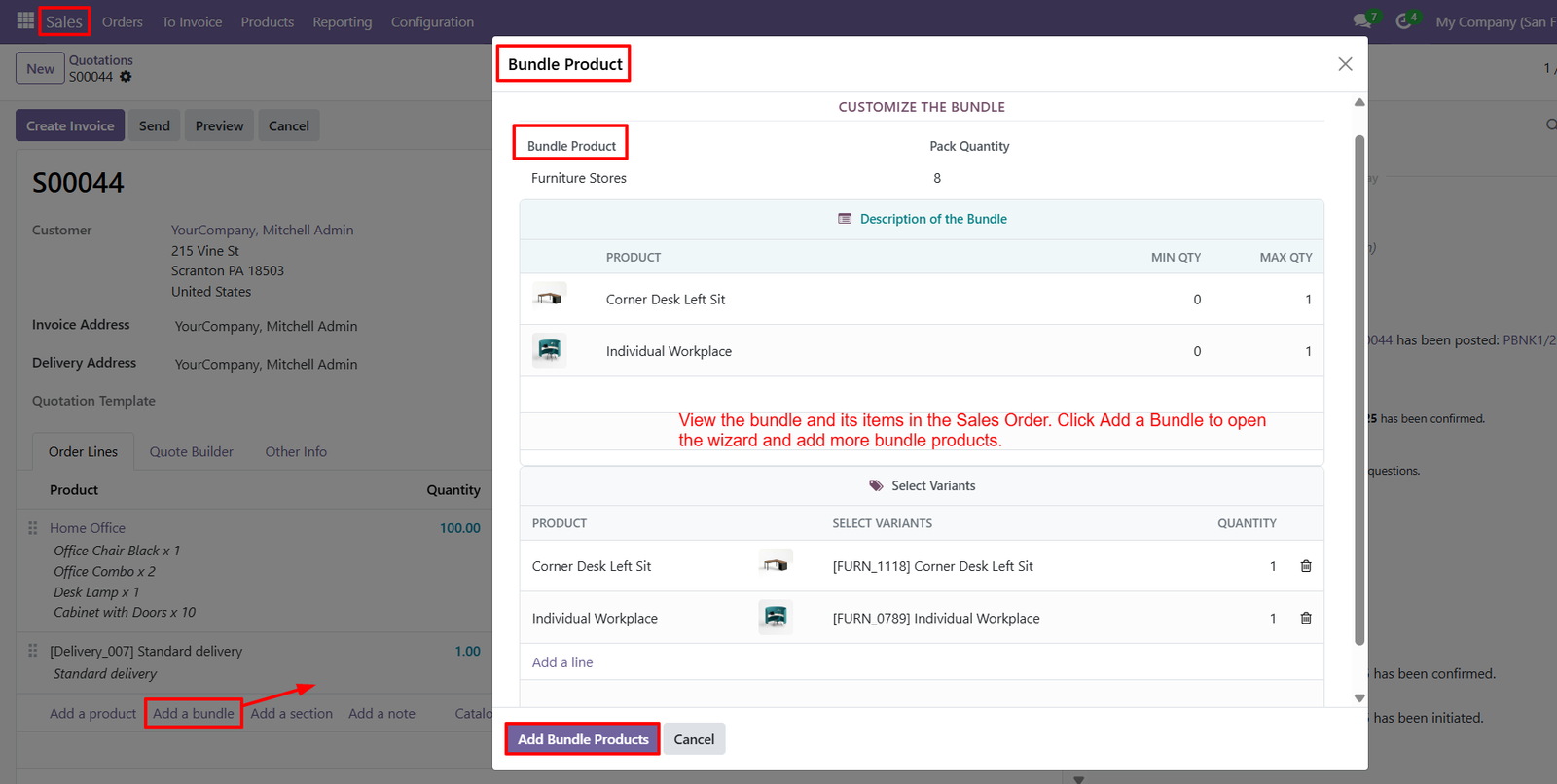
- Open Bundle Wizard – Click Add a Bundle to open the dedicated bundle selection wizard for configuring and adding required products to Sales Orders.
- View Bundle Details – Review bundle information including bundle name, pack quantity, included products, minimum quantities, and maximum quantities within the selection wizard.
- View Bundle Description – Access the Description of the Bundle section to review products included within the selected bundle before adding them to Sales Orders.
- Review Minimum Quantities – Check configured minimum quantities for individual bundle products before selecting or adding those products through the Sales Order workflow.
- Review Maximum Quantities – Check configured maximum quantities for individual bundle products to ensure selections remain within defined bundle configuration limits during ordering.
- Select Product Variants – Select appropriate product variants for bundle items using the Select Variants section available within the Sales Order bundle wizard.
- Set Product Quantities – Define quantities for selected bundle products while creating or customizing bundles directly from the Sales Order interface in Odoo.
- View Selected Products – Review selected bundle products, variants, and quantities in one organized section before confirming the bundle addition to Sales Orders.
- Add Additional Bundle Lines – Use Add a line to include additional products within the bundle selection when required during Sales Order configuration.
- Remove Selected Products – Remove unwanted selected bundle products using the delete option available beside individual product lines within the customization wizard easily.
- View Pack Quantity – Review the Pack Quantity associated with the bundle to understand the configured quantity information before completing the Sales Order.
- Manage Multiple Bundles – Add more bundle products to the same Sales Order using the Add a Bundle option whenever additional bundles are required.
- Sales Order Integration – Manage customized bundles directly within Sales Orders, connecting bundle selection with the standard Odoo sales workflow for efficient order processing.
- Review Bundle Before Confirmation – Review configured bundle products and selected variants before clicking Add Bundle Products to add them into the Sales Order.
- Organized Product Selection – The bundle wizard organizes products, variants, quantities, and limits into dedicated sections for easier Sales Order bundle management.
Step 6: View Bundle Products – View configured bundle products directly within the Delivery Order, making fulfillment details easier to review and process accurately.
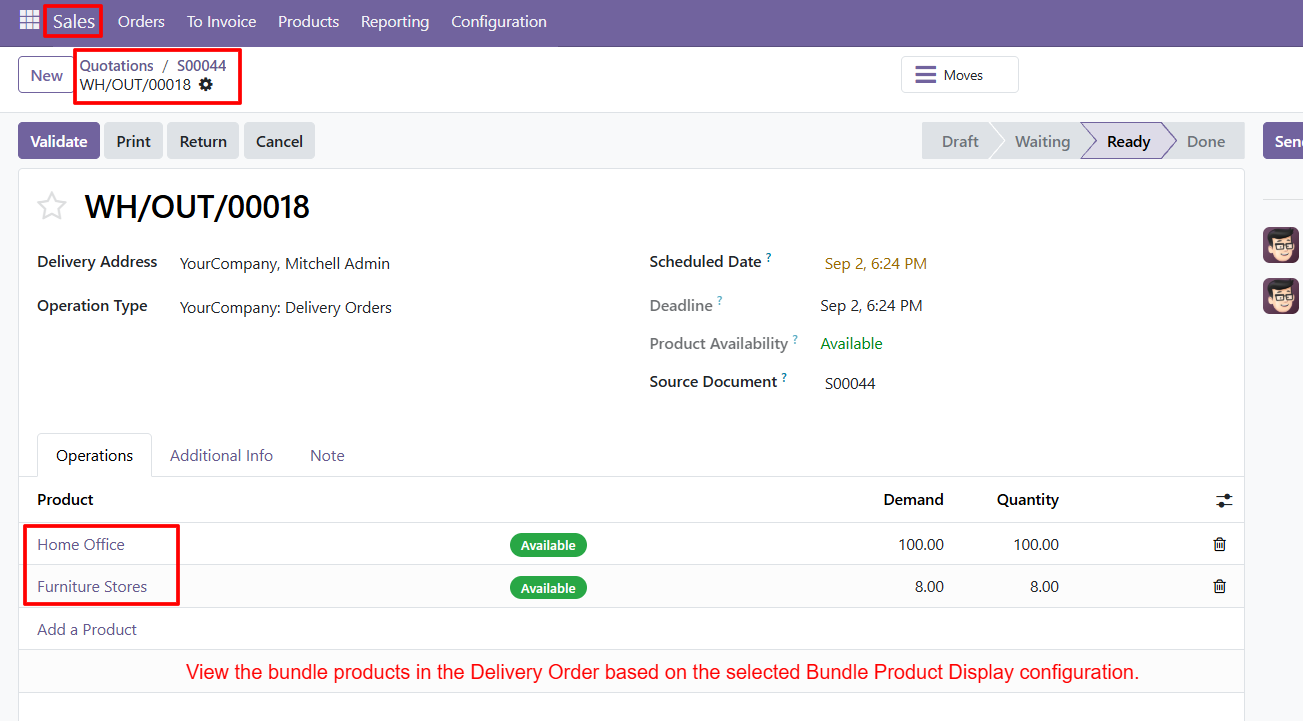
- Delivery Order Integration – Bundle products appear within Odoo Delivery Orders, connecting customized bundle sales with the inventory fulfillment process efficiently.
- Display Bundle Information – Review bundle product names directly in the Operations section of the Delivery Order for clear fulfillment management.
- Track Bundle Demand – View the required demand quantity for each bundle product, helping warehouse teams understand expected quantities during fulfillment operations.
- Confirm Delivered Quantity – Review the quantity assigned for each bundle product and compare it with the required demand before processing delivery.
- Check Product Availability – Availability indicators show whether bundle products are available, helping users review inventory readiness before completing delivery operations.
- Multiple Bundle Products – Display multiple bundle products within the same Delivery Order, allowing different bundles to be processed through one fulfillment document.
- Bundle Only Display – When configured, Delivery Orders can display the main bundle product without listing individual products included inside the customized bundle.
- Bundle Plus Items Display – Configure Delivery Orders to display the main bundle together with its individual products for detailed fulfillment visibility.
- Operations Section – View bundle products within the Operations section, where product, demand, quantity, and availability information can be reviewed efficiently.
- Product Availability Status – Green Available indicators provide clear visibility into whether required bundle products are currently available for delivery processing.
- Source Document Reference – Review the Source Document reference within the Delivery Order to connect fulfillment activities with their originating Sales Order.
- Scheduled Delivery Date – View the scheduled delivery date and time alongside bundle information to support organized delivery planning and fulfillment activities.
- Delivery Deadline – Review the delivery deadline within the Delivery Order, helping users manage bundle fulfillment according to configured operational schedules.
- Delivery Address – The Delivery Order displays the customer delivery address, providing necessary destination information while processing customized bundle product shipments.
- Operation Type – Review the selected operation type within the Delivery Order to understand which inventory workflow is being used for bundle fulfillment.
Why Use the Odoo Website Customize Bundle Products Module?
The Odoo Website Customize Bundle Products module provides a structured way to create, customize, sell, and manage product bundles through Odoo eCommerce and backend sales operations.
1. Improve Customer Customization
Customers can select products and adjust quantities while customizing their preferred bundle directly from the website.
2. Provide Flexible Bundle Management
Administrators can create bundle products, add related items, and configure minimum and maximum quantities for both bundles and individual products.
3. Offer Flexible Product Packages
Businesses can combine multiple related products into a single customizable bundle instead of offering only fixed product combinations.
4. Control Bundle Quantities
Minimum and maximum quantity limits help businesses define how many bundle units and individual items customers can select.
5. Simplify Website Purchasing
Customers can customize their selected bundle and add it directly to the shopping cart before continuing with checkout.
6. Manage Bundles from Sales Orders
Sales users can add and manage bundles directly from the Odoo backend using the Add a Bundle option.
7. Support Delivery Flexibility
Businesses can choose whether Delivery Orders display Bundle Only or Bundle + Items, depending on their operational requirements.
8. Improve the Overall Shopping Experience
The module connects bundle configuration, website customization, cart addition, Sales Orders, and Delivery Orders into one workflow.
9. Maintain Better Order Management
Selected bundle products and their details can be viewed within Sales Orders, helping users manage customized orders from the backend.
10. Create a Controlled Customization Process
Predefined quantity limits allow customers to customize bundles while staying within the rules configured by the business.