
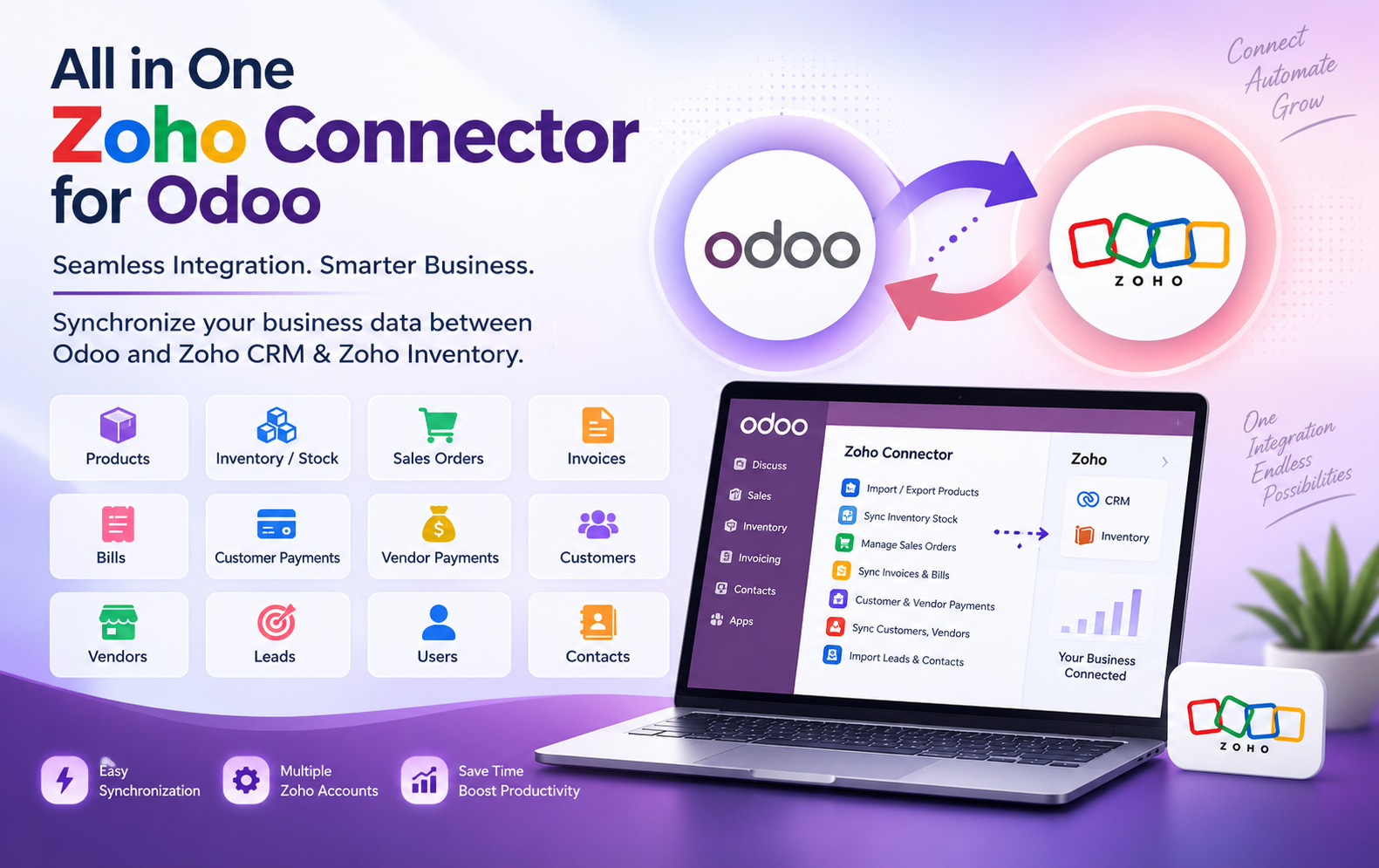
Managing business data across multiple platforms can become challenging when information needs to be transferred manually between systems. Businesses using Odoo, Zoho CRM, and Zoho Inventory can simplify this process with the All in One Zoho Connector for Odoo.
The connector is designed to synchronize important business records between Odoo and Zoho. It supports products, stock quantities, sales orders, invoices, bills, customer payments, vendor payments, customers, vendors, leads, users, and contacts. It also supports multiple Zoho connections, record filtering, previews, synchronization summaries, and detailed logs.
This makes it easier to keep business information organized while reducing repetitive manual data entry
Key Features at a Glance
Use Cases: Who Needs This module?
Quick User Guide (Visual Walkthrough)
Scroll up to revisit the detailed image-wise walkthrough.
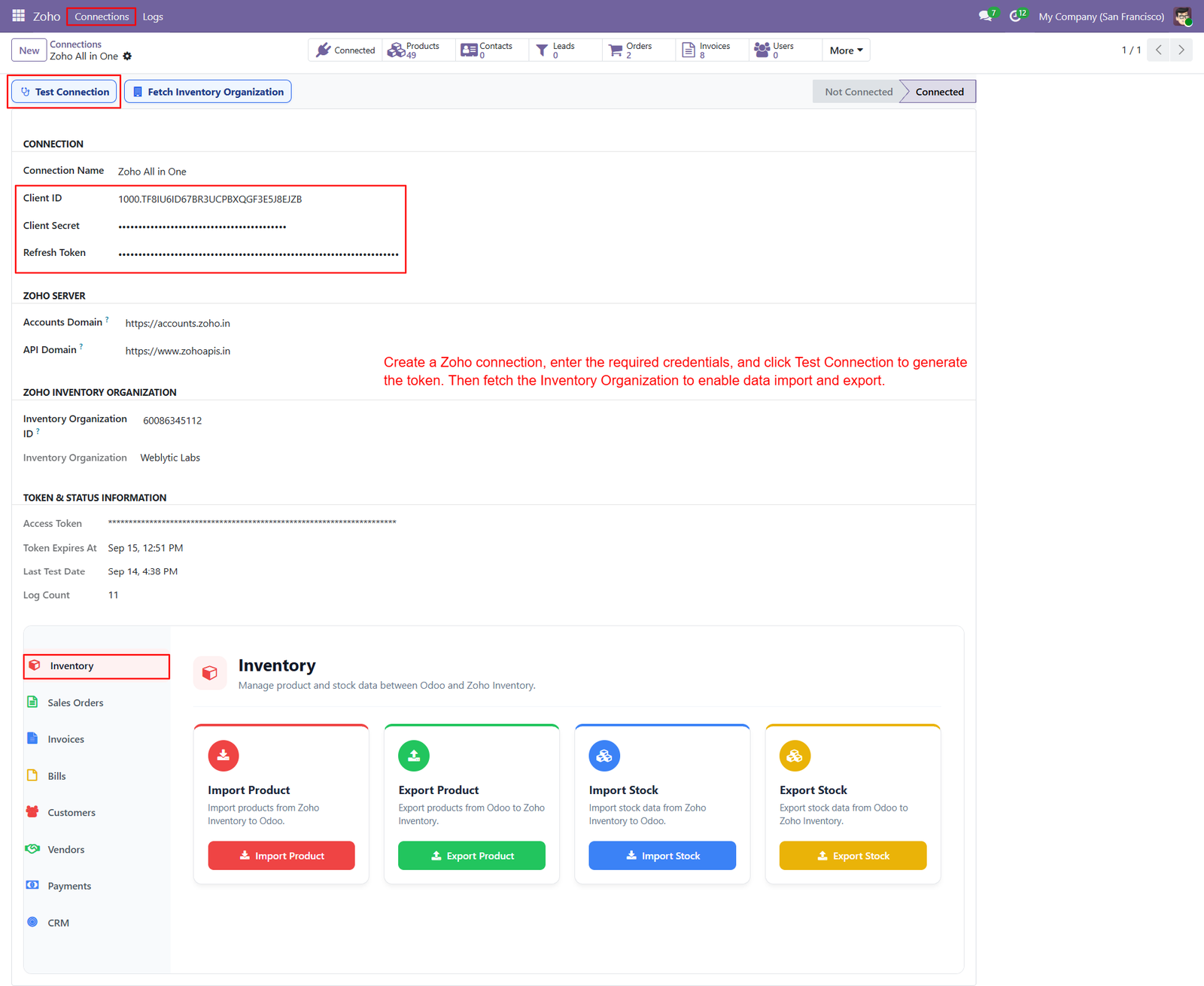
Step 1: Zoho Connection Setup – Create a Zoho connection in Odoo by entering credentials, testing connectivity, generating access tokens, and configuring Inventory organization details successfully.
Step 2: Import Products from Zoho – Import products from Zoho Inventory into Odoo by selecting product type, category, date range, and record limit before processing records.
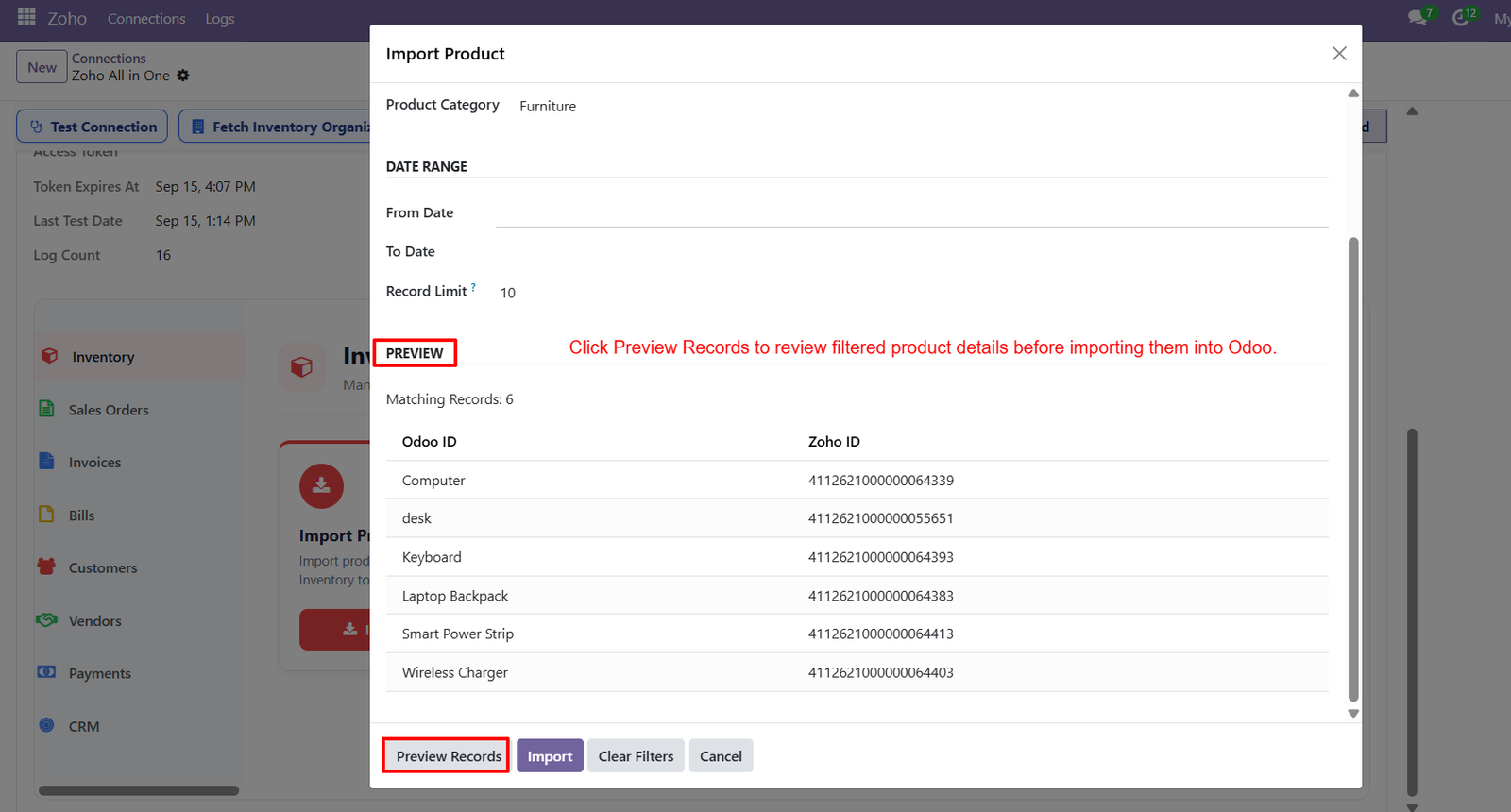
Step 3: Preview Filtered Products – Preview filtered product records before importing, allowing users to verify matching products, Odoo IDs, Zoho IDs, and selected data accurately.
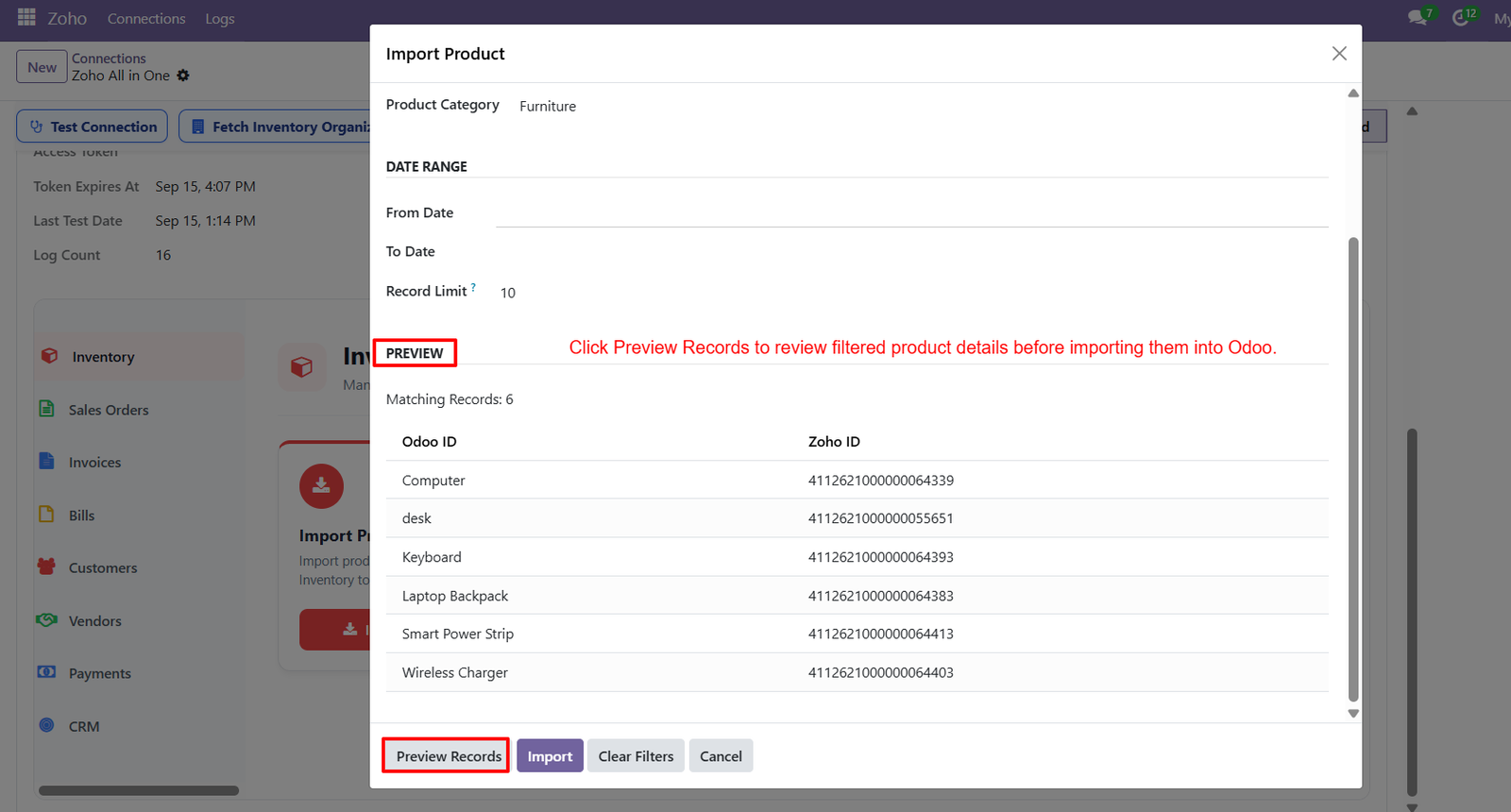
- Review Matching Records – Review the total matching records displayed in the preview section before confirming the final product import operation within Odoo successfully.
- Compare Product IDs – Compare Odoo product identifiers with corresponding Zoho identifiers to understand which products are available for synchronization before importing them successfully.
- Inspect Product Details – Use the preview table to inspect individual product names and their associated Zoho IDs before completing the final import process.
- Verify Filtered Results – Verify filtered product results visually before import, helping users confirm that the selected category and date criteria return expected records.
- Preview Retrieved Products – Preview records provide visibility into matching products retrieved from Zoho Inventory according to the configured import filters and criteria carefully.
- Review Product Names – Review product names such as Computer, desk, Keyboard, and Laptop Backpack directly within the preview results before importing them successfully.
- Check Additional Products – Check additional matching products including Smart Power Strip and Wireless Charger before transferring them from Zoho Inventory into Odoo successfully.
- View Matching Count – Use the matching records count to understand how many products satisfy the selected filters before starting the final import operation.
- Preview Before Importing – Click Preview Records to display filtered product information and review synchronization data before proceeding with the final Import button successfully.
- Validate Selected Records – Product preview helps users validate selected records before importing, reducing the possibility of processing unintended products from Zoho Inventory today.
- Identify Synchronized Products – Review Zoho IDs alongside Odoo IDs to maintain clear identification of products during the synchronization and import workflow process clearly.
- Structured Preview Table – The preview section organizes product information in a structured table, making filtered records easier to review before importing them efficiently.
- Import Selected Products – Use the Import button after reviewing previewed records to transfer selected products from Zoho Inventory into Odoo successfully and accurately.
- Reset Product Filters – Clear Filters can reset the selected criteria, allowing users to configure product filtering conditions before previewing records again whenever needed.
- Cancel Import Process – Cancel allows users to exit the import workflow without proceeding with the selected product synchronization operation in Odoo whenever necessary.
Step 4: Import Summary – Review the import summary to understand total processed products, successfully imported records, updated records, and any failed synchronization attempts clearly.
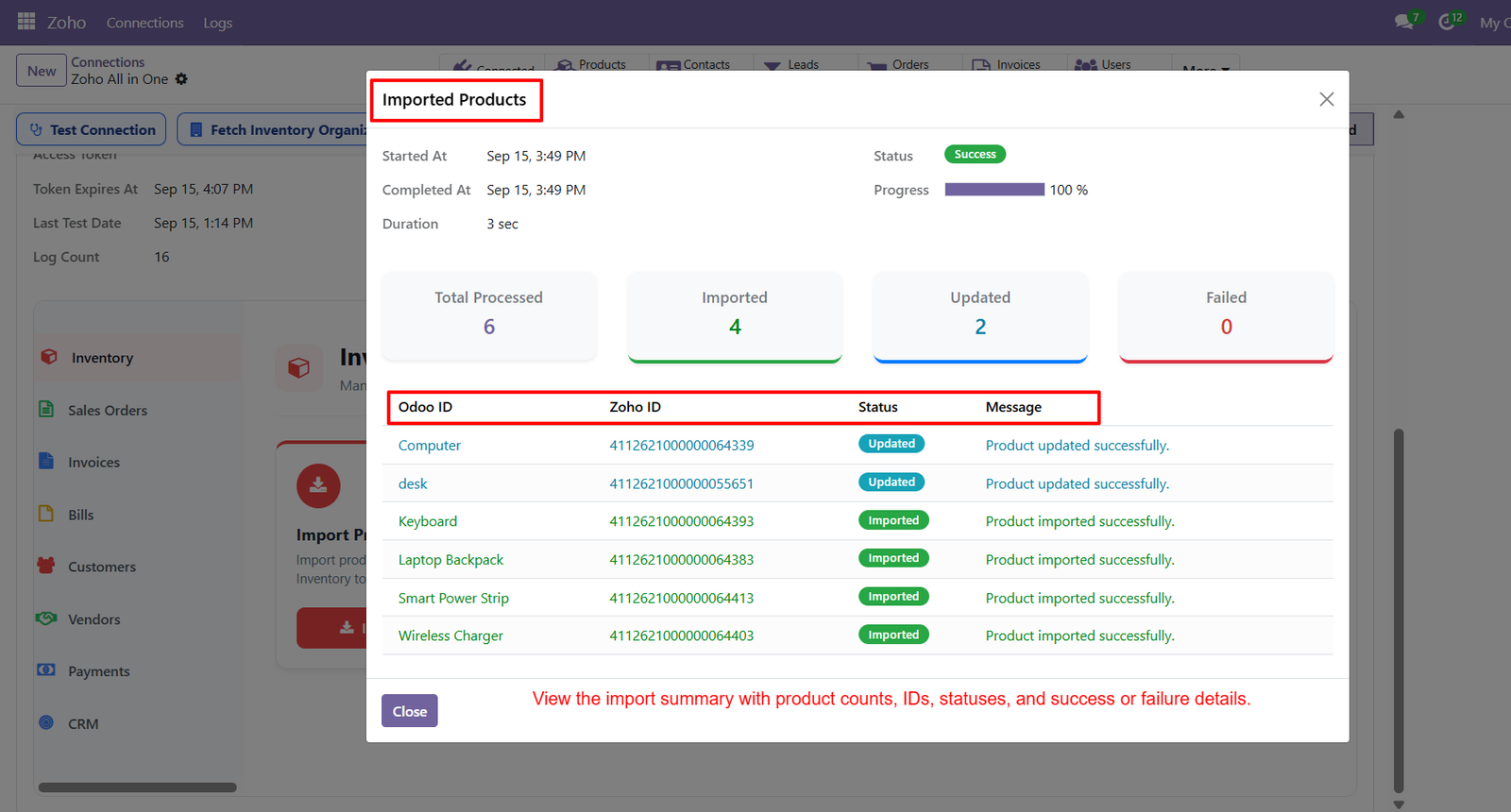
- Import Status – Monitor import status through the Success indicator and confirm that the synchronization process completed without reported failures for processed records.
- Progress Tracking – Check progress percentage to verify that the product import operation has reached completion and all selected records finished processing successfully.
- Total Processed Records – View total processed records to understand the overall number of products handled during the current Zoho Inventory to Odoo synchronization.
- Imported Product Count – Review imported product count to identify how many previously unavailable products were successfully created inside Odoo during the synchronization process.
- Updated Product Count – Check updated product count to identify existing Odoo products that received updated information from corresponding Zoho Inventory records during import.
- Failed Records Monitoring – Monitor failed records count to quickly determine whether products encountered synchronization problems between Zoho Inventory and Odoo during processing operations.
- Odoo ID Verification – Review Odoo IDs to identify corresponding products within Odoo and verify which records were imported or updated during synchronization successfully.
- Zoho ID References – Check Zoho IDs to maintain clear references between products originating from Zoho Inventory and their corresponding Odoo records during synchronization.
- Status Identification – Use status labels such as Imported and Updated to distinguish newly created products from existing products modified during import operations.
- Success Messages – Review success messages to confirm that individual products were imported successfully and their information was processed correctly within Odoo today.
- Updated Product Confirmation – Identify updated products by checking messages that confirm existing product information was successfully updated during the Zoho Inventory import process.
- Imported Product Verification – Verify newly imported products by checking green Imported statuses and corresponding success messages displayed within the import summary results clearly.
- Product Result Review – Review individual product results including Computer, desk, Keyboard, Laptop Backpack, Smart Power Strip, and Wireless Charger after completing import operations.
- Summary Table – Use the import summary table to review product names, Zoho identifiers, synchronization statuses, and processing messages together in one interface.
- Zero Failure Confirmation – Confirm zero failed records when displayed to ensure every processed product completed synchronization without any reported import errors successfully today.
Step 5: Export Product Stock – Export Product Stock transfers selected inventory quantities from Odoo to Zoho Inventory using configured filters and available export controls efficiently.
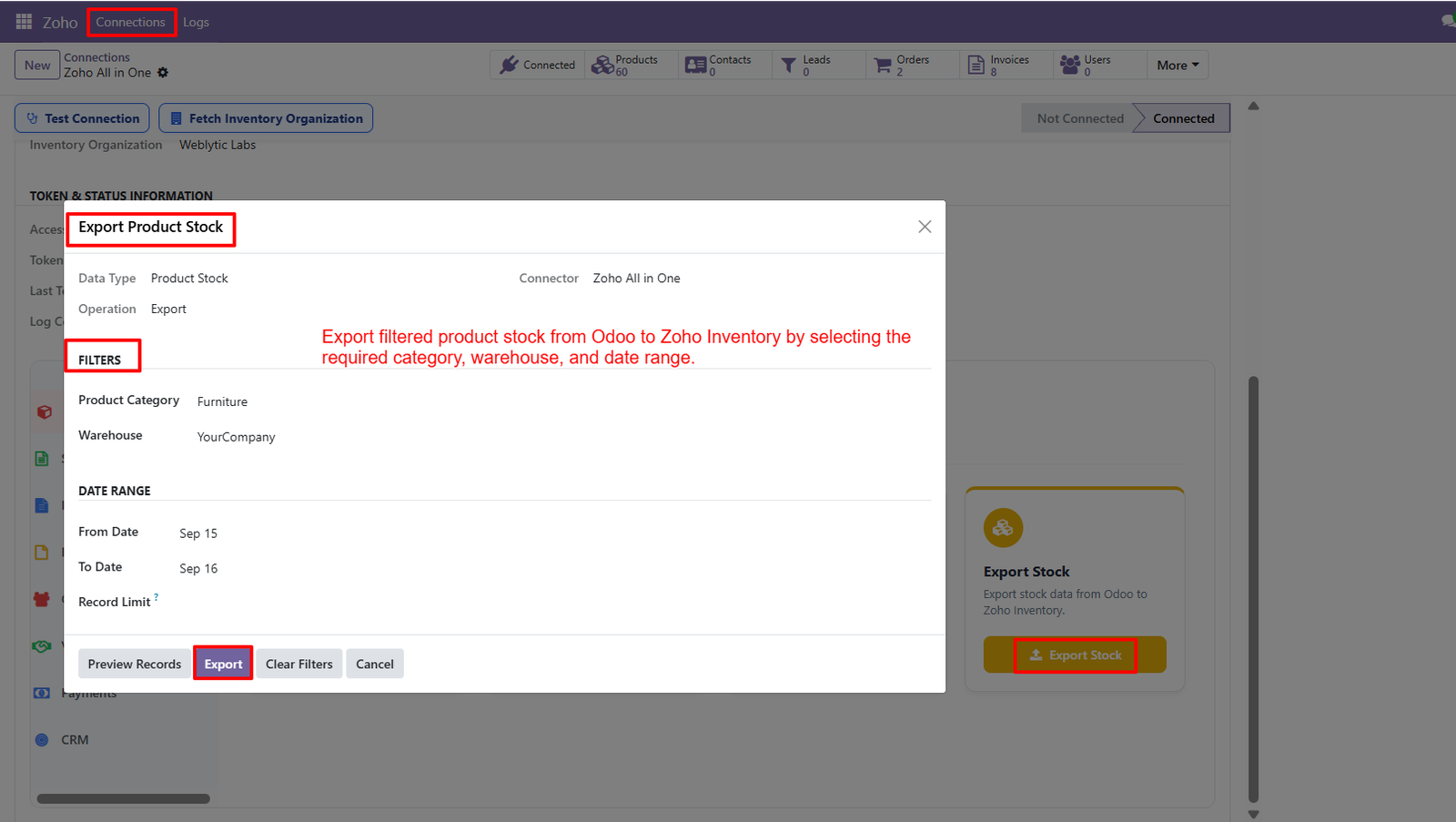
- Product Stock Data Type – Product Stock data type clearly identifies that the selected operation will export inventory quantities rather than product master information during synchronization.
- Export Operation – Export operation indicates that stock information will move from Odoo into the connected Zoho Inventory organization during the synchronization process.
- Product Category Filter – Product Category filtering lets users select specific categories, such as Furniture, before exporting their related stock information to Zoho Inventory.
- Warehouse Filter – Warehouse filtering allows users to select the required Odoo warehouse and export stock quantities associated with that specific warehouse efficiently.
- Date Range Filter – Date Range filtering provides From Date and To Date fields for controlling which stock records are considered during export processing.
- Record Limit – Record Limit allows users to control the number of stock records processed during a single export operation from Odoo Inventory.
- Preview Records – Preview Records provides an option to review filtered stock records before confirming the final export operation to Zoho Inventory successfully.
- Export Button – Export button starts the configured stock synchronization process after users select required filters and confirm the export operation successfully today.
- Clear Filters – Clear Filters allows users to remove selected filtering criteria and configure different product stock export requirements whenever necessary for synchronization.
- Cancel Export – Cancel button lets users exit the export window without continuing the configured product stock synchronization process in Odoo Inventory efficiently.
- Category-Based Stock Export – Product stock export supports category based selection, helping users focus synchronization on inventory belonging to particular product groups efficiently today.
- Warehouse-Based Selection – Warehouse based filtering helps businesses target stock information from a specific warehouse instead of processing unrelated inventory records during export.
- Date-Based Selection – Date based filtering provides additional control when users need to export stock information according to selected periods and requirements today.
- Combined Filters – Combining category, warehouse, and date filters helps users narrow stock records before sending relevant inventory information to Zoho Inventory accurately.
- Dedicated Export Controls – The connector provides dedicated controls for previewing, exporting, clearing filters, and cancelling the product stock operation directly within Odoo efficiently.
Step 6: Export Summary – Review the completed stock export summary showing total processed, exported, updated, and failed product records after synchronization.
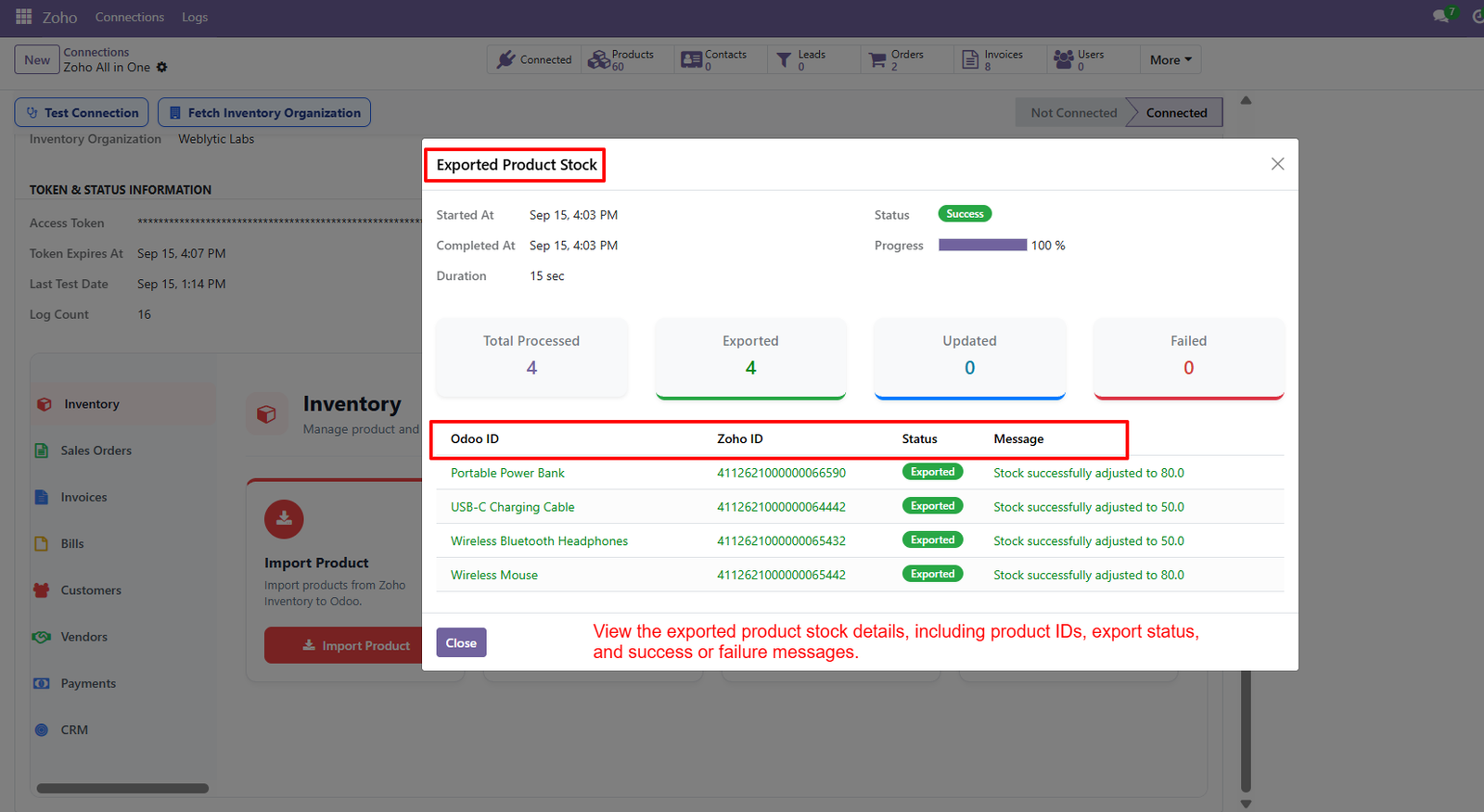
- Successful Export Status – The Success status confirms that the product stock export operation completed successfully without reported failures during the synchronization process.
- Progress Tracking – The progress indicator displays 100%, confirming that all selected product stock records completed the export operation successfully.
- Total Processed Records – View the total processed count to understand how many product stock records were handled during the export operation.
- Exported Records Count – Check the exported count to identify how many product stock records were successfully transferred from Odoo to Zoho Inventory.
- Updated Records Count – Review the updated count to determine how many existing Zoho Inventory records were modified during the stock export process.
- Failed Records Count – Monitor the failed count to identify whether any product stock records encountered problems during the export operation.
- Odoo Product Identification – The Odoo ID column displays product names, helping users identify which Odoo products were included in the export process.
- Zoho Product Identification – The Zoho ID column displays corresponding identifiers, making it easier to track exported products within Zoho Inventory.
- Export Status Labels – Status labels identify successfully exported products, providing clear visibility into individual synchronization results after completing the stock transfer process.
- Stock Adjustment Messages – Message details confirm successful stock adjustments and display the resulting quantities synchronized with Zoho Inventory for individual products.
- Portable Power Bank Stock – The export result shows Portable Power Bank successfully processed with its Zoho identifier and corresponding adjusted stock quantity.
- USB-C Charging Cable Stock – The USB-C Charging Cable record shows successful export processing with its corresponding Zoho identifier and adjusted inventory quantity.
- Wireless Headphones Stock – Wireless Bluetooth Headphones successfully exported from Odoo, with the result displaying its Zoho identifier and adjusted stock quantity.
- Wireless Mouse Stock – Wireless Mouse stock was successfully exported, with the summary displaying its Zoho identifier and adjusted inventory quantity.
- Product-Level Verification – Users can verify individual products through Odoo IDs, Zoho IDs, statuses, and messages displayed within the export results table.
Step 7: Verify Exported Items – Open the Items section in Zoho Inventory to view products exported from Odoo and verify their available stock quantities accurately.
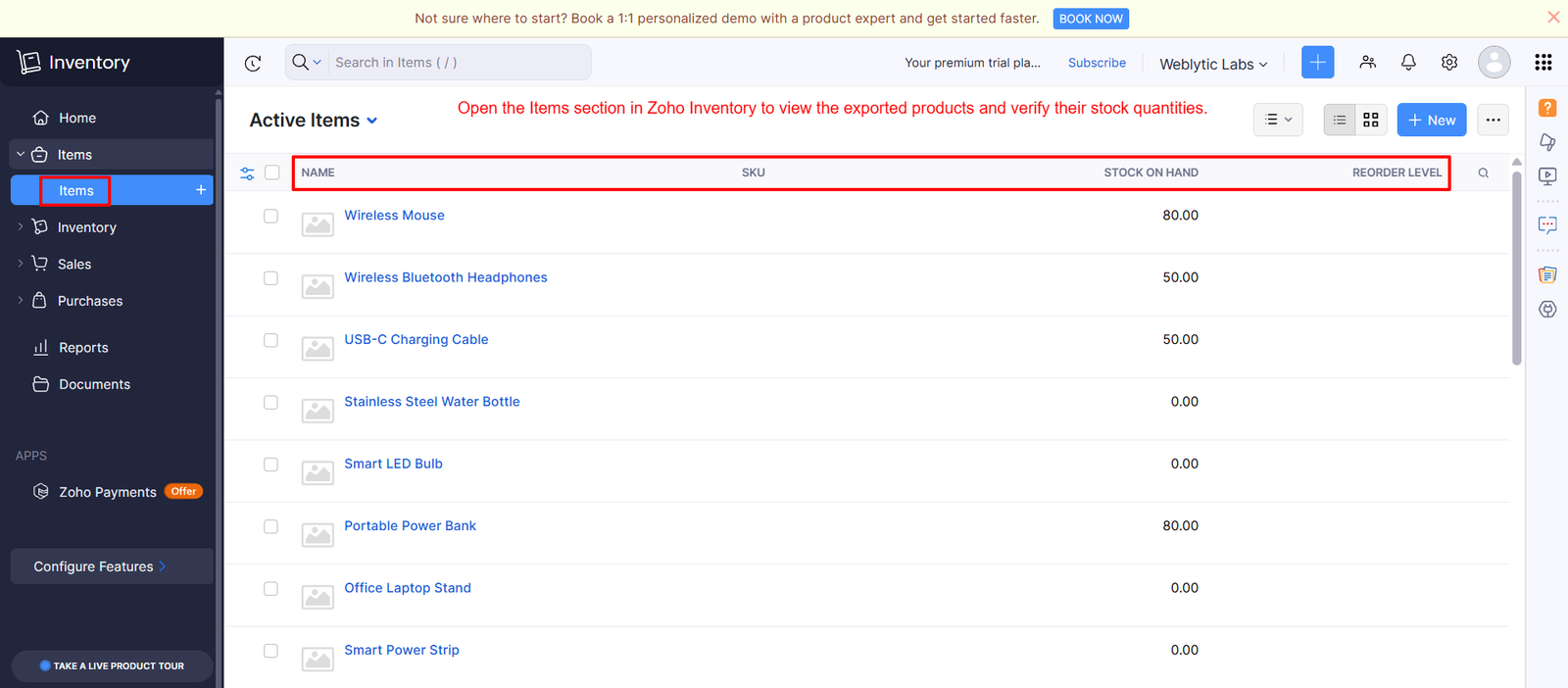
- Review Product Names – Review product names in the Items list to confirm that exported inventory records appear correctly within Zoho Inventory after synchronization.
- Check Stock on Hand – Check Stock on Hand values to verify that product quantities transferred from Odoo match the expected inventory amounts in Zoho.
- Verify Wireless Mouse – Use the Items section to verify Wireless Mouse stock and confirm its displayed quantity after successful product stock synchronization in Zoho.
- Check Bluetooth Headphones – Verify Wireless Bluetooth Headphones inventory quantities in Zoho Inventory to ensure exported stock information appears correctly after successful synchronization completion.
- Verify Charging Cable – Check USB-C Charging Cable stock levels to confirm that exported quantities are accurately reflected within the Zoho Inventory Items list.
- Review Power Bank – Review Portable Power Bank stock quantities to verify that the exported inventory value appears correctly within Zoho Inventory after synchronization.
- Check Smart Power Strip – Inspect Smart Power Strip records in Zoho Inventory to confirm the product appears with its current stock quantity after export.
- Verify Exported Products – Use the product list to verify that exported items are available in Zoho Inventory after completing the stock export process.
- Compare Inventory Quantities – Compare displayed stock quantities with Odoo records to verify that inventory information was transferred correctly between both connected platforms after synchronization.
- Review Product Records – Review product names and stock values together to identify individual inventory records successfully synchronized from Odoo into Zoho Inventory after export.
- Check SKU Information – Check the SKU column when available to help identify products and maintain clear references during inventory verification activities within Zoho.
- Review Stock Quantities – Use the Stock on Hand column to quickly review current quantities for multiple exported products within Zoho Inventory after synchronization.
- Check Zero Stock Items – Verify products showing zero stock to distinguish successfully synchronized items from products that currently have no available inventory in Zoho.
- Review Reorder Levels – Review the Reorder Level column when available to understand inventory thresholds alongside exported stock quantities within Zoho Inventory after synchronization.
- Explore Additional Products – Navigate through the Items section to review additional exported products beyond those immediately visible on the current screen in Zoho Inventory.
Step 8: Import Sales Orders – Import sales orders from Zoho Inventory into Odoo and review processed records through a dedicated synchronization summary.
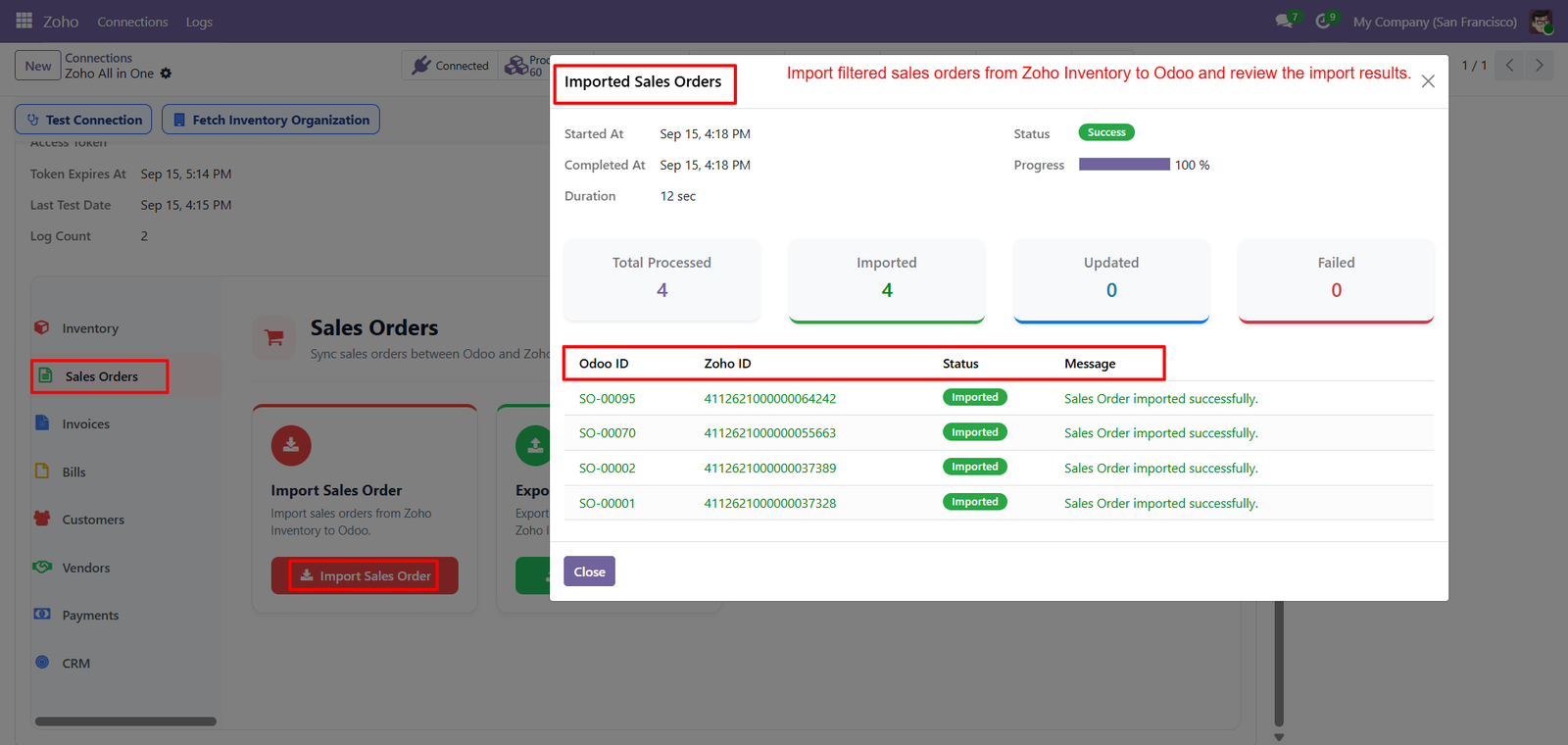
- Successful Import Status – The Success status confirms that the sales order import operation completed successfully without reported failures during synchronization.
- Progress Tracking – The 100% progress indicator confirms that all selected sales orders completed processing during the import operation successfully.
- Total Processed Orders – Review the total processed count to understand how many sales orders were handled during import operations.
- Imported Order Count – Check the imported count to identify how many sales orders were successfully created inside Odoo during synchronization.
- Updated Order Count – Review the updated count to determine whether existing sales orders were modified during the import process.
- Failed Order Count – Monitor the failed count to quickly identify whether any sales orders encountered synchronization problems during processing.
- Odoo Order IDs – The Odoo ID column displays sales order references such as SO-00095, helping users identify imported orders.
- Zoho Order IDs – The Zoho ID column displays corresponding identifiers, allowing users to track source sales orders during synchronization.
- Import Status Labels – Status labels identify successfully imported sales orders, providing clear visibility into individual synchronization results after processing.
- Success Messages – Review messages confirming that each sales order was imported successfully into Odoo from Zoho Inventory.
- Sales Order Verification – Verify sales order references and corresponding Zoho identifiers to maintain clear record relationships during synchronization between platforms.
- Individual Order Tracking – Review each imported sales order separately to confirm its Odoo reference, Zoho identifier, status, and message.
- Synchronization Result Table – The results table organizes Odoo IDs, Zoho IDs, statuses, and messages, making imported sales orders easier to review.
- Import Summary – Use the summary cards to quickly understand total processed, imported, updated, and failed sales orders after synchronization.
- Completed Import Review – Review completed import results to confirm selected sales orders were successfully transferred from Zoho Inventory into Odoo.
Step 9: Export Invoices – Export invoices from Odoo to Zoho Inventory efficiently while maintaining structured records, identifiers, statuses, and successful synchronization messages for users.
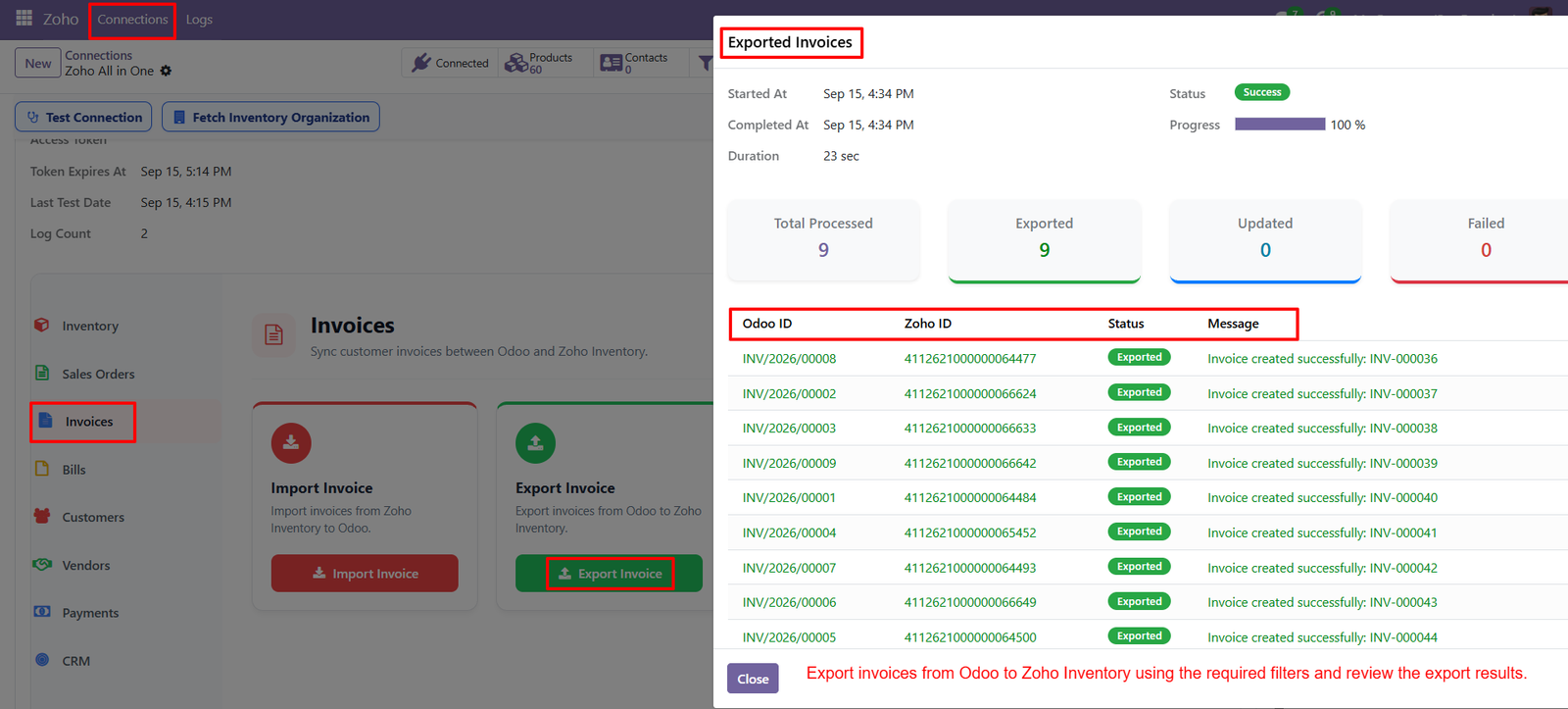
- Successful Export Status – Successful export status confirms that the invoice transfer process completed properly without reported failures during the synchronization operation and completely.
- 100% Progress Tracking – One hundred percent progress indicates that all selected invoices finished processing and the export workflow reached completion successfully without interruption.
- Total Processed Invoices – Total processed displays the number of invoices handled during the export operation, helping users understand the overall synchronization workload accurately.
- Exported Invoice Count – Exported count shows how many invoices were successfully transferred from Odoo into Zoho Inventory during the completed synchronization process successfully.
- Updated Invoice Count – Updated count indicates whether existing invoice records were modified in Zoho Inventory during the export operation, providing additional synchronization details.
- Failed Invoice Count – Failed count helps users quickly identify whether any invoices encountered problems while being exported from Odoo to Zoho Inventory successfully.
- Odoo Invoice IDs – Odoo ID displays each invoice reference from Odoo, allowing users to identify exported invoices and verify corresponding records clearly quickly.
- Zoho Invoice IDs – Zoho ID provides the corresponding Zoho Inventory identifier, helping users track relationships between exported Odoo invoices and destination records accurately.
- Export Status Labels – Exported status labels clearly confirm which invoice records were successfully transferred into Zoho Inventory during the synchronization process shown clearly.
- Success Messages – Success messages provide confirmation that individual invoices were created in Zoho Inventory after completing the export operation successfully and properly.
- Invoice Results Table – The result table organizes Odoo IDs, Zoho IDs, statuses, and messages, making invoice export results easier to review clearly efficiently.
- Invoice Verification – Users can verify each exported invoice by comparing its Odoo reference with the corresponding Zoho Inventory identifier displayed in results.
- Invoice Creation Confirmation – Invoice creation messages display newly generated Zoho invoice references, providing useful confirmation after successful export from Odoo to Zoho Inventory.
- Export Summary – The export summary provides a quick overall overview of processed, exported, updated, and failed invoice records after synchronization completion successfully.
- Export Result Review – Reviewing export results helps users confirm that required invoices were transferred successfully from Odoo to Zoho Inventory without errors efficiently.
Step 10: Export Vendor Bills – Export vendor bills from Odoo to Zoho Inventory efficiently while maintaining structured records, identifiers, statuses, messages, and synchronization details clearly.
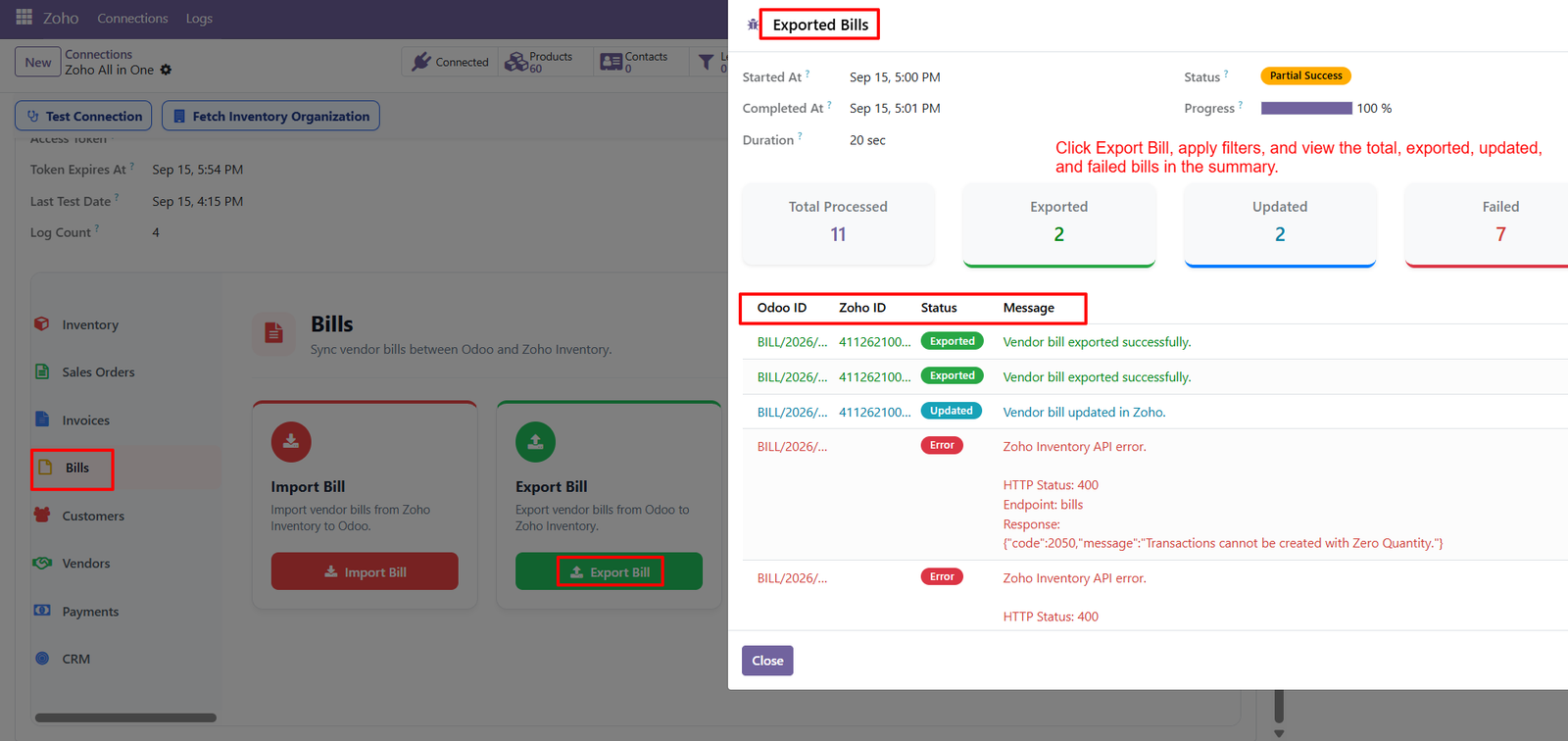
- Partial Success Status – Partial success status clearly indicates that some bills exported successfully while others were updated or encountered errors during the processing.
- 100% Progress Tracking – One hundred percent progress confirms the export workflow completed processing all selected vendor bills, regardless of individual synchronization outcomes successfully.
- Total Processed Bills – Total processed displays the complete number of vendor bills handled during the export operation, providing immediate visibility into overall workload.
- Exported Bill Count – Exported count shows how many vendor bills were successfully transferred from Odoo into Zoho Inventory during the completed synchronization process.
- Updated Bill Count – Updated count identifies existing vendor bills that were successfully modified in Zoho Inventory during the completed export operation process successfully.
- Failed Bill Count – Failed count highlights vendor bills that encountered errors, helping users identify records requiring attention before completing future synchronization tasks successfully.
- Odoo Bill ID – Odoo ID identifies each vendor bill originating from Odoo, making individual records easier to trace and verify during synchronization processes.
- Zoho Bill ID – Zoho ID displays the corresponding destination identifier, helping users connect Odoo vendor bills with their records inside Zoho Inventory accurately.
- Exported Status – Exported status confirms that individual vendor bills were successfully transferred from Odoo to Zoho Inventory during the synchronization process successfully.
- Updated Status – Updated status indicates that an existing vendor bill was successfully modified in Zoho Inventory instead of creating another duplicate record.
- Error Status – Error status identifies unsuccessful bill transfers and directs attention toward messages explaining the specific synchronization problem encountered during processing clearly.
- Success Messages – Success messages confirm vendor bills were exported successfully, providing clear feedback that the corresponding records reached Zoho Inventory successfully properly.
- Error Messages – Error messages provide diagnostic information, including API responses and transaction issues, helping users understand why vendor bills failed during processing.
- Zero Quantity Errors – Zero quantity errors can prevent transactions from being created, highlighting the importance of valid quantities before exporting vendor bills properly.
- HTTP Status Information – HTTP status information helps users identify API request failures when Zoho Inventory rejects specific vendor bill synchronization operations during processing.
Step 11: Import Customers – Import customers from Zoho CRM into Odoo efficiently while maintaining customer identifiers, synchronization statuses, and detailed import messages for every record
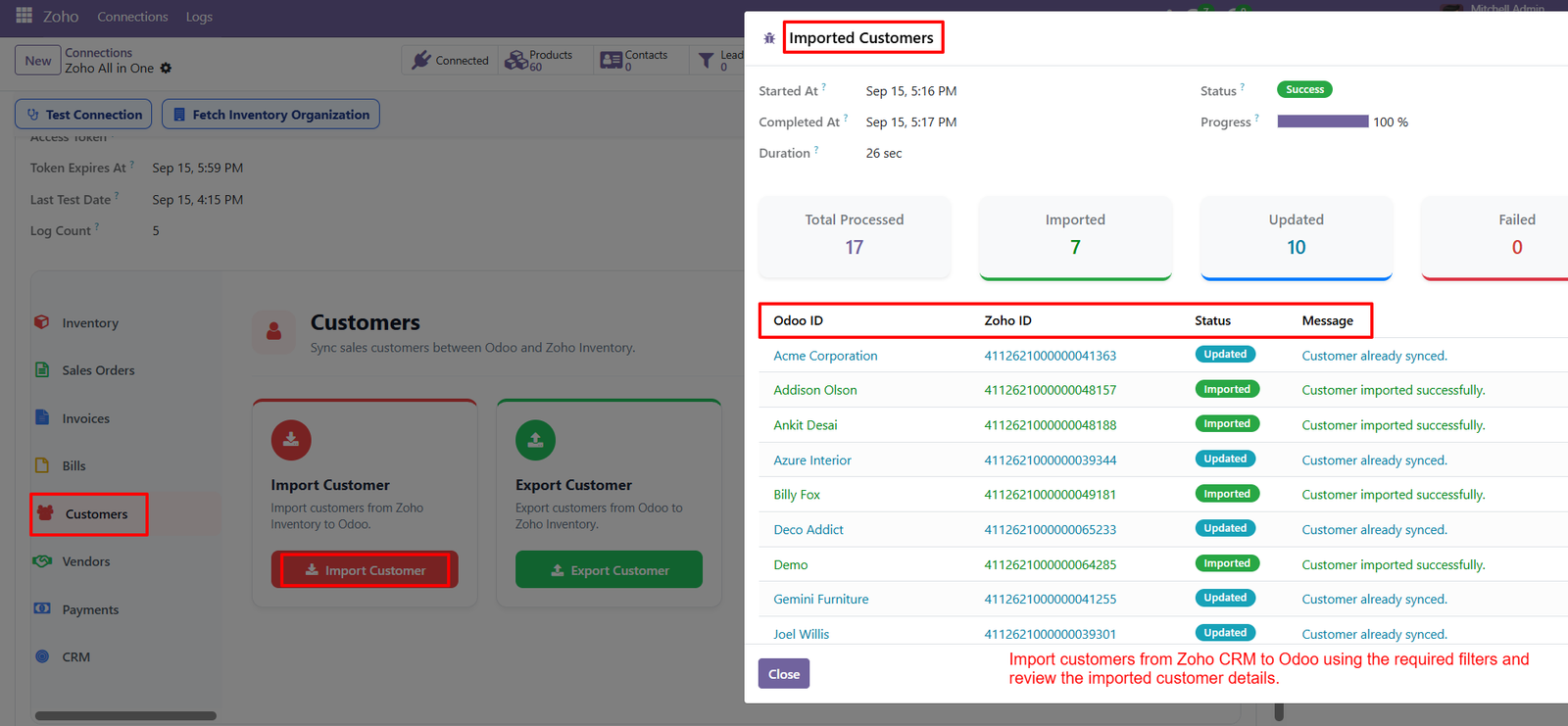
- Successful Import Status – Successful status confirms that selected customer records were processed and imported into Odoo without any reported synchronization failures during operation.
- 100% Progress Tracking – One hundred percent progress confirms that the customer import process completed processing all selected records successfully within the synchronization workflow.
- Total Processed Customers – Total processed displays the complete number of customer records handled during the import operation, providing clear visibility into synchronization workload.
- Imported Customer Count – Imported count shows how many customer records were newly transferred from Zoho CRM into Odoo during the completed operation successfully.
- Updated Customer Count – Updated count identifies customer records that were already synchronized and updated or recognized during the import process inside Odoo.
- Zero Failed Records – Failed count displays zero, confirming that all processed customer records completed the shown import operation without reported failures successfully.
- Odoo Customer ID – Odoo ID identifies each customer record in Odoo, helping users recognize imported or synchronized customers quickly during daily business operations.
- Zoho Customer ID – Zoho ID displays the corresponding customer identifier from Zoho CRM, helping users connect source records with Odoo customer records accurately.
- Imported Status Labels – Imported status labels clearly indicate customer records successfully transferred from Zoho CRM into Odoo during the completed synchronization process successfully.
- Updated Status Labels – Updated status identifies customers that were already synchronized, helping users distinguish existing records from newly imported customer information inside Odoo.
- Synchronization Messages – Messages provide clear feedback about each customer record, including successful imports and customers that were already synchronized previously.
- Customer Already Synced – The message “Customer already synced” indicates that an existing customer relationship was recognized during the import process automatically by connector.
- Customer Import Confirmation – Import confirmation messages provide direct feedback that customer information was successfully transferred from Zoho CRM into Odoo without reported errors.
- Customer Results Table – The results table organizes Odoo IDs, Zoho IDs, statuses, and messages, making customer synchronization outcomes easy to review quickly.
- Customer Record Tracking – Matching Odoo and Zoho identifiers helps users track individual customer records and understand their synchronization status during business operations.
Step 12: Import Vendors – Import vendor records from Zoho Inventory into Odoo efficiently while maintaining vendor identifiers, synchronization statuses, messages, and detailed processing results.
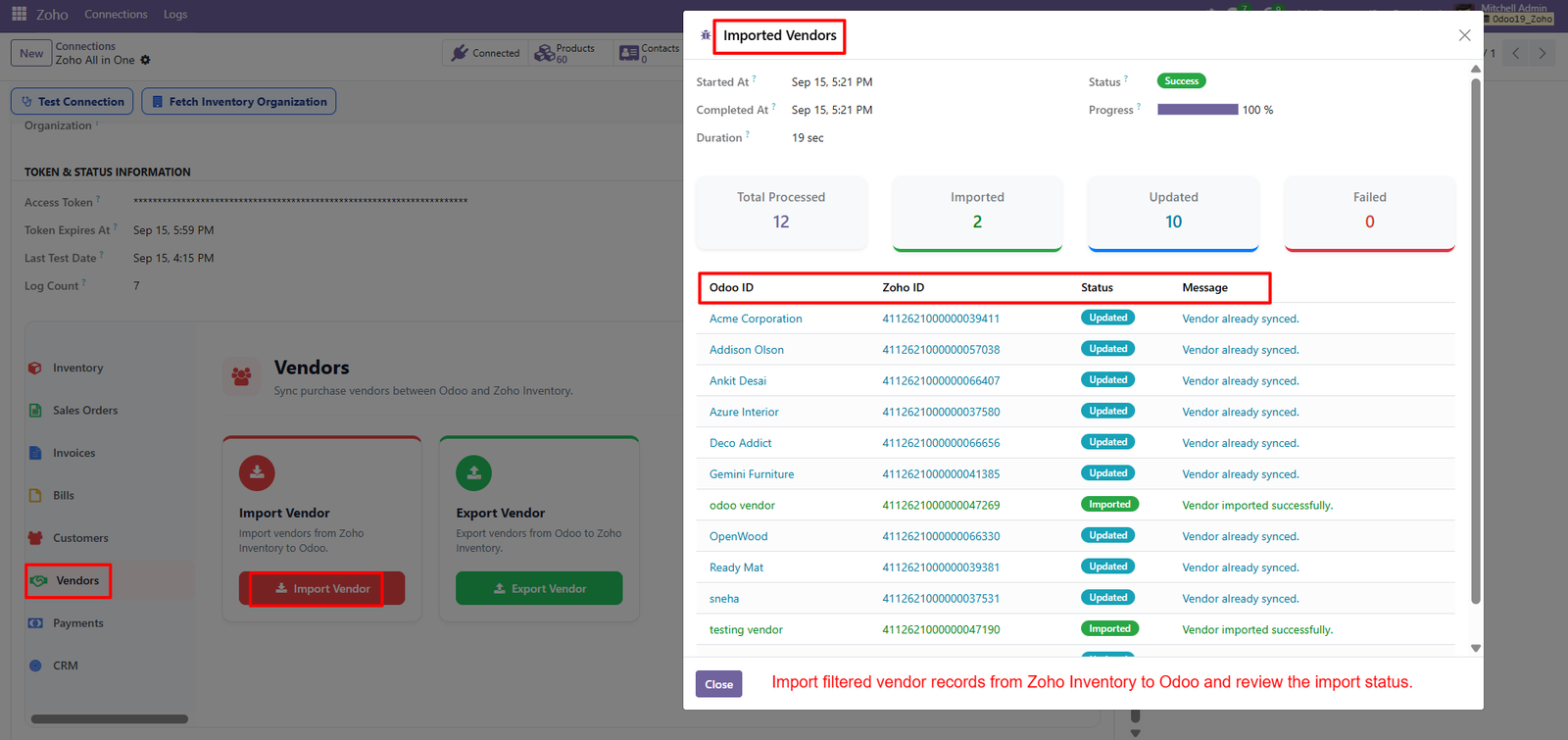
- Successful Import Status – Successful status confirms that the vendor import process completed successfully without any reported failures during the synchronization operation shown here.
- 100% Progress Tracking – One hundred percent progress confirms that all selected vendor records completed processing successfully within the import synchronization workflow shown here.
- Total Processed Vendors – Total processed displays the complete number of vendor records handled during the import operation, providing clear visibility into synchronization workload.
- Imported Vendor Count – Imported count shows how many vendor records were newly transferred from Zoho Inventory into Odoo during the completed process successfully.
- Updated Vendor Count – Updated count identifies existing vendor records recognized during synchronization, helping users understand which records were already present within Odoo.
- Zero Failed Vendors – Failed count displays zero, confirming that all processed vendor records completed the shown import operation without reported synchronization failures.
- Odoo Vendor ID – Odoo ID identifies each vendor record within Odoo, helping users recognize imported or synchronized vendors during regular business operations easily.
- Zoho Vendor ID – Zoho ID displays the corresponding vendor identifier from Zoho Inventory, helping users connect source records with Odoo vendor records accurately.
- Updated Vendor Status – Updated status indicates that the vendor was already synchronized, allowing users to distinguish existing records from newly imported vendor information.
- Imported Vendor Status – Imported status confirms that a vendor record was successfully transferred from Zoho Inventory into Odoo during synchronization processing.
- Vendor Already Synced – The message “Vendor already synced” indicates that an existing vendor relationship was recognized during the import process automatically by connector.
- Vendor Import Confirmation – Import confirmation messages provide clear feedback that selected vendor information was successfully transferred from Zoho Inventory into Odoo without reported errors.
- Vendor Results Table – The results table organizes Odoo IDs, Zoho IDs, statuses, and messages, making vendor synchronization outcomes easier to review efficiently.
- Vendor Record Tracking – Matching Odoo and Zoho identifiers help users track individual vendor records and understand their synchronization status during business operations.
- Import Summary – The summary displays processed, imported, updated, and failed counts, providing a quick overview of vendor synchronization activity within Odoo.
Step 13: Export customer payments from Odoo to Zoho Inventory while maintaining payment identifiers, statuses, messages, and synchronization results for every record.
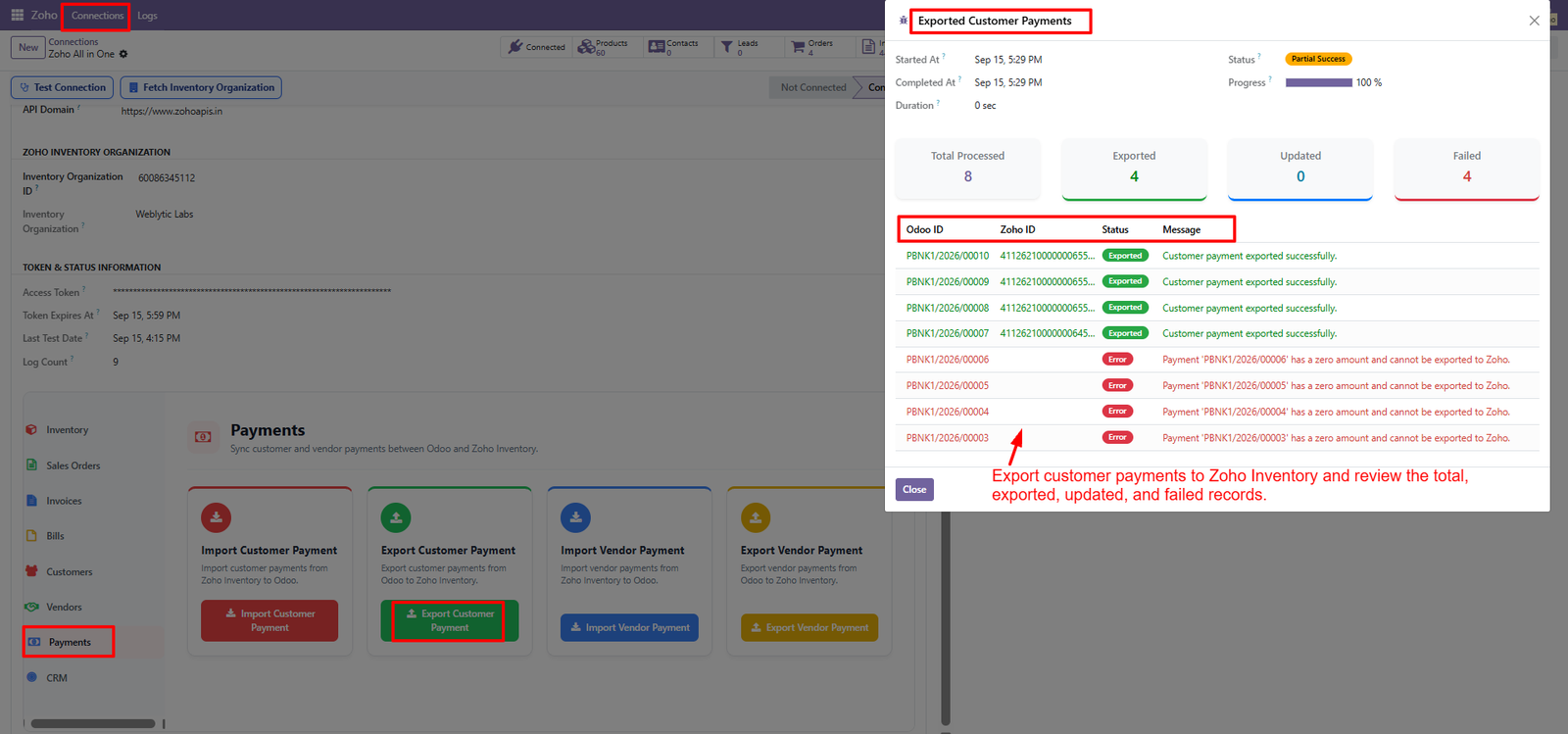
- Partial success status indicates that some customer payments exported successfully while others failed during the synchronization process because of validation issues.
- One hundred percent progress confirms that all selected customer payments completed processing within the export workflow despite payment errors encountered.
- Total processed displays the number of customer payment records handled during export, providing visibility into the synchronization workload for users.
- Exported count shows how many customer payments were successfully transferred from Odoo into Zoho Inventory during the completed synchronization operation.
- Updated count indicates whether existing customer payment records were modified in Zoho Inventory during the export operation shown within results.
- Failed count identifies customer payments that could not be exported, helping users quickly locate records requiring correction before retrying synchronization.
- Odoo ID identifies each customer payment record originating from Odoo, allowing users to track individual payments throughout the export process.
- Zoho ID displays the corresponding destination identifier, helping users connect exported Odoo payments with records inside Zoho Inventory accurately.
- Exported status confirms that individual customer payment records were successfully transferred from Odoo to Zoho Inventory during synchronization processing here.
- Error status highlights unsuccessful payment exports and provides messages explaining why specific customer payment records could not reach Zoho Inventory.
- Zero amount errors prevent certain customer payments from being exported, requiring users to review payment amounts before attempting synchronization again.
- Success messages confirm that customer payments were exported successfully, providing clear feedback for each completed payment transfer into Zoho Inventory.
- Error messages explain unsuccessful transfers, including zero amount validation issues that prevent specific customer payments from being created in Zoho.
- Payment results table organizes Odoo IDs, Zoho IDs, statuses, and messages, making synchronization outcomes easier to review and understand quickly.
- Export summary provides processed, exported, updated, and failed counts, offering users an overall overview of customer payment synchronization activity.
Step 14: Import Leads – Import leads from Zoho CRM into Odoo efficiently while maintaining lead identifiers, synchronization statuses, messages, and detailed processing results.
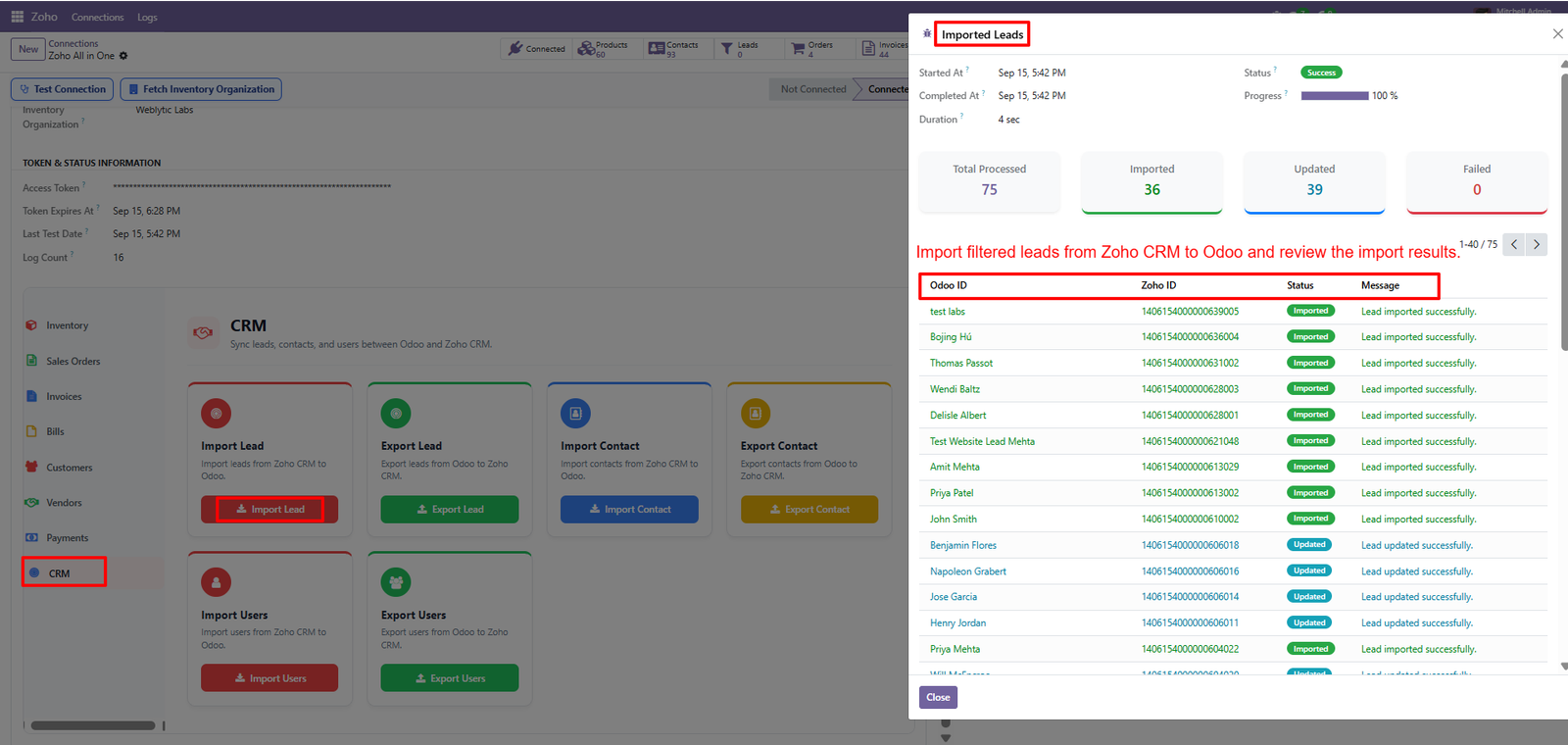
- Successful Import Status – Successful status confirms that selected leads completed processing successfully without any reported failures during the synchronization operation shown here.
- 100% Progress Tracking – One hundred percent progress confirms that all selected lead records completed processing successfully within the import synchronization workflow shown here.
- Total Processed Leads – Total processed displays the complete number of lead records handled during import, providing clear visibility into synchronization workload.
- Imported Lead Count – Imported count shows how many lead records were newly transferred from Zoho CRM into Odoo during the completed operation.
- Updated Lead Count – Updated count identifies existing lead records that were successfully updated during synchronization, helping users understand processed records clearly.
- Zero Failed Leads – Failed count displays zero, confirming that all processed lead records completed the shown import operation without reported failures.
- Odoo Lead ID – Odoo ID identifies each lead record within Odoo, helping users recognize imported and updated leads during regular CRM operations.
- Zoho Lead ID – Zoho ID displays the corresponding lead identifier from Zoho CRM, helping users connect source records with Odoo accurately.
- Imported Lead Status – Imported status confirms that individual leads were successfully transferred from Zoho CRM into Odoo during the synchronization process.
- Updated Lead Status – Updated status indicates that an existing lead record was successfully updated in Odoo during the import operation.
- Lead Success Messages – Success messages provide clear confirmation that individual lead records were imported or updated successfully during the synchronization process.
- Lead Results Table – The results table organizes Odoo IDs, Zoho IDs, statuses, and messages, making synchronization outcomes easier to review.
- CRM Lead Synchronization – CRM integration connects Zoho CRM leads with Odoo, supporting structured data transfer and centralized lead management across platforms.
- Lead Record Tracking – Matching Odoo and Zoho identifiers help users track individual lead records and understand their synchronization status efficiently.
- Import Summary – The summary displays processed, imported, updated, and failed counts, providing an overview of lead synchronization activity within Odoo.
Step 15: Import and Export Logs – View comprehensive import and export logs to monitor connector activities, operation types, statuses, actions, timestamps, and synchronization messages within Odoo.
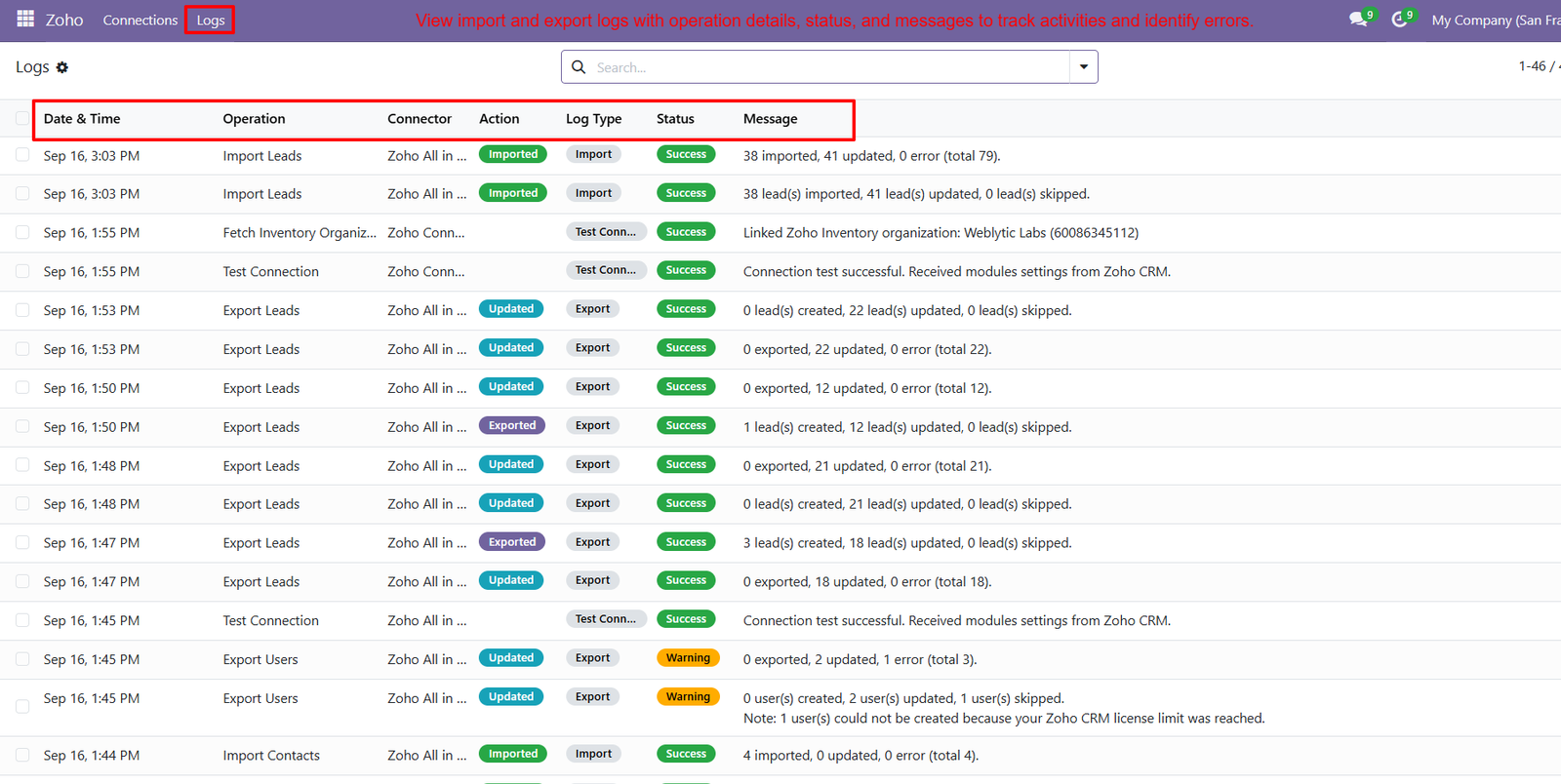
- Lead Import Tracking – Track lead imports with clear records showing imported, updated, skipped, and error counts for each synchronization operation performed successfully.
- Lead Export Monitoring – Monitor lead exports and review whether records were created, updated, skipped, or processed without errors during each synchronization operation.
- Connection Testing Logs – Review connection testing results to confirm successful authentication and verify that required module settings are received correctly from Zoho CRM.
- Inventory Organization Tracking – Track inventory organization fetching operations and confirm successful linking between the connector and selected Zoho Inventory organization within Odoo securely.
- Timestamp Monitoring – Use timestamps to identify exactly when imports, exports, connection tests, and organization fetching operations were performed within Odoo systems.
- Connector Identification – Review connector names in logs to identify which Zoho integration handled each import, export, connection, or synchronization activity successfully.
- Status Indicators – Status indicators clearly distinguish successful operations from warnings, helping users quickly identify activities requiring additional attention or review within logs.
- Warning Messages – Warning messages highlight skipped records, errors, or limitations encountered during synchronization, allowing users to investigate specific processing issues.
- Log Search – Search logs using available search functionality to quickly locate relevant operations, records, statuses, or synchronization messages whenever needed.
- Import Summaries – Import logs provide detailed summaries showing how many leads were imported, updated, skipped, or encountered errors during processing.
- Export Summaries – Export logs summarize created and updated lead records, helping users understand synchronization results between Odoo and Zoho CRM systems.
- Connection Verification – Connection test logs confirm successful communication and indicate whether Odoo received module settings correctly from the connected Zoho CRM system.
- User Export Warnings – User export logs can display warnings when records are skipped because of Zoho CRM licensing limitations or processing conditions encountered.
- Contact Import Tracking – Contact import logs provide counts of imported and updated contacts while confirming whether errors occurred during the synchronization process.
- Operation Identification – Operation labels such as Import Leads, Export Leads, Import Contacts, and Export Users make activity identification straightforward within logs.
Step 16: Centralized Lead View – Zoho CRM Leads provides a centralized view of lead names, companies, emails, phone numbers, and sources for organized sales management.
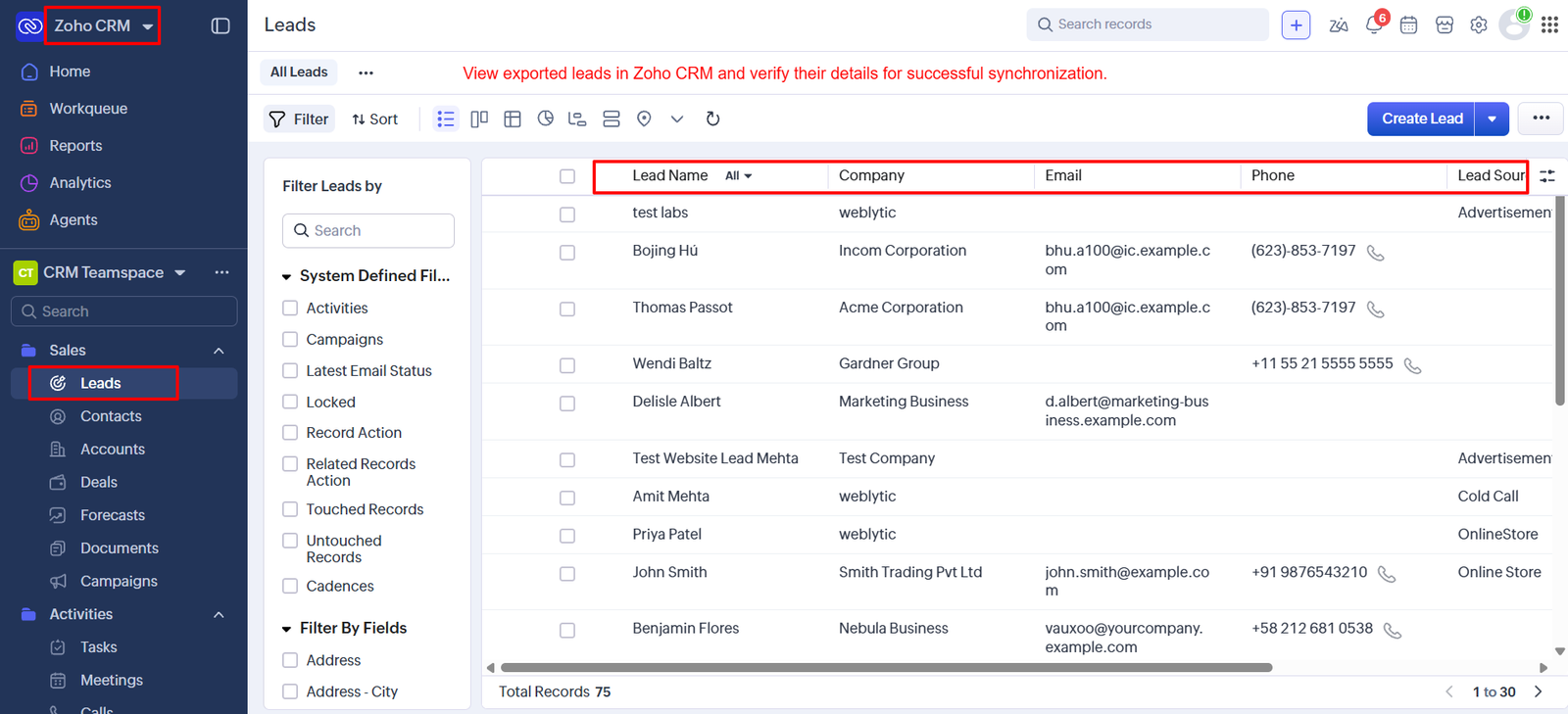
- Exported Lead Verification – Exported leads from Odoo can be viewed in Zoho CRM, helping teams verify synchronized records and confirm successful data transfer.
- Essential Lead Information – The Leads section displays essential customer information, making it easier for sales teams to review prospects and identify relevant opportunities.
- Lead Name Visibility – Lead names appear clearly in the listing, allowing users to quickly locate individual prospects and review their associated company information.
- Company Information – Company details help sales representatives understand organizational relationships and maintain better context while managing synchronized leads inside Zoho CRM clearly.
- Email Information – Email addresses displayed within lead records provide convenient access to prospect communication details for follow-ups and ongoing sales activities efficiently.
- Phone Information – Phone numbers shown alongside leads make customer outreach easier, supporting quick communication with prospects after synchronization from Odoo and efficiently.
- Lead Source Tracking – Lead sources identify how prospects entered the system, helping teams understand acquisition channels and organize their sales follow-up activities effectively.
- Lead Filtering – Zoho CRM offers filtering options that help users narrow lead records based on available fields and quickly find relevant prospects.
- Lead Sorting – Sorting capabilities allow users to arrange lead records for easier analysis, review, and identification of specific synchronized prospects efficiently easily.
- Quick Lead Search – Search functionality helps users locate lead records quickly by entering relevant information, reducing time spent manually browsing extensive lead lists.
- Structured Lead Columns – The lead listing provides structured columns for important information, creating a clear interface for reviewing synchronized sales prospects efficiently effectively.
- Pagination Support – Pagination allows users to navigate through large numbers of lead records while maintaining an organized view of available synchronized data.
- Total Lead Count – Total record counts provide visibility into the number of leads available, helping users understand the overall synchronized lead volume successfully.
- Targeted Lead Discovery – CRM lead filters support targeted record discovery by allowing users to refine displayed information according to available filtering criteria easily.
- Synchronized Lead Review – Synchronized lead records can be reviewed directly within Zoho CRM, making verification easier after completing Odoo to Zoho data transfers.
Step 17: Multiple Zoho Connections – Create multiple Zoho connections in Odoo to manage and synchronize data across different Zoho accounts efficiently.
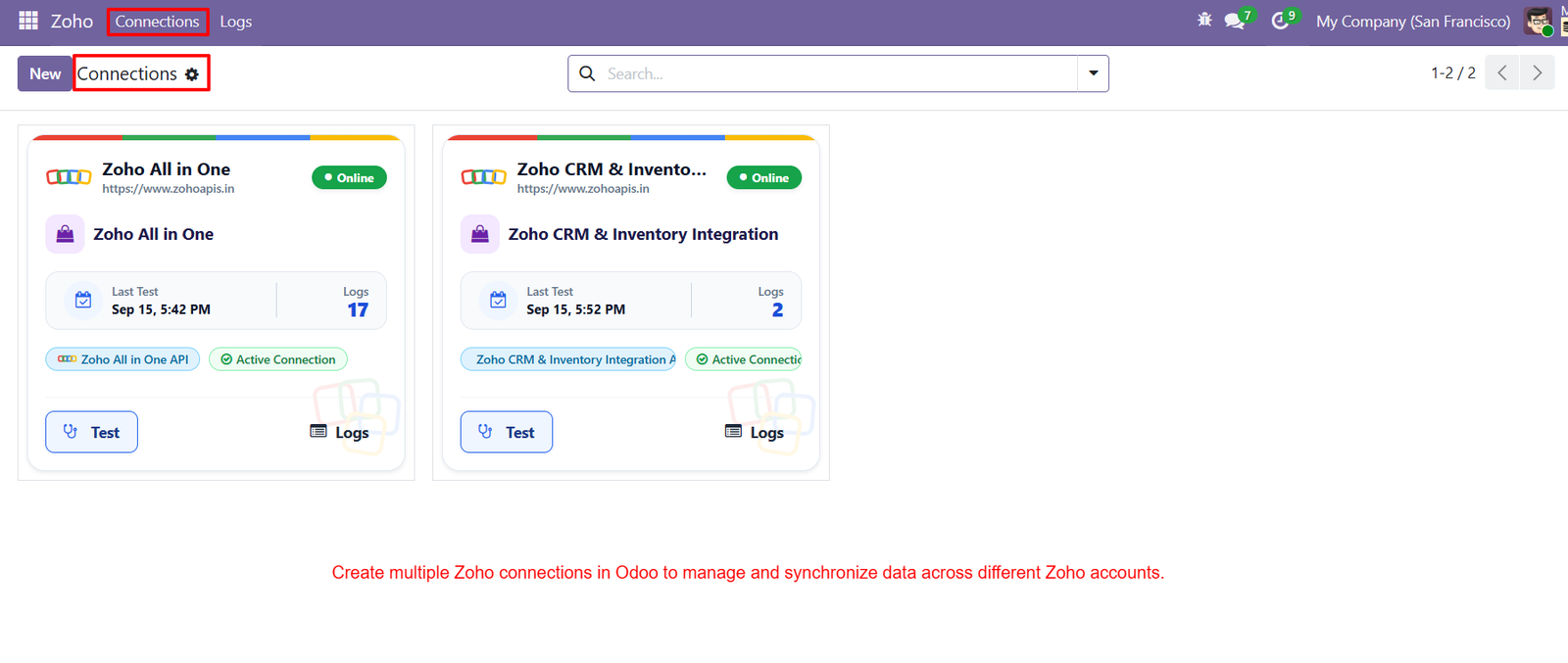
- Zoho All in One Connection – Configure a dedicated Zoho All in One connection for managing integrated Zoho services through Odoo conveniently.
- Zoho CRM and Inventory Integration – Connect Zoho CRM and Inventory with Odoo to synchronize business data between both platforms through dedicated connections.
- Active Connection Status – Easily identify active connections using clear status indicators, helping administrators verify which Zoho integrations are currently available.
- Online Status Monitoring – Online indicators provide quick visibility into connection availability, making it easier to monitor configured Zoho integrations from Odoo.
- Connection Testing – Use the Test button to verify configured Zoho connections and confirm that communication between Odoo and Zoho works properly.
- Connection Logs – Access dedicated logs for each connection to review synchronization activities and monitor integration operations from one convenient location.
- Last Test Information – View the last test date and time for each connection, helping administrators track recent connection verification activities.
- Log Count Visibility – Connection cards display available log counts, providing quick visibility into recorded integration activities for each configured Zoho connection.
- Active Connection Labels – Clearly labeled active connection indicators help users distinguish configured integrations that are currently enabled for synchronization activities.
- Separate Connection Cards – Each Zoho connection appears in an individual card, keeping multiple integrations organized and easy to manage within Odoo.
- Zoho Account Management – Multiple connection configurations allow businesses to manage different Zoho accounts from the same Odoo integration interface conveniently.
- Centralized Connection Dashboard – The Connections screen provides a centralized dashboard for viewing, testing, and accessing logs associated with configured Zoho integrations.
- Connection Search – Built-in search functionality helps users quickly locate specific Zoho connections when multiple integration configurations are available.
- Connection Identification – Connection names and integration labels make it easier to identify the purpose and connected Zoho services associated with each configuration.
- API Integration Visibility – Connection cards display associated API information, helping administrators understand which Zoho integration service is configured for synchronization.