

Managing shipping operations efficiently is essential for eCommerce businesses that process multiple orders every day. From calculating delivery costs to generating shipping labels and tracking shipments, handling these activities across different platforms can make order fulfillment more complicated.
The Odoo ShipBob Shipping Integration by Weblytic Labs connects Odoo with ShipBob, enabling businesses to manage their shipping workflow directly from Odoo Sales Orders and eCommerce orders.
With this integration, users can configure ShipBob as a delivery provider, calculate shipping rates, apply delivery charges, process shipments, access tracking references, and view or download shipping labels in PDF format.
The integration also provides a centralized dashboard for monitoring shipment statistics, recent activity, delivery orders, and shipment locations. This helps businesses keep their shipping information organized within Odoo.
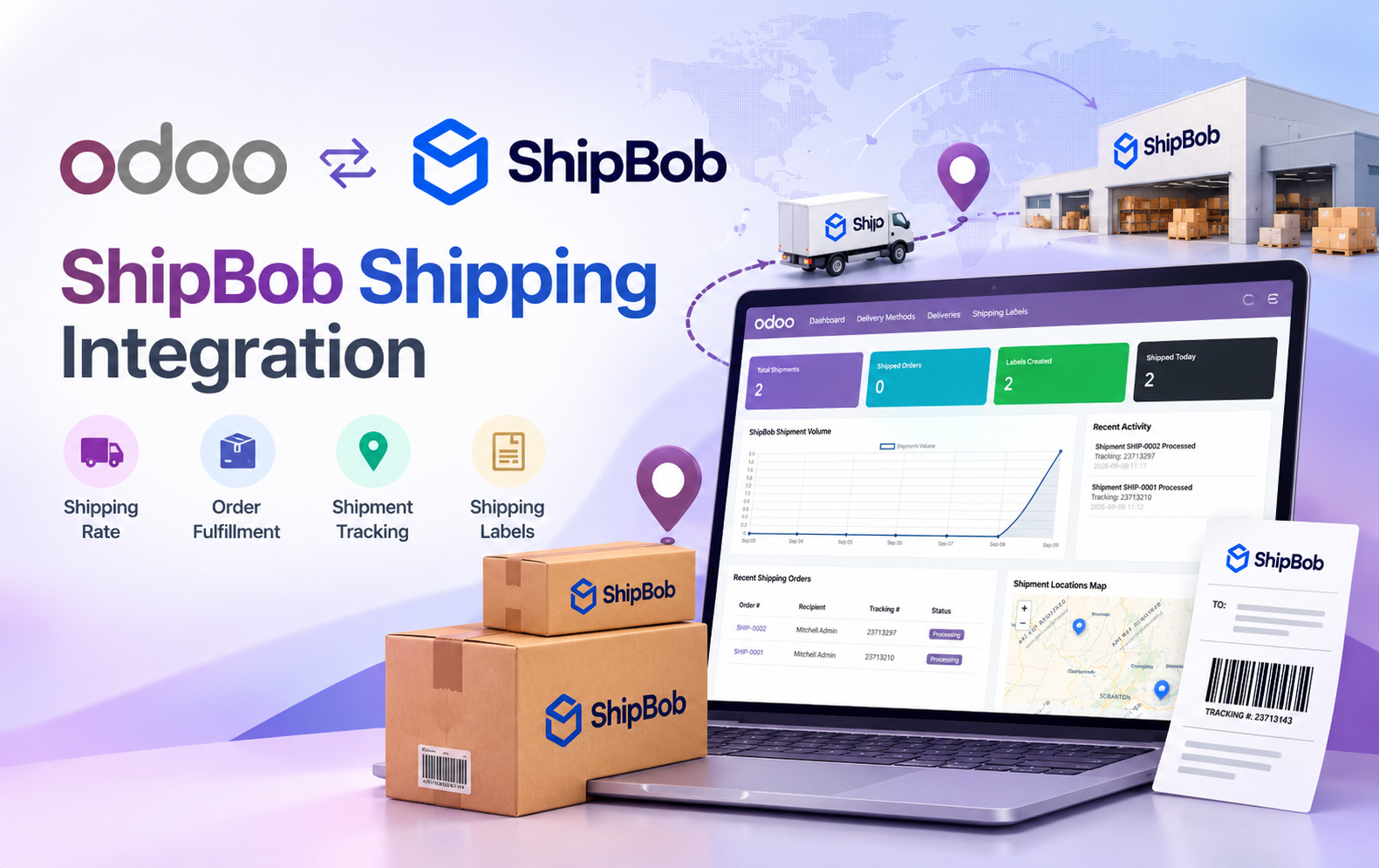
Key Features at a Glance
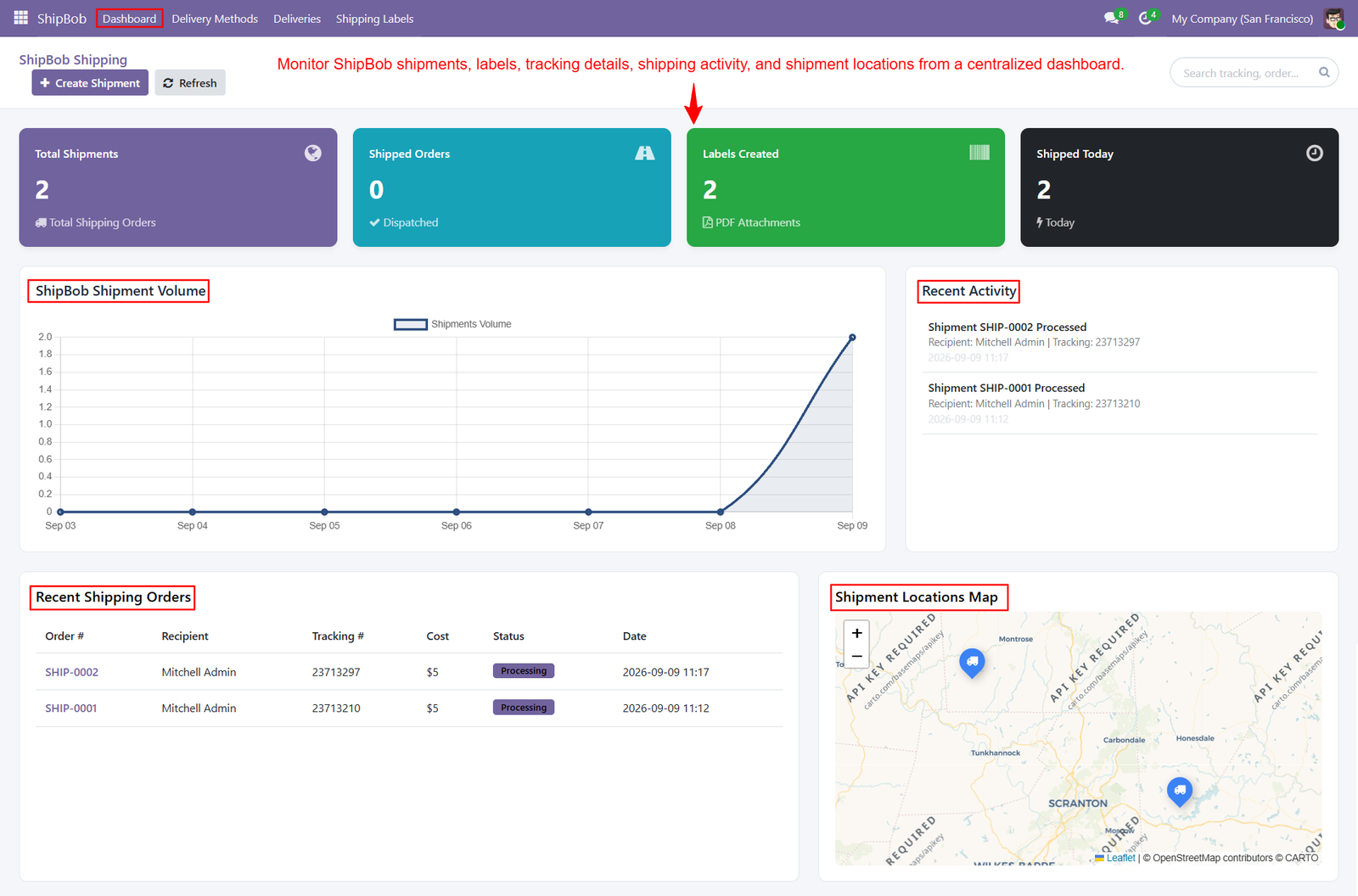
- Centralized Shipping Dashboard: Monitor ShipBob shipments, shipping statistics, order details, tracking information, labels, recent activity, and shipment locations from one centralized Odoo dashboard.
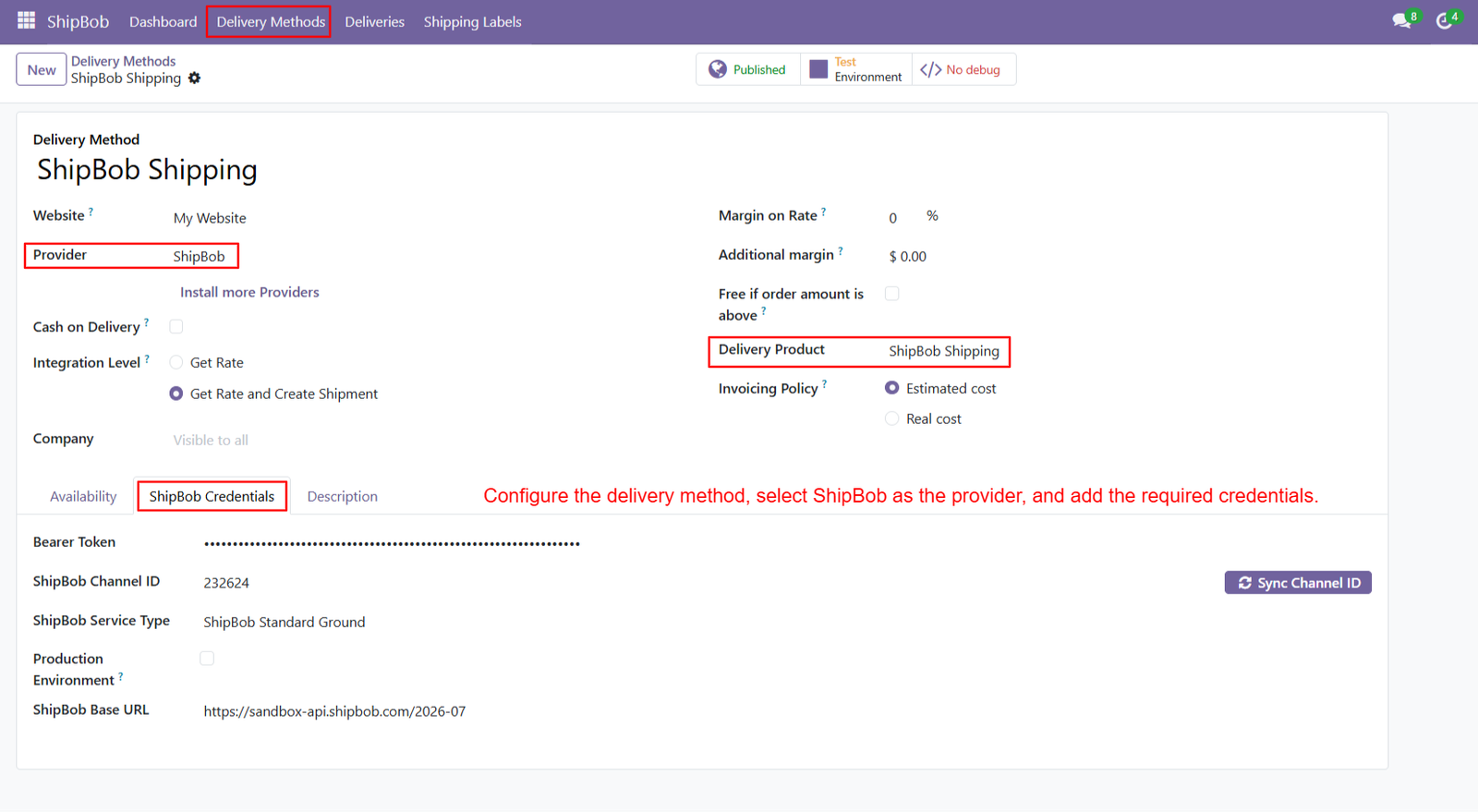
- ShipBob Delivery Configuration: Configure ShipBob as your delivery provider in Odoo by setting delivery methods, delivery products, company details, and credentials.
- Automated Shipping Rate Calculation: Calculate shipping costs using the configured ShipBob delivery method and apply the calculated delivery charges directly to Odoo Sales Orders.
- eCommerce Shipping Integration: Connect ShipBob shipping services with Odoo eCommerce checkout, allowing customers to select available delivery methods and view applicable shipping charges.
- Sales Order Shipping Management: Add products to Sales Orders, select ShipBob as the delivery method, calculate shipping rates, and apply delivery charges efficiently.
- ShipBob Shipment Creation: Validate delivery orders in Odoo to initiate ShipBob shipment creation and maintain shipment-related information within the delivery workflow.
- Shipment Tracking References: Access ShipBob tracking references directly from Odoo delivery records to identify shipments and review their associated tracking information.
- ShipBob Shipping ID Management: View the generated ShipBob Shipping ID within delivery records, helping users identify and manage shipment information more conveniently.
- ShipBob Order ID Access: Retrieve the associated ShipBob Order ID from delivery records to connect shipment information with the corresponding order.
- Shipping Label Generation: Generate shipping labels through the ShipBob shipping workflow and associate the resulting documents with relevant Odoo delivery records.
- PDF Shipping Label Downloads: View and download generated ShipBob shipping labels in PDF format, including important recipient, order, barcode, and tracking information.
- Dedicated Shipping Labels Section: Access generated ShipBob shipping labels from a dedicated Odoo section, making shipping documents easier to locate and review.
- Centralized Delivery Management: View ShipBob deliveries together in Odoo and access associated Sales Orders, delivery orders, recipient details, tracking numbers, costs, and statuses.
- Recent Shipping Activity Monitoring: Review recent shipment activity through the dashboard to access shipment processing information, recipient details, tracking references, and activity timestamps.
- Shipment Volume Visualization: Monitor shipping activity through the dashboard’s shipment volume chart, providing a visual overview of recorded shipment volumes across displayed dates.
- Shipment Locations Map: View shipment locations on the dashboard map to obtain a geographic overview of locations associated with shipping activity.
- Shipping Cost Visibility: Review calculated shipping costs in order summaries and delivery records, helping users understand delivery charges associated with their shipping operations.
- Delivery Status Overview: Review delivery records and their displayed statuses within Odoo to keep shipment management information organized and accessible.
- ShipBob Credential Management: Configure the required ShipBob connection details, including bearer token, channel ID, service type, and base URL, within delivery settings.
- Integrated Shipping Workflow: Manage shipping configuration, rate calculation, shipment creation, tracking references, delivery records, and shipping labels through a connected Odoo and ShipBob workflow.
Use Cases: Who Needs This Module?
- eCommerce Businesses: Businesses using Odoo eCommerce can integrate ShipBob shipping services, calculate delivery charges, and manage shipping information directly within their existing order workflow.
- Online Retailers: Retailers processing online orders can select ShipBob as their delivery method and apply calculated shipping costs during checkout or Sales Order processing.
- Order Fulfillment Teams: Fulfillment teams can manage shipment creation, access tracking references, review delivery records, and retrieve shipping labels directly from Odoo.
- Warehouse Operations Teams: Warehouse teams can access shipment-related information from Odoo delivery records, including ShipBob Shipping IDs, order references, and generated shipping labels.
- Shipping and Logistics Teams: Logistics teams can review shipment activity, tracking information, shipping costs, delivery statuses, and generated labels through centralized Odoo shipping screens.
- Businesses Managing Multiple Orders: Businesses handling multiple shipping orders can use the dashboard and delivery management screens to review shipment statistics, recent activity, and Customer Service Teams: Support teams can access available shipment references, recipient details, and tracking information from Odoo records when responding to delivery-related customer inquiries.
- Odoo Sales Teams: Sales teams can add products to Sales Orders, select ShipBob as the shipping method, calculate delivery charges, and include shipping costs in customer orders.
- Businesses Requiring Shipping Documentation: Companies that need shipping documents can generate, view, and download ShipBob shipping labels in PDF format directly through the Odoo workflow.
- Businesses Using Odoo and ShipBob Together: Companies already using both platforms can connect shipping operations with Odoo Sales Orders, delivery records, shipment tracking, and shipping label management.
Quick User Guide (Visual Walkthrough)
Scroll up to revisit the detailed image-wise walkthrough.
Step 1: Centralized Shipping Dashboard: Monitor all ShipBob shipping activities from one centralized dashboard, providing convenient access to shipment statistics, order information, tracking details, and shipping labels.
Step 2: ShipBob Delivery Provider: Configure ShipBob as a delivery provider in Odoo to connect shipping services with your existing sales and eCommerce order management workflow.
Step 3: ShipBob Shipping Method: Allow customers to select ShipBob Shipping during Odoo eCommerce checkout and view the applicable delivery charge before confirming their orders.
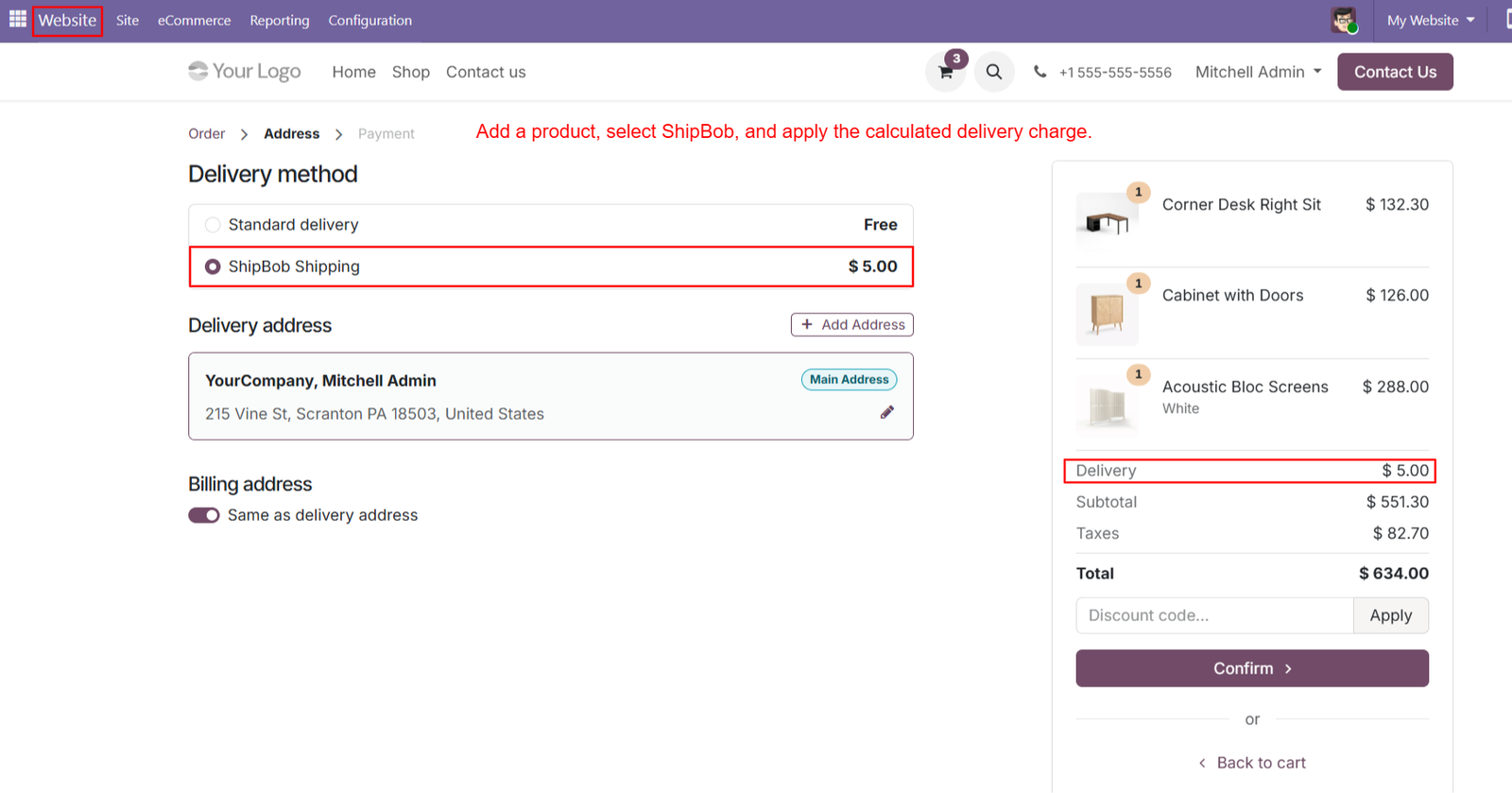
- Multiple Delivery Options: Display ShipBob Shipping alongside other configured delivery methods, allowing customers to choose their preferred shipping option during the checkout process.
- Shipping Cost Display: Show the calculated ShipBob delivery charge in the checkout order summary, helping customers understand shipping expenses before completing their purchases.
- Automated Shipping Rate Calculation: Calculate applicable shipping costs through the configured ShipBob delivery method and apply the resulting delivery charge to the customer’s order.
- Integrated Checkout Experience: Connect ShipBob shipping services with Odoo eCommerce checkout, keeping product selection, delivery method selection, and order totals within one workflow.
- Product Order Summary: Display ordered products with their names, quantities, and prices alongside delivery charges to provide customers with a clear checkout summary.
- Delivery Address Selection: Allow customers to review their delivery address during checkout to ensure shipping information is available for the order fulfillment process.
- Address Management: Provide an option to add or edit delivery addresses during checkout, helping customers maintain accurate information for their shipping requirements.
- Billing Address Management: Support billing address selection during checkout, including the option to use the same address for billing and delivery.
- Shipping Charge Transparency: Display the ShipBob delivery fee separately from product subtotals and taxes, making the overall order cost easier for customers to understand.
- Order Subtotal Visibility: Present the product subtotal separately from delivery charges, helping customers distinguish merchandise costs from shipping expenses during checkout.
- Tax Summary Display: Show applicable taxes in the checkout summary alongside product subtotals and shipping costs, providing a clearer breakdown of the order total.
- Final Order Total: Calculate and display the overall checkout total, including products, delivery charges, and applicable taxes, before customers confirm their purchases.
- Shipping Method Selection: Let customers select ShipBob Shipping using the available checkout option, ensuring their preferred configured delivery method is associated with the order.
- Delivery Charge Integration: Include the selected ShipBob shipping charge in the checkout summary so customers can review the delivery expense before proceeding with confirmation.
- Discount Code Support: Provide access to the existing discount code field during checkout, allowing customers to enter eligible promotional codes supported by the Odoo website.
Step 4: ShipBob Shipment Integration: Connect Odoo delivery orders with ShipBob to create shipments and access essential shipping information directly from the delivery record after validation.
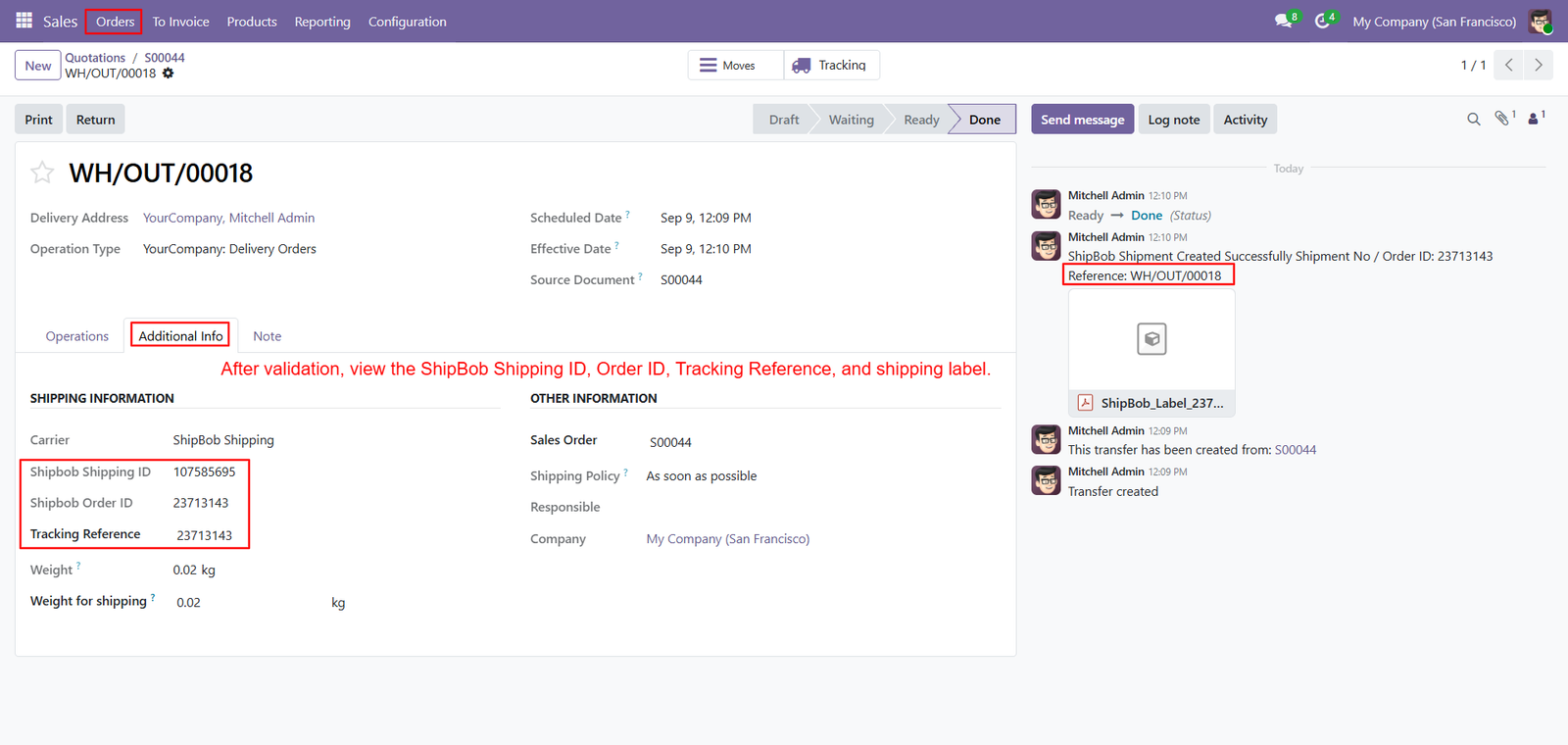
- Automatic Shipment Creation: Validate the delivery order to initiate ShipBob shipment creation through the configured integration and maintain related shipment information within Odoo.
- ShipBob Shipping ID: View the generated ShipBob Shipping ID in the Additional Info tab to identify shipments and reference their associated delivery records.
- ShipBob Order ID: Access the ShipBob Order ID from delivery details to connect shipment information with the corresponding ShipBob order and simplify shipment identification.
- Tracking Reference Access: Review the tracking reference directly within Odoo delivery records to identify shipments and conveniently reference their associated tracking information during shipping operations.
- Shipping Label Attachment: Access the generated shipping label from the delivery record’s chatter area, keeping important shipment documentation associated with the relevant delivery.
- Additional Information Tab: Open the Additional Info tab to review shipping identifiers, carrier information, tracking references, and other available shipment-related details within Odoo.
- Carrier Information Display: View ShipBob Shipping as the carrier in delivery records, helping users identify the shipping provider associated with each configured delivery operation.
- Sales Order Reference: Access the originating Sales Order reference from the delivery record to connect shipping information with the associated customer order.
- Delivery Order Identification: Use the delivery order reference to identify individual warehouse delivery records and locate their corresponding shipment information within the Odoo workflow.
- Shipping Weight Visibility: Review the recorded shipment weight in the delivery information to understand the package weight associated with the delivery order.
- Shipping Weight Configuration: Access the Weight for Shipping field to review the shipping weight value recorded for the delivery and its related shipment processing requirements.
- Delivery Status Tracking: Monitor the delivery order’s workflow status through Odoo’s status bar to review its recorded progression through delivery processing stages.
- Scheduled Delivery Date: Review the scheduled date displayed on the delivery record to understand the planned timing associated with the delivery operation.
- Effective Delivery Date: Access the effective date displayed on the delivery record to review the recorded timing associated with the completed delivery operation.
Step 5: ShipBob Shipping Label Generation: Generate shipping labels through the ShipBob integration in Odoo, providing essential shipment information for delivery handling and shipping documentation.
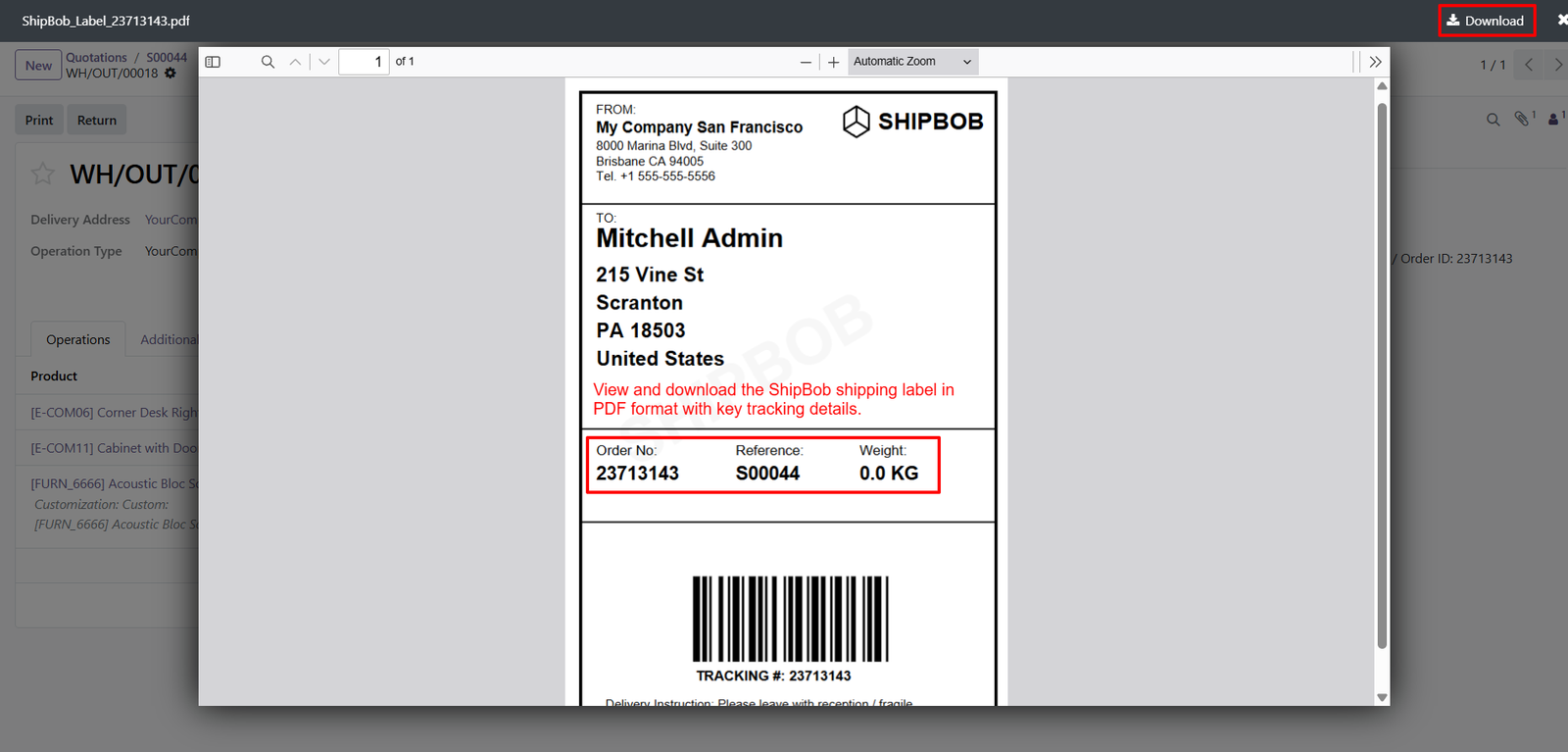
- PDF Shipping Label Format: Access generated ShipBob shipping labels in PDF format, making shipping documents convenient to view, download, store, and print when required.
- Download Shipping Labels: Use the Download option in the PDF viewer to save generated ShipBob shipping labels for convenient access during shipping operations.
- ShipBob Branding: Display ShipBob branding on the shipping label, clearly identifying the shipping service associated with the generated shipment documentation.
- Sender Information Display: Include sender information on the shipping label, helping identify the company responsible for sending the package to its intended recipient.
- Sender Company Address: Display the sender company’s address on the shipping label to provide relevant origin information for shipment handling and delivery documentation.
- Recipient Name Display: Show the recipient’s name prominently on the shipping label, helping shipping personnel identify the intended package recipient during delivery operations.
- Recipient Address Details: Include recipient address information on the shipping label, providing essential destination details for package identification and shipment delivery handling.
- Shipping Order Number: Display the ShipBob order number on the generated label, allowing users to identify the associated shipping order when reviewing shipment documentation.
- Sales Order Reference: Include the related Odoo Sales Order reference on the shipping label, helping users connect shipping documentation with the corresponding customer order.
- Shipment Weight Information: Display the recorded shipment weight on the shipping label, providing package weight information that can support shipping identification and handling requirements.
- Barcode on Shipping Label: Generate a barcode on the shipping label to support machine-readable shipment identification within the supported shipping and handling workflow.
- Tracking Number Display: Print the tracking number on the shipping label so users can identify the shipment and reference its associated tracking information.
- Tracking Barcode Visibility: Display the tracking barcode prominently on the label, making shipment identification easier during package processing and other supported shipping activities.
- Delivery Instructions Section: Provide space for delivery instructions on the shipping label, allowing relevant handling information to appear when supplied by the generated document.
Step 6:Centralized Delivery Management: Manage ShipBob deliveries from a dedicated Odoo section, providing convenient access to sales orders, delivery records, recipient details, tracking numbers, and shipping costs.
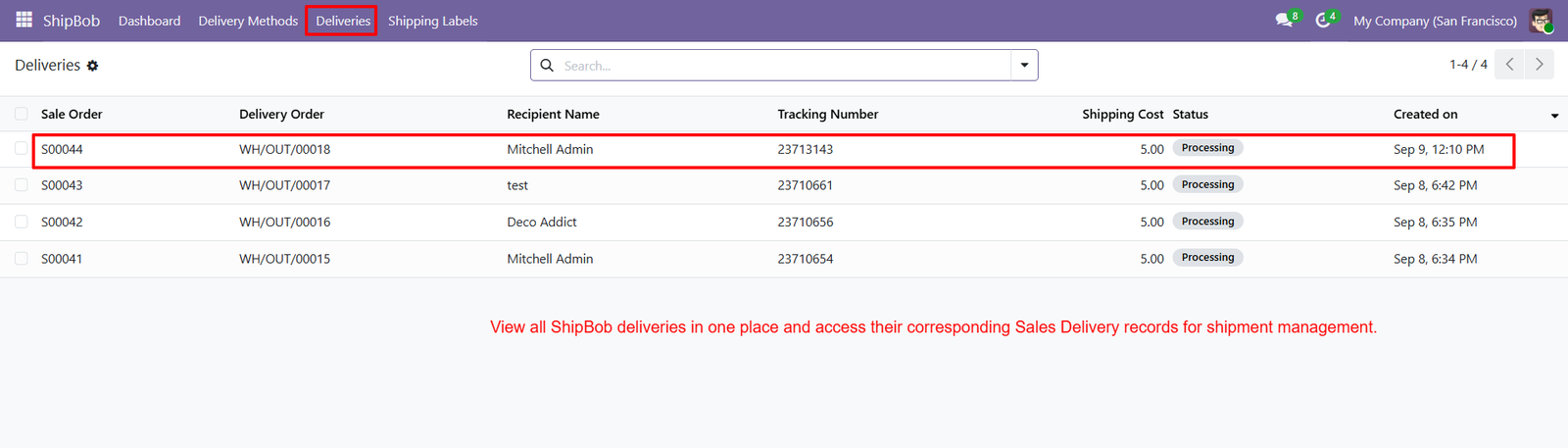
- Sales Order Reference: View associated Sales Order references in the delivery list to identify customer orders connected with their respective ShipBob shipping operations.
- Delivery Order Identification: Access delivery order references directly from the deliveries list to locate corresponding Odoo warehouse delivery records and review related shipment information.
- Recipient Name Visibility: Display recipient names alongside delivery records, helping users identify customers associated with individual shipments and locate relevant delivery information efficiently.
- Tracking Number Management: View tracking numbers directly in the deliveries list, making shipment identification easier and providing convenient access to associated tracking references.
- Shipping Cost Overview: Review shipping costs for individual delivery records to understand recorded delivery charges and maintain visibility into shipping expenses across orders.
- Delivery Status Monitoring: Check the displayed processing status of each delivery record to review its current recorded state and organize shipping management activities.
- Delivery Creation Date: View the creation date and time associated with each delivery record, helping users review shipment entries chronologically and identify recently recorded deliveries.
- Multiple Delivery Records: Access multiple ShipBob delivery records through one list view, making it convenient to review available shipments and their associated order information.
- Sales and Delivery Connection: Connect sales order references with delivery order records to maintain a clearer relationship between customer orders and corresponding shipping operations.
- Shipment Reference Accessibility: Locate tracking numbers and delivery references from the same list, reducing the need to search separately for basic shipment identification details.
- Recipient-Based Shipment Identification: Use recipient names together with order references and tracking numbers to distinguish individual deliveries and locate the correct shipping record.
- Shipping Expense Review: Compare displayed shipping costs across delivery records to review recorded delivery charges and support internal shipping expense monitoring.
- Processing Status Visibility: Review processing labels within the delivery list to understand how shipments are currently represented in the configured shipping workflow.
- Searchable Delivery Records: Use the available search field to locate relevant delivery information within Odoo, supporting more convenient access to shipment records.
Step 7: Centralized Shipping Labels: Access generated ShipBob shipping labels from a dedicated Odoo section, helping users organize shipping documents and locate relevant delivery information efficiently.
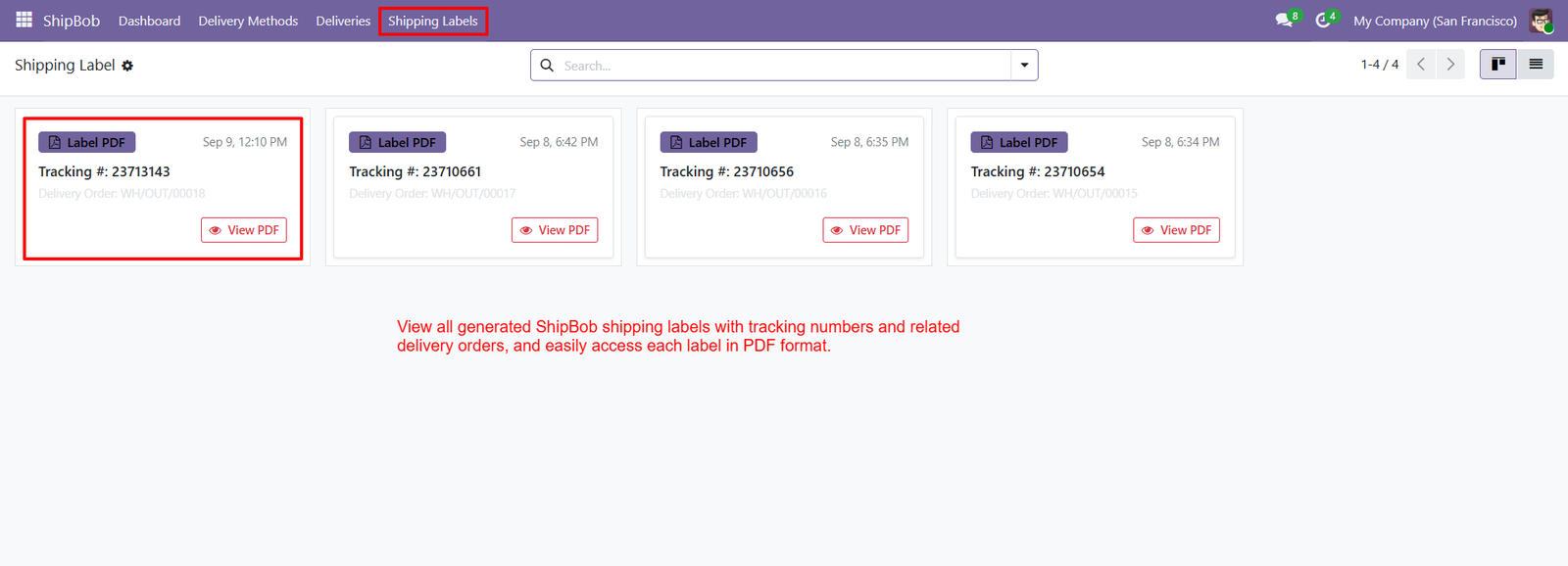
- PDF Label Access: Open generated ShipBob shipping labels in PDF format through the available View PDF option for convenient inspection and document retrieval.
- Tracking Number Display: View tracking numbers directly on shipping label cards, allowing users to identify individual shipments and reference their associated tracking information quickly.
- Related Delivery Orders: View the associated delivery order reference on each shipping label card to connect generated labels with their corresponding Odoo delivery records.
- Quick PDF Viewing: Use the View PDF button to open a specific shipping label and review its contents without searching through unrelated shipping documents.
- Label Creation Timestamp: Review the displayed date and time on shipping label cards to identify when individual labels were recorded in the system.
- Multiple Label Management: View multiple generated ShipBob shipping labels together, making it easier to locate documents associated with different delivery orders.
- Shipment Identification: Use tracking numbers displayed on label cards to distinguish individual shipments and identify the corresponding shipping document within Odoo.
- Delivery Reference Visibility: Keep delivery order references visible alongside shipping labels, helping users connect label documents with warehouse delivery operations and shipment records.
- Organized Label Cards: Display shipping labels as individual cards containing PDF access, tracking numbers, delivery references, and timestamps for convenient document management.
- Dedicated Shipping Labels Menu: Access the Shipping Labels section directly from the ShipBob application menu to review generated labels separately from delivery records.
- Searchable Label Records: Use the available search field to locate relevant shipping label records within Odoo, supporting convenient access to shipment documentation.
- Label Document Retrieval: Retrieve the appropriate shipping label through its corresponding card, reducing the effort required to locate documents for specific delivery orders.
- Shipping Document Organization: Keep generated shipping labels accessible within a dedicated interface, helping shipping teams maintain organized records of shipment documentation.
- Shipment Tracking Reference Access: Identify shipping labels using their displayed tracking references, supporting convenient cross-reference between shipment information and available shipping documents.
- Delivery-Based Label Identification: Locate shipping labels by reviewing their associated delivery order references, helping users distinguish documents generated for different delivery operations.
Step 8: Add Shipping Method: Add a shipping method to an Odoo Sales Order to calculate delivery charges using the configured ShipBob shipping integration.
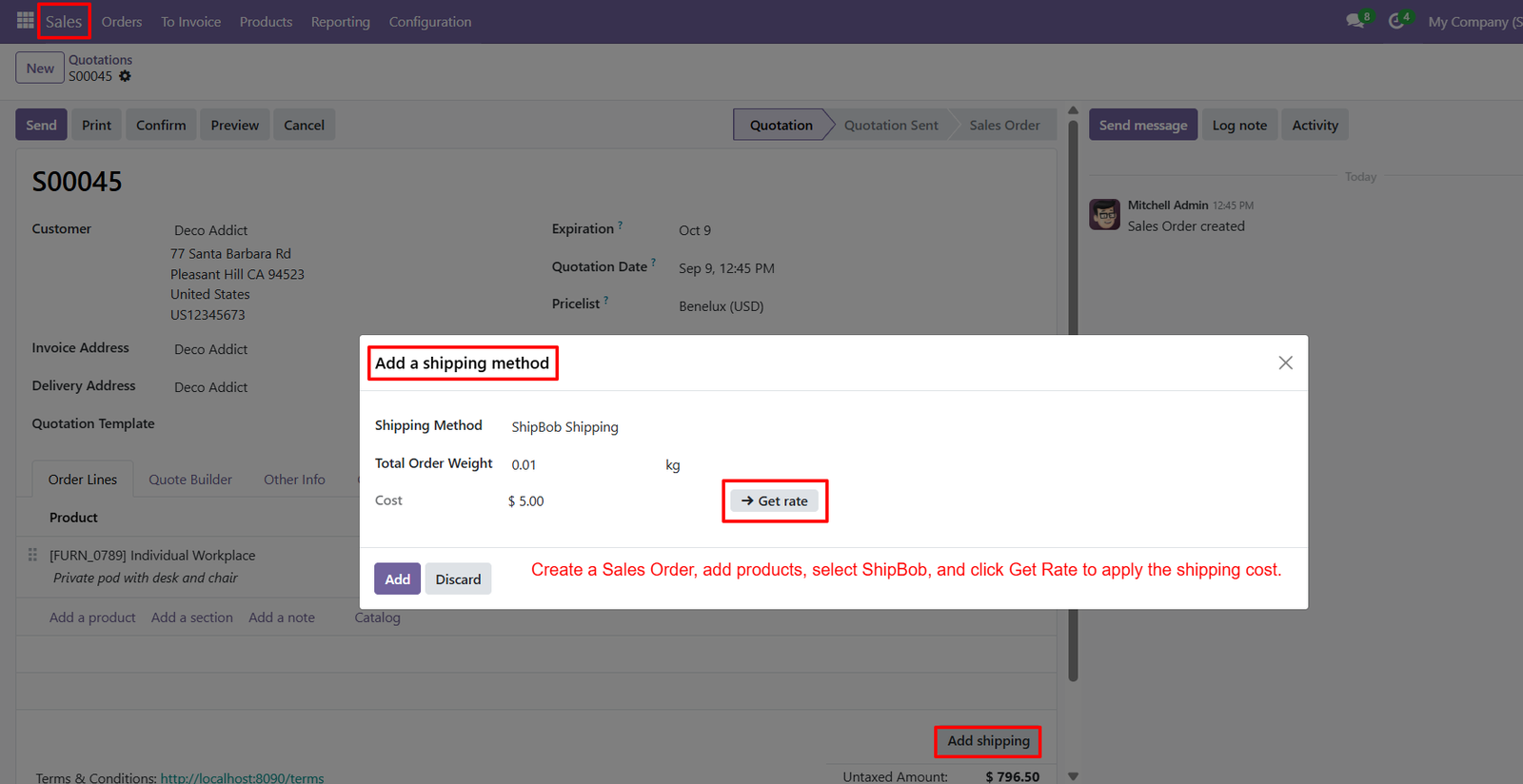
- ShipBob Shipping Selection: Select ShipBob Shipping from the available delivery methods to connect the Sales Order with the configured shipping service.
- Sales Order Integration: Manage shipping rate calculation directly from the Odoo Sales Order interface without manually entering delivery charges before retrieving the applicable rate.
- Get Rate Functionality: Use the Get Rate button in the shipping method window to retrieve the applicable shipping cost through the configured ShipBob integration.
- Automated Rate Retrieval: Retrieve shipping rates through ShipBob instead of relying entirely on manually entered shipping charges during Sales Order processing.
- Total Order Weight: Display the total order weight in the shipping method window to provide package weight information during shipping rate calculation.
- Shipping Cost Display: Review the shipping cost displayed in the shipping method window before adding the shipping method to the Sales Order.
- Calculated Delivery Charges: Retrieve the applicable shipping cost using Get Rate and use the calculated charge in the configured Odoo shipping workflow.
- Product-Based Shipping: Add the required products to a Sales Order before selecting ShipBob Shipping to initiate the shipping rate calculation process.
- Shipping Method Dialog: Access the Add a Shipping Method dialog to review the selected delivery method, total order weight, and shipping cost.
- Convenient Shipping Configuration: Use the configured ShipBob delivery method from the Sales Order interface to retrieve shipping costs within the existing order management workflow.
- Shipping Charge Application: Add the selected shipping method after calculating the rate to include the delivery charge in the Sales Order.
- Sales Order Cost Visibility: Review the shipping cost in the shipping method dialog before applying the delivery charge to the order.
- Integrated Order Processing: Connect Sales Order product details with ShipBob shipping rate calculation to support a more organized order processing workflow within Odoo.
- Shipping Method Confirmation: Review the selected ShipBob Shipping method and displayed cost before adding the shipping method to the Sales Order.
- Order Weight Reference: Use the displayed total order weight as a reference when retrieving shipping rates through the configured ShipBob delivery method.
Why Use the Odoo ShipBob Shipping Integration Module?
The Odoo ShipBob Shipping Integration by Weblytic Labs helps businesses connect their Odoo sales and eCommerce workflows with ShipBob shipping services. It brings shipping rate calculation, shipment creation, tracking references, delivery management, and shipping label access into a connected workflow.
Here are the key reasons to use this module:
- Simplified Shipping Management: Manage ShipBob shipping activities directly from Odoo, helping your team organize shipping operations without constantly switching between separate systems.
- Convenient Shipping Rate Calculation: Retrieve shipping rates using the Get Rate action and apply the calculated delivery charges to Odoo Sales Orders.
- Integrated eCommerce Checkout: Offer ShipBob as a configured delivery option during Odoo eCommerce checkout and display the applicable shipping charge in the order summary.
- Streamlined Shipment Creation: Initiate ShipBob shipment creation through the configured delivery workflow when the delivery order is validated.
- Easy Shipment Tracking: Access ShipBob Shipping IDs, Order IDs, and tracking references directly from Odoo delivery records for convenient shipment identification.
- Quick Shipping Label Access: View and download generated ShipBob shipping labels in PDF format, including important shipment and tracking information.
- Centralized Delivery Management: Review delivery orders, Sales Order references, recipient names, tracking numbers, shipping costs, and statuses from a dedicated delivery list.
- Comprehensive Shipping Dashboard: Monitor shipment statistics, recent shipping activity, order information, shipping labels, shipment volume, and available shipment locations from one dashboard.
- Organized Shipping Documentation: Keep generated shipping label documents accessible through the Odoo shipping workflow and their associated delivery records.
- Simplified Delivery Configuration: Configure ShipBob credentials, channel information, service type, delivery product, and other available shipping settings within Odoo.
- Improved Order Visibility: Connect sales orders with their related delivery records and shipment references to make shipping information easier to review.
- Better Shipping Cost Visibility: Review shipping charges alongside product subtotals and other order amounts during checkout and Sales Order processing.
- Efficient Shipment Identification: Use tracking numbers, shipment IDs, order references, and delivery order numbers to locate relevant shipping information.
- Accessible Shipping Labels: Use the dedicated Shipping Labels section to locate generated labels and open their associated PDF documents conveniently.
- Connected Shipping Workflow: Manage shipping configuration, rate calculation, shipment processing, tracking information, delivery records, and shipping labels through an integrated Odoo workflow.