

Modern retail businesses need fast, secure, and convenient payment options to provide a smooth checkout experience. Integrating a reliable payment gateway directly into the Point of Sale system can help merchants simplify payment processing, reduce manual work, and maintain accurate transaction records.
The POS PayFast Payment Method for Odoo integrates the PayFast payment gateway with Odoo Point of Sale, allowing merchants to accept PayFast payments directly from the POS interface.
With this integration, customers can complete payments using a QR code or payment link and securely finish the transaction on the PayFast checkout page. Once the payment is completed successfully, Odoo automatically updates the payment status, confirms the POS order, generates the receipt, and stores the payment transaction details for future tracking.
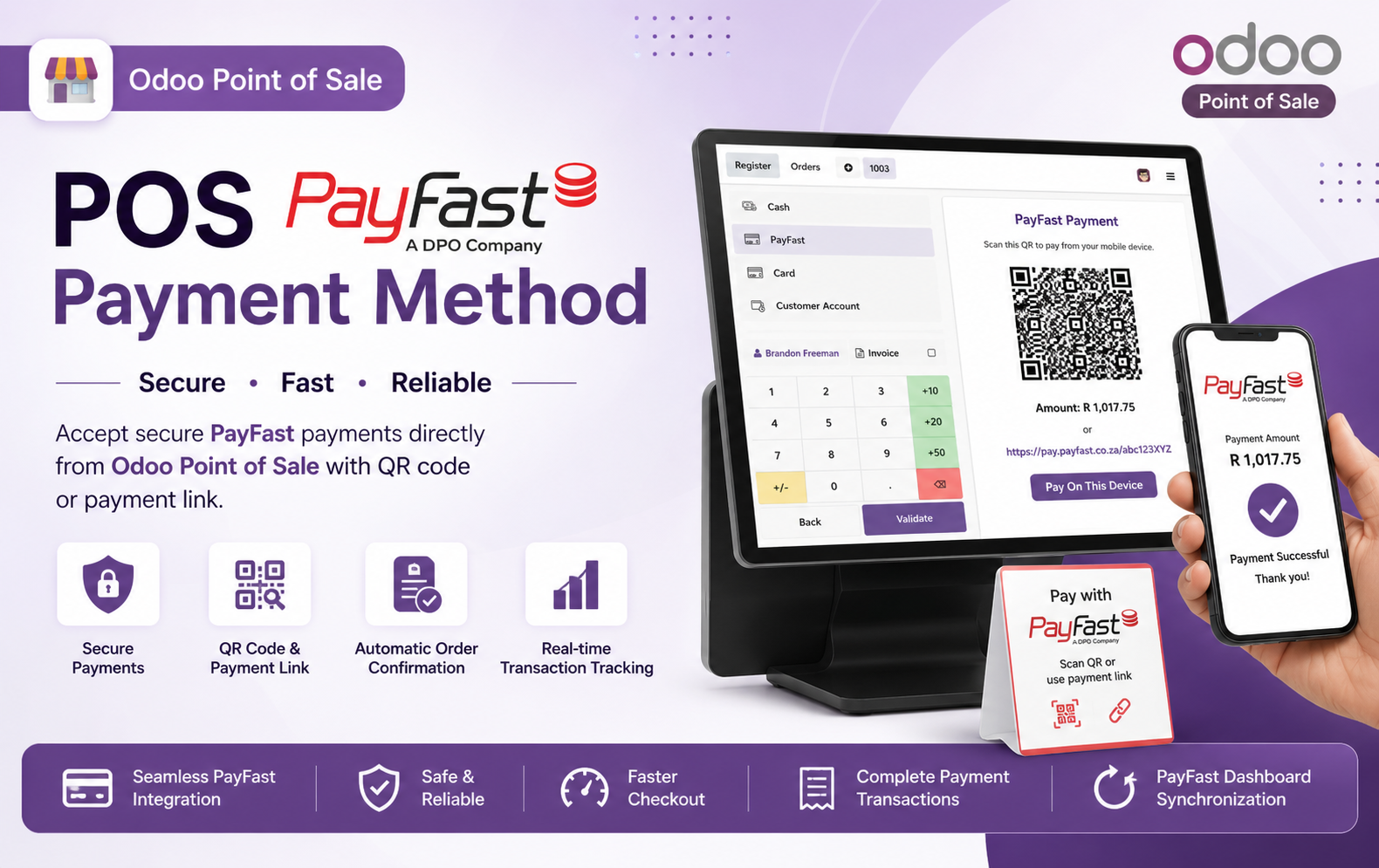
Key Features at a Glance
- Easy PayFast Configuration – Configure PayFast quickly using Merchant ID and Merchant Key directly within Odoo POS settings.
- POS Payment Terminal – Enable PayFast as a dedicated payment terminal and accept payments directly from the Odoo POS interface.
- QR Code Payments – Generate a convenient QR code that customers can scan using their mobile device to complete payments.
- Payment Link Support – Provide customers with a secure PayFast payment link for quick and convenient transaction completion.
- Secure PayFast Checkout – Redirect customers to the secure PayFast checkout page for safe and reliable payment processing.
- Automatic Payment Confirmation – Automatically recognize successful PayFast payments and confirm the corresponding POS transaction.
- Automatic POS Order Confirmation – Successfully completed payments automatically update and confirm the related Odoo POS order.
- Receipt Generation – Generate the POS receipt automatically after successful PayFast payment completion.
- Real-Time Payment Status – Keep payment status updated to help merchants identify successful and completed transactions.
- Payment Transaction Tracking – Maintain detailed PayFast transaction records including transaction ID, amount, status, and payment method.
- POS Order Linking – Connect PayFast payment transactions directly with their corresponding Odoo POS orders.
- Customer Payment Tracking – Associate completed PayFast payments with customer information for better transaction management.
- Transaction ID Management – Store and display PayFast transaction IDs for easier verification and payment reconciliation.
- PayFast Dashboard Monitoring – Monitor completed transactions through the PayFast dashboard with payment and settlement information.
- Payment Amount Verification – Display and track the exact payment amount throughout the POS and PayFast payment workflow.
- Multiple POS Support – Configure the PayFast payment method for applicable Odoo Point of Sale operations and retail locations.
- Faster Checkout Experience – Simplify the payment process with QR codes and payment links for quicker customer checkout.
- Centralized Payment Management – Manage PayFast payment information and related POS transaction details from within Odoo.
- Easy Payment Reconciliation – Compare transaction details between Odoo POS and PayFast for easier payment verification and reconciliation.
- Improved Customer Experience – Provide customers with a fast, flexible, secure, and convenient PayFast payment experience at checkout.
Use Cases: Who Needs This module?
- Retail Stores – Accept PayFast payments directly through Odoo POS for faster and more convenient checkout.
- Supermarkets & Grocery Stores – Enable quick QR-based payments and simplify high-volume payment processing.
- Furniture Stores – Process large-value customer payments securely through PayFast within the POS system.
- Electronics Stores – Provide customers with flexible PayFast payment options using QR codes or payment links.
- Fashion & Apparel Stores – Speed up checkout and provide customers with a seamless digital payment experience.
- Restaurants & Cafés – Accept PayFast payments efficiently while keeping payment records connected with POS orders.
- Multi-Branch Businesses – Manage PayFast payments across multiple Odoo POS locations from a centralized system.
- Franchise Businesses – Standardize PayFast payment processing across different franchise outlets using Odoo POS.
- Service-Based Businesses – Collect customer payments through PayFast while maintaining organized POS transaction records.
- Businesses Using PayFast – Ideal for merchants already using PayFast who want integrated payment processing within Odoo Point of Sale.
- Growing Retail Businesses – Reduce manual payment handling and improve checkout efficiency as transaction volumes increase.
- Businesses Requiring Transaction Tracking – Track payment IDs, amounts, statuses, customers, and linked POS orders easily.
- Businesses Needing Payment Reconciliation – Compare Odoo payment records with PayFast transactions for easier financial verification.
- Businesses Offering Digital Payments – Provide customers with modern QR code and payment-link payment options.
- Odoo POS Users – Any Odoo business looking to connect PayFast with its Point of Sale payment workflow.
Quick User Guide (Visual Walkthrough)
Scroll up to revisit the detailed image-wise walkthrough.
Step 1: Open POS Settings – Open Odoo Point of Sale settings and navigate to Payment Terminals to configure available payment integrations for your business operations.
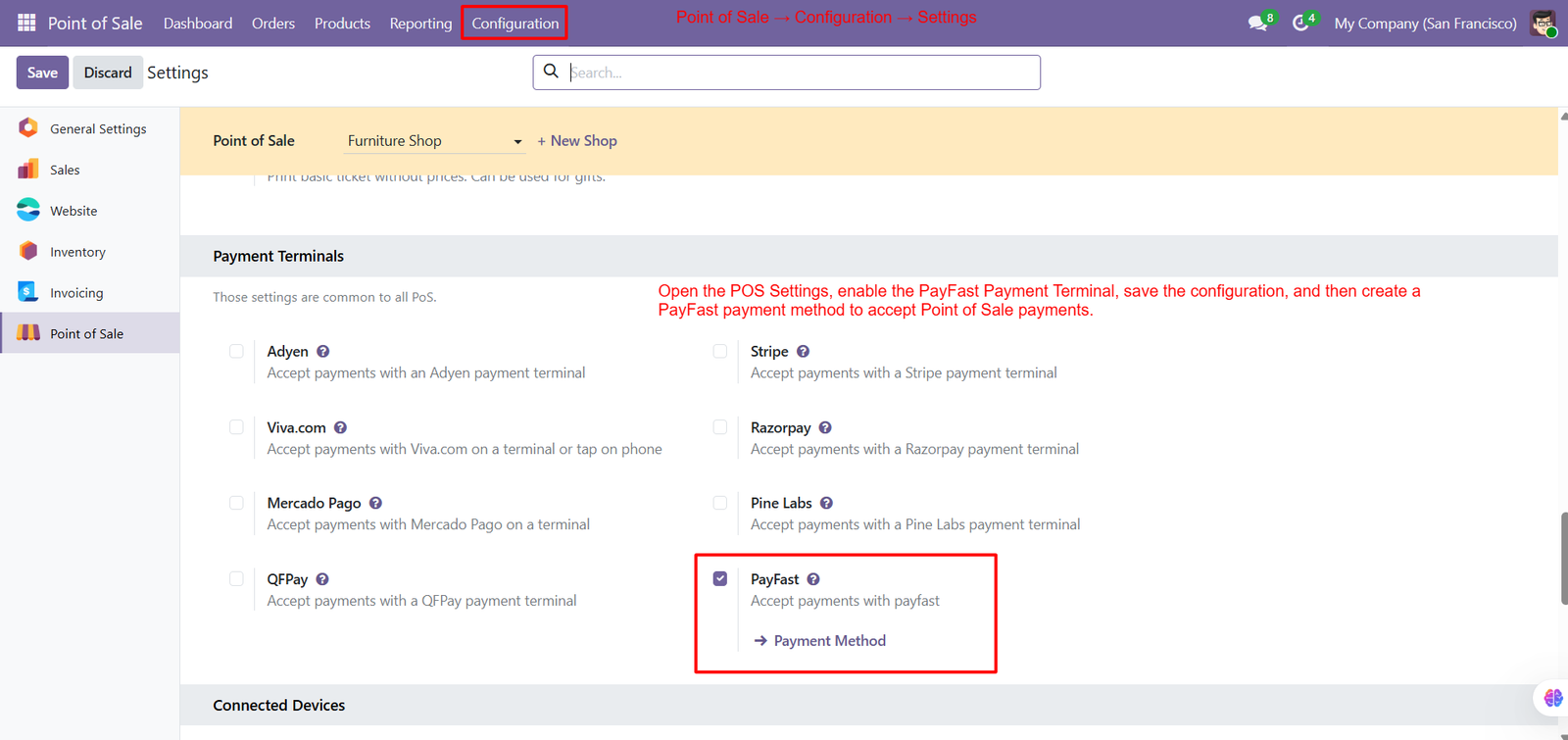
Step 2: Select Terminal Integration – Select Terminal as the integration type to enable PayFast for processing payments directly through the Odoo Point of Sale interface.
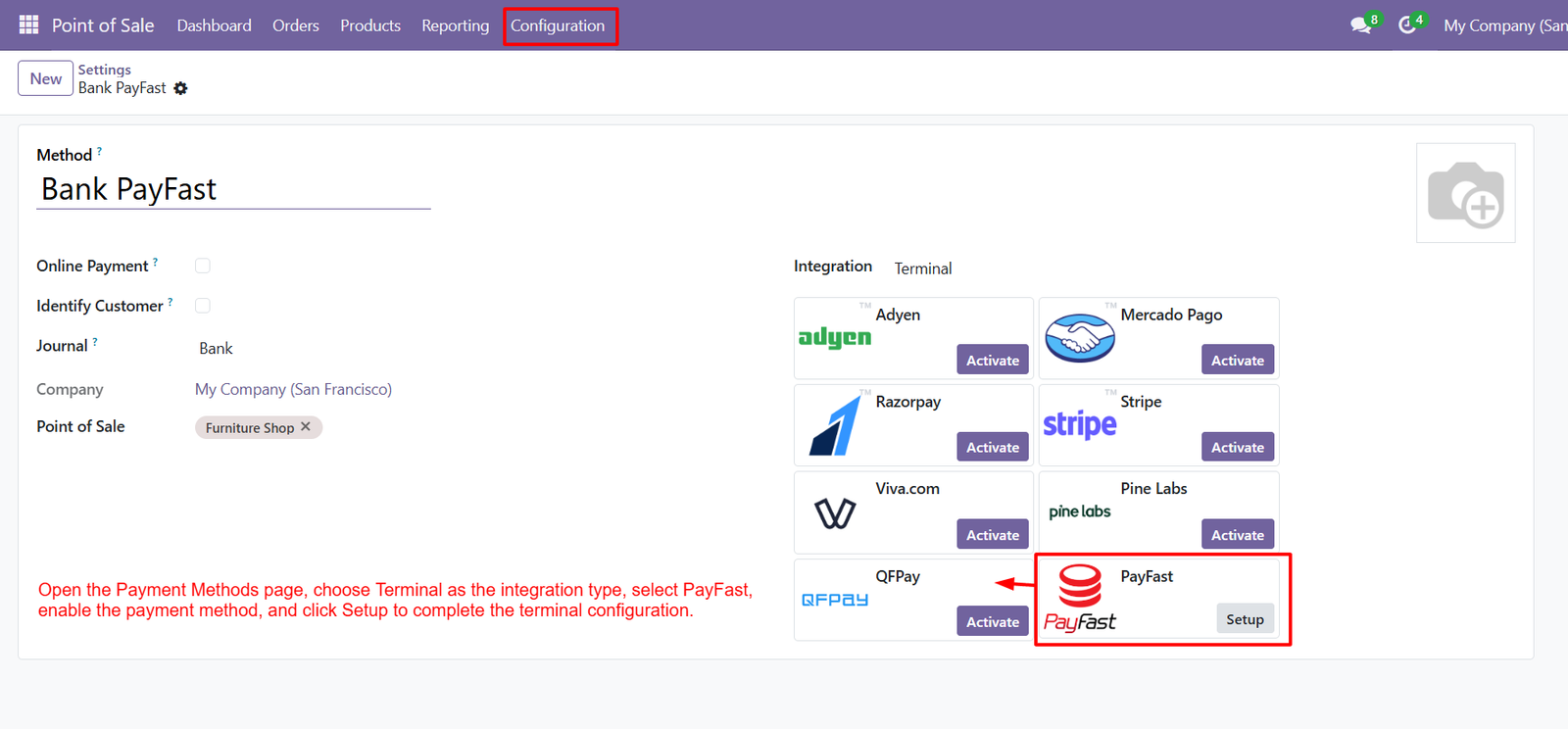
Step 3: Enter Merchant ID – Enter the PayFast Merchant ID to identify your business account and establish the required connection with the PayFast payment gateway.
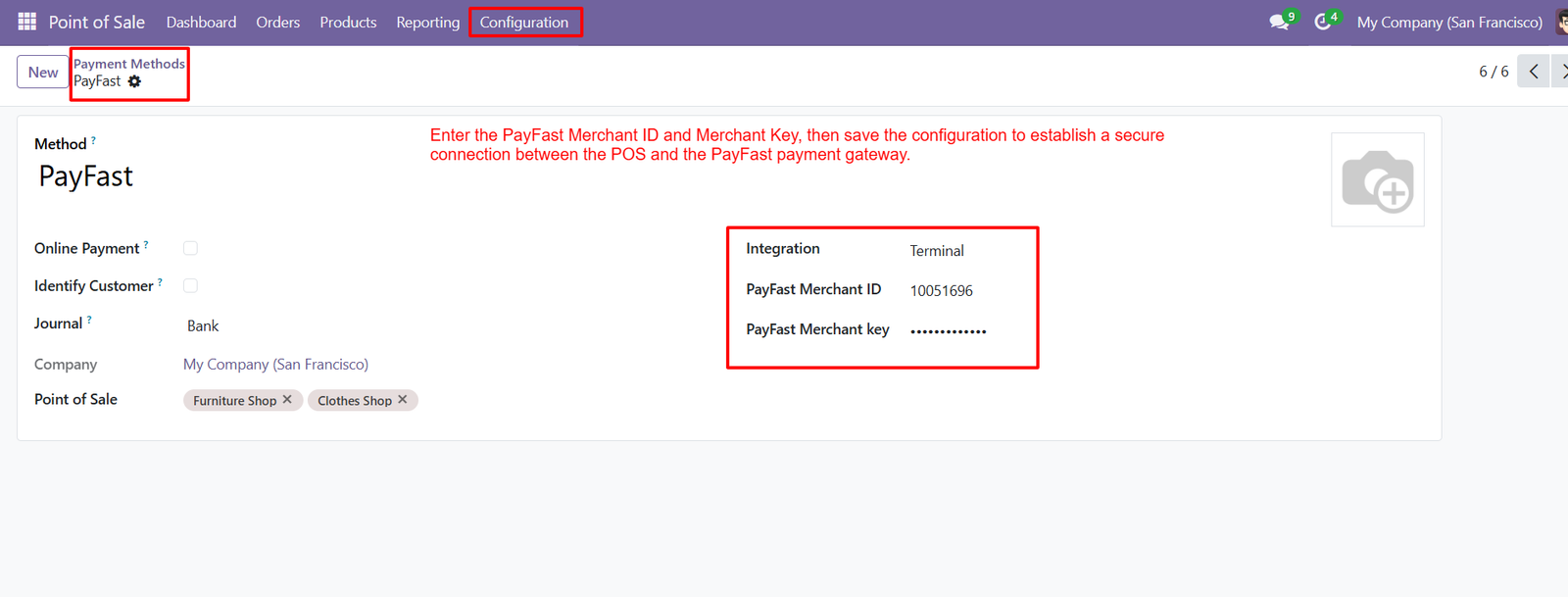
- Configure Merchant Key – The PayFast payment configuration provides dedicated fields for Merchant ID and Merchant Key, simplifying setup and secure credential management efficiently.
- Secure Authentication – Enter valid PayFast credentials carefully to ensure successful authentication and uninterrupted payment processing throughout your Odoo POS checkout workflow securely.
- Save Configuration – After entering credentials, save the configuration to establish the connection between Odoo POS and the PayFast payment gateway securely today.
- Terminal Integration – The Terminal integration displays the selected PayFast configuration, confirming that the payment method is prepared for POS transaction processing successfully.
- Merchant Identification – Merchant ID identifies your PayFast account, while Merchant Key authenticates requests and helps establish secure communication during payment processing securely.
- Multiple POS Locations – The configuration supports multiple Point of Sale locations, allowing merchants to assign PayFast payment processing to their required retail shops.
- Selected POS Shops – Selected POS shops appear within the payment method configuration, ensuring PayFast is available only for configured Point of Sale operations.
- Credential Security – Secure credential management helps protect payment communication by keeping the Merchant Key hidden within the configured PayFast payment method interface.
- PayFast Availability – Once configured, PayFast becomes available as a payment option for customers using the selected Odoo Point of Sale checkout process.
- QR Payment Foundation – The PayFast setup creates the foundation for QR code and payment link payments, enabling convenient digital transactions during POS checkout.
- Secure Transaction Requests – Configured PayFast credentials support secure transaction requests, helping merchants connect customer payments with their corresponding Odoo POS orders successfully today.
- Centralized Settings – The payment method configuration centralizes PayFast settings, making it easier for administrators to review and manage payment integration details efficiently.
Step 4: Select PayFast Payment – Select PayFast from the payment options to initiate a digital payment directly within the Odoo Point of Sale checkout interface.
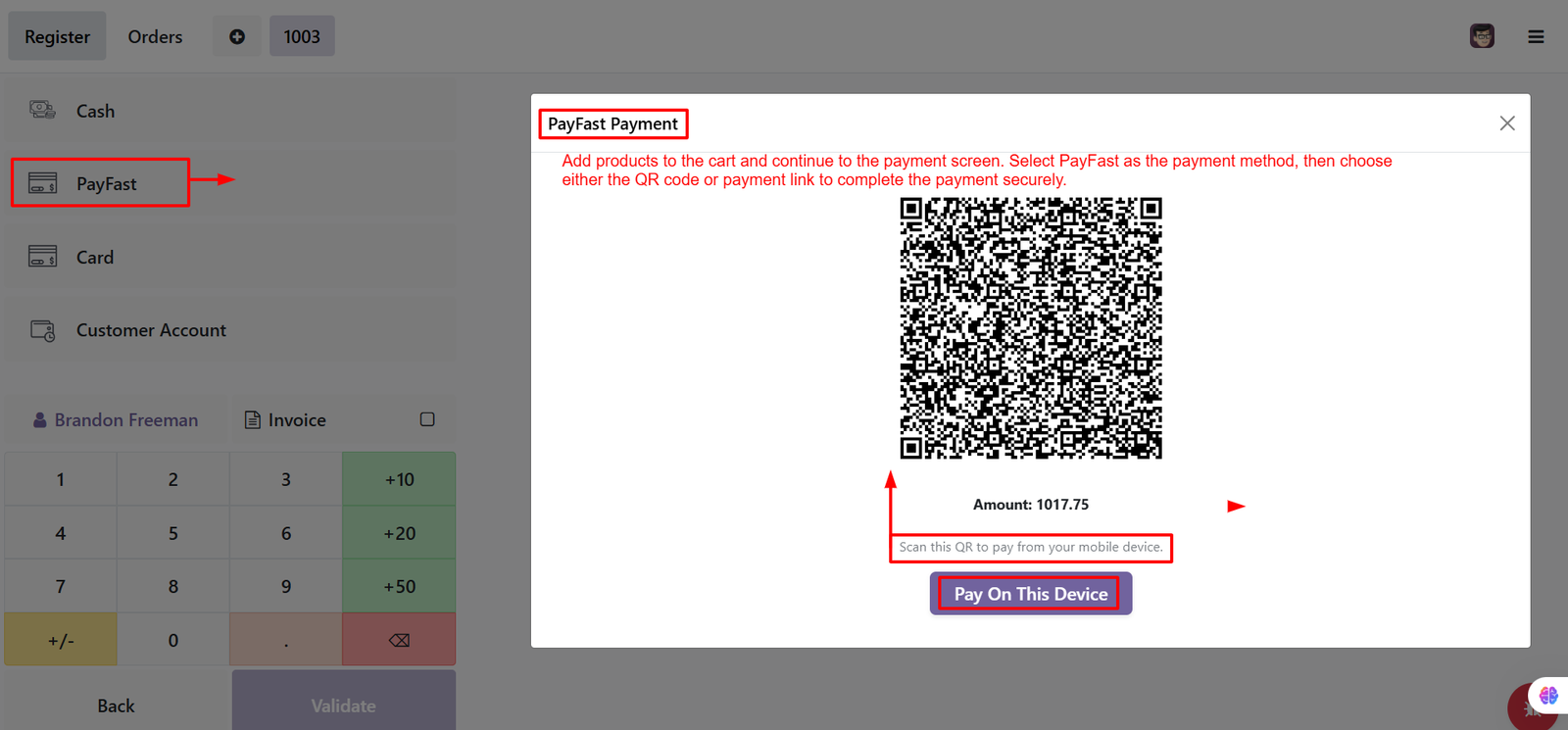
- Open Payment Dialog – After selecting PayFast, the payment dialog opens and displays options for completing the customer transaction securely through the PayFast gateway.
- Identify Payment Method – The payment window clearly identifies PayFast, helping cashiers recognize the selected payment method before continuing with the customer transaction securely.
- Add Products First – Customers can complete payments using a QR code, providing a convenient way to access PayFast checkout through their mobile devices.
- Scan QR Code – The displayed QR code allows customers to scan payment information quickly and continue the transaction using their preferred mobile device.
- Verify Payment Amount – PayFast displays the total transaction amount clearly, helping customers verify the payment value before proceeding with checkout securely online today.
- Pay On This Device – Customers can use the Pay On This Device option to continue payment directly from the current device when required securely.
- Flexible Payment Options – The payment interface provides flexible options, allowing customers to choose QR code scanning or direct device payment for completing transactions.
- Prepare Cart Amount – Cashiers can add products to the cart before selecting PayFast, ensuring the correct order amount is prepared for payment processing.
- Dedicated Payment Dialog – Once PayFast is selected, Odoo opens a dedicated payment dialog containing the QR code and available payment options for customers.
- Convenient QR Checkout – The QR code payment option creates a simple checkout experience by allowing customers to scan displayed payment information using smartphones.
- Reduce Manual Processing – PayFast payment processing helps reduce manual payment handling by providing customers with digital payment options directly through the Odoo POS.
- Visible Transaction Information – The payment dialog keeps important transaction information visible, allowing customers to understand the payment process before completing their purchase successfully.
Step 5: Secure PayFast Checkout – After selecting PayFast, customers are redirected to the secure PayFast checkout page to review and complete their payment securely online.
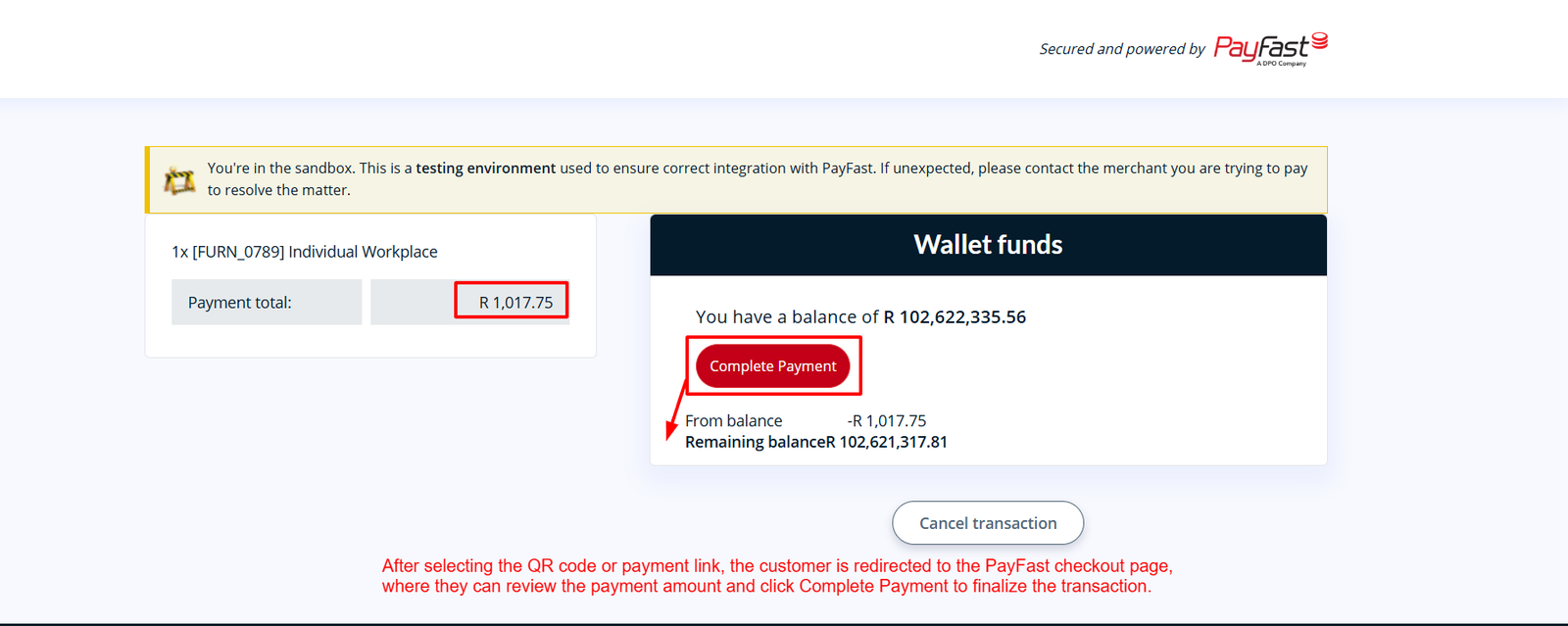
- Payment Details Display – The PayFast checkout page clearly displays the purchased product and payment total, helping customers verify transaction information before completing payment.
- Payment Amount Verification – Customers can review the displayed payment amount before confirming, reducing confusion and ensuring the correct transaction value is processed successfully.
- Complete Payment Button – The Complete Payment button allows customers to finalize the transaction after reviewing payment details and confirming their intended purchase online.
- Dedicated Checkout Interface – PayFast provides a dedicated checkout interface where customers can securely complete transactions using their available PayFast payment options conveniently online.
- Visible Payment Total – The checkout screen displays the payment total prominently, helping customers understand exactly how much they need to pay before proceeding.
- Wallet Balance Display – Customers can view their available wallet balance when using supported PayFast wallet funds for completing eligible transactions securely during checkout.
- Automatic Wallet Deduction – The wallet payment option can deduct the required amount from the available balance and update the remaining balance accordingly automatically.
- Wallet Deduction Details – PayFast displays the deducted amount from the wallet, providing customers with clear information about the funds used for payment securely.
- Remaining Wallet Balance – After payment completion, the remaining wallet balance is displayed, helping customers understand their updated available funds after the transaction successfully.
- Cancel Transaction Option – Customers can cancel the transaction if they decide not to proceed, providing flexibility before finalizing the PayFast payment process successfully.
- Sandbox Testing Environment – The sandbox environment allows merchants to test the PayFast integration safely before using the payment workflow for live customer transactions.
- Secure Gateway Connection – The secure checkout page helps maintain a consistent payment experience between Odoo Point of Sale and the PayFast payment gateway.
Step 6: Payment Success – PayFast displays a successful payment message, confirming the customer transaction has been completed successfully through the payment gateway.
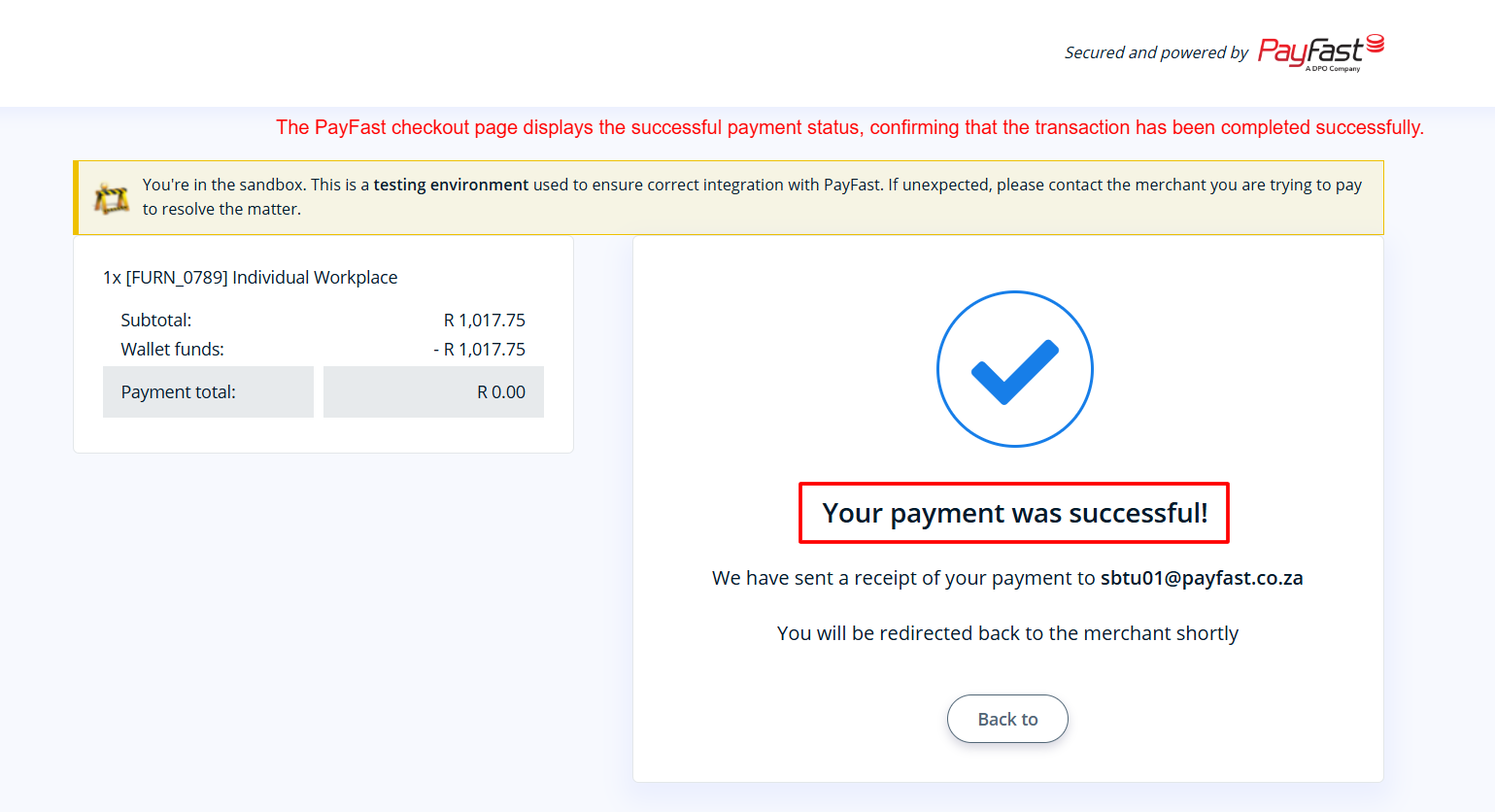
- Success Confirmation – A prominent confirmation message reassures customers their payment was processed successfully and the transaction requires no additional action.
- Payment Verification – The successful status provides clear confirmation that PayFast received and processed the payment request from the Odoo POS.
- Transaction Completion – Once payment succeeds, the checkout page confirms completion and prepares the customer for automatic redirection toward the merchant.
- Automatic Redirection – After successful payment, PayFast automatically redirects customers back to the merchant, continuing the integrated Odoo POS payment workflow.
- Receipt Notification – PayFast confirms that a receipt has been sent, giving customers additional confirmation and documentation for their completed transaction.
- Payment Amount – The checkout summary displays subtotal, wallet funds, and final payment totals, helping customers verify transaction calculations before completion.
- Wallet Deduction – Wallet funds are shown separately from the subtotal, making the deducted amount transparent during successful PayFast payment processing.
- Zero Balance – When wallet funds cover the complete purchase, the payment total becomes zero, confirming available balance settled the transaction.
- Visual Confirmation – A large checkmark icon provides an immediate visual indication that the payment process has finished successfully and securely.
- Secure Checkout – The PayFast checkout page provides a clear confirmation screen after payment, supporting a consistent and trustworthy payment experience.
- Sandbox Testing – The displayed sandbox notice indicates that the transaction environment is intended for testing PayFast integration before production deployment.
- Payment Status – The successful payment status helps merchants identify completed transactions and proceed confidently with subsequent POS order processing activities.
Step 7: Successful Payment – Odoo displays clear payment confirmation after PayFast completes the transaction, allowing cashiers to proceed with order finalization confidently.
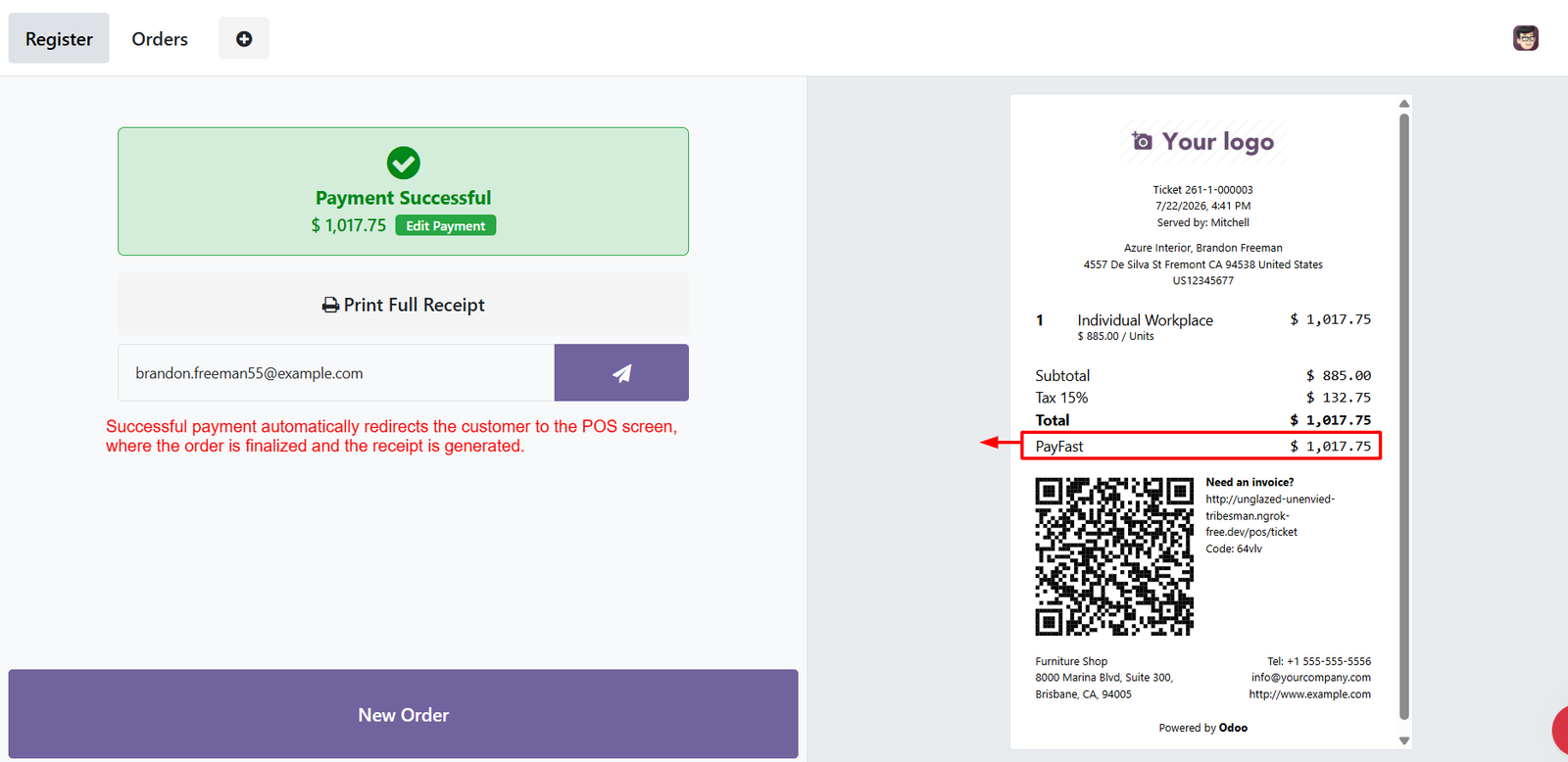
- Automatic POS Redirection – After successful payment, customers are automatically redirected to Odoo POS, where the completed order becomes immediately available.
- Payment Successful Status – The green confirmation message clearly indicates PayFast processing succeeded and the transaction was completed successfully securely today.
- Payment Amount Display – The successful payment screen displays the completed amount, helping cashiers verify that customer payment was received correctly.
- Edit Payment Option – Cashiers can use Edit Payment when necessary to review or modify payment information before finalizing the transaction.
- Print Full Receipt – Odoo provides a Print Full Receipt option, allowing businesses to generate a receipt after successful PayFast payment.
- Customer Receipt Email – Customers can receive payment receipt through email, providing documentation of the completed POS transaction for future reference.
- Receipt Preview – The integrated receipt preview displays products, totals, taxes, payment method, customer information, and transaction details in one place.
- PayFast Payment Record – The receipt clearly identifies PayFast as the payment method, making completed transactions to recognize during order review.
- Order Finalization – Successful PayFast processing automatically moves the POS workflow toward order completion, reducing manual intervention for cashiers during checkout.
- Payment Confirmation Message – A prominent green confirmation panel provides immediate visual feedback, assuring cashiers that payment has been processed successfully.
- Receipt Generation – Once payment succeeds, Odoo generates the associated receipt automatically, helping merchants maintain accurate documentation for completed customer orders.
- Transaction Amount Verification – The receipt shows PayFast payment amount alongside totals, allowing staff to verify transaction values before completing service.
Step 8: Payment Transactions Access – Open Payment Transactions to review PayFast transactions recorded in Odoo, including order references, dates, payment methods, amounts, currencies, and statuses.
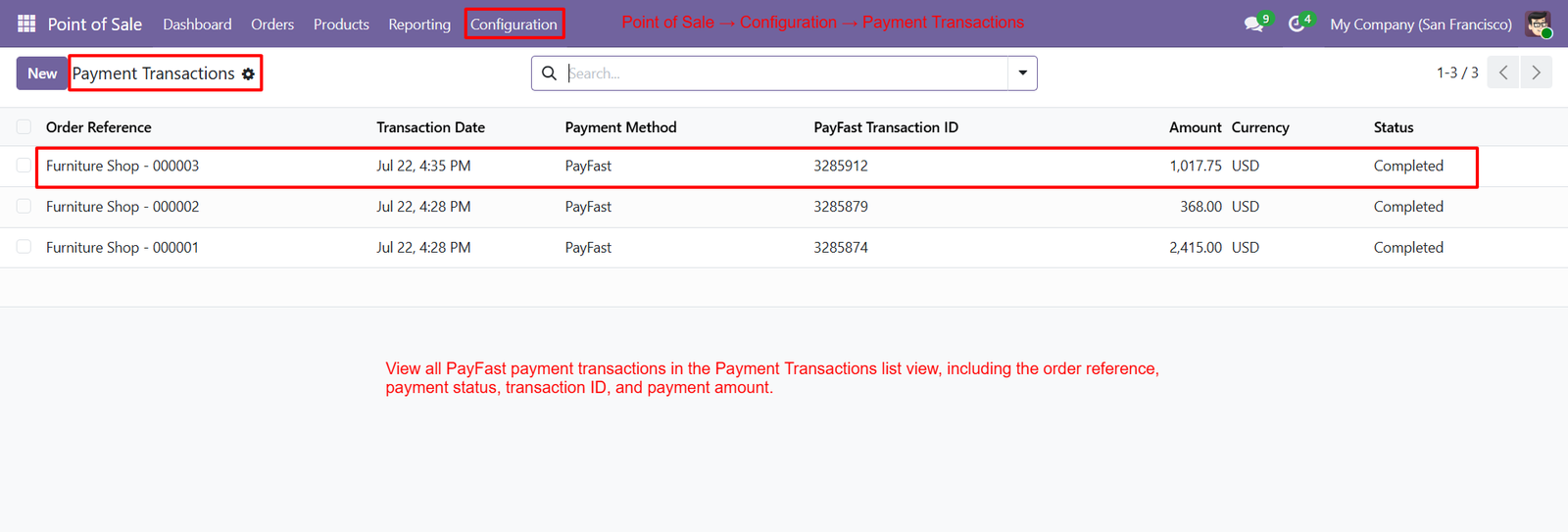
- Order Reference – Each transaction displays its Order Reference, helping users identify which Point of Sale order generated the corresponding PayFast payment transaction.
- Transaction Date – Transaction Date shows when each PayFast payment was processed, allowing administrators to monitor payment activity and review historical transaction timelines.
- Payment Method – Payment Method identifies PayFast for each listed transaction, making it easier to distinguish PayFast payments from other configured payment methods.
- Transaction ID – PayFast Transaction ID provides a unique identifier that helps administrators verify individual payments and match records with corresponding PayFast transactions.
- Payment Amount – The Amount column displays the payment value for each transaction, allowing users to quickly review collected amounts directly within Odoo.
- Transaction Currency – Currency information identifies the currency used for each PayFast transaction, helping businesses maintain accurate payment records across different transaction amounts.
- Payment Status – Transaction Status shows whether payments are completed, helping administrators quickly identify successful PayFast transactions and monitor payment processing results accurately.
- Multiple Transactions – Multiple PayFast transactions appear together in the list, providing administrators with a centralized view for reviewing recent payment activity efficiently.
- Organized Transaction List – The list view makes transaction monitoring easier by presenting essential payment information in organized columns for quick reference and comparison.
- Transaction Details Access – Users can open individual transaction records from the list to review additional PayFast payment details associated with specific POS orders.
- Transaction Search – The search bar helps administrators locate relevant payment transactions quickly by searching available information within the Payment Transactions management screen.
- POS Order Linking – Order references connect PayFast transactions with POS sales, making it easier to trace payments back to their originating customer orders.
Step 9: Transaction Reference – The transaction record displays the related Order Reference, helping administrators identify the specific POS order associated with PayFast payment.
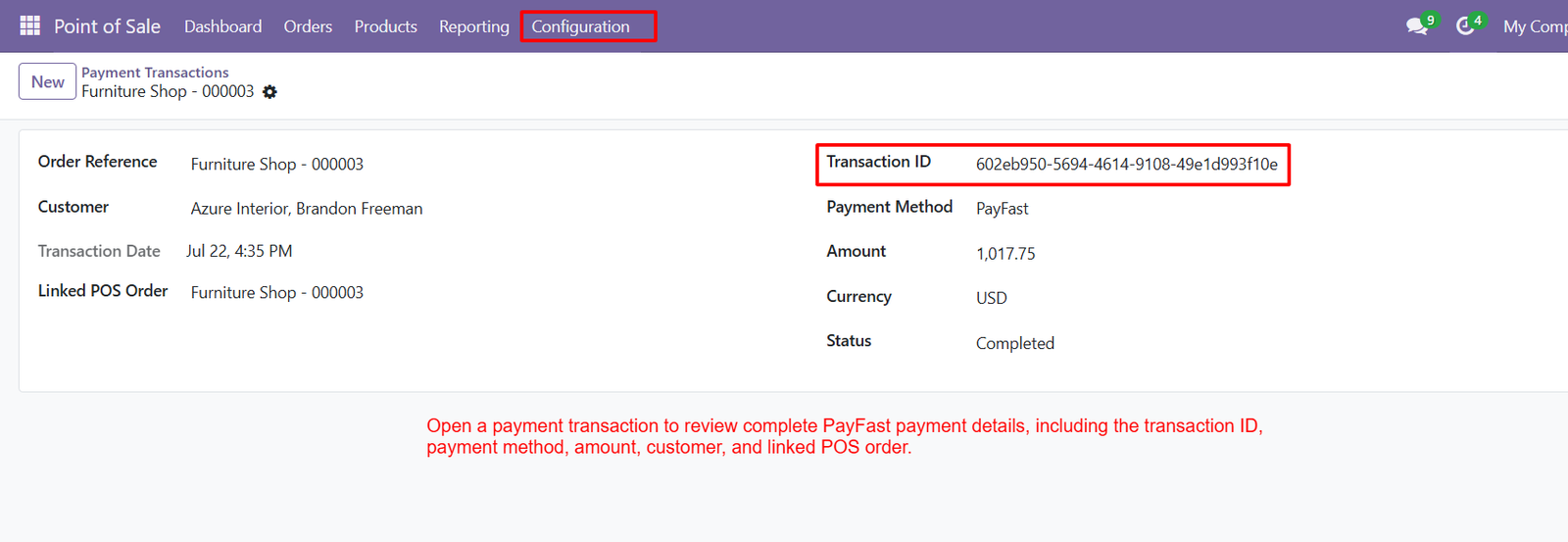
- Customer Information – Customer details are displayed within the transaction record, making it easier to identify who completed the PayFast payment.
- Transaction Date – The transaction date records when the PayFast payment was processed, helping administrators review payment activity and historical transaction timelines.
- Linked POS Order – Each payment transaction connects directly with its related POS order, creating a clear relationship between payment and sales records.
- Transaction ID – The unique Transaction ID helps administrators identify, verify, and track individual PayFast transactions across Odoo and PayFast systems.
- Payment Method – The transaction record clearly identifies PayFast as the selected payment method used to complete the associated POS order.
- Payment Amount – The Amount field displays the exact value processed through PayFast, helping administrators verify transaction amounts against corresponding POS orders.
- Currency Information – Currency details identify the monetary currency used for the PayFast transaction, supporting accurate payment records and financial reconciliation processes.
- Transaction Status – The Status field indicates whether the PayFast transaction is completed, helping administrators quickly confirm successful payment processing.
- Complete Transaction Overview – The transaction form combines order, customer, payment, amount, currency, status, and transaction information within one centralized Odoo record.
- Payment Verification – Administrators can use the displayed Transaction ID and payment amount to verify PayFast transactions against external gateway records.
- Order Payment Traceability – Linking payments with POS orders provides better traceability, allowing businesses to follow each transaction from customer purchase through payment completion.
- Customer Payment Tracking – Customer information combined with payment details helps businesses identify transactions and maintain organized records for individual customer purchases.
Step 10: Centralized Transaction Visibility – PayFast Dashboard provides centralized transaction visibility, helping merchants review completed payments, buyer information, payment identifiers, amounts, fees, and net earnings.
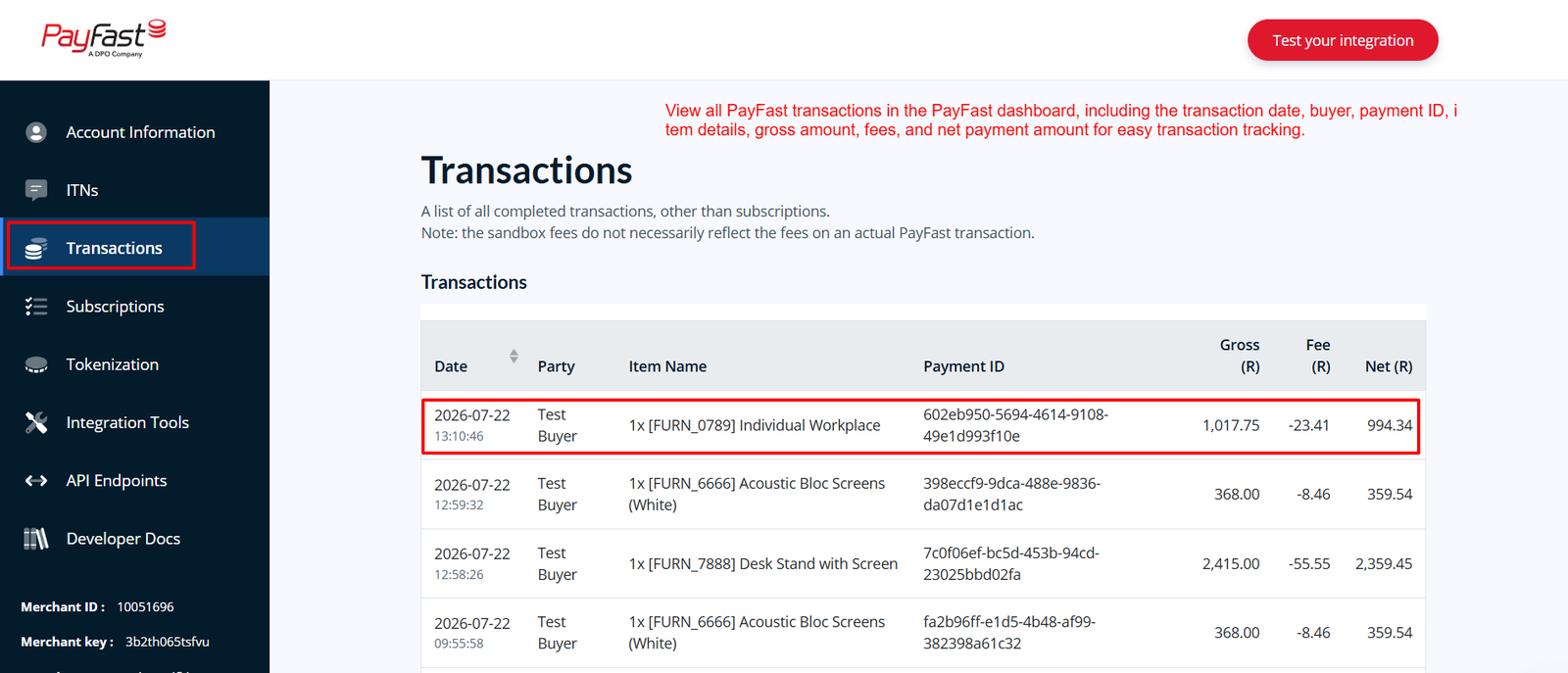
- Transaction Date Tracking – Transaction Date displays when each payment occurred, allowing businesses to monitor payment timelines and maintain organized historical transaction records efficiently.
- Buyer Details – Buyer Details identify customers associated with transactions, making payment records easier to understand, review, verify, and manage within PayFast securely.
- Item Information – Item Name shows purchased products within transaction records, helping merchants connect individual payments with specific goods sold through their POS.
- Payment ID Tracking – Payment ID provides a unique identifier for each transaction, making payment verification, reconciliation, support requests, and tracking significantly easier overall.
- Gross Amount Visibility – Gross Amount displays the total transaction value before applicable fees, helping merchants understand the original payment amount received from customers.
- Transaction Fee Monitoring – Transaction Fees show applicable PayFast charges, helping businesses evaluate payment costs and understand deductions associated with completed transactions accurately today.
- Net Amount Tracking – Net Amount displays the remaining transaction value after fees, providing merchants with clearer visibility into their actual payment proceeds received.
- Completed Transaction Review – Completed Transactions can be reviewed centrally, allowing businesses to monitor successful payments without manually checking individual customer orders repeatedly daily.
- Payment Activity Monitoring – Payment Monitoring helps merchants identify transaction activity quickly, supporting better financial oversight and faster investigation of payment-related concerns when necessary.
- Centralized Transaction Records – Transaction Records provide essential payment information in one view, reducing manual effort while improving accuracy during routine payment reconciliation activities.
- Transaction Tracking – PayFast Dashboard supports transaction tracking by combining dates, buyers, items, payment IDs, gross amounts, fees, and net amounts together conveniently.
- Gross and Net Comparison – Businesses can compare gross and net amounts to understand payment deductions, supporting more accurate financial reporting and transaction reconciliation processes.
Step 11: Payment Details Visibility – The Payments tab displays PayFast payment details including transaction date, payment method, and amount for the selected POS order record.
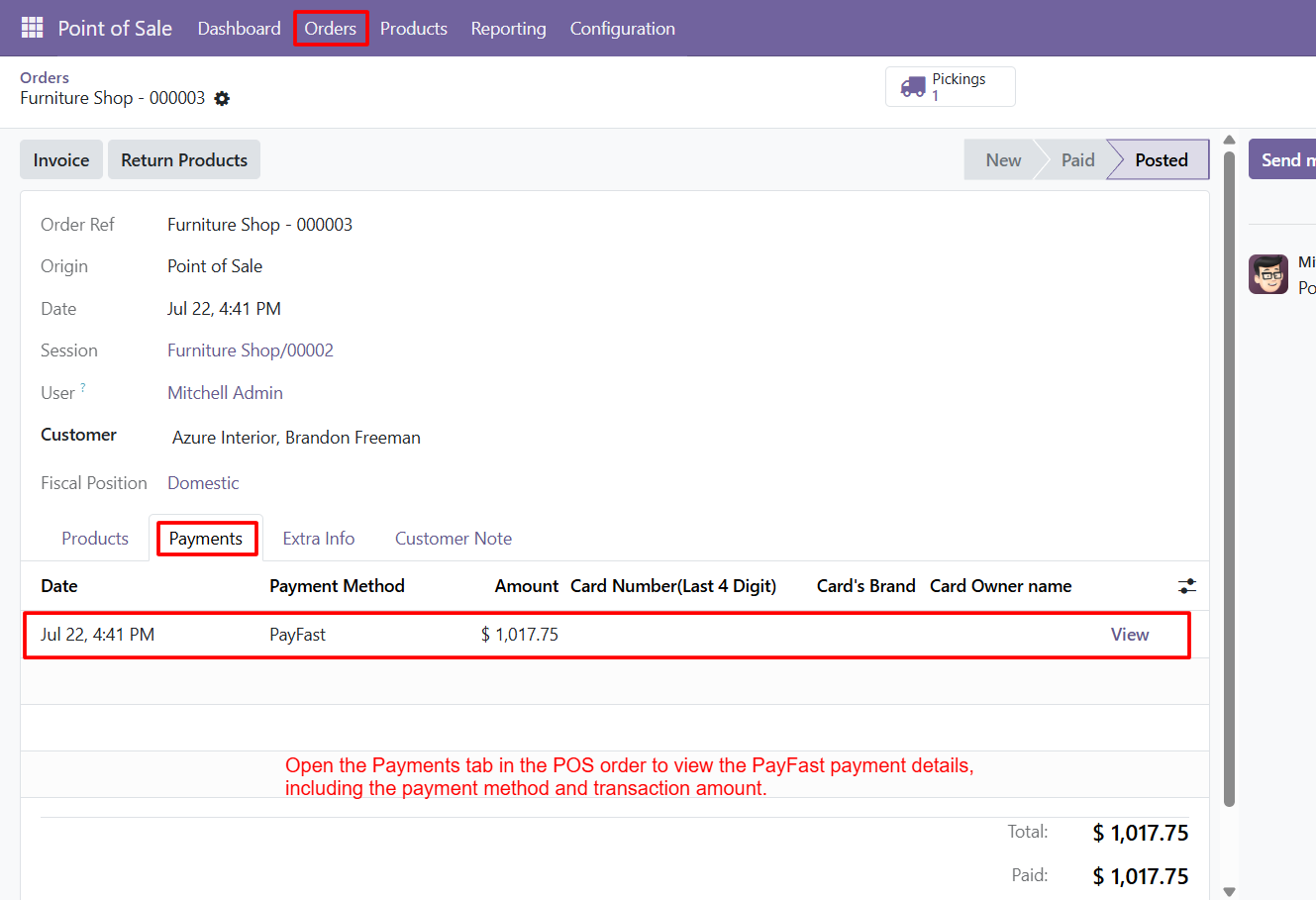
- Linked Payment Record – Each PayFast payment entry is connected with its corresponding POS order, providing clear visibility into completed payment information for administrators.
- Payment Date Tracking – The payment date shows when the PayFast transaction occurred, helping businesses maintain accurate records and review payment timelines efficiently.
- PayFast Method Identification – The Payment Method field clearly identifies PayFast, allowing users to recognize which payment gateway processed the POS transaction quickly.
- Transaction Amount Display – The Amount column displays the exact payment value processed through PayFast, making transaction verification and reconciliation easier for businesses.
- Payment Verification – Administrators can compare the displayed PayFast amount with the POS order total to confirm successful payment processing accurately.
- Order Payment History – The Payments tab maintains payment history within each POS order, helping users review transactions without searching through separate payment records.
- Quick Payment Access – Users can quickly access PayFast payment information directly from the POS order, reducing navigation and improving payment management efficiency.
- Payment Status Confirmation – The paid amount shown within the order provides a quick reference for confirming that the customer payment has been successfully recorded.
- POS Payment Integration – PayFast payments remain connected with Odoo POS orders, ensuring payment information stays available alongside related sales and customer records.
- Customer Transaction Reference – Customer orders include associated PayFast payment details, helping businesses understand payment information connected with individual purchases more easily.
- Simplified Reconciliation – Displaying payment method and amount within POS orders helps finance teams reconcile PayFast transactions against recorded sales efficiently.
- Payment Record Accuracy – Centralized payment details reduce manual recording requirements, helping businesses maintain accurate payment information across their POS order records.
- Easy Transaction Review – The Payments tab allows administrators to review PayFast transactions quickly, supporting faster verification and resolution of payment-related questions.
- Payment Amount Comparison – Users can compare the PayFast payment amount with the displayed order total and paid amount for easier transaction validation.
- Connected Sales Information – PayFast payment records remain associated with POS sales, creating a connected workflow between customer purchases and payment processing activities.
- Payment Transparency – Displaying payment date, method, and amount provides greater transparency into how each POS order was paid through PayFast.
Why Use the POS PayFast Payment Method for Odoo Module?
The POS PayFast Payment Method for Odoo is an ideal solution for businesses looking to simplify and modernize their Point of Sale payment process. It connects Odoo POS with PayFast, enabling merchants to accept secure payments through QR codes and payment links while keeping payment and order information synchronized.
Key Reasons to Use This Module
- Seamless PayFast Integration – Connect PayFast directly with Odoo Point of Sale for a smooth and centralized payment workflow.
- Quick Customer Payments – Let customers complete payments conveniently through QR codes or secure payment links.
- Secure Checkout Experience – Customers are redirected to the PayFast checkout page to complete transactions securely.
- Automatic Payment Confirmation – Successful payments automatically update the POS order and confirm the transaction.
- Reduced Manual Work – Automate payment recording and reduce the need for manually verifying or entering transaction details.
- Better Transaction Tracking – Track transaction IDs, payment amounts, payment methods, customers, and linked POS orders from Odoo.
- Centralized Payment Management – Keep PayFast payment information connected with corresponding POS orders for easier administration.
- Improved Reconciliation – Compare payment amounts and transaction details with POS orders to simplify financial reconciliation.
- PayFast Dashboard Monitoring – Review transaction dates, buyers, payment IDs, gross amounts, fees, and net amounts through the PayFast dashboard.
- Better Customer Experience – Provide customers with a convenient, fast, and flexible digital payment option during POS checkout.
- Multi-Store POS Support – Configure the PayFast payment method for applicable Odoo POS configurations and manage payments efficiently.
- Complete Payment Visibility – Access detailed payment information directly from POS orders and dedicated payment transaction records.
- Faster Payment Verification – Quickly verify completed transactions using PayFast transaction IDs and payment information.
- Organized Payment Records – Maintain structured payment records within Odoo, making transaction management easier for administrators.
- Scalable Payment Solution – A practical choice for retailers and businesses that want to expand their digital POS payment capabilities.