

Managing shipping manually can make order fulfillment slower and more complicated. Businesses need to calculate accurate delivery costs, create shipments, generate shipping labels, and track deliveries without switching between multiple systems.
The Bring Shipping Integration for Odoo connects your Odoo system with Bring Shipping and provides a centralized workflow for managing shipping operations directly from Odoo. It supports shipping-rate calculation, delivery charges, shipment creation, tracking references, shipping labels, parcel information, and shipment management. Bring Shipping Integration
With this integration, businesses can simplify their shipping process while keeping important delivery information organized inside Odoo.
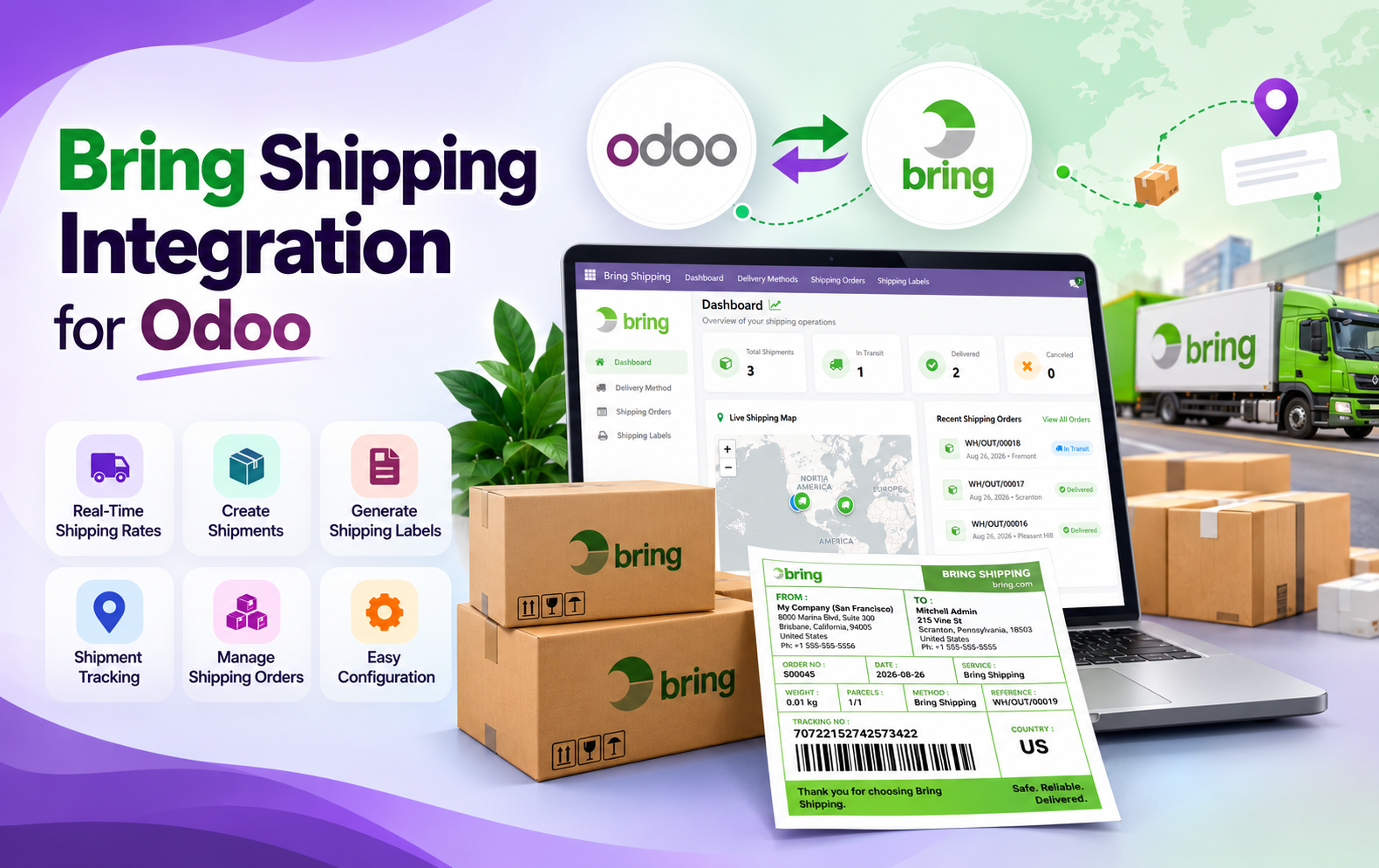
Key Features at a Glance
-
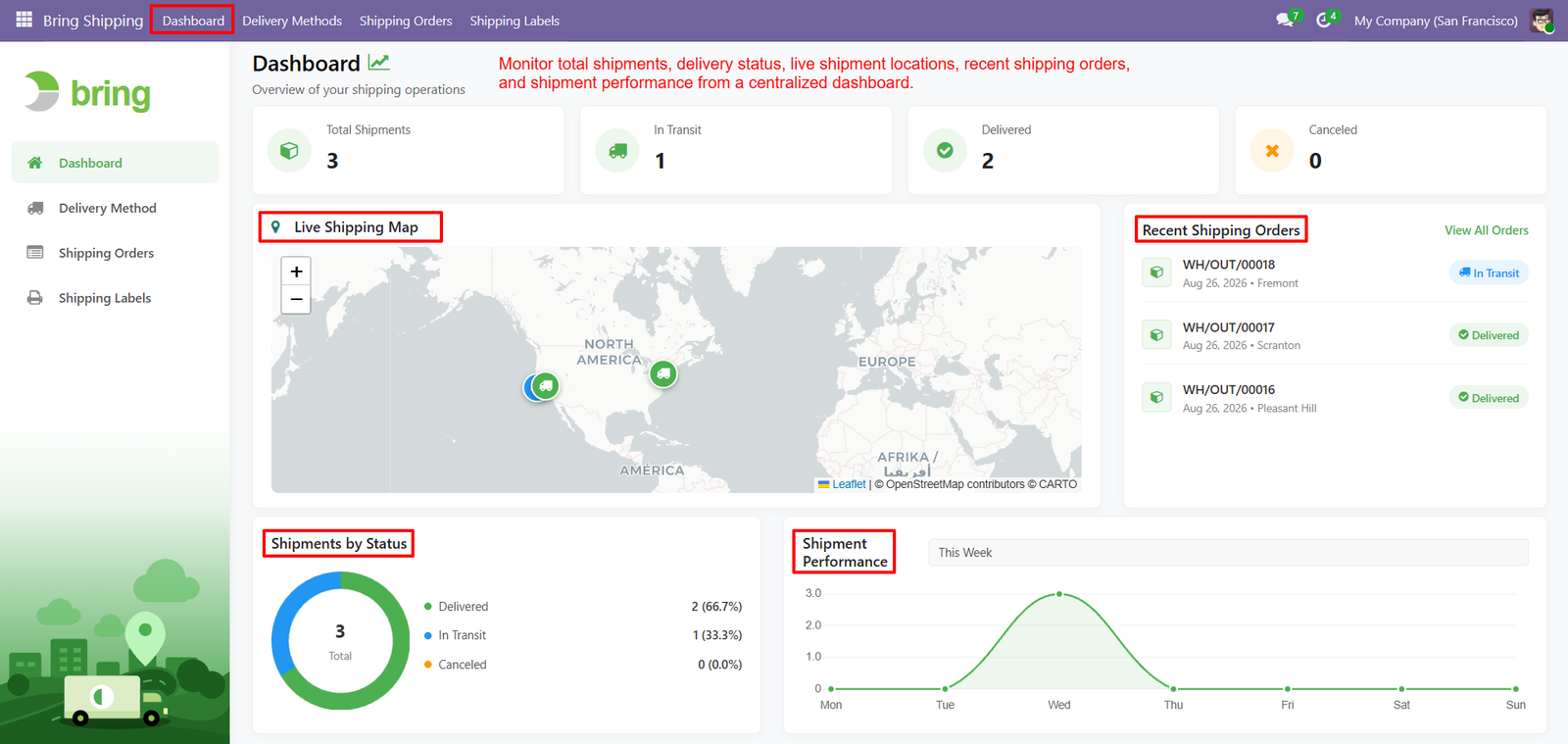
Centralized Shipping Dashboard — Monitor total shipments, delivery statuses, live shipment locations, recent orders, and overall shipping performance from one centralized Odoo dashboard.
-
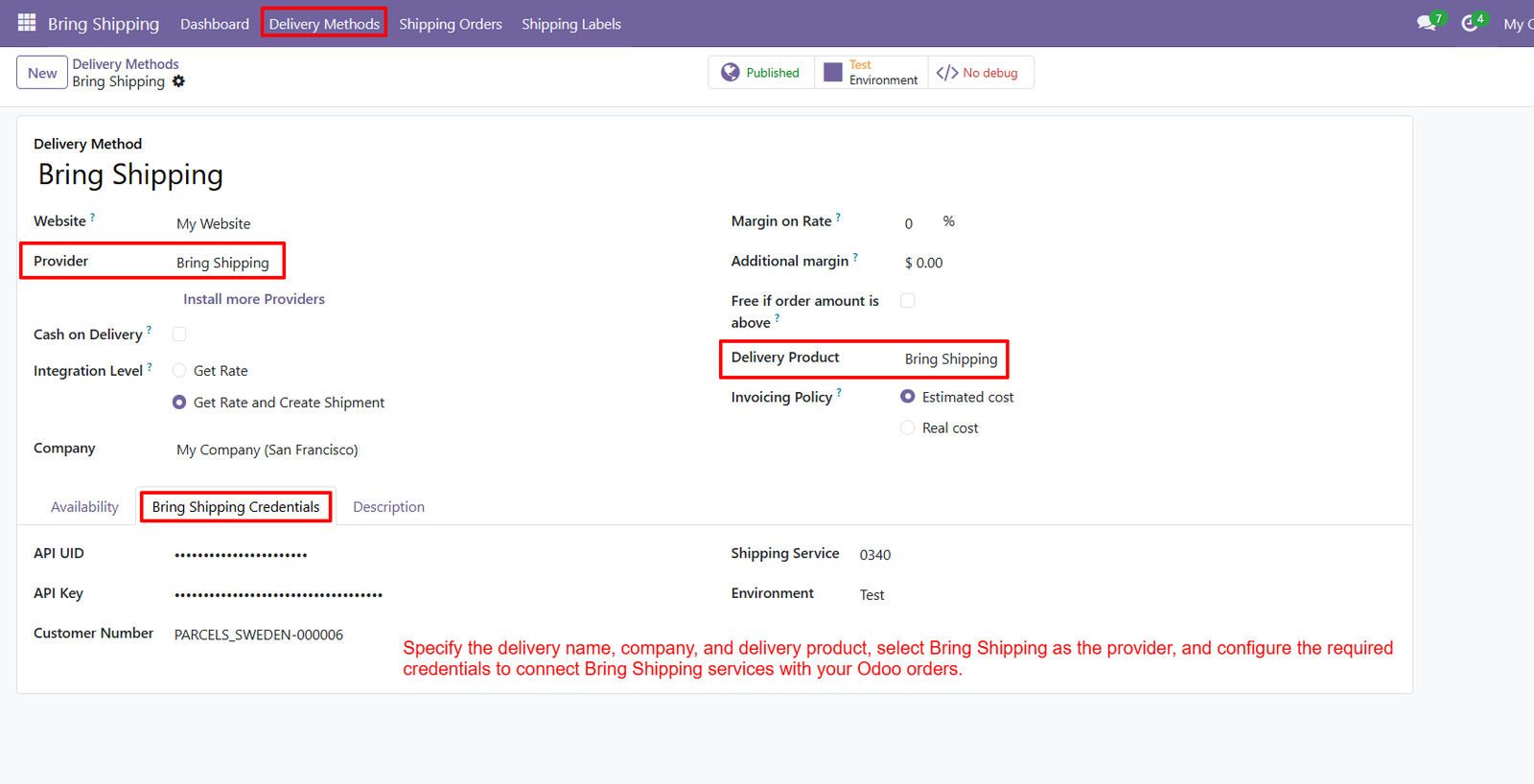
Bring Shipping Configuration — Configure delivery names, companies, delivery products, Bring Shipping providers, and required credentials directly within your Odoo environment.
-
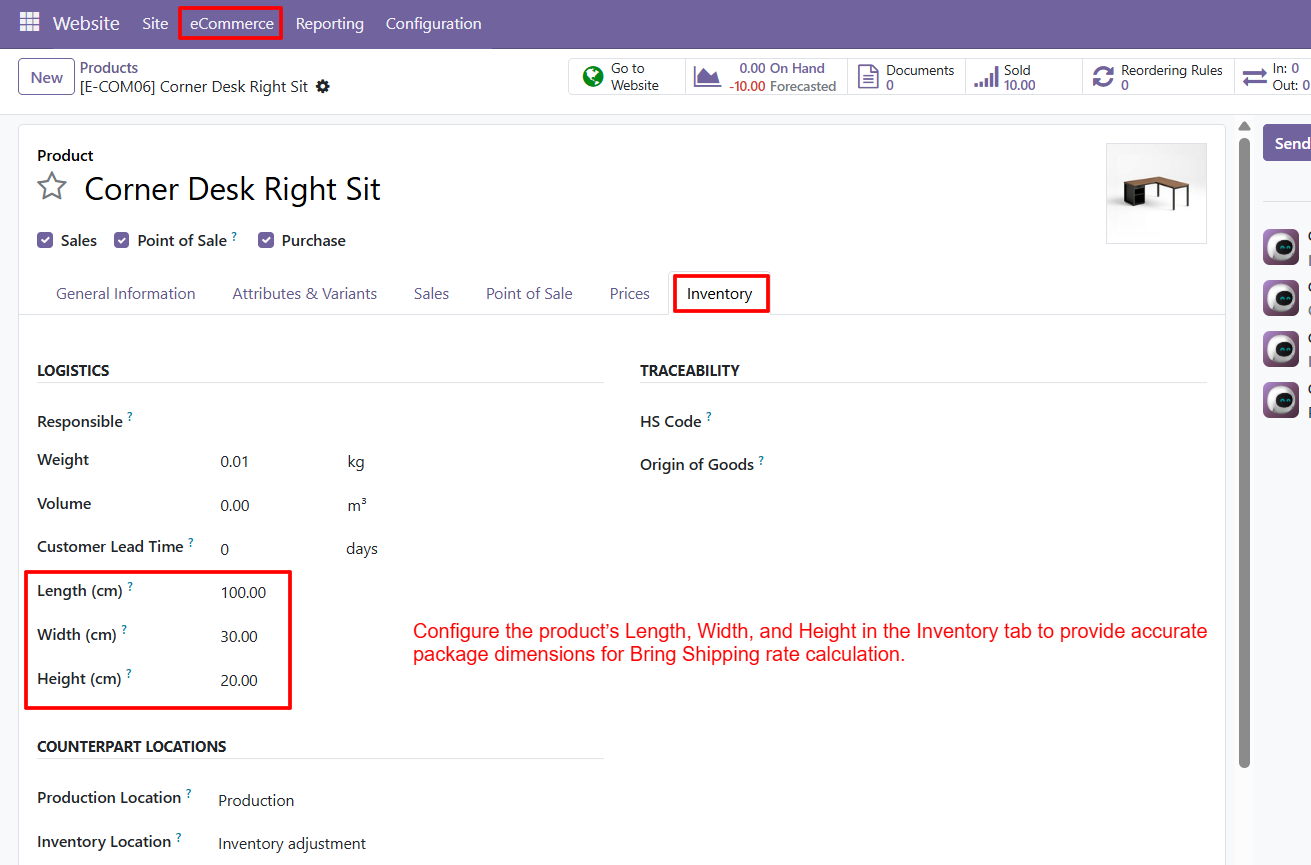
Dimension-Based Rate Calculation — Configure product length, width, and height dimensions to provide accurate package information for Bring Shipping rate calculations.
-
Shipping Rate Calculation — Select Bring Shipping from Sales Orders and use the Get Rate option to calculate applicable delivery charges.
-
Automated Delivery Charges — Automatically apply calculated Bring Shipping delivery costs to customer orders, reducing manual shipping-cost entry during order processing.
-
Website Shipping Method — Allow customers to select Bring Shipping as their preferred delivery method during the Odoo website checkout process.
-
Tracking Reference Generation — Generate tracking references after delivery validation and make shipment tracking information available directly within Odoo delivery orders.
-
Shipping Label Generation — Generate Bring Shipping labels after validating deliveries, providing essential shipment and package information for fulfillment operations.
-
Shipping Order Management — Manage Bring Shipping orders with sales references, carriers, tracking numbers, parcel information, sender details, and recipient information.
-
Shipping Label Management — View generated shipping labels together with related shipping orders, creation dates, filenames, file sizes, and detailed label information.
-
Parcel Information Management — Maintain important parcel information, including package weight, customer details, shipping references, and delivery-related information within Odoo.
-
Sender Details Management — Access sender company and warehouse information directly from Bring Shipping orders for organized shipment processing and fulfillment.
-
Recipient Details Management — View recipient information within shipping orders, helping users maintain clear destination details throughout the delivery workflow.
-
Shipment Activity Visibility — Keep shipping-related activity centralized in Odoo, making shipment progress and delivery information easier to access and manage.
-
Shipping Performance Monitoring — Monitor shipment performance through the centralized dashboard to gain a clearer overview of ongoing shipping operations.
Use Cases: Who Needs This Module?
-
E-commerce Businesses — Ideal for online businesses that need to calculate delivery rates, apply shipping charges, generate labels, and manage shipments directly from Odoo.
-
Retail Businesses — Helps retailers streamline order delivery by connecting Sales Orders with Bring Shipping and centralized shipment management.
-
Businesses Using Odoo Website — Useful for businesses that want customers to select Bring Shipping during checkout and view calculated delivery charges.
-
Businesses Managing Multiple Shipments — Suitable for companies handling multiple deliveries that need centralized visibility of shipping orders, tracking references, labels, and parcel information.
-
Logistics & Fulfillment Teams — Helps fulfillment teams manage shipping orders, sender and recipient details, parcel information, tracking numbers, and shipping labels from Odoo.
-
Businesses Requiring Accurate Shipping Rates — Useful for businesses where product dimensions such as length, width, and height are required for Bring Shipping rate calculation.
-
Businesses Needing Shipment Tracking — Suitable for teams that need generated tracking references and shipment activity available directly within their Odoo delivery workflow.
-
Businesses Managing Shipping Labels — Ideal for businesses that regularly generate and manage shipping labels containing shipment, reference, tracking, and package information.
-
Odoo-Based Sales Teams — Helps sales teams calculate shipping costs directly from Sales Orders and apply delivery charges before completing order processing.
-
Businesses Seeking Centralized Shipping Management — Suitable for organizations that want configuration, rates, delivery charges, shipments, tracking, labels, and parcel information managed within one Odoo workflow
Quick User Guide (Visual Walkthrough)
Scroll up to revisit the detailed image-wise walkthrough.
Step 1: Centralized Shipment Overview — Monitor total shipments from one dashboard to quickly understand overall shipping activity and maintain centralized visibility across delivery operations efficiently.
Step 2: Bring Shipping Provider — Select Bring Shipping as the delivery provider to connect your Odoo delivery workflow with Bring Shipping services efficiently.
Step 3: Product Length Configuration — Configure product length in centimeters within Odoo Inventory to provide package dimensions required for Bring Shipping rate calculations during processing.
-
Product Width Configuration — Enter product width in centimeters to help Bring Shipping determine package measurements when calculating appropriate delivery rates for customer orders.
-
Product Height Configuration — Specify product height in centimeters so the integration can use complete package dimensions during Bring Shipping rate calculations for deliveries.
-
Accurate Dimension Management — Maintain accurate product dimensions in the Inventory tab before calculating shipping costs through the Bring Shipping delivery method for orders.
-
Complete Package Measurements — Use length, width, and height together to provide complete package measurements for more accurate Bring Shipping rate calculation during processing.
-
Inventory Dimension Setup — Open the product Inventory tab to access logistics information and configure package dimensions required for Bring Shipping integration and calculations.
-
Shipping Rate Support — Product dimensions provide essential package information that supports shipping rate calculations when orders are processed through the Bring Shipping method.
-
Product-Level Configuration — Configure dimensions directly on individual Odoo products so shipping calculations can use package measurements during delivery cost estimation for orders.
-
Consistent Length Information — Accurate length values help ensure the package measurement information supplied to Bring Shipping remains consistent with configured products during processing.
-
Consistent Width Information — Accurate width values contribute to complete package measurements used when determining Bring Shipping delivery costs for customer orders during shipping.
-
Complete Height Information — Accurate height values complete package measurements and provide required dimensional information for Bring Shipping shipping calculations during processing directly in Odoo.
-
Updated Package Dimensions — Keep product dimensions updated whenever packaging specifications change to maintain reliable package information for Bring Shipping rate calculations and deliveries.
-
Centimeter-Based Measurements — Configure dimensions using the appropriate centimeter values shown in the product Inventory tab for consistent shipping information management across orders.
-
Inventory Logistics Management — Use the Inventory tab’s logistics section to maintain product measurements alongside other information needed for shipping operations and package preparation.
-
Pre-Order Dimension Preparation — Prepare product dimensions before creating sales orders to ensure package information is available for Bring Shipping rate calculation during fulfillment.
-
Shipping Workflow Integration — Dimension configuration helps connect product packaging information with the shipping workflow when calculating delivery charges through Bring Shipping for orders.
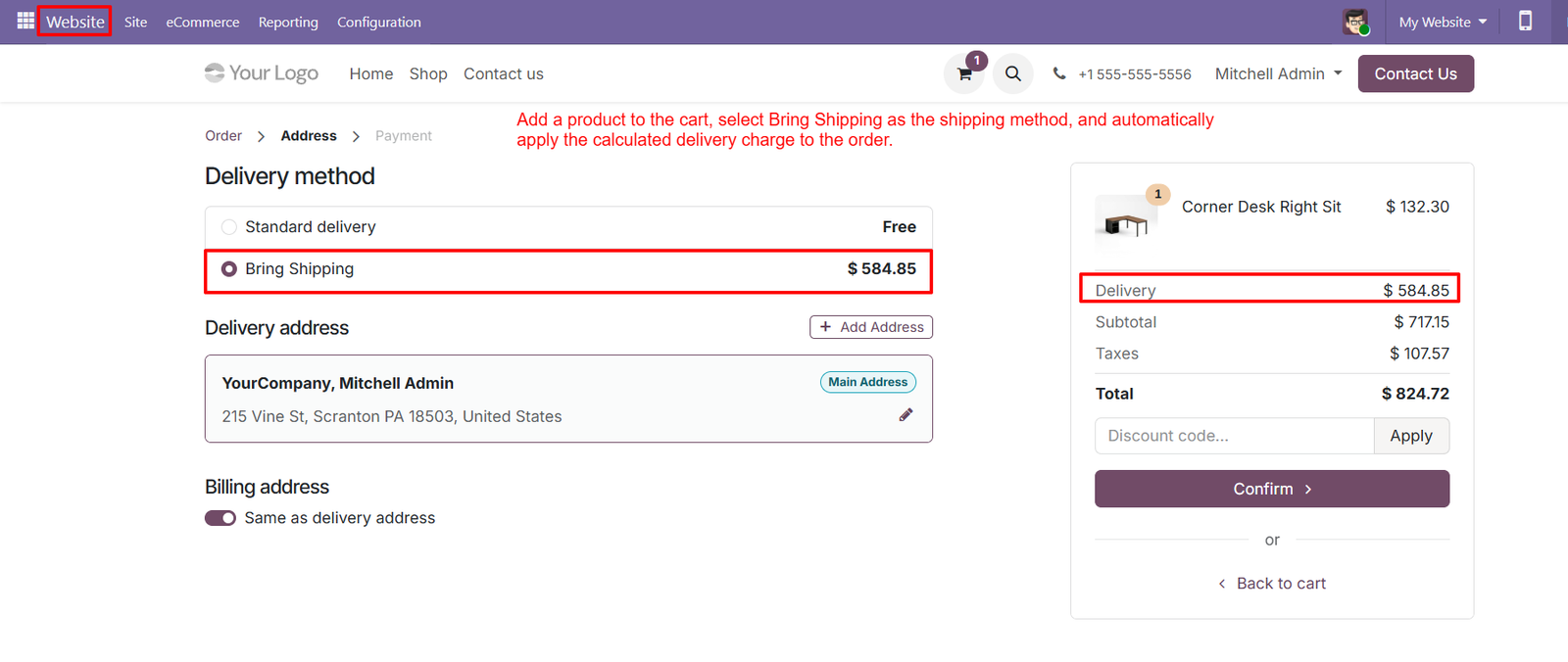
Step 4: Bring Shipping Selection — Customers can select Bring Shipping during Odoo website checkout and view the calculated delivery charge before confirming their order online.
-
Delivery Method Option — Bring Shipping appears as a delivery method option, allowing customers to choose shipping according to their preferred fulfillment method during checkout.
-
Visible Delivery Charge — The calculated Bring Shipping delivery charge is displayed clearly within the order summary for better customer cost visibility during checkout.
-
Automatic Shipping Cost — Shipping costs are automatically added to the order when customers select Bring Shipping as their preferred delivery method during checkout.
-
Complete Order Summary — Customers can review product pricing, delivery charges, taxes, and final totals together before confirming their Odoo website order successfully online.
-
Clear Shipping Cost — The delivery charge is separated from subtotal and taxes, making shipping costs easier for customers to understand clearly before payment.
-
Checkout Integration — Bring Shipping checkout integration connects the website ordering process with the configured shipping method for streamlined delivery charge calculation and processing.
-
Convenient Checkout Selection — Customers can select Bring Shipping without leaving the Odoo checkout page, creating a convenient and centralized online ordering experience.
-
Shipping Options Display — The delivery method section clearly presents available shipping options, including Bring Shipping, directly within the customer checkout workflow.
-
Calculated Delivery Amount — Bring Shipping calculates the delivery amount and displays it alongside the order summary before customers confirm their online purchase successfully.
-
Delivery Address Verification — Customers can verify their delivery address while selecting Bring Shipping, helping ensure shipping charges are calculated for the correct destination.
-
Accurate Delivery Processing — The checkout screen displays the selected delivery address together with Bring Shipping, supporting accurate order fulfillment and delivery processing.
-
Website Delivery Availability — Businesses can provide Bring Shipping as an available website delivery option for customers purchasing products through their Odoo online store.
-
Updated Order Total — The shipping charge updates the order total, helping customers understand the complete amount payable before confirming their website purchase successfully.
-
Connected Order Workflow — Bring Shipping checkout selection helps connect customer orders with the configured delivery method and calculated shipping charge inside Odoo efficiently.
-
Delivery Method Comparison — Customers can compare available delivery methods on the checkout page and select Bring Shipping when it suits their delivery requirements.
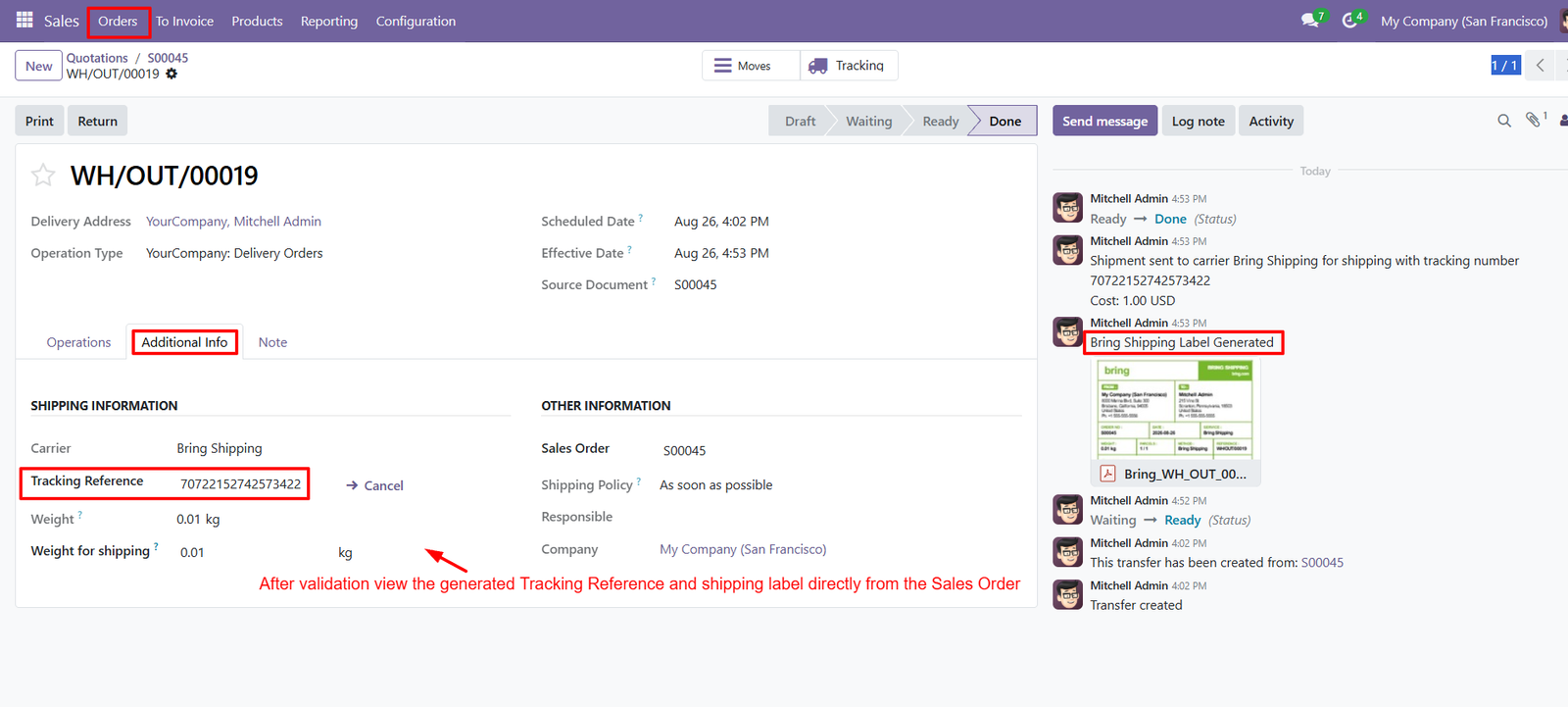
Step 5: Tracking Reference — After validation, Odoo displays the generated Bring Shipping tracking reference directly within the delivery order for convenient tracking.
-
Shipping Label Generation — The integration generates a Bring Shipping label after validation, making shipment information available directly from the delivery workflow.
-
Carrier Information — View Bring Shipping as the assigned carrier within the delivery order, providing visibility into the selected shipping service.
-
Delivery Status — Monitor delivery status through Odoo stages, helping users identify whether shipments are progressing through the fulfillment workflow successfully.
-
Additional Information — Access shipping details from the Additional Info tab, including carrier, tracking reference, weight, sales order, and company information.
-
Tracking Number Access — The tracking number remains visible within the delivery order, allowing users to reference information without leaving Odoo.
-
Shipping Weight — View recorded shipment weight directly within shipping information, helping users review package details associated with the validated delivery.
-
Weight For Shipping — Review the weight used for shipping calculations, providing additional visibility into package information within the delivery order.
-
Sales Order Reference — Connect the delivery shipment with its originating Sales Order, making tracing fulfillment information back to orders easier.
-
Shipment Activity — Review shipment-related activities in the chatter, including carrier communication, tracking information, status changes, and generated shipping label notifications.
-
Shipment Creation — The delivery record confirms that the transfer was created from the related Sales Order, supporting traceability throughout fulfillment.
-
Carrier Shipment Confirmation — Odoo records that the shipment was sent to Bring Shipping, confirming the shipping process has been initiated.
-
Label Notification — A Bring Shipping Label Generated notification appears in the activity stream, confirming shipping label creation after delivery processing.
-
Delivery Validation — Validating the delivery triggers the shipping workflow, allowing the system to generate tracking information and the shipping label.
-
Source Document — View the source Sales Order reference from the delivery order to maintain a connection between sales and fulfillment.
-
Scheduled Delivery Date — Review the scheduled delivery date within the delivery order to understand when shipment was planned for fulfillment.
-
Effective Date — The effective date records when the delivery operation was completed, helping users review actual fulfillment timing w
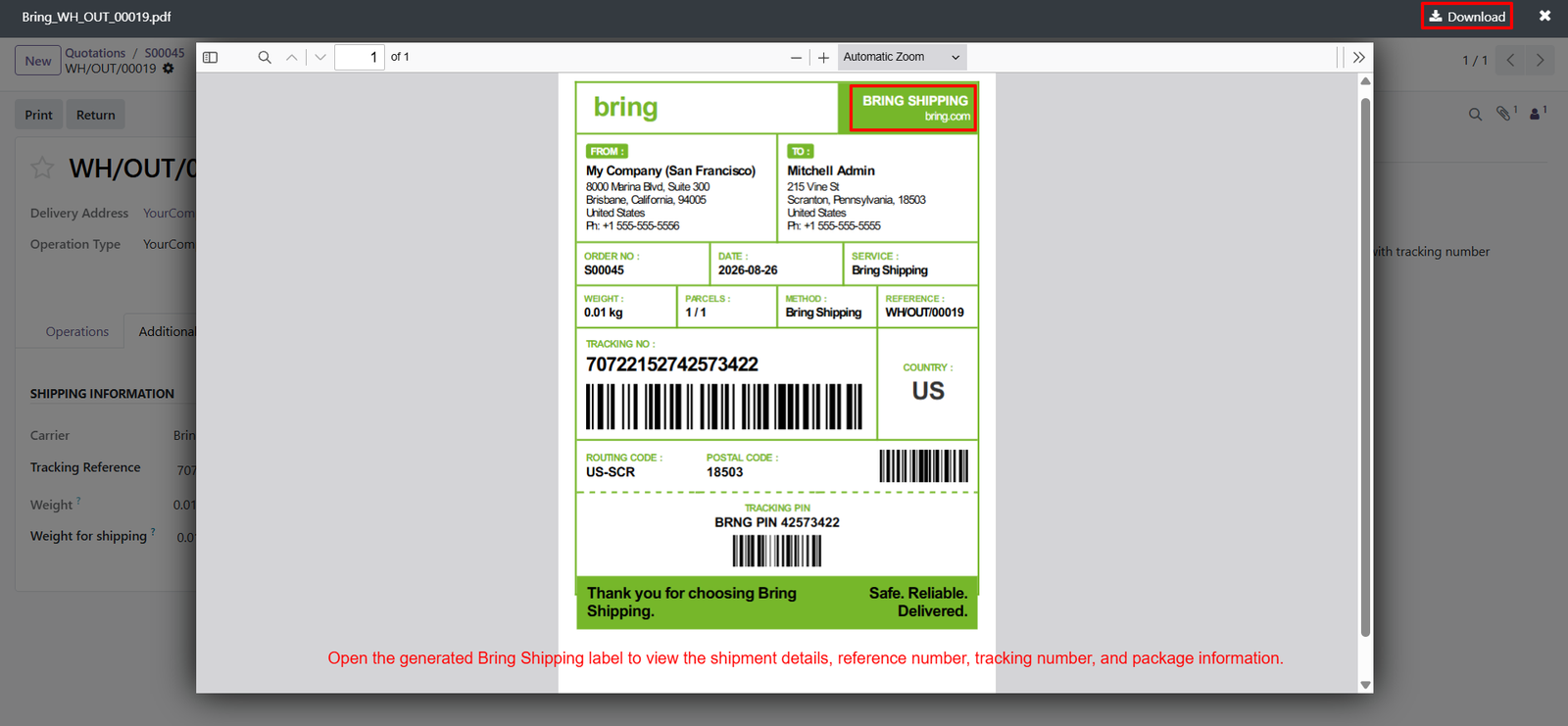
Step 6: Shipment Label Overview — View the generated Bring Shipping label to access sender and recipient information, order reference, service, weight, parcel, and tracking details.
-
Bring Shipping Branding — Display the Bring Shipping branding prominently on generated labels, helping users quickly identify the carrier associated with each shipment easily.
-
Sender Information — Include sender company information on the label so shipping teams can verify the origin details before dispatching customer packages accurately.
-
Recipient Information — Show recipient name and complete delivery address on the label for accurate package identification and destination verification during fulfillment processes.
-
Sales Order Reference — Display the sales order number on generated labels, creating a clear connection between the shipment and its originating customer order.
-
Shipment Date — Show the shipment date on the label, helping users identify when the package was prepared and processed for delivery successfully.
-
Shipping Service Details — Display the selected Bring Shipping service on labels, allowing users to identify the delivery service associated with each shipment easily.
-
Package Weight — Include shipment weight on the label so package information remains visible for handling, verification, and shipping documentation purposes during fulfillment.
-
Parcel Quantity — Display parcel quantity on generated labels, helping fulfillment teams understand the number of packages included within each shipment clearly successfully.
-
Shipping Method — Show the shipping method clearly on labels, identifying Bring Shipping as the selected delivery method for the generated shipment record.
-
Delivery Reference — Include the Odoo delivery reference on the label, providing an internal reference for connecting printed documentation with shipping records efficiently.
-
Tracking Number — Display the generated tracking number prominently, allowing users to identify and reference the shipment throughout the complete delivery process easily.
-
Tracking Barcode — Generate a barcode containing shipment tracking information, supporting convenient scanning and identification during package handling and delivery operations efficiently reliably.
-
Destination Country — Display the destination country on the label, providing clear geographic information for shipment handling and delivery processing requirements internationally effectively.
-
Routing Code — Include the routing code on the label to provide additional shipment routing information associated with the generated Bring Shipping package.
-
Postal Code — Display the recipient postal c
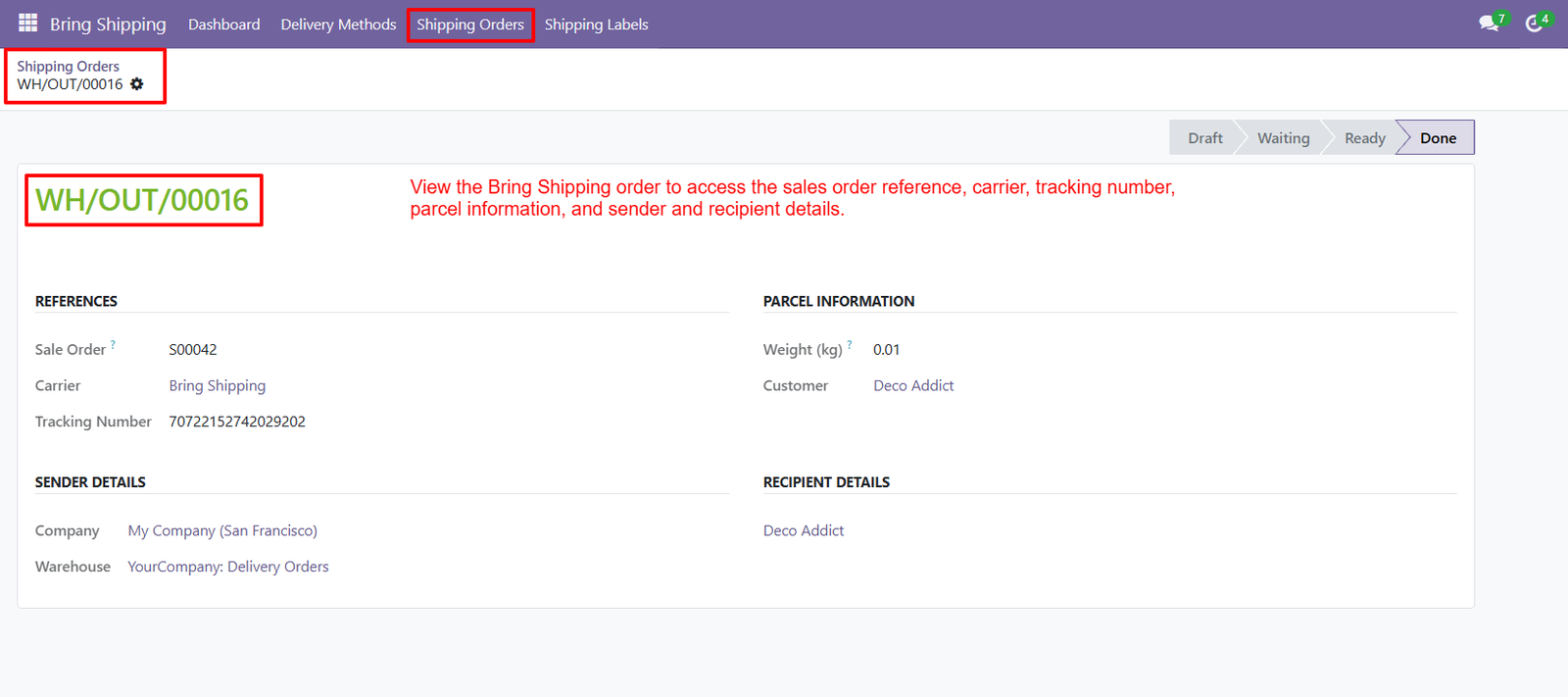
Step 7: Shipping Order Reference — View each Bring Shipping order with its unique reference, making individual shipments easy to identify and manage efficiently within Odoo.
-
Sales Order Reference — Access the sales order reference directly from the shipping order to maintain clear connections between customer orders and associated deliveries.
-
Carrier Information — Display Bring Shipping as the assigned carrier, providing immediate visibility into which shipping provider handles each individual delivery order records.
-
Tracking Number — View the tracking number within the shipping order, allowing users to reference shipment tracking information without navigating through separate records.
-
Parcel Weight — Monitor parcel weight directly from the shipping order, providing essential package information for shipment review and delivery management activities effectively.
-
Customer Information — Access customer information within parcel details, helping users quickly identify the customer associated with each individual Bring Shipping shipment easily.
-
Sender Company Details — Review sender company information directly within the shipping order for better visibility into the shipment’s origin and fulfillment details clearly.
-
Warehouse Information — View the warehouse associated with the shipping order, helping users identify the location responsible for processing and dispatching deliveries efficiently.
-
Recipient Details — Access recipient details within the shipping order to keep destination information visible alongside carrier, tracking, and parcel information clearly organized.
-
Shipping Order Status — Monitor shipping order status through workflow stages, helping users understand whether shipments are draft, waiting, ready, or completed successfully today.
-
Centralized Shipment References — Centralize shipment references, carrier information, and tracking numbers within one shipping order record for convenient and organized delivery management operations.
-
Connected Parcel Information — Keep parcel information connected with customer details, allowing users to review important shipment information from a single organized interface efficiently.
-
Easy Shipment Identification — Use shipping order references to quickly distinguish individual Bring Shipping deliveries when managing multiple shipments simultaneously within Odoo systems effectively.
-
Carrier and Tracking Visibility — Review carrier and tracking details together, making it easier for shipping teams to follow shipment information throughout fulfillment operations efficiently.
-
Sender and Recipient Management — Maintain sender and recipient information within the same record, reducing the need to search across multiple Odoo screens during shipping.
-
Package Information Review — Access shipment weight and customer information from parcel details, supporting organized review of package information before completing delivery operations successfully.
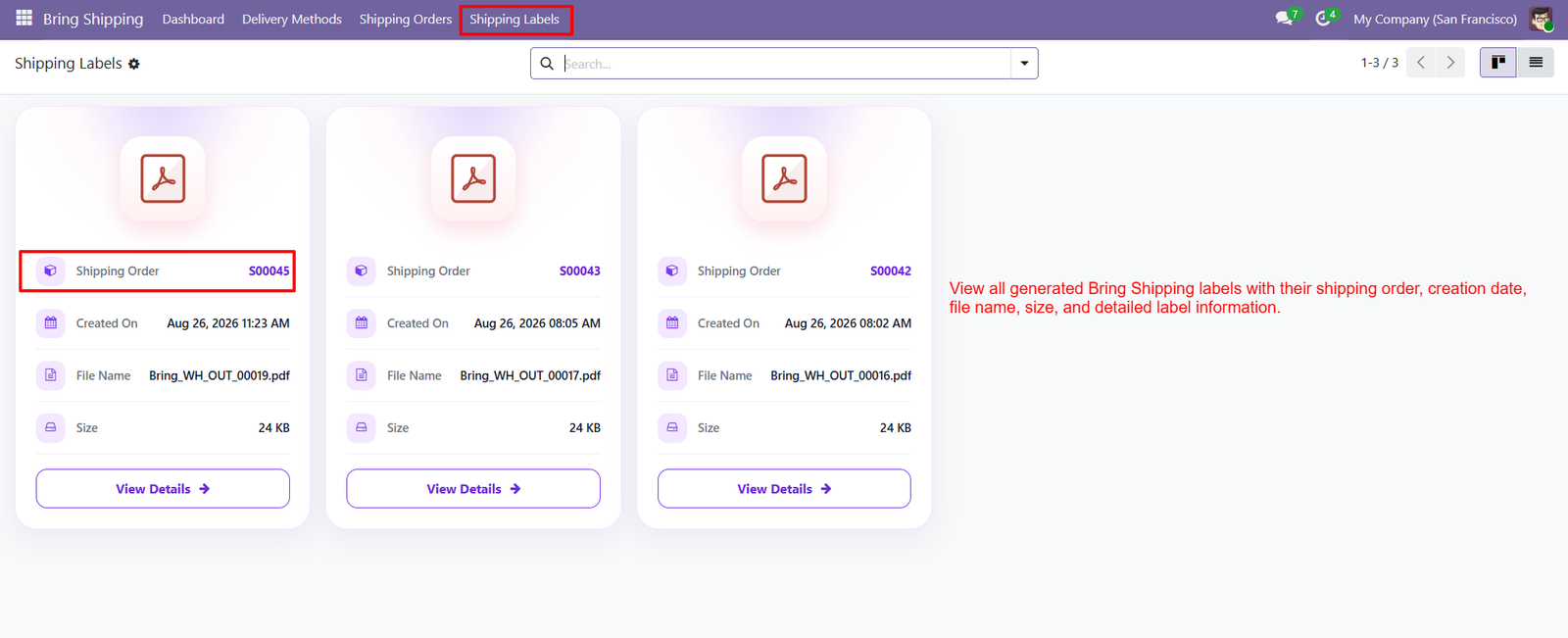
Step 8: Centralized Shipping Labels — View all generated Bring Shipping labels from one centralized Odoo interface, making shipment documentation easier to organize and manage.
-
Shipping Order Reference — Each label displays its associated shipping order reference, helping users quickly identify the shipment connected with each generated label.
-
Label Creation Date — View the exact creation date and time for each shipping label, providing useful information for shipment documentation and tracking.
-
PDF File Name — Display the generated shipping label PDF filename, making individual label documents easier to identify and access within Odoo.
-
Label File Size — View the size of each generated PDF label to understand document storage information directly from the shipping labels interface.
-
PDF Label Preview — Identify generated shipping labels through PDF document icons, providing a clear visual indication of available shipment documentation within Odoo.
-
View Label Details — Open individual label records using the View Details option to access more information about generated Bring Shipping labels.
-
Multiple Labels Management — Manage multiple generated shipping labels from the same interface, allowing users to review different shipment documents efficiently within Odoo.
-
Shipping Document Organization — Keep generated Bring Shipping PDF documents organized alongside their related shipping orders for convenient shipment documentation management and access.
-
Easy Label Identification — Use shipping order references, filenames, and creation timestamps to quickly identify specific labels among multiple generated shipping documents.
-
Label History Visibility — Review previously generated labels through the Shipping Labels section, providing centralized visibility into available shipment documentation and records.
-
Quick Label Access — Access individual shipping label information through dedicated cards and View Details buttons for convenient document management and review.
-
Structured Label Cards — Each label appears within a structured card containing shipment reference, creation date, filename, and size for easier information scanning.
-
Shipment Document Tracking — Connect generated PDF labels with shipping orders, making shipment documentation easier to trace and manage throughout delivery operations.
-
Centralized PDF Management — Store and access generated Bring Shipping PDF labels through Odoo, reducing the need to search separate document locations manually.
-
Creation Timestamp Tracking — Label creation timestamps help users determine when individual shipping documents were generated during the Bring Shipping fulfillment workflow.
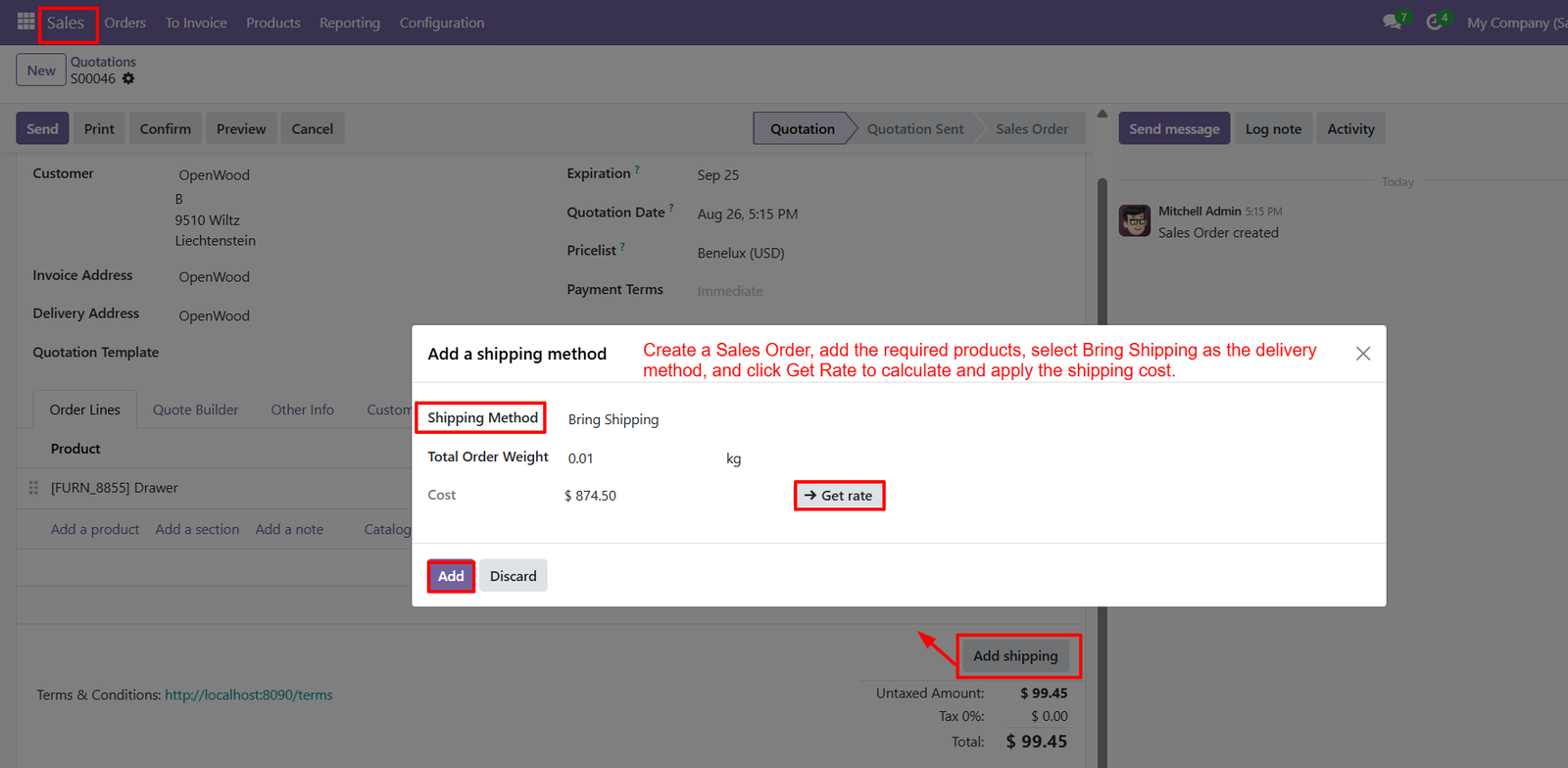
Step 9: Add Shipping Method — Use Add Shipping from the Sales Order to open Bring Shipping configuration and calculate delivery charges.
-
Select Bring Shipping — Choose Bring Shipping as the shipping method to connect the sales order with the configured service.
-
View Total Order Weight — Review total order weight before calculating shipping costs, ensuring information is available for rate requests.
-
Get Shipping Rate — Click Get Rate to calculate the applicable Bring Shipping cost based on order information and configuration.
-
Display Calculated Cost — View the shipping cost inside the shipping method window before adding delivery charges to the order.
-
Add Shipping Charge — Click Add to apply the calculated Bring Shipping delivery charge directly to the customer sales order.
-
Discard Shipping Method — Use Discard to close the shipping method window without applying the delivery charge to the order.
-
Sales Order Integration — Bring Shipping works within Sales Orders, allowing users to calculate and add delivery costs during processing.
-
Product-Based Shipping Calculation — Add required products to the sales order before requesting the Bring Shipping rate for accurate calculation.
-
Shipping Method Visibility — The shipping method window identifies Bring Shipping, helping users verify the selected carrier before calculating charges.
-
Order Weight Information — Total order weight appears in the shipping method window, providing essential package information before requesting rates.
-
Cost Review Before Addition — Review the calculated shipping cost before clicking Add, helping users verify delivery amount before charges.
-
Streamlined Shipping Workflow — Combine shipping method selection, rate calculation, cost review, and delivery charge addition within one Odoo screen.
-
Quick Rate Calculation — Use the Get Rate button to request the applicable Bring Shipping cost for the current order.
-
Delivery Cost Application — Apply the calculated shipping cost to the sales order through Add after successfully retrieving the rate.
-
Customer Order Shipping — Add Bring Shipping charges to customer orders, keeping product and delivery costs together within Sales Order.
Why Use the Bring Shipping Integration for Odoo Module?
The Bring Shipping Integration for Odoo module helps businesses connect Bring Shipping services with their Odoo sales, website, inventory, and delivery workflows. Key benefits include:
- Seamless Bring Shipping Integration — Connect Bring Shipping services directly with Odoo for a more centralized shipping workflow.
- Automated Shipping Rate Calculation — Calculate applicable delivery charges from Sales Orders using the Get Rate functionality.
- Easy Delivery Cost Management — Apply calculated shipping costs directly to customer orders without manually entering delivery charges.
- Website Checkout Support — Allow customers to select Bring Shipping during Odoo website checkout and view calculated delivery charges.
- Product Dimension Support — Configure product length, width, and height to provide package information for shipping calculations.
- Shipment Creation — Create shipments through the configured Bring Shipping delivery method directly from Odoo.
- Tracking Reference Generation — Generate and display tracking references after shipment processing for easier delivery tracking.
- Shipping Label Generation — Generate Bring Shipping labels containing shipment, recipient, sender, tracking, and package information.
- Centralized Shipping Dashboard — Monitor total shipments, delivery statuses, recent shipping orders, live locations, and shipment performance from one dashboard.
- Shipping Order Management — Access sales references, carrier information, tracking numbers, parcel details, sender details, and recipient information centrally.
- Shipping Label Management — View generated labels with shipping order references, creation dates, filenames, sizes, and detailed information.
- Bring Shipping Credentials — Configure API UID, API Key, customer number, shipping service, and environment within the delivery method.
- Flexible Cost Configuration — Configure rate margins, additional margins, free-shipping thresholds, and invoicing policies according to business requirements.
- Improved Shipping Visibility — Keep important shipping information accessible within Odoo instead of managing separate shipping records manually.
- Streamlined Fulfillment — Connect sales orders, product information, delivery charges, shipments, tracking references, and labels within one integrated workflow.